Karaoke Sync® - User Tutorial
Covers Karaoke Sync 3.9.2 · Last updated
The complete guide to Karaoke Sync for iOS and Android — from your first project - from a song, a video, or YouTube - to line and word-by-word lyric timing, recordings with your lyrics on video, karaoke nights, games, and more.
Getting Started
Karaoke Sync turns any song into a karaoke track with perfectly timed lyrics. You import a song, add its lyrics, tap along to time each line, and then practice, sing, record, export — or play games with what you made.
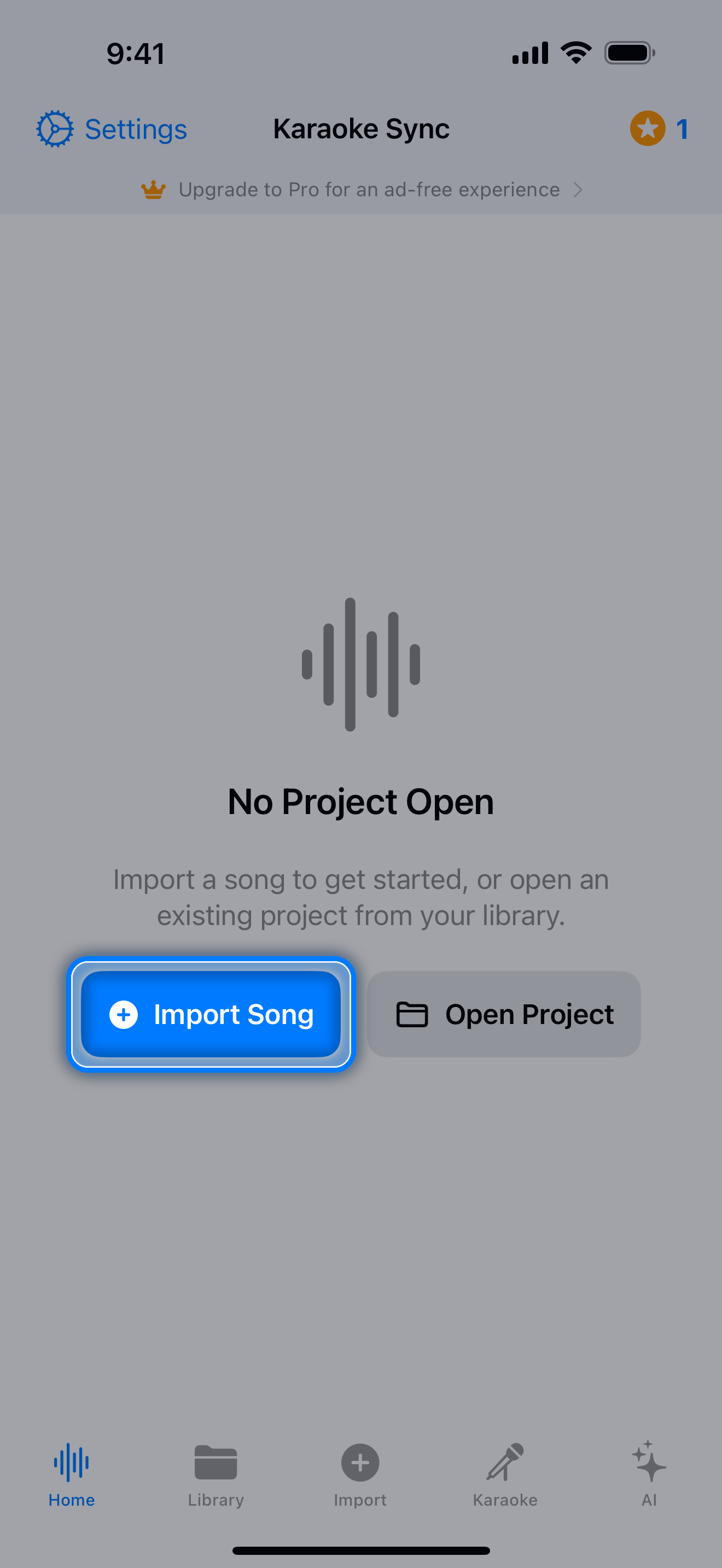
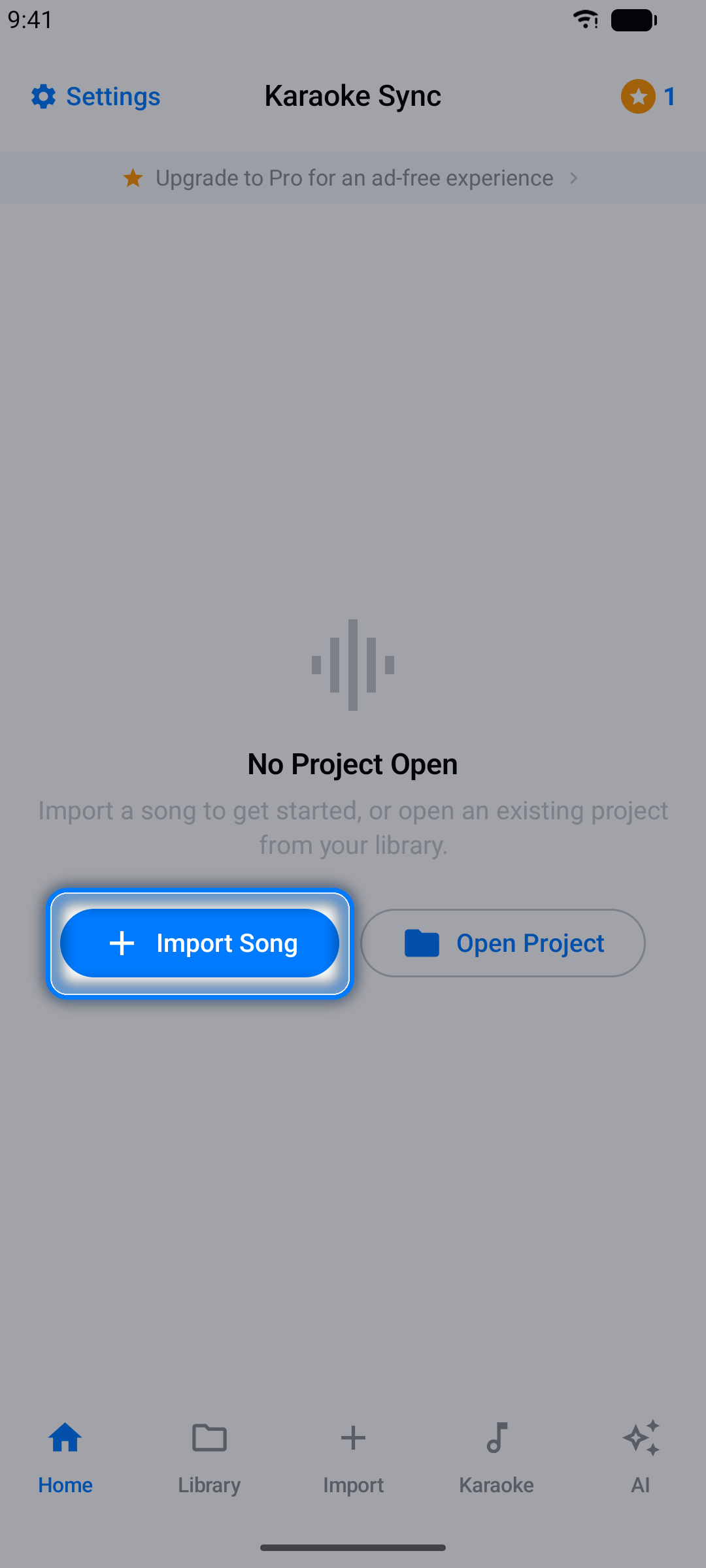
The app is organized into five tabs along the bottom of the screen:
- Home - your project editor, where the current project lives
- Library - all of your saved projects
- Import - create a new project from an audio file, a video, or a YouTube video
- Karaoke - a ready-to-sing catalog of karaoke songs with synced lyrics
- Quiz - song quizzes and fun facts powered by AI
Settings are always one tap away via the Settings button (gear icon) in the top-left corner.
Free vs Pro
- Free: up to 10 projects, 10 exports without ads, and 10 song unlocks a month in the Quiz tab. Free accounts see ads - a banner on some screens and a full-screen ad after you create a new project - and when the free exports or monthly unlocks run out, a short ad or tokens keep things going
- Pro: unlimited projects and exports, 100 song unlocks a month in the Quiz tab, and no ads
You can upgrade any time - see Pro Subscription.
The Built-In Interactive Tutorial
The fastest way to learn Karaoke Sync is inside the app itself. The first time you open it, a welcome screen offers you a guided tour.
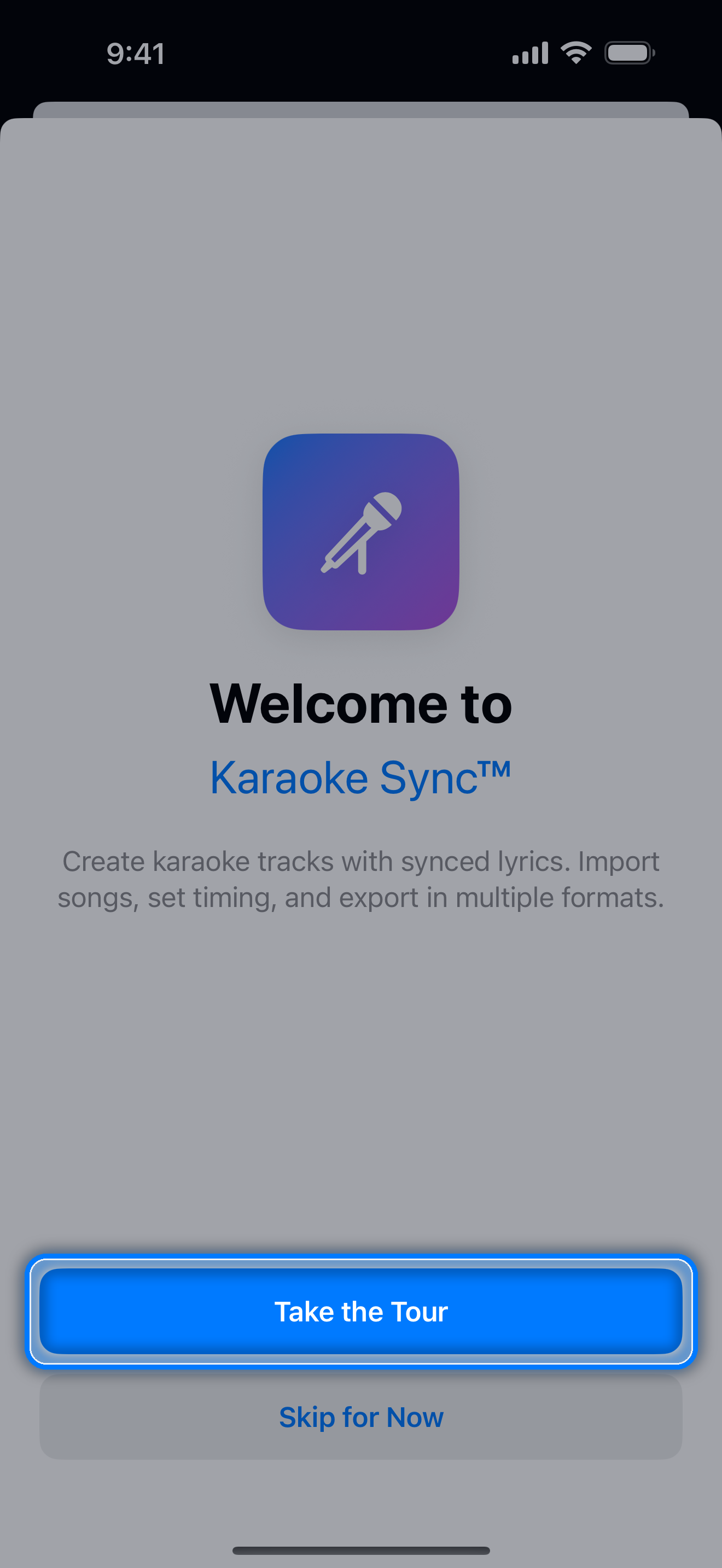
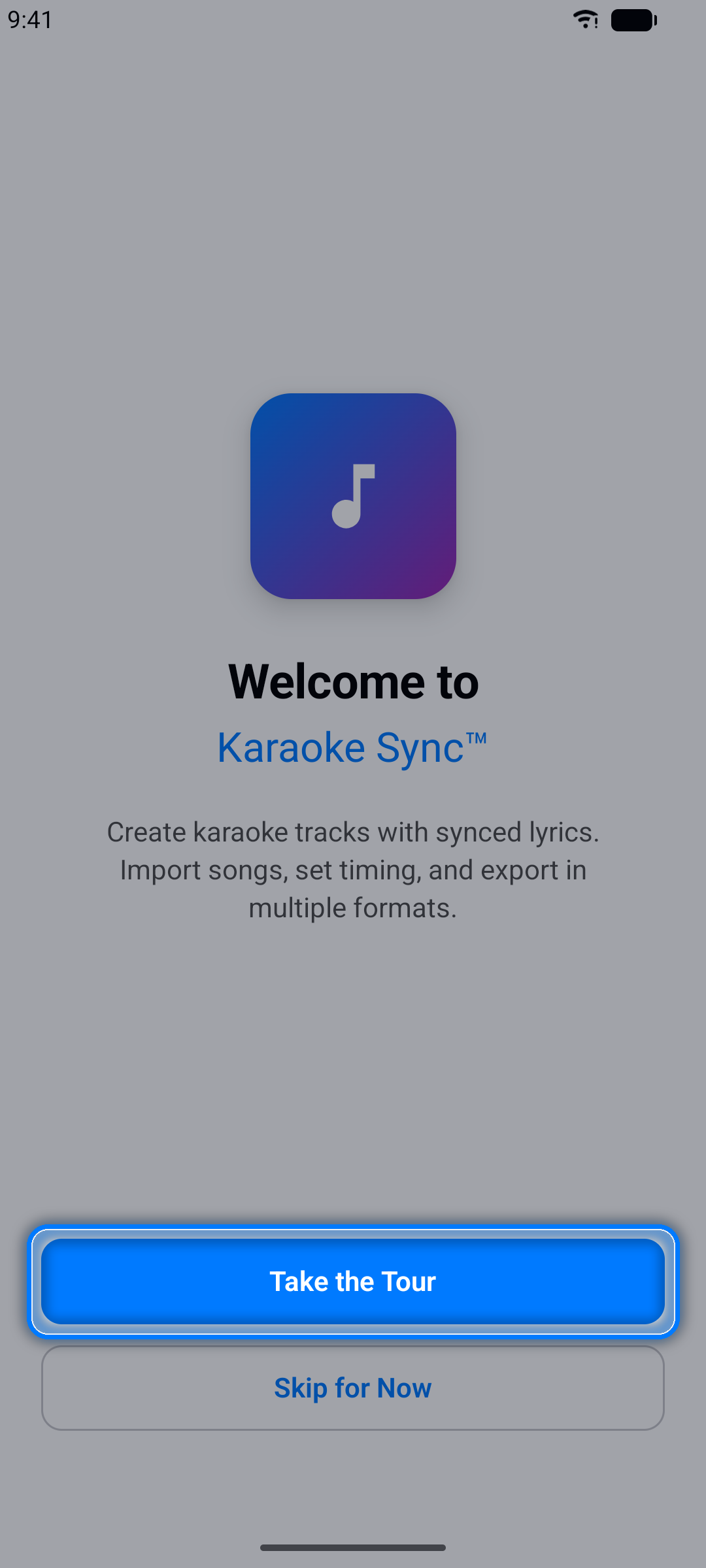
Choose Take the Tour and the app walks you through creating your first project step by step - a glowing spotlight highlights exactly what to tap at every stage, from importing a song to timing your first lyrics.
On Android, each step's card has a Next button - tap it and the app performs that step for you.
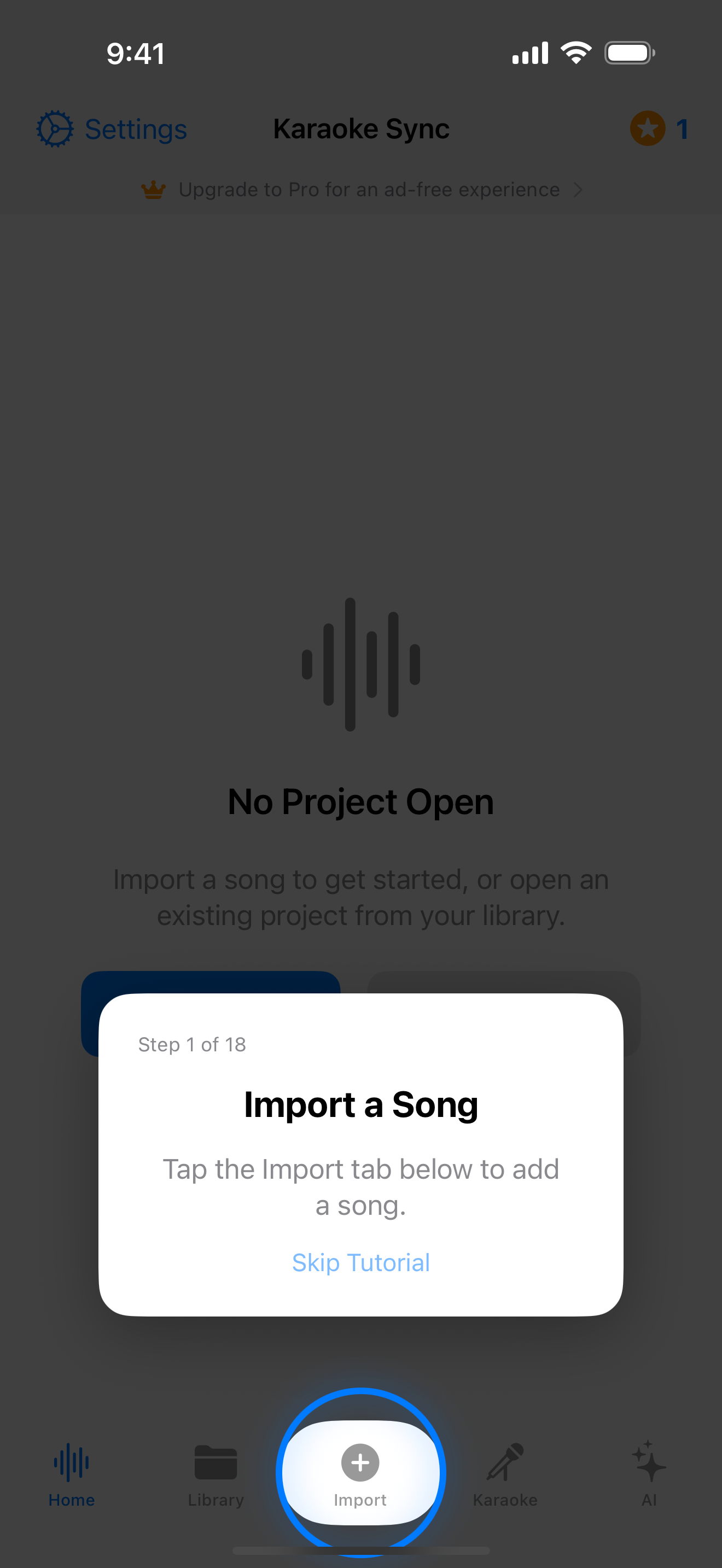
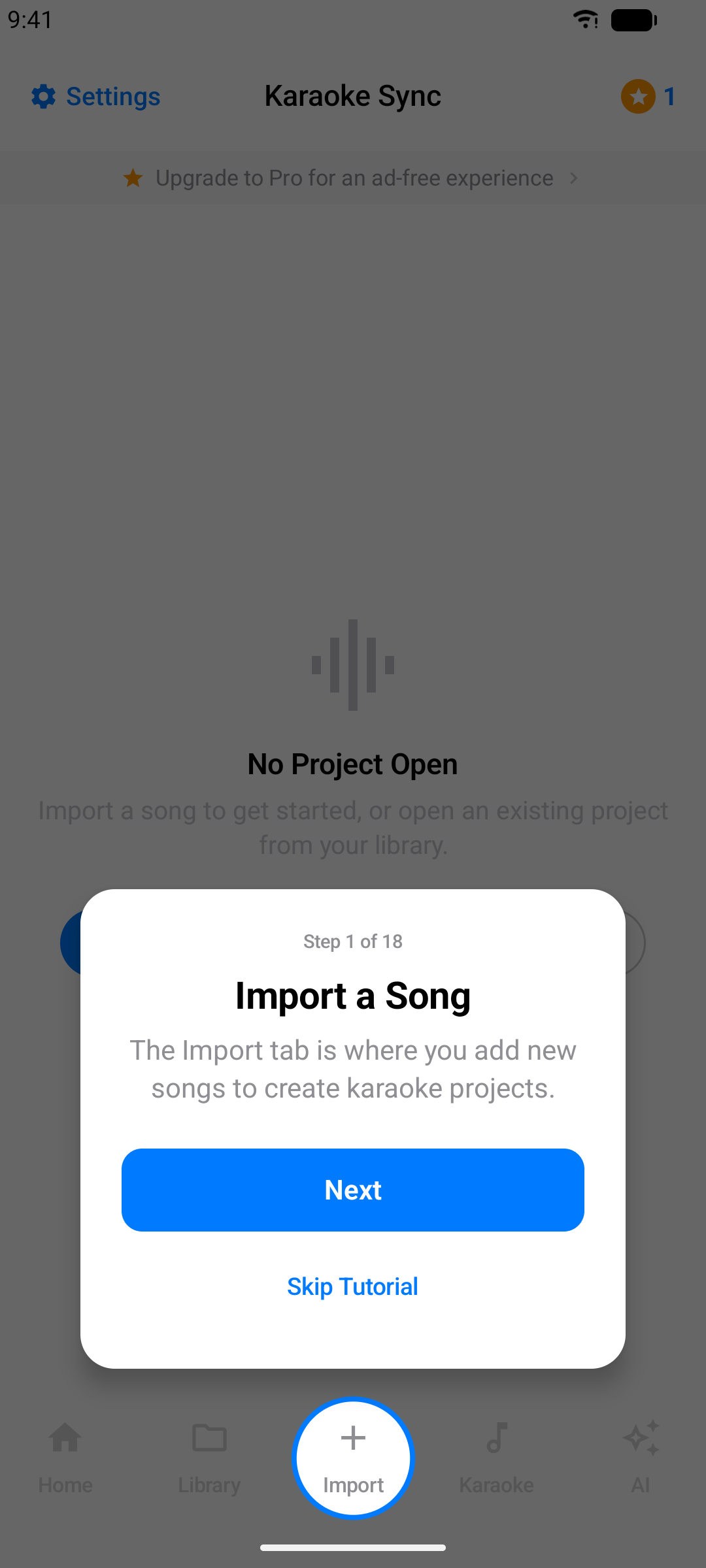
Tip: You can skip the tour and take it later - run it again any time from Settings → Restart Tutorial (the tour creates a practice project, so it needs a free project slot).
This web tutorial covers the same ground in more depth, so you can read along on a second screen while you work.
Creating a Project from Audio
Use this option when you have a song file (MP3, M4A, WAV, FLAC, or AAC) on your device.
Step 1: Open the Import Tab
Tap Import in the bottom tab bar.
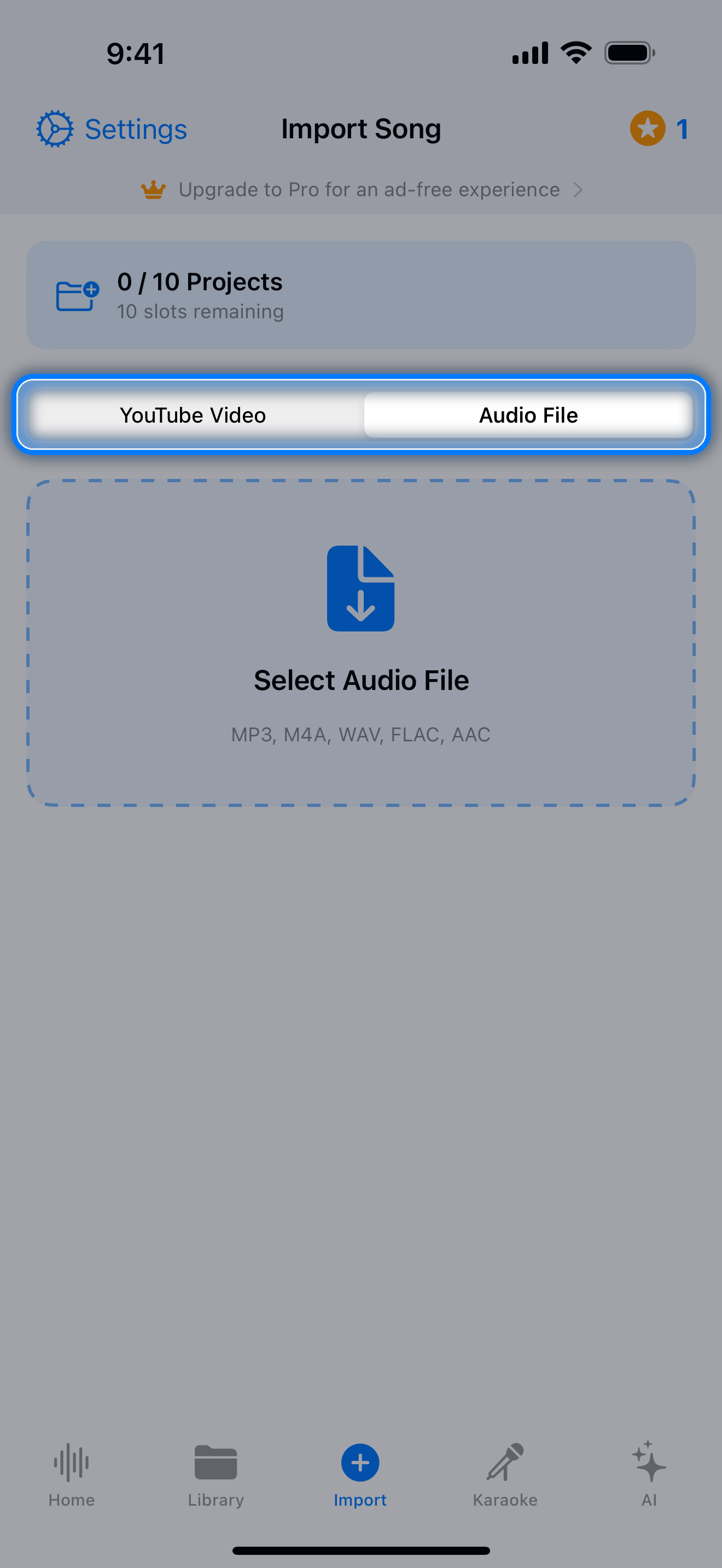
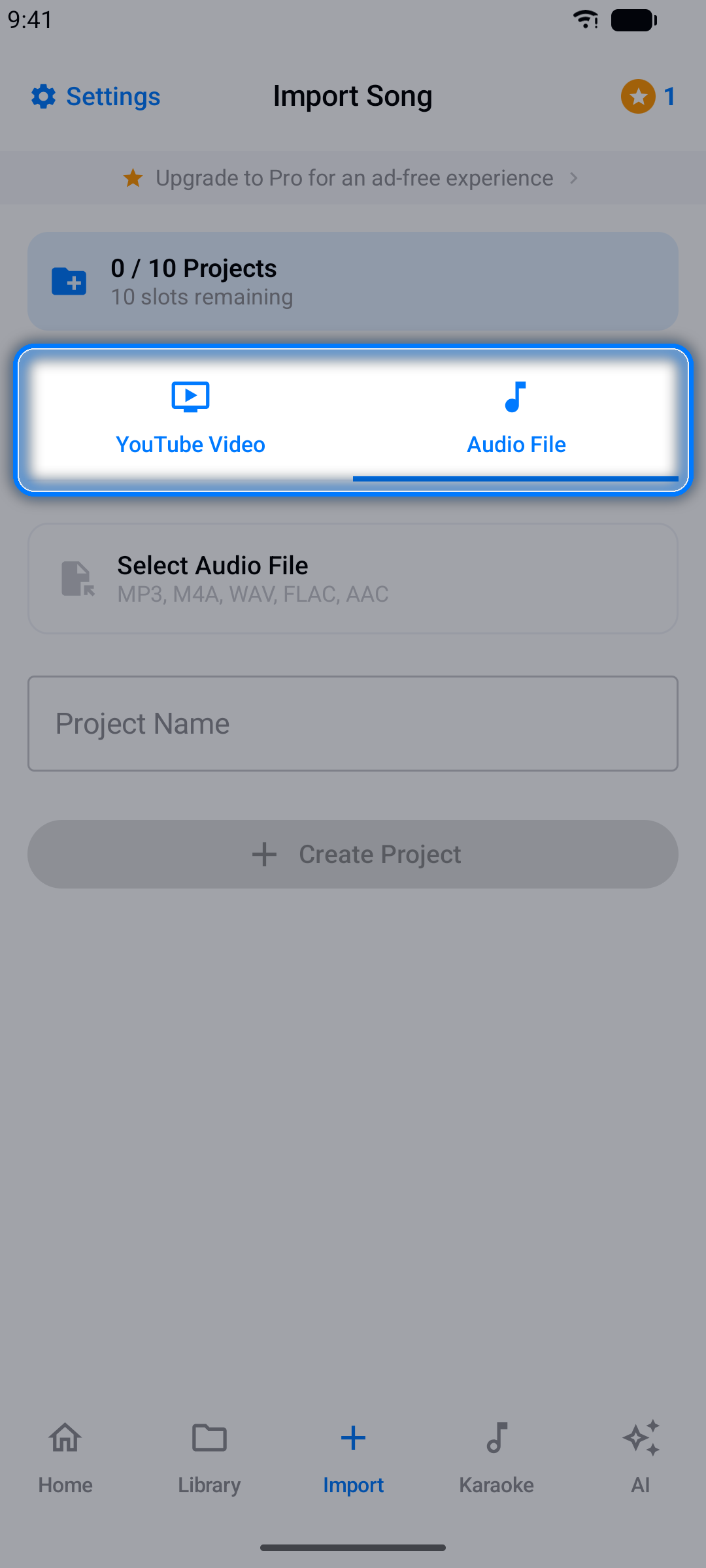
Step 2: Select "Audio / Video"
Switch the source at the top of the screen to Audio / Video (the Import tab starts on YouTube Video).
Step 3: Choose Your Song
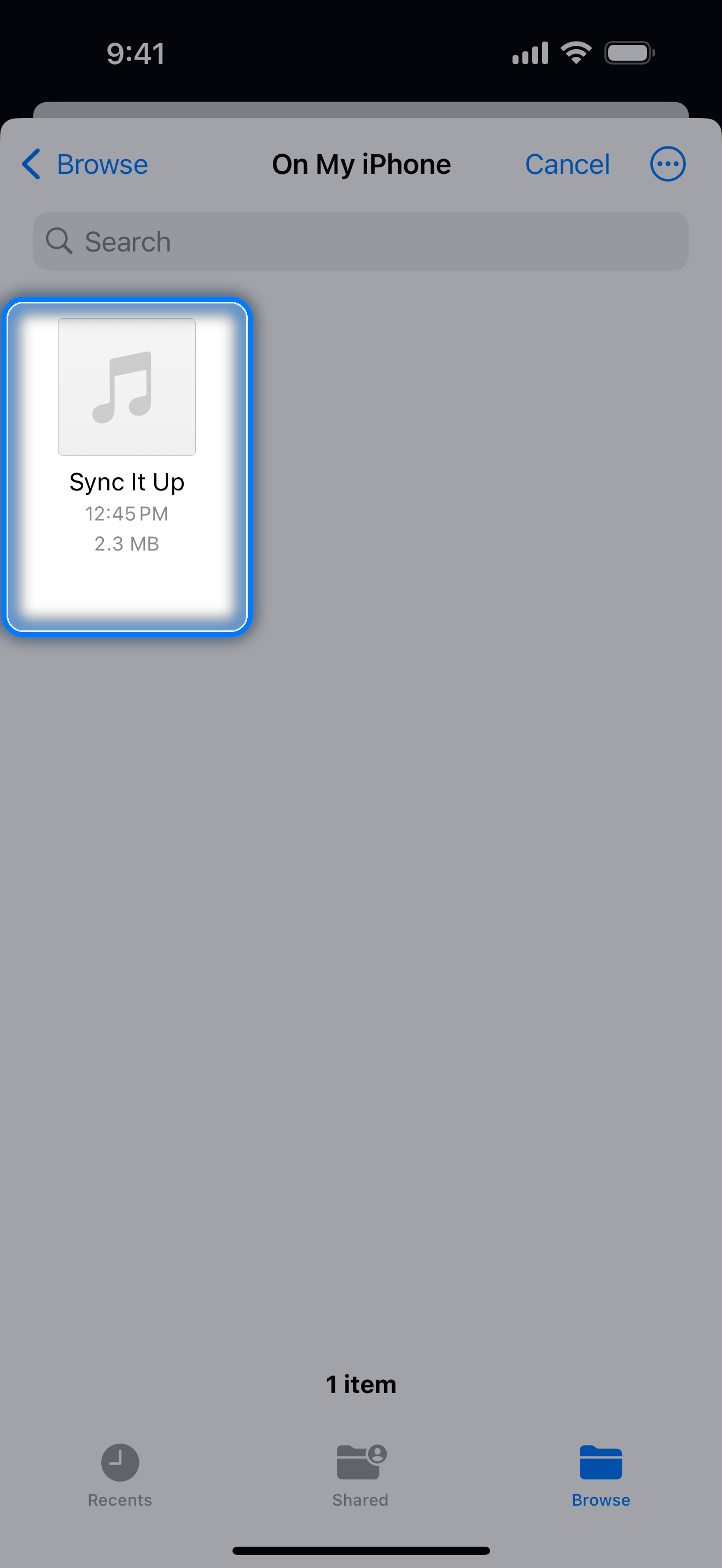
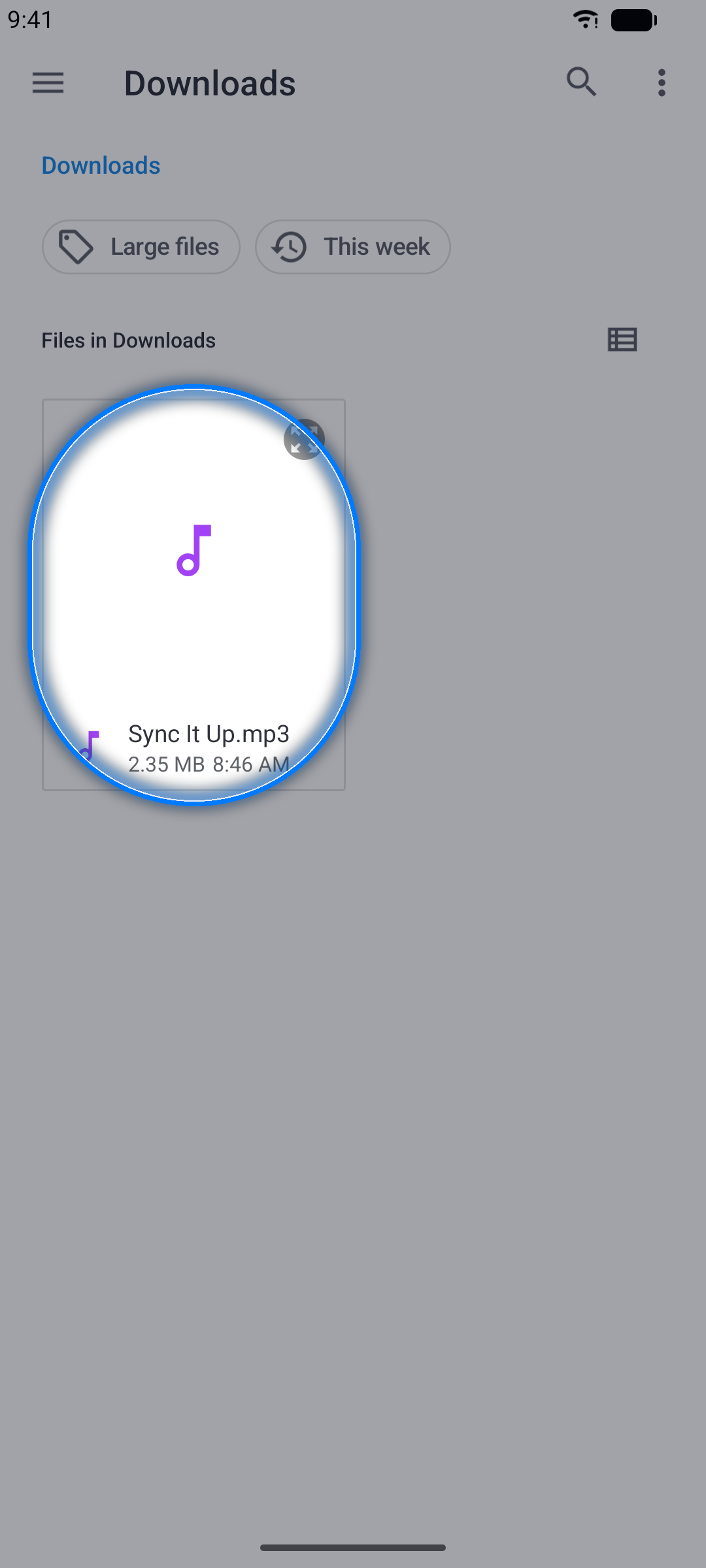
Tap Select Audio File and browse to your song.
Step 4: Create the Project
The project is created as soon as you pick the file, named after it - you can rename it later from the project menu (see Managing Projects).
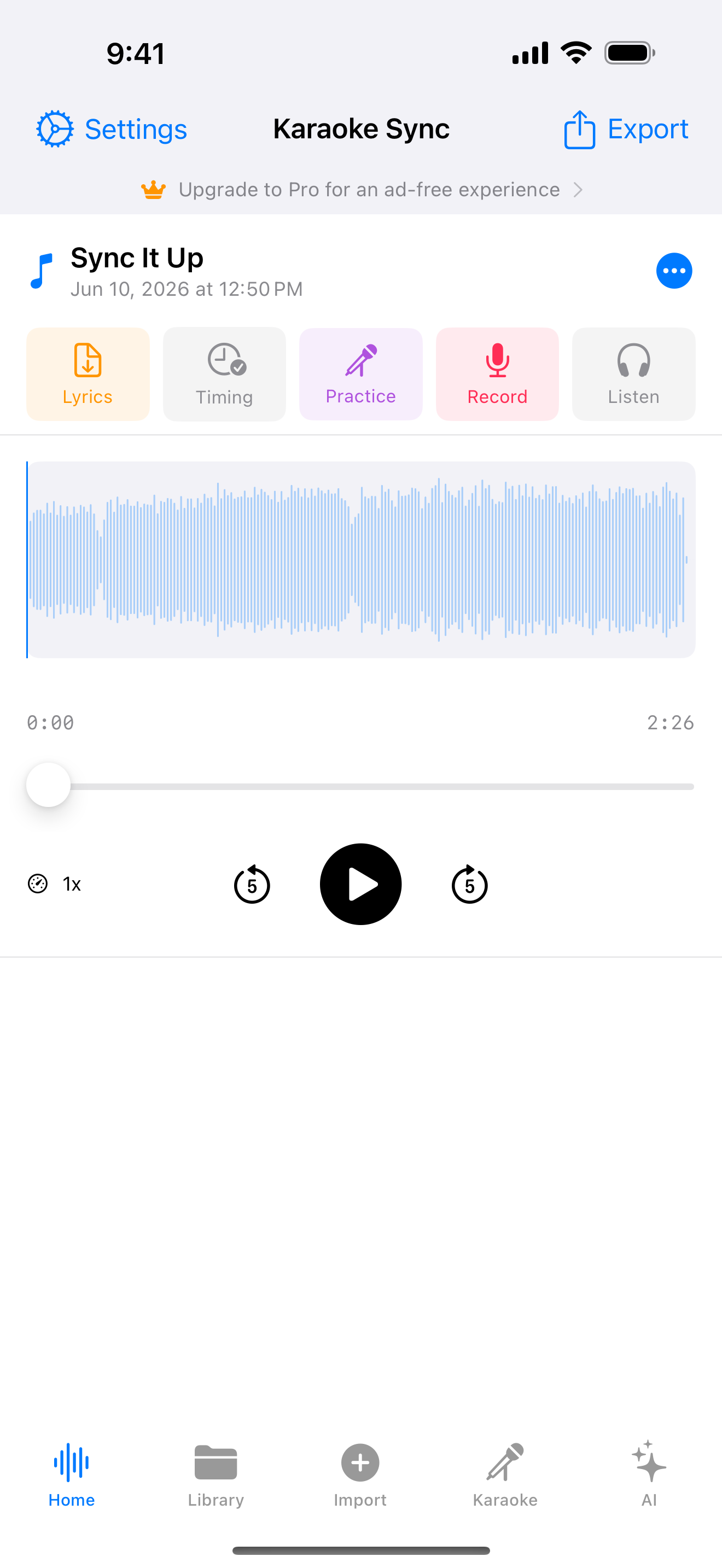
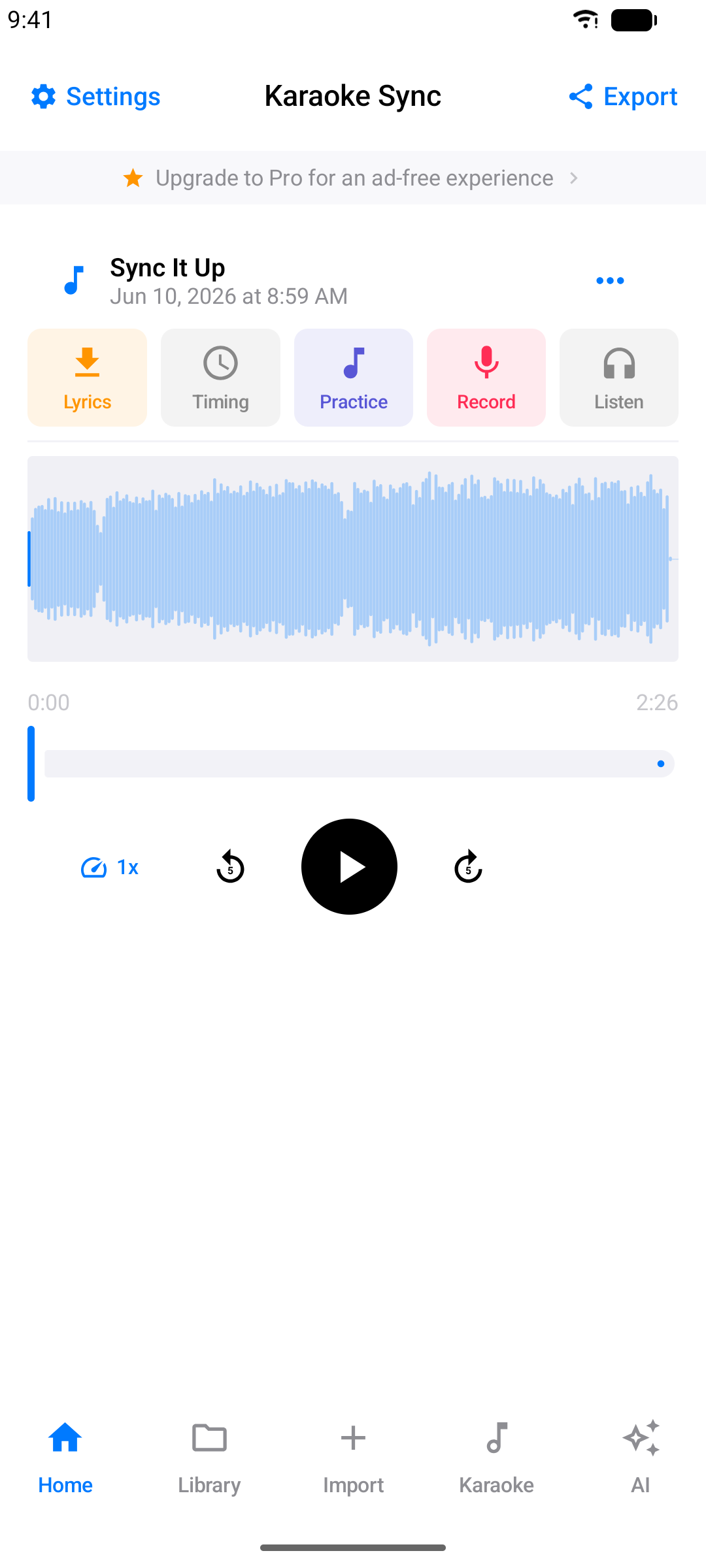
You land in the editor with the song's waveform ready to play, and the lyrics importer opens by itself so you can add the words right away (see Adding Lyrics).
Creating a Project from a Video
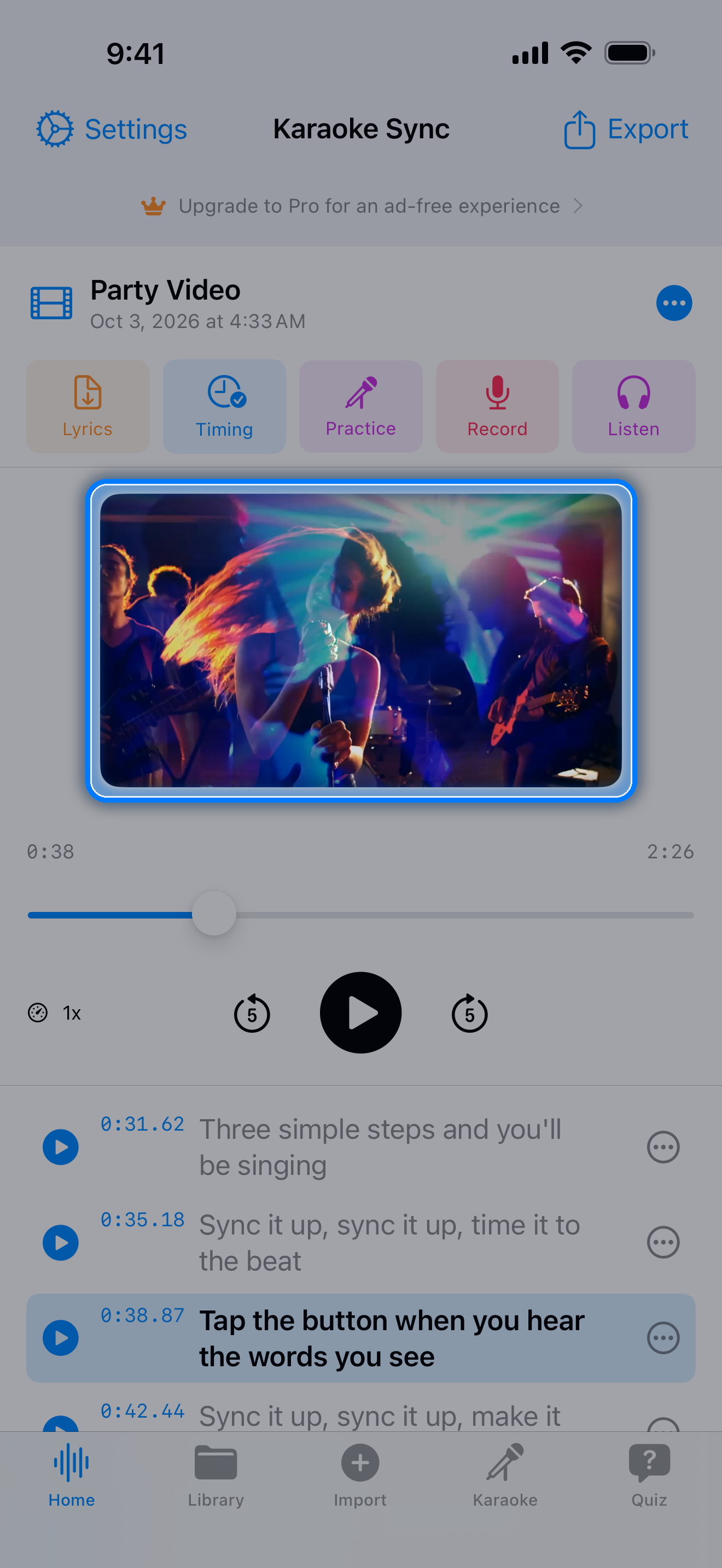
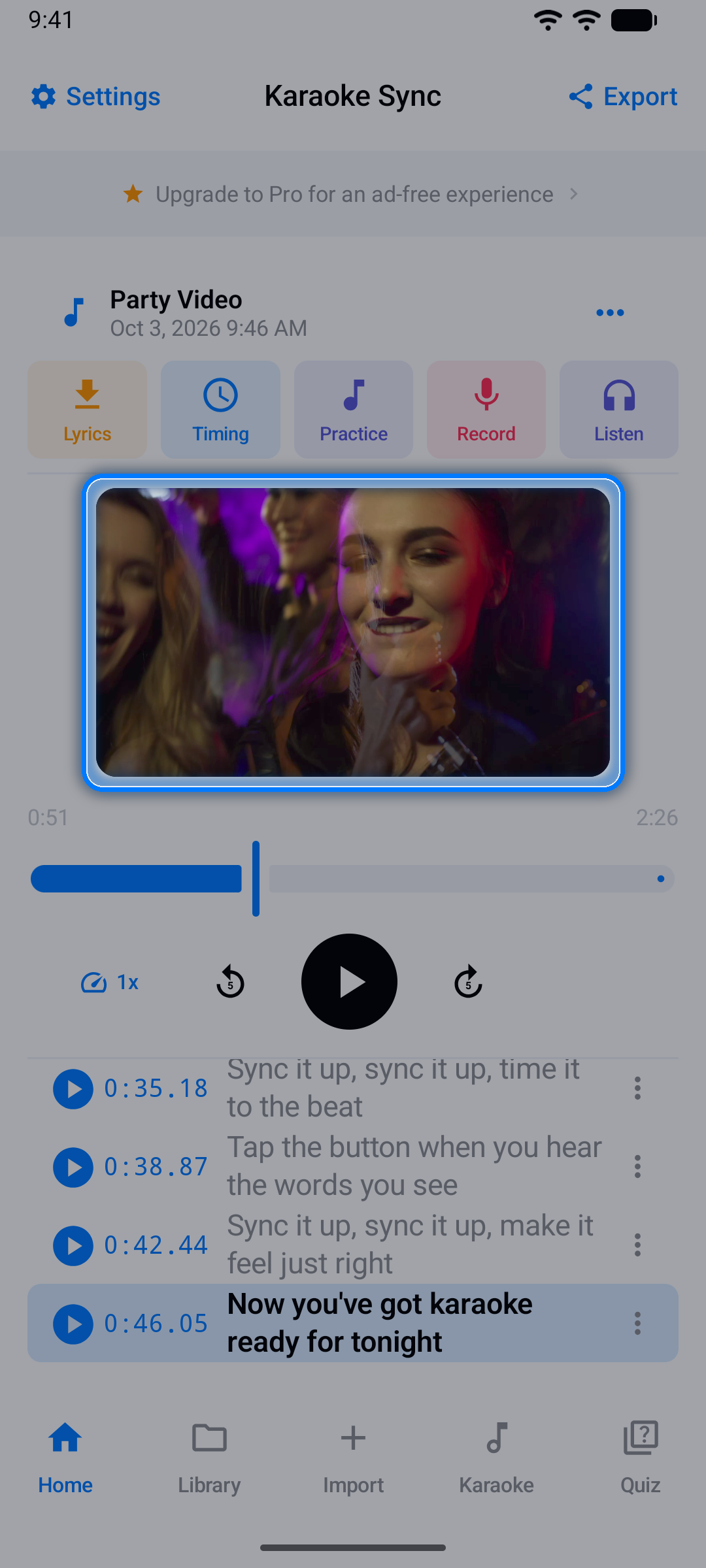
Have a video with the music in it - a clip you filmed, or one saved on your device? Import it, and it plays behind your lyrics while you time, practice, and record - and you can export it again with your voice mixed in.
Step 1: Select "Audio / Video"
On the Import tab, switch the source to Audio / Video.
Step 2: Choose Your Video
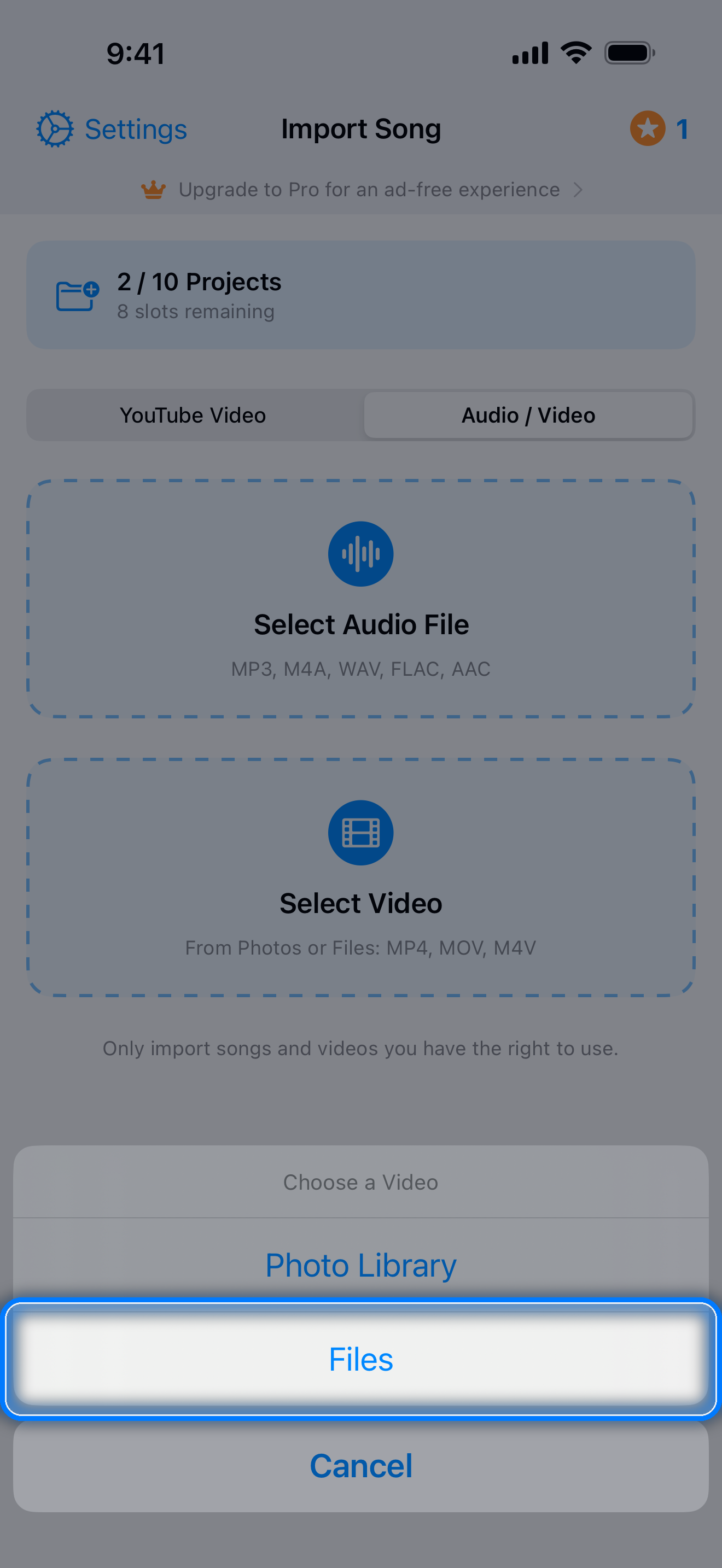
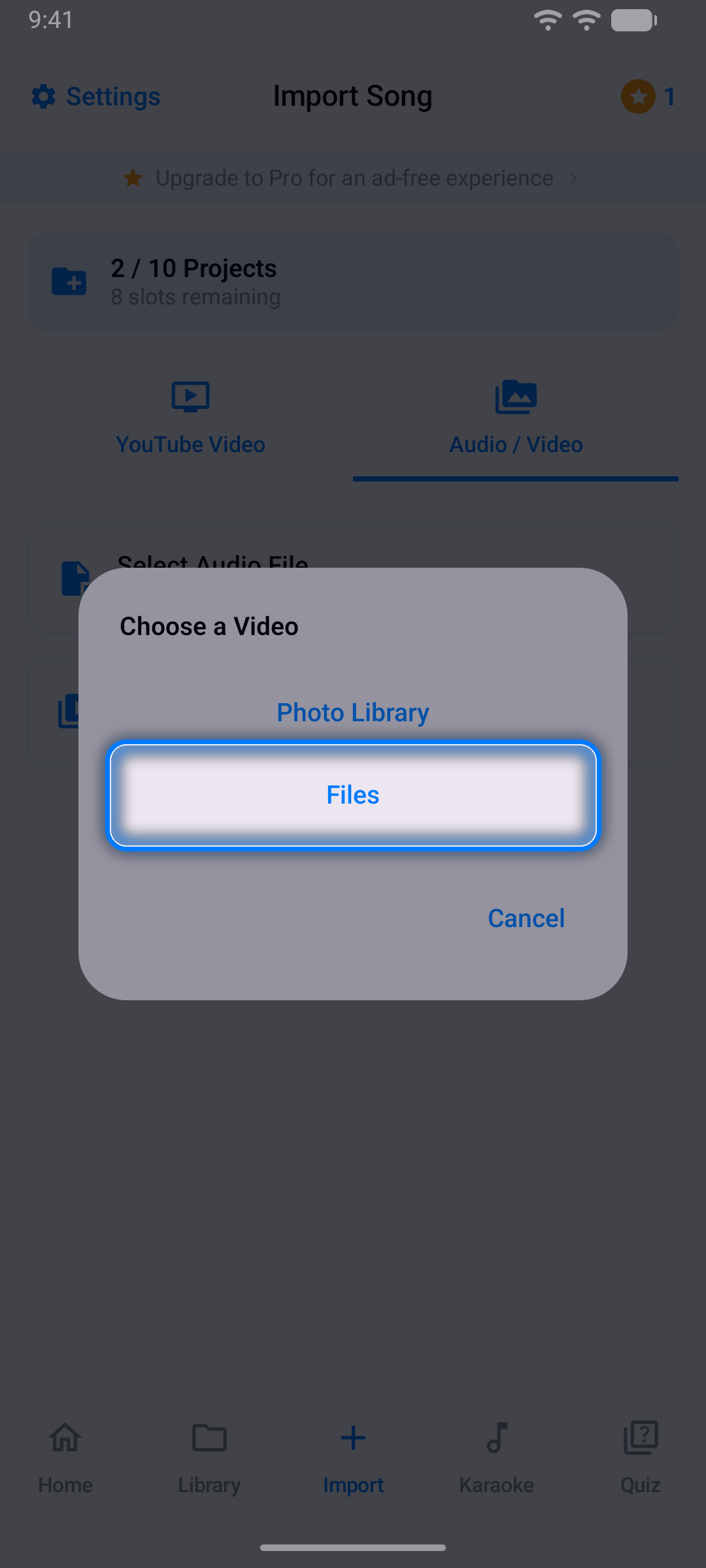
Tap Select Video, choose Photo Library or Files, and pick your video (MP4, MOV, or M4V). It needs its sound: Karaoke Sync uses the music in the video as the song.
Step 3: Add the Lyrics
The project is created as soon as you pick the video, named after the file (on Android, a video from the photo library is named "Video" plus the date and time - rename it any time from the project menu). The lyrics importer opens by itself, just as it does for a song (see Adding Lyrics).
What a Video Project Does
- Your video plays in step with the song in the editor (in place of the waveform), on the Timing screen, in Practice, while you record, and when you listen to an audio take. In the Library, video projects have a film icon
- Timing, practice, games, and lyrics exports work just as they do for a song file
- Record → Audio Only sings over the video; Video films you at the same time, with your camera next to the record button, below the video and the lyrics
- To export an audio take, open it with Listen and tap Export Mix: the Video switch (already on) makes your imported video with your voice mixed in, and Lyrics on video under it adds your timed lyrics - Style… sets their look (see Sing Mode). Turn Video off to get an M4A audio file instead
- A video take's Export Video gives you your camera video with the song from your imported video mixed in
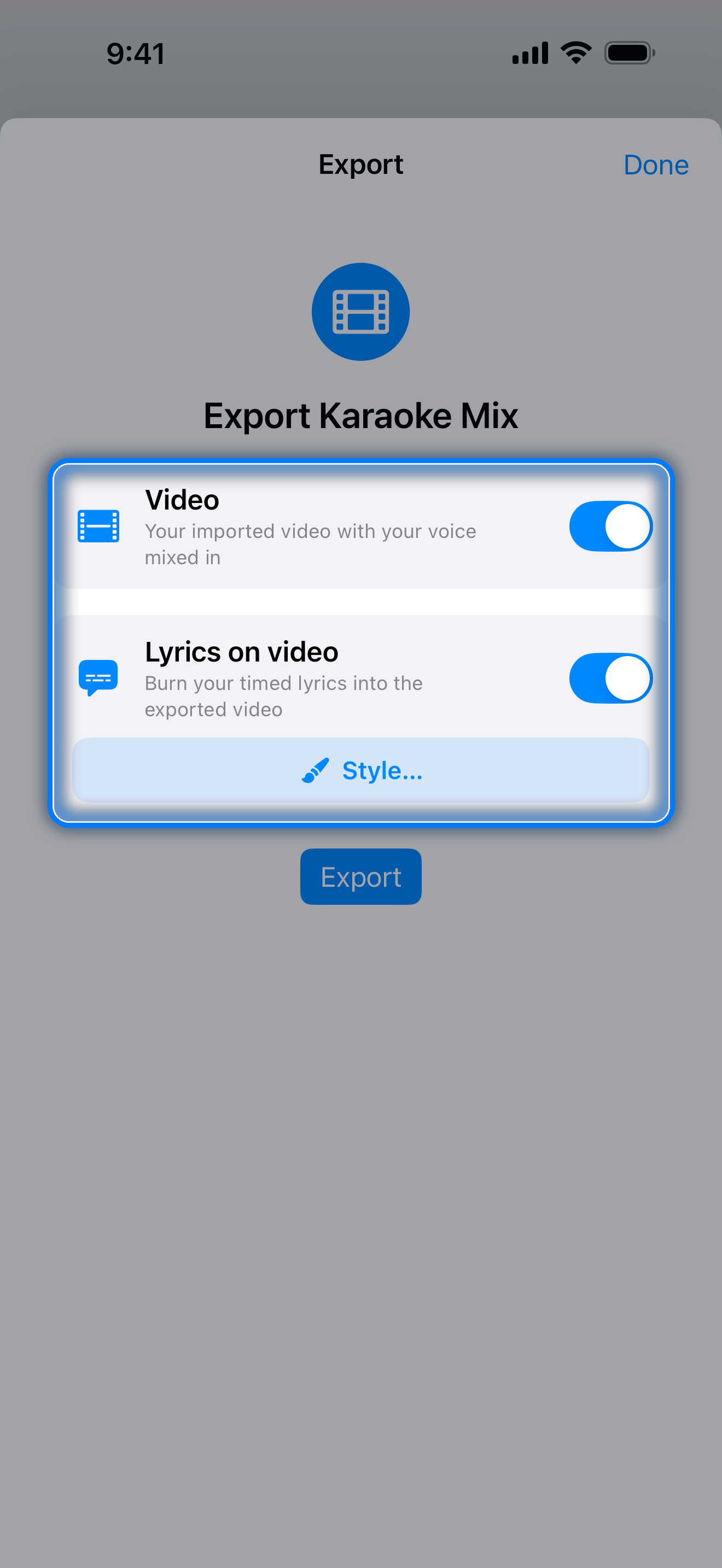
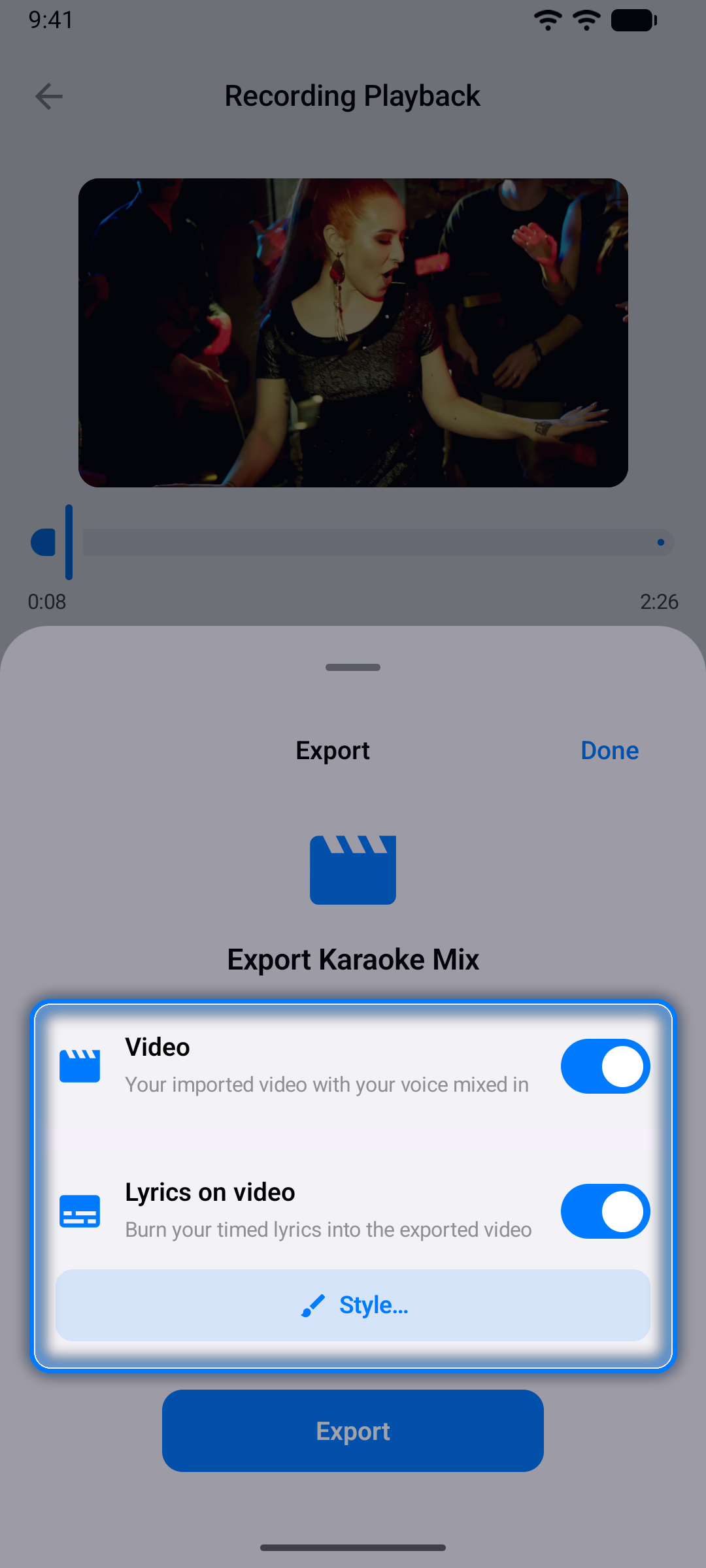
Note: Only import songs and videos you have the right to use. Before a video project's recording is exported, the app reminds you that you're responsible for having the right to use and share the video and its music - tap Continue to go on.
Creating a Project from YouTube
You can also build karaoke timing for any YouTube video - great for practicing with music videos.
Step 1: Select "YouTube Video"
On the Import tab, choose YouTube Video as the source.
Step 2: Paste the YouTube URL
Copy a video link from the YouTube app or website and paste it in. Supported link styles:
youtube.com/watch?v=...youtu.be/...youtube.com/embed/...
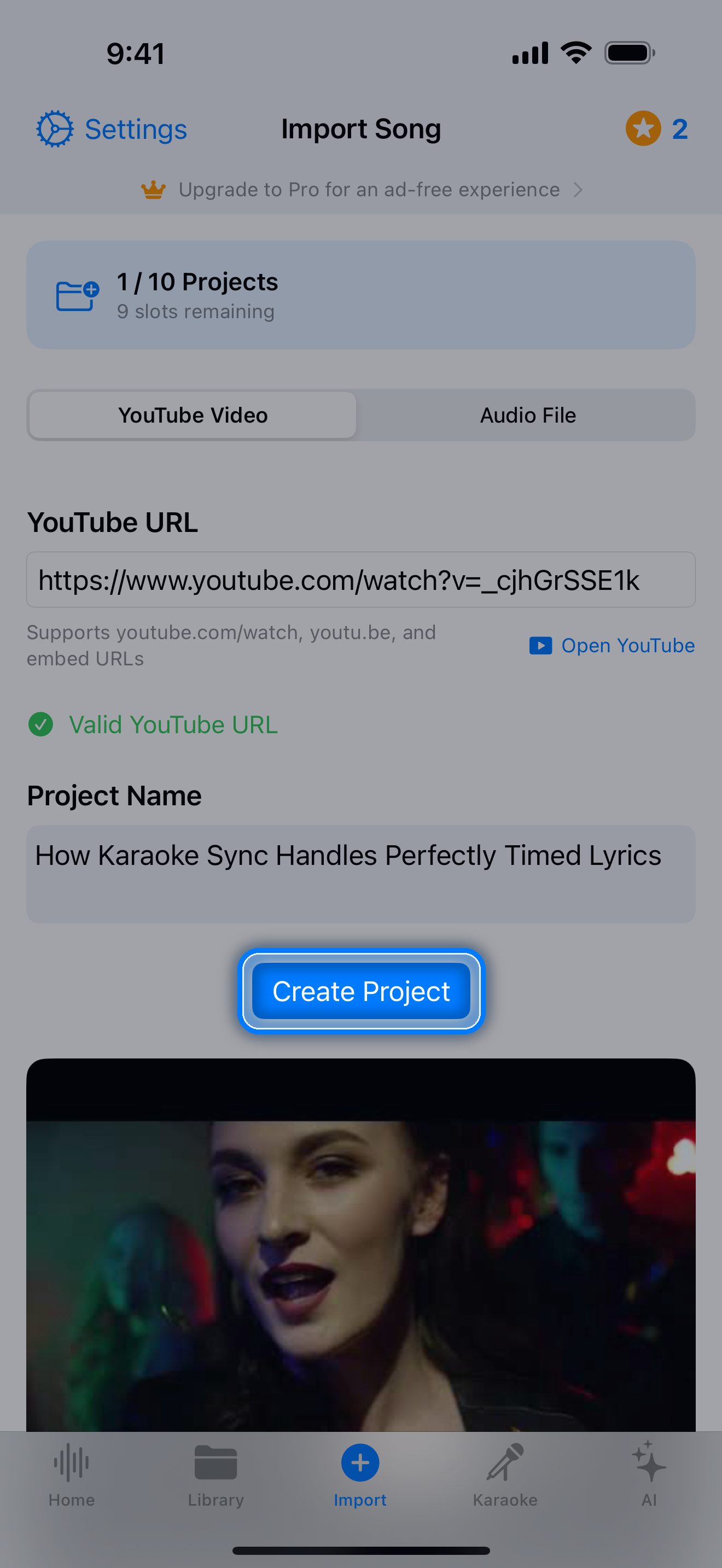
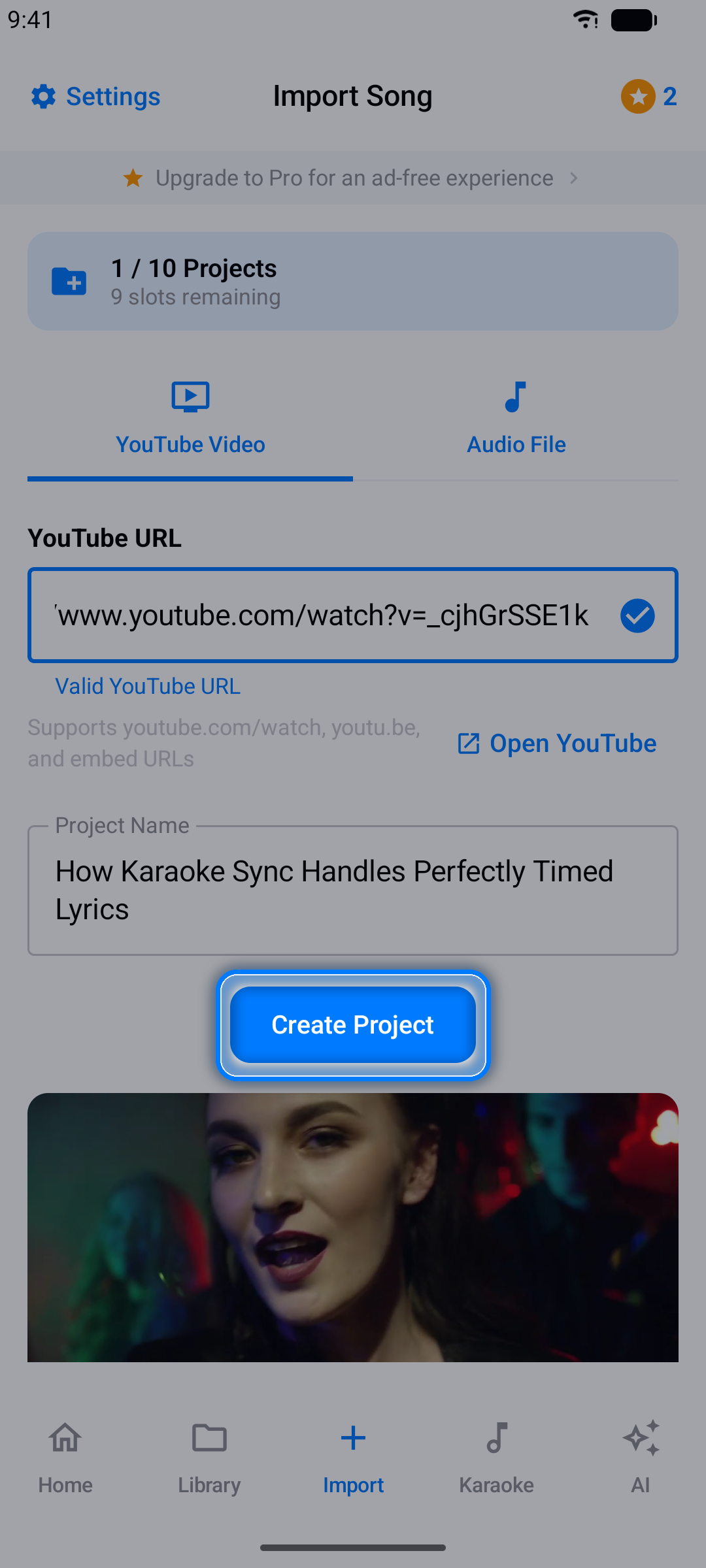
The video's title is fetched automatically into the Project Name field.
Step 3: Create the Project
Tap Create Project. The video appears in your project with a built-in player.
Note: YouTube projects stream the original video, so you can time, practice, and record over them - but the YouTube sound is never captured, so your recordings keep only your voice (and your camera, for a video). Use an audio file or a video of your own (see Creating a Project from a Video) when you want the music in your recording.
Adding Lyrics
With a project open, it's time to add the words.
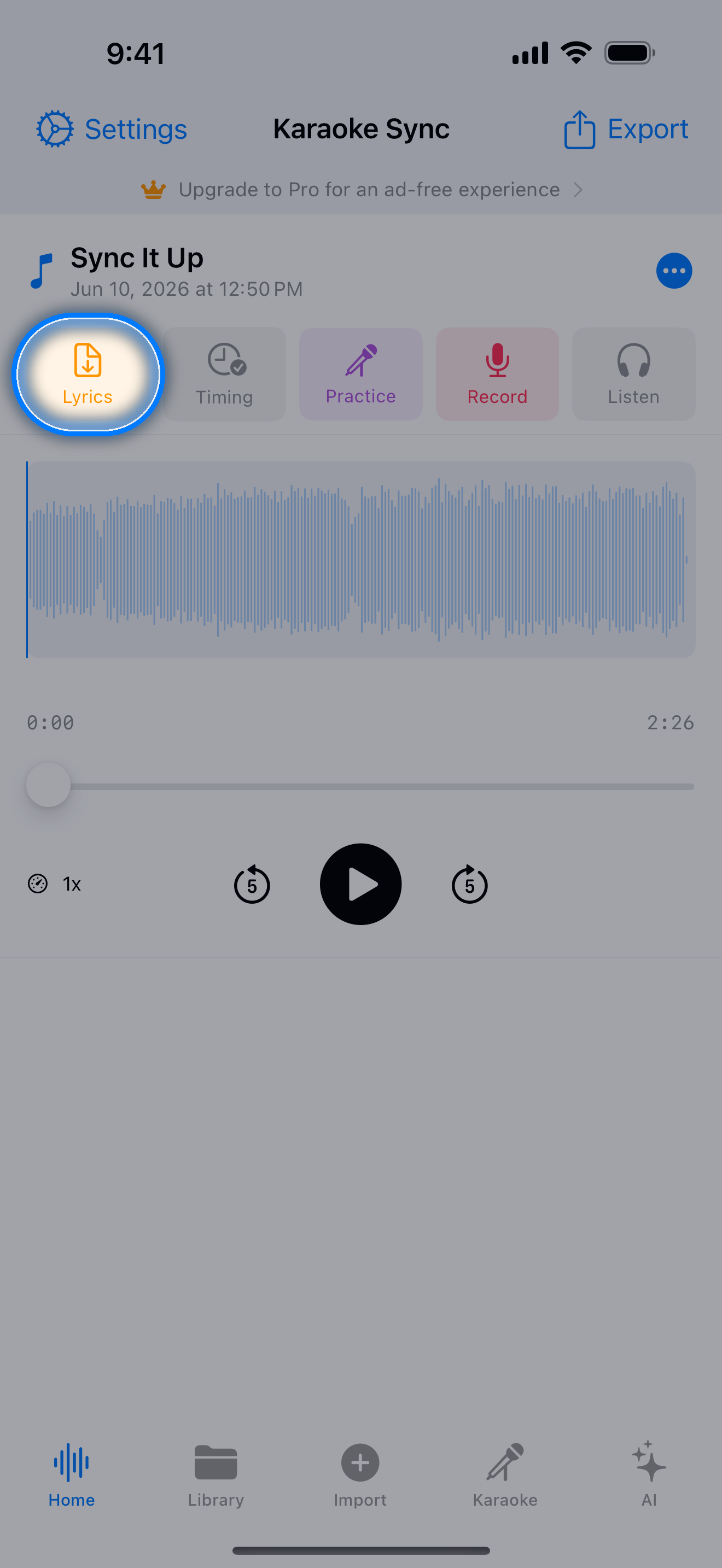
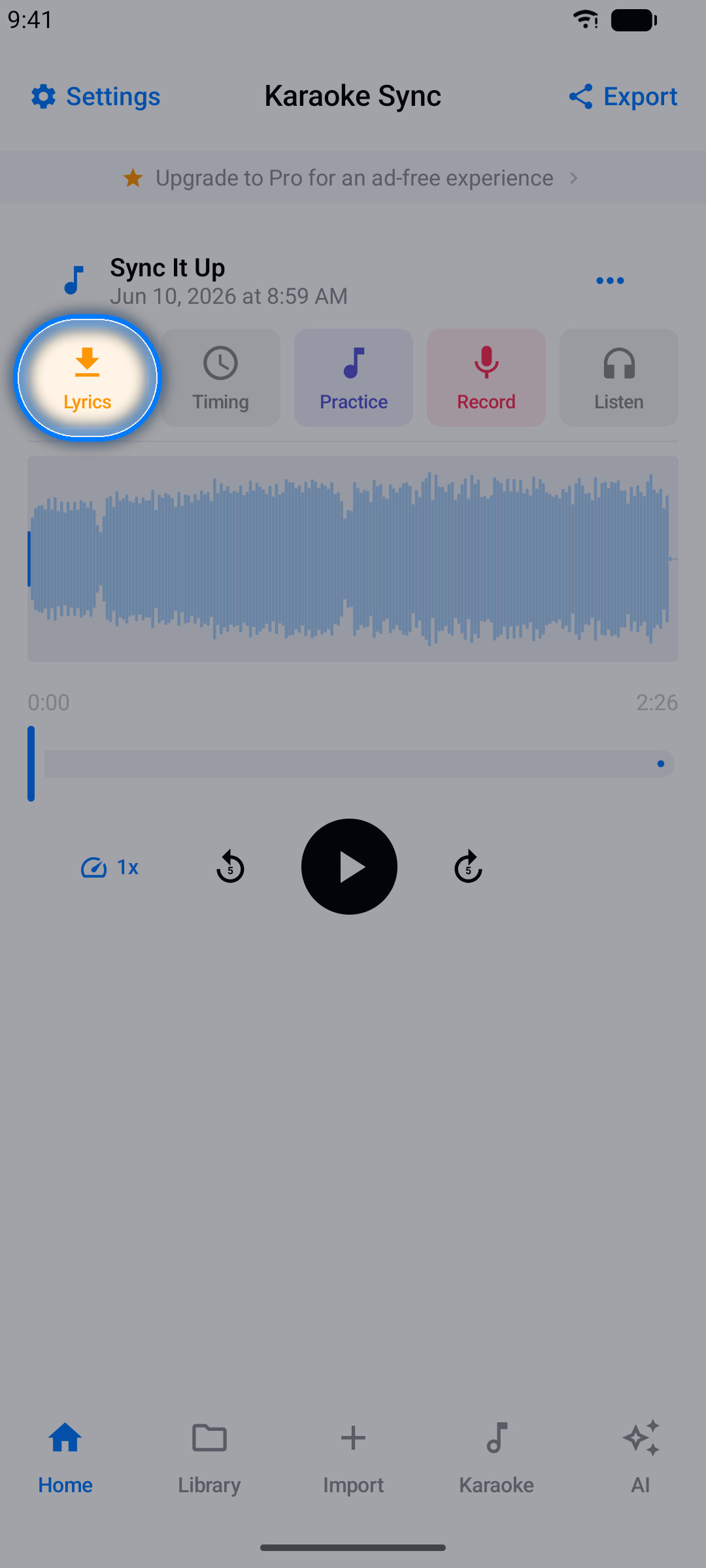
Step 1: Open the Lyrics Importer
The importer opens by itself for a new project - or tap the Lyrics button in the project editor.
Step 2: Paste Your Lyrics
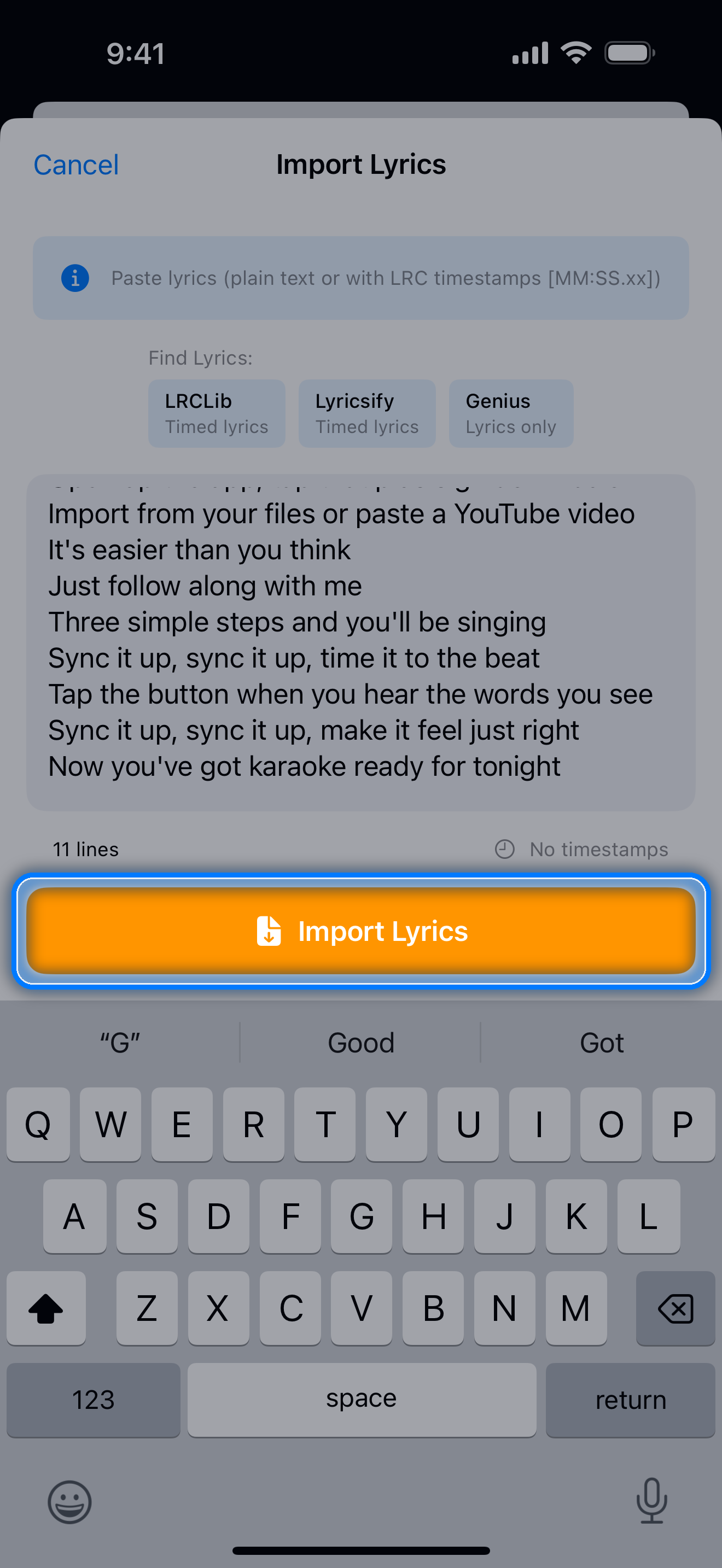
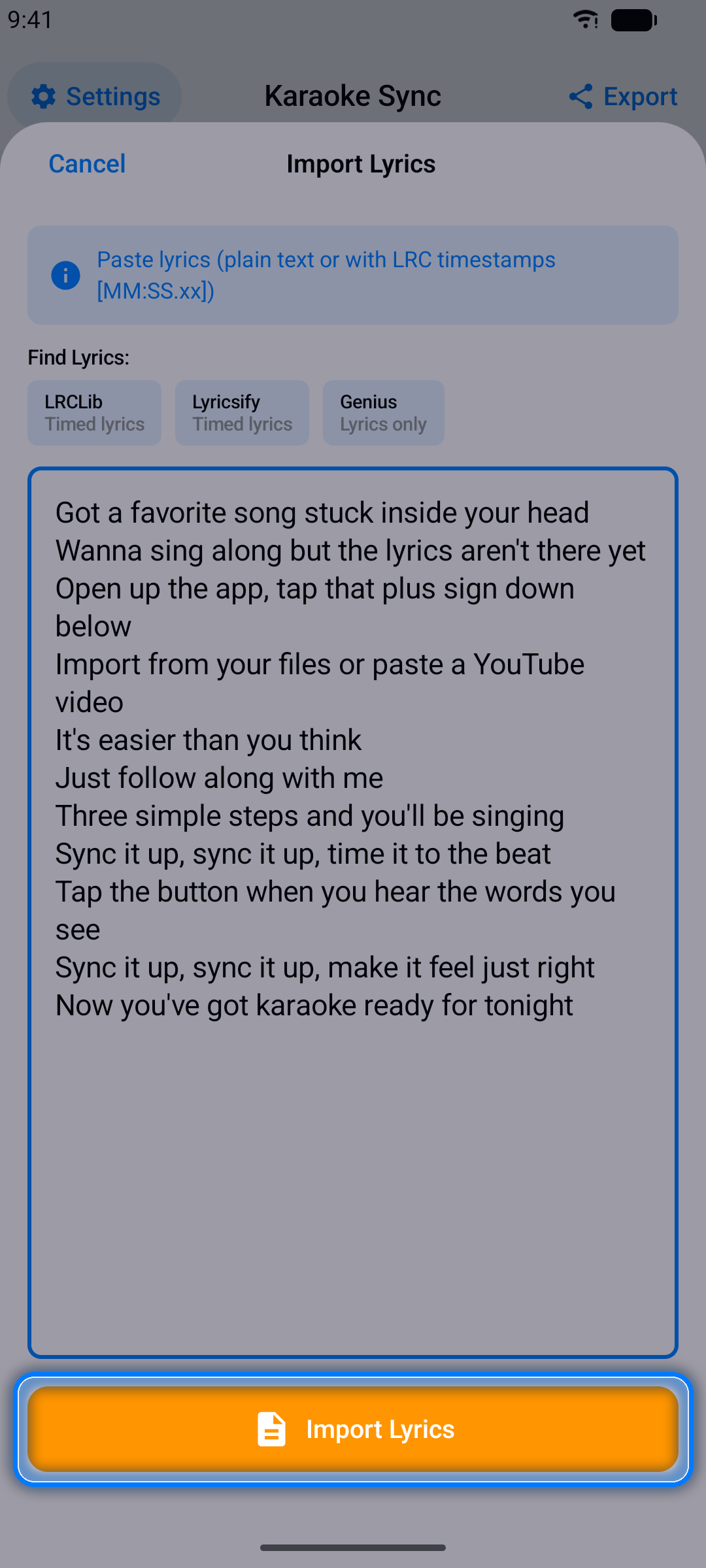
- Copy the lyrics from a lyrics website - the Find Lyrics buttons open LRCLib and Lyricsify (timed lyrics) or Genius (lyrics only)
- Paste them into the text field, one line per line
- The app parses them instantly and shows a line count
Tip: Already have timestamps? Paste LRC-format lyrics (lines like [00:15.50] Lyrics here) and Karaoke Sync imports the timing automatically. Enhanced LRC with <00:15.50> word tags brings the word timing along too.
Step 3: Import
Tap Import Lyrics. Your lines appear in the editor, ready to be timed. To fix a line's text, just tap it (see Editing and Copying Lines).
Timing Your Lyrics
This is the heart of Karaoke Sync: syncing each lyric line to the exact moment it's sung.
Step 1: Open the Timing Screen
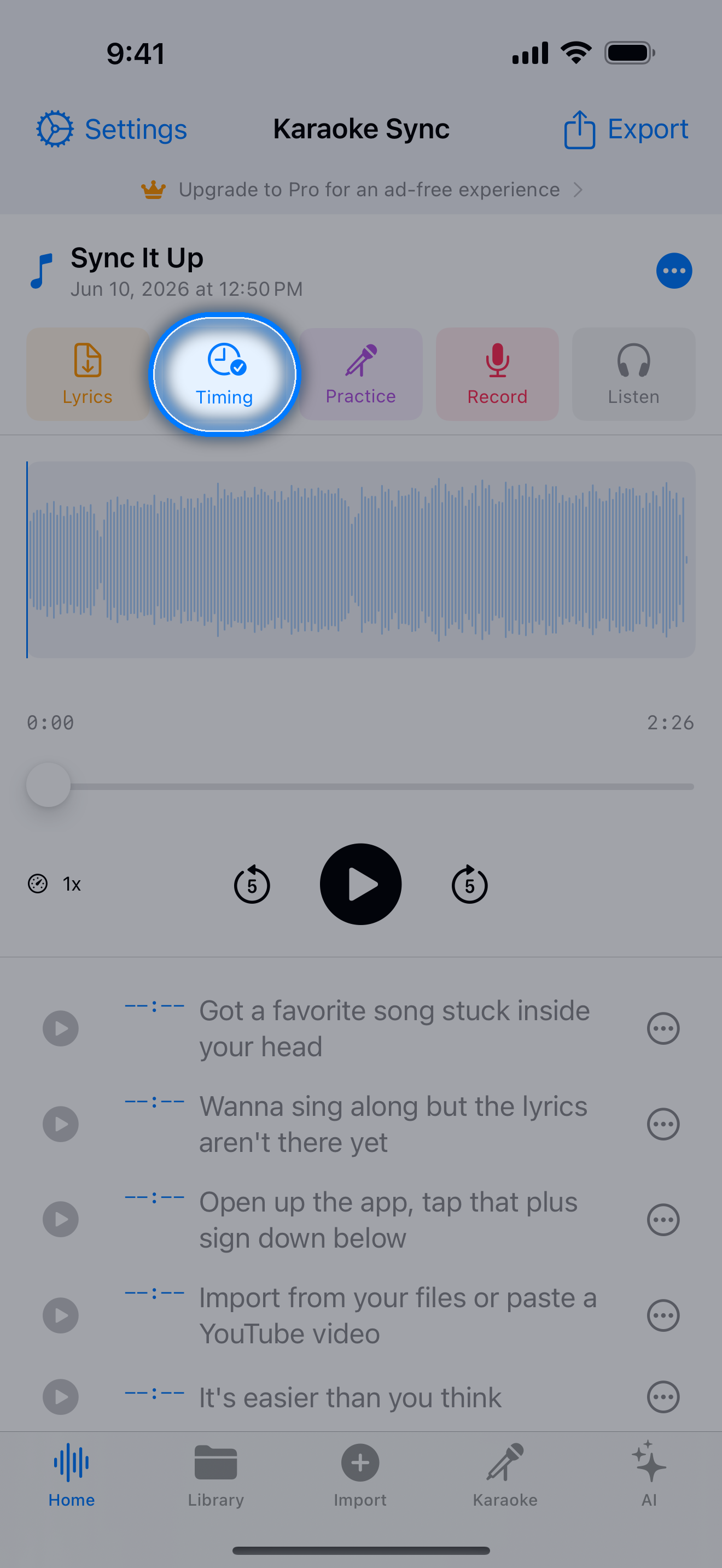
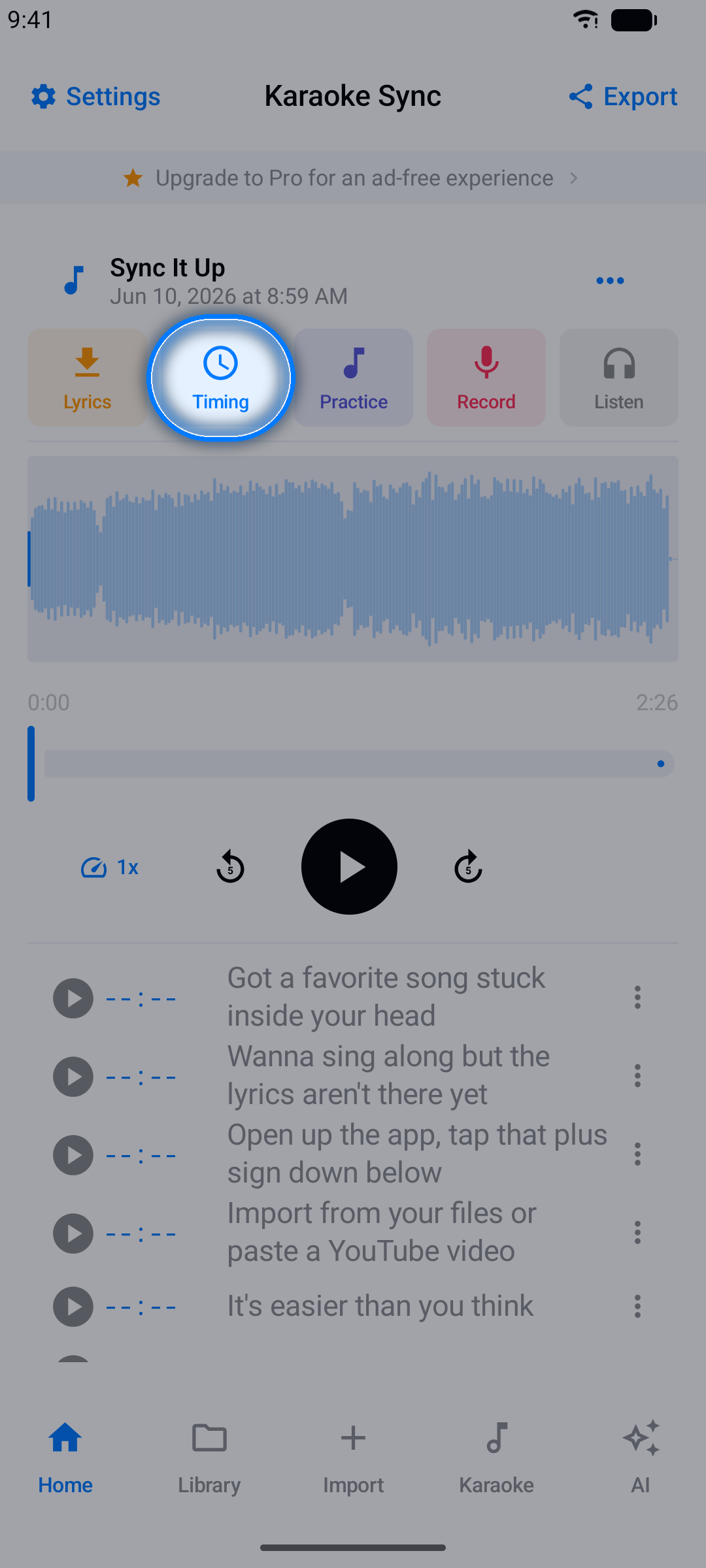
Tap the Timing button.
Step 2: Start Timing
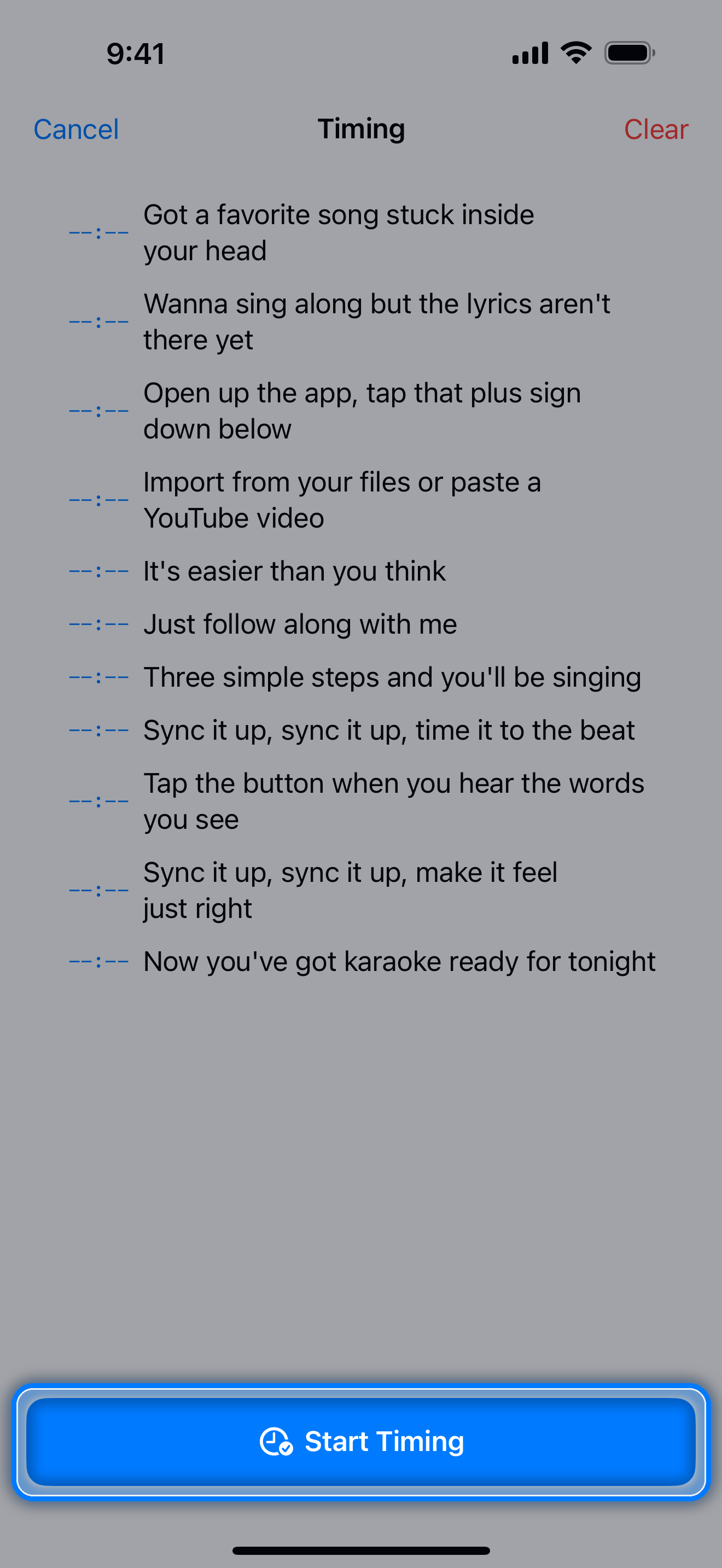
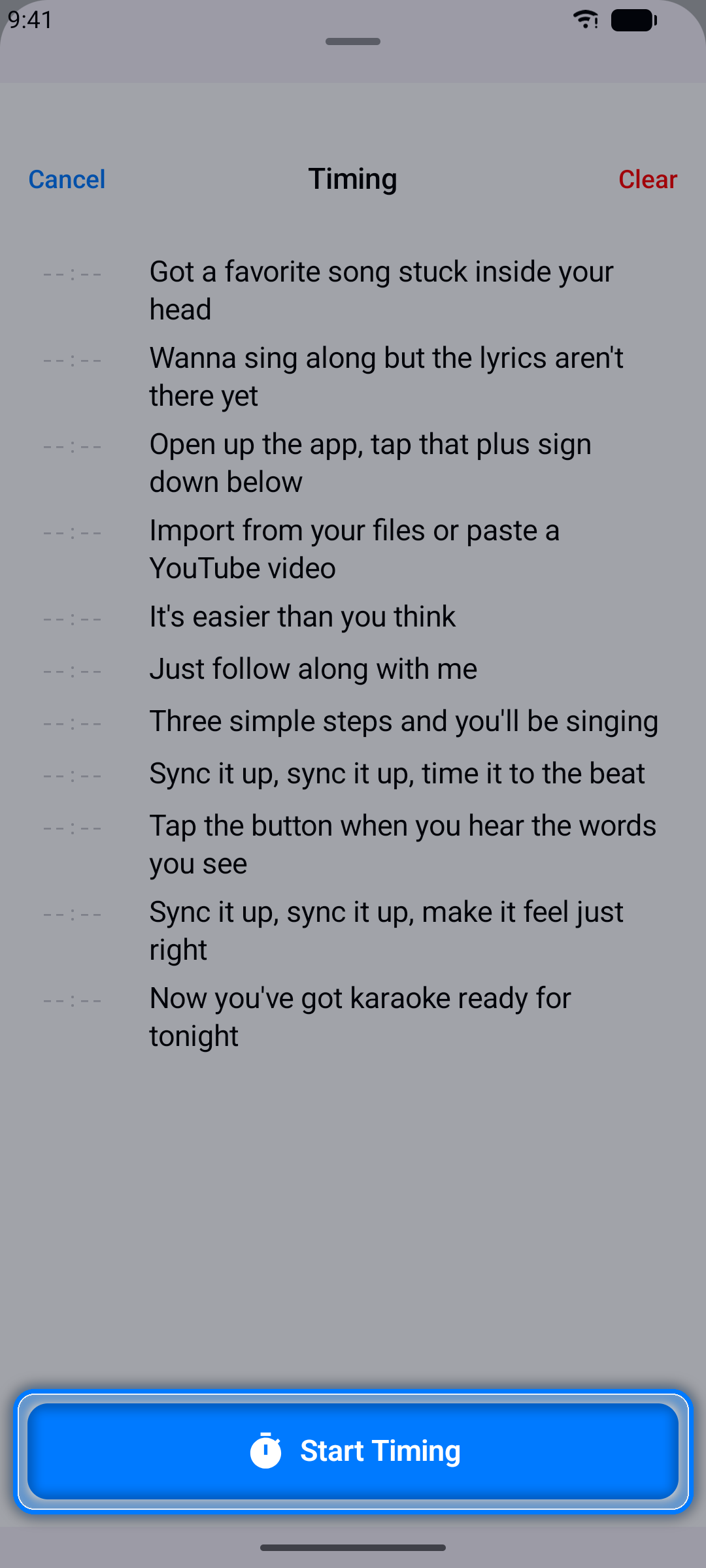
Tap Start Timing (it reads Update Timing when the song already has timestamps). The song begins to play.
Step 3: Mark Each Line
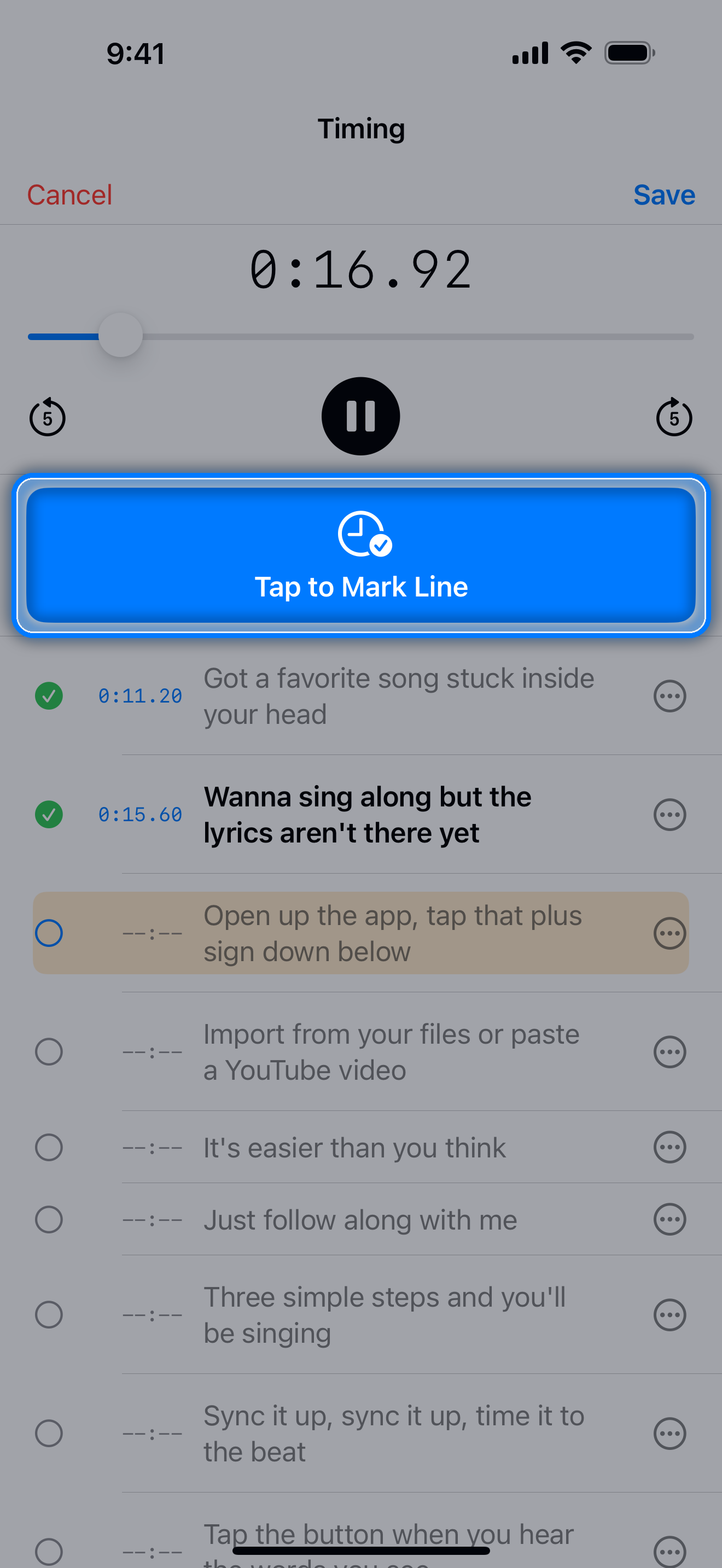
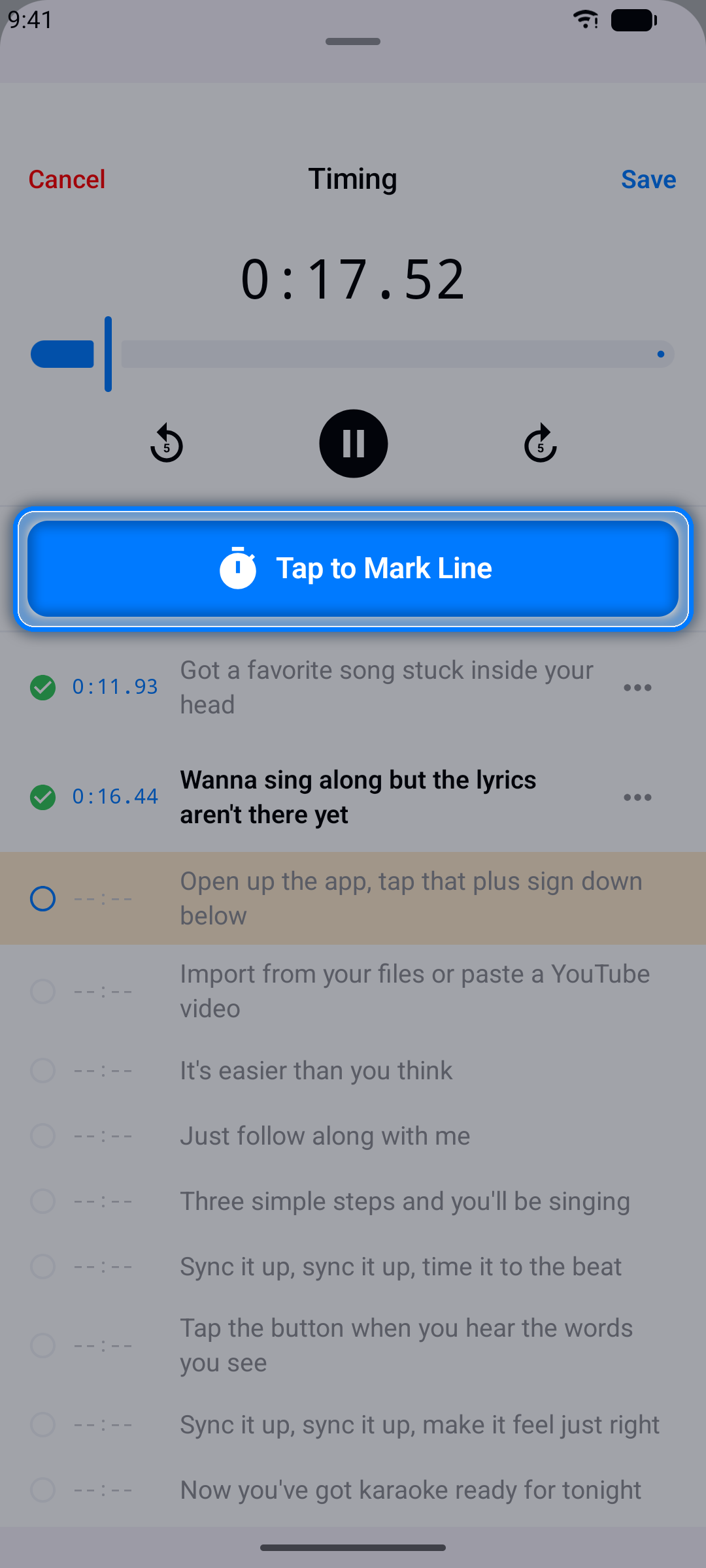
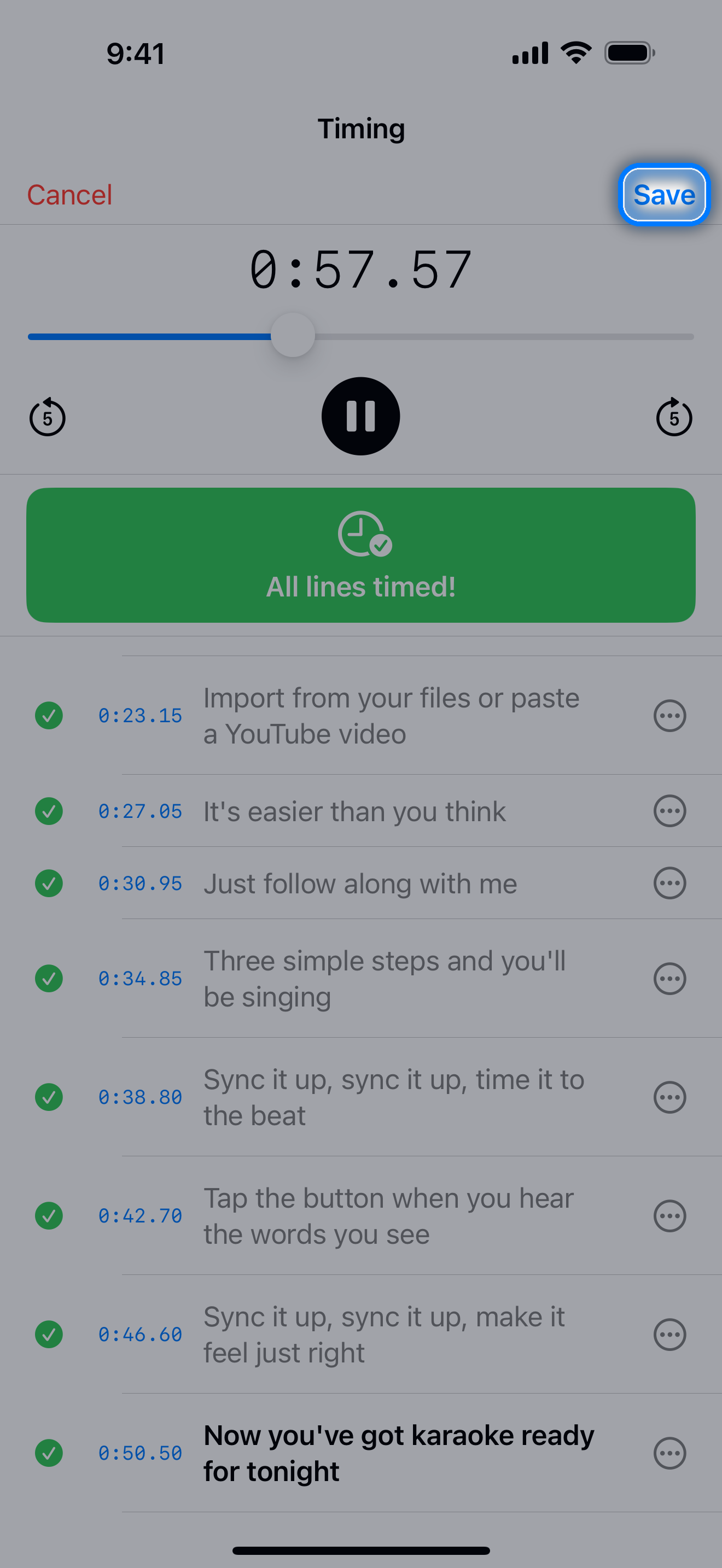
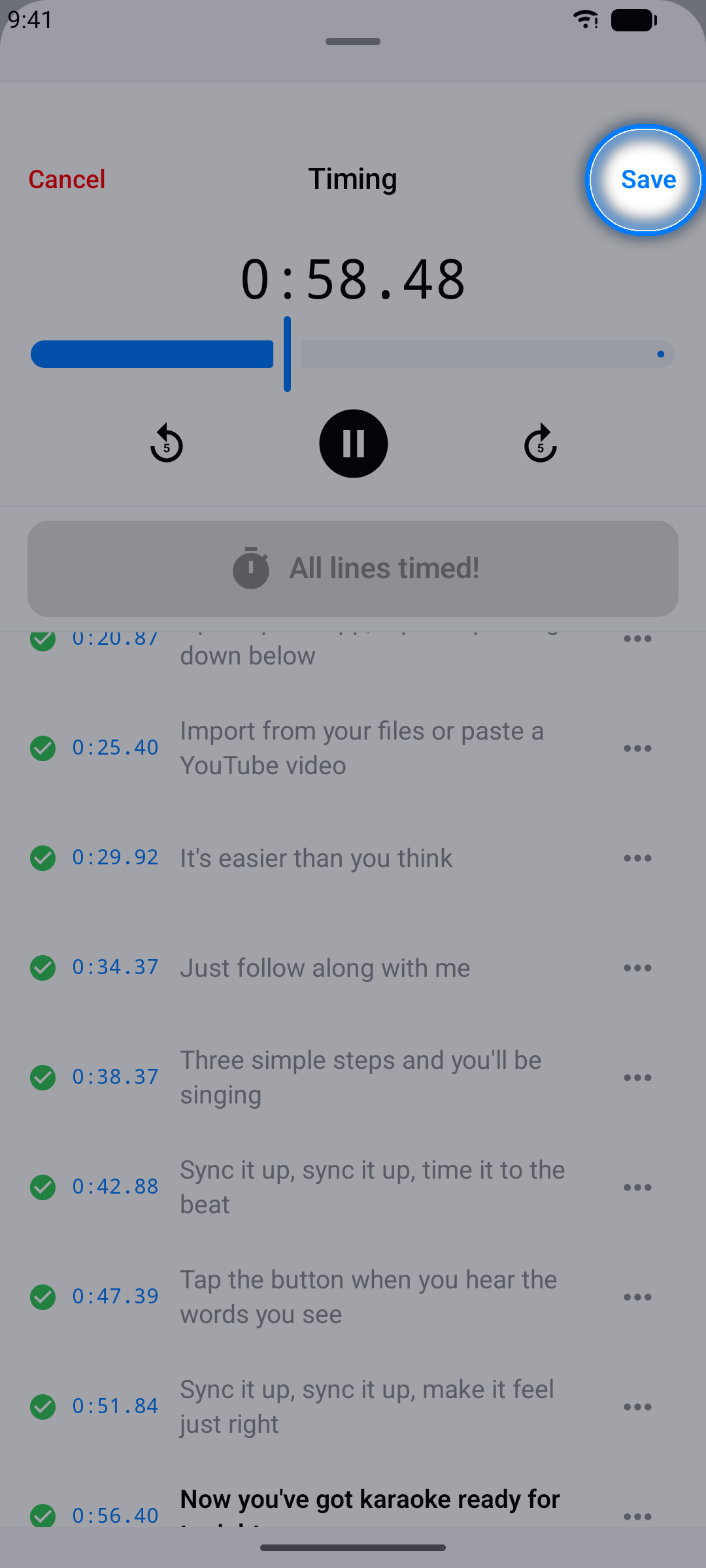
The moment you hear a line begin, tap the big Tap to Mark Line button. The current playback time is saved to that line and the app advances to the next one.
Step 4: Finish and Save
Work through the whole song - when every line is timed, the button reads All lines timed! Then tap Save.
Tip: Don't worry about being perfect on the first pass. You can fine-tune any line afterwards.
For the whole process on one page, with tips, see the guide How to sync lyrics to a song.
Word-by-Word Timing
Want the lyrics to light up one word at a time, karaoke-style? Once your lines are timed, Karaoke Sync places every word on a timeline for you - you only drag the ones that are off.
Step 1: Time the Lines First
Word timing builds on line timing, so finish a pass in Lines mode (the steps above) before switching over. A line that has no start time yet shows a reminder instead of a timeline.
Step 2: Switch to Words
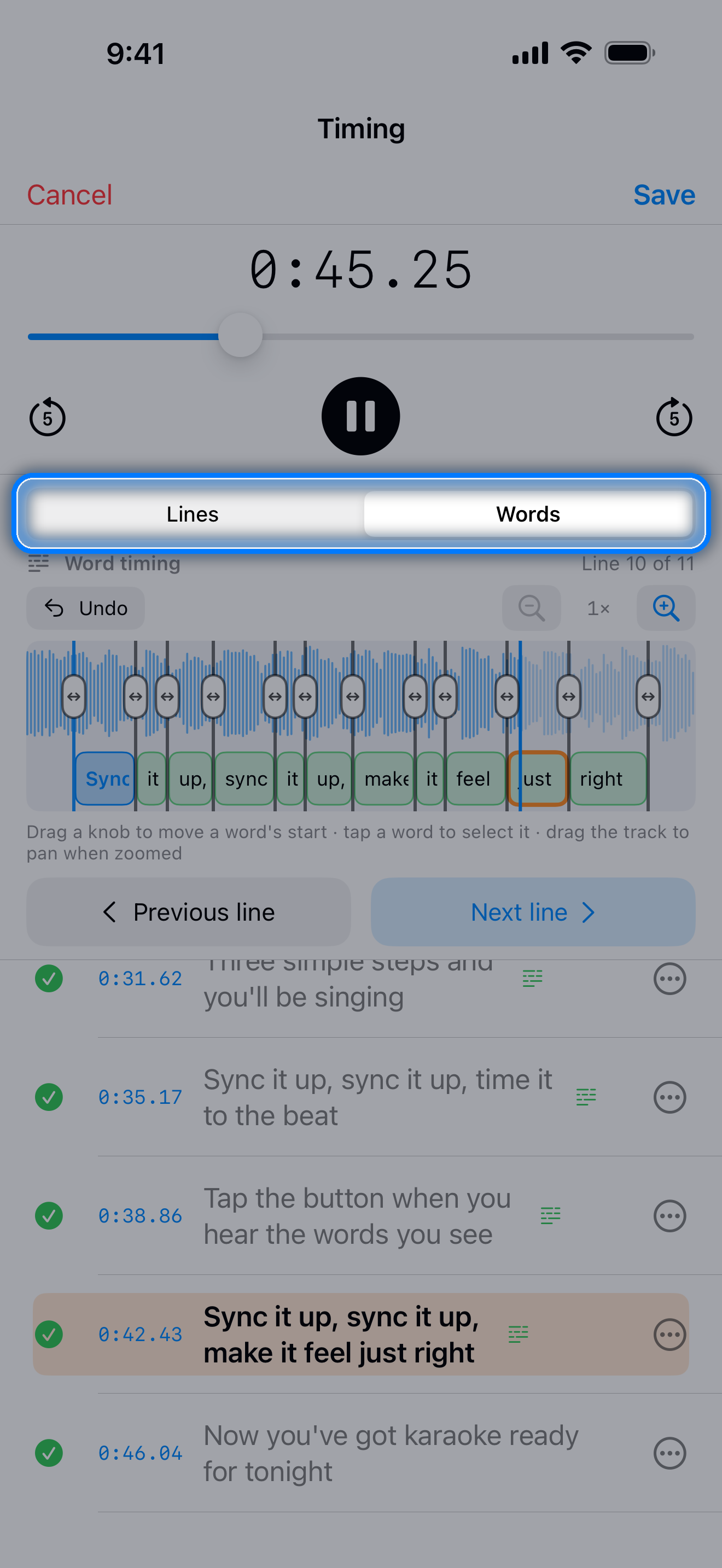
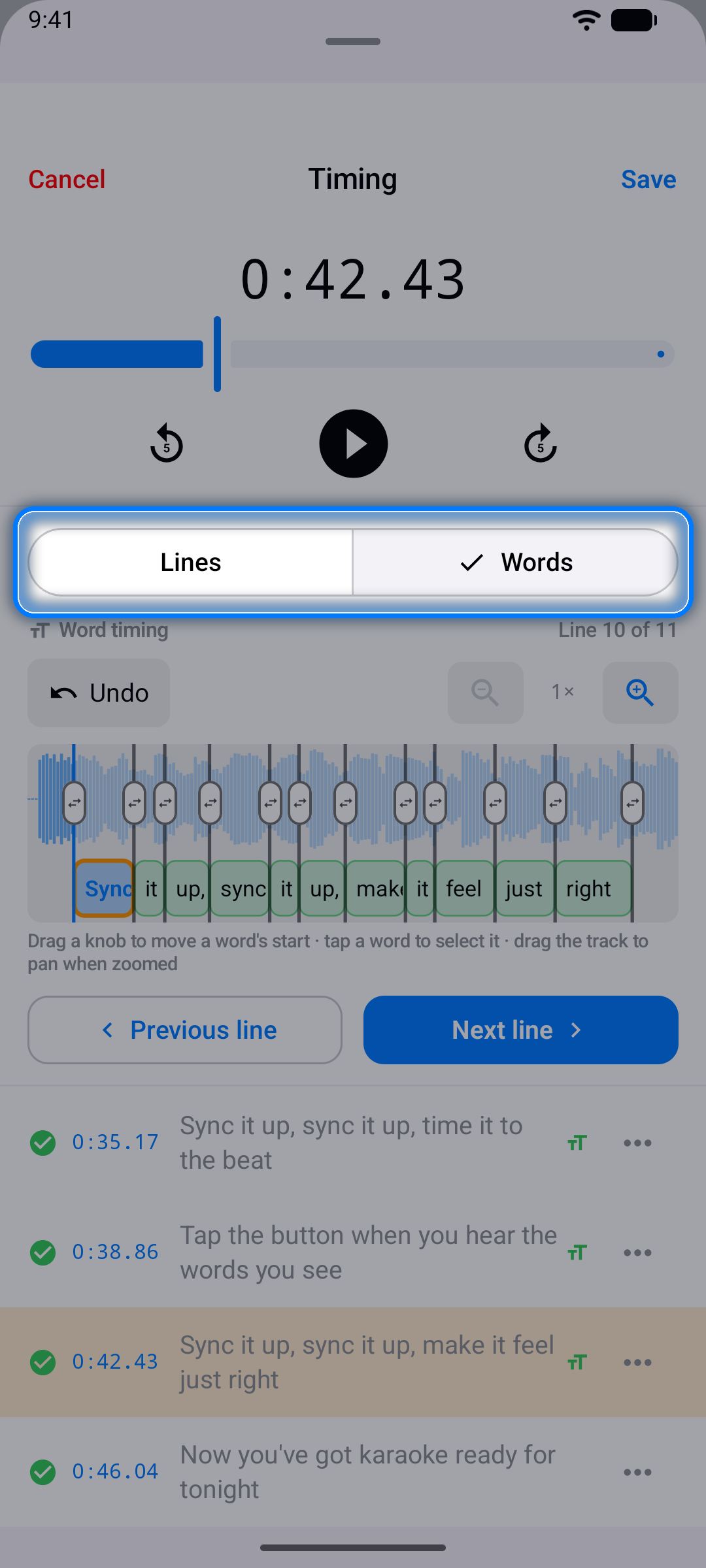
On the Timing screen, tap Words in the Lines | Words selector below the playback controls. The current line appears on a timeline (audio-file and video projects show the song's waveform) with its words already spread across it, and the header tells you which line you are on.
Step 3: Drag the Words into Place
Every word has a knob at its left edge. Play the song and drag each knob to the moment that word is actually sung - the first knob is the line's start. The last word also has a knob at its right edge: drag it to where the singing stops, and that becomes the end of the line.
- Undo reverts your last move
- -/+ zoom in for fast passages; drag the timeline sideways to pan when zoomed
- Tap a word to select it and jump to it; tap anywhere else on the timeline to move the playhead
Step 4: Step Through the Song
Use Previous line and Next line to move through the song - each line is placed automatically as it comes up. When everything sounds right, tap Save.
Step 5: Reuse a Repeated Part
When a line's words come back later in the song - a chorus, say - Words mode shows Same words on other lines: n under the timeline once that line has word timing. Tap Copy Timing to give each of those lines the same word timing, measured from its own start. Each repeat needs its line start from Lines mode first, nothing is copied until you tap the button, and Undo takes it back.
Tip: For a tricky line, tap its ... button on the Timing screen to open Fine-tune Timestamp: the same timeline in a sheet with Preview (plays just that line, then stops), Loop, and ½× speed. Tap a word and Loop repeats exactly that word, and the loop follows its edges while you drag them - tap the word again to loop the whole line - and Previous line / Next line move through the song without closing the sheet.
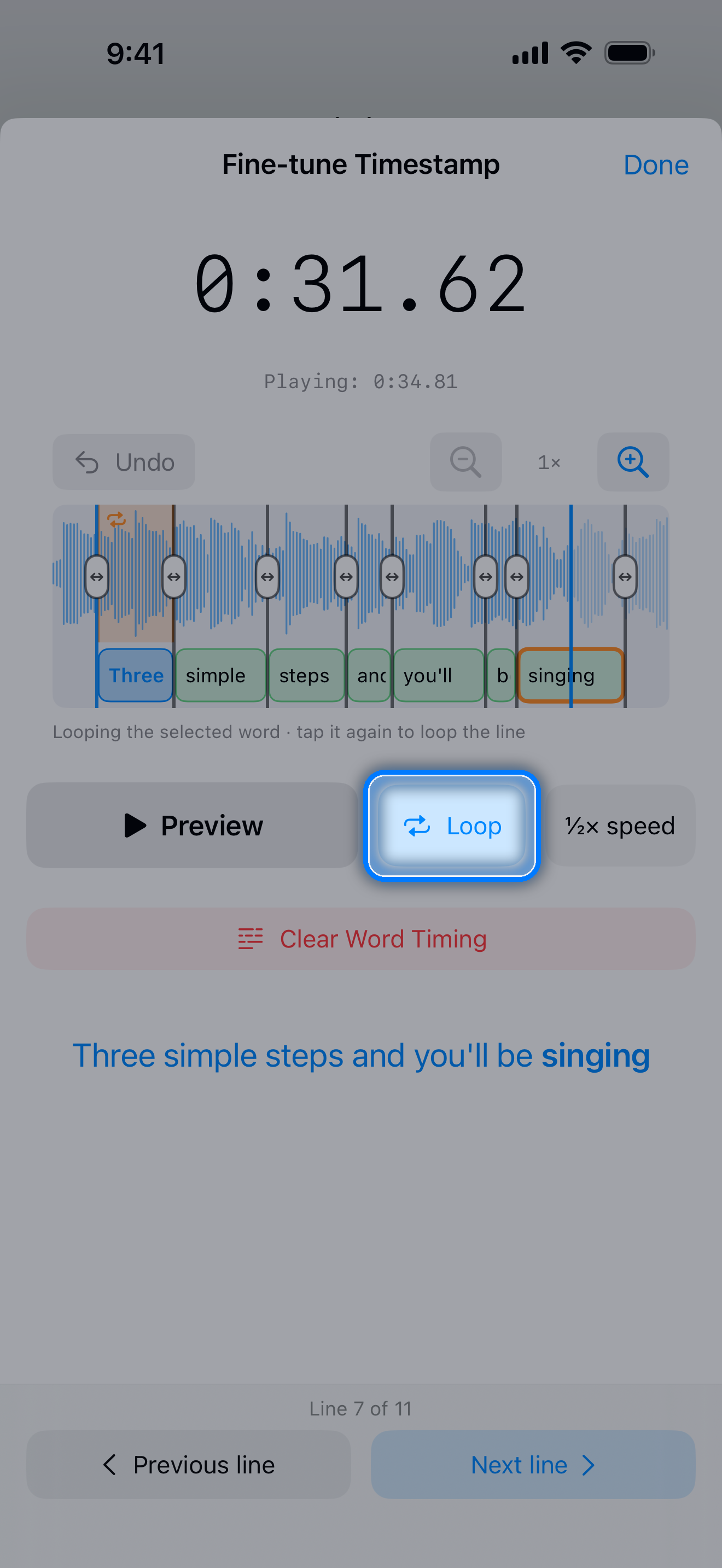
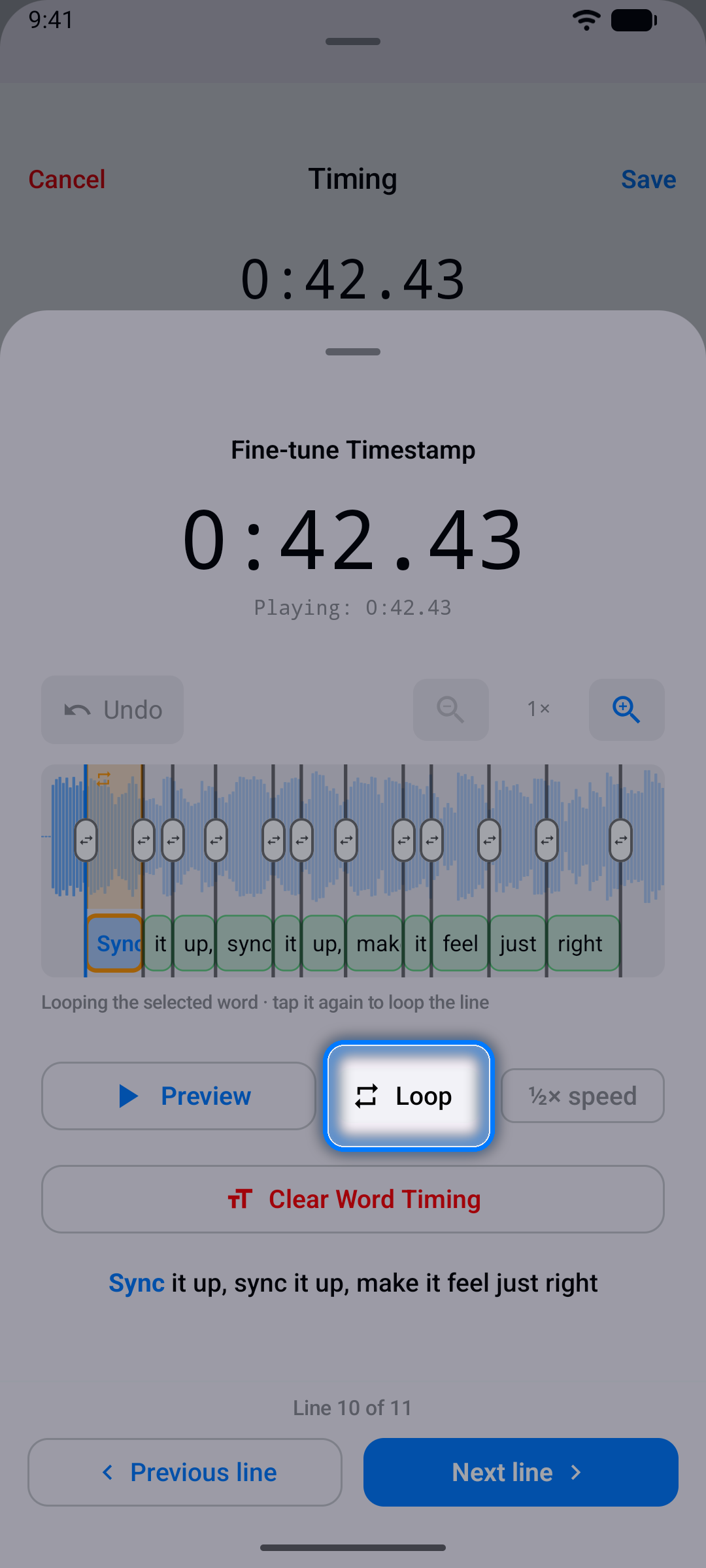
Word-timed lines fill in word by word as they're sung in Practice, Sing Mode, and the lyric list, and you can export them as Enhanced LRC (see Exporting Your Project). Lines can mix - some word-timed, some line-only - and a line's ... menu in the editor offers Clear Word Timing whenever you want to start that line over.
Fine-Tuning Timestamps
After the first timing pass, polish individual lines until the sync feels perfect. There are two tools: quick nudges in the editor, and the Fine-tune Timestamp sheet on the Timing screen for precise work.
Step 1: Open a Line's Options
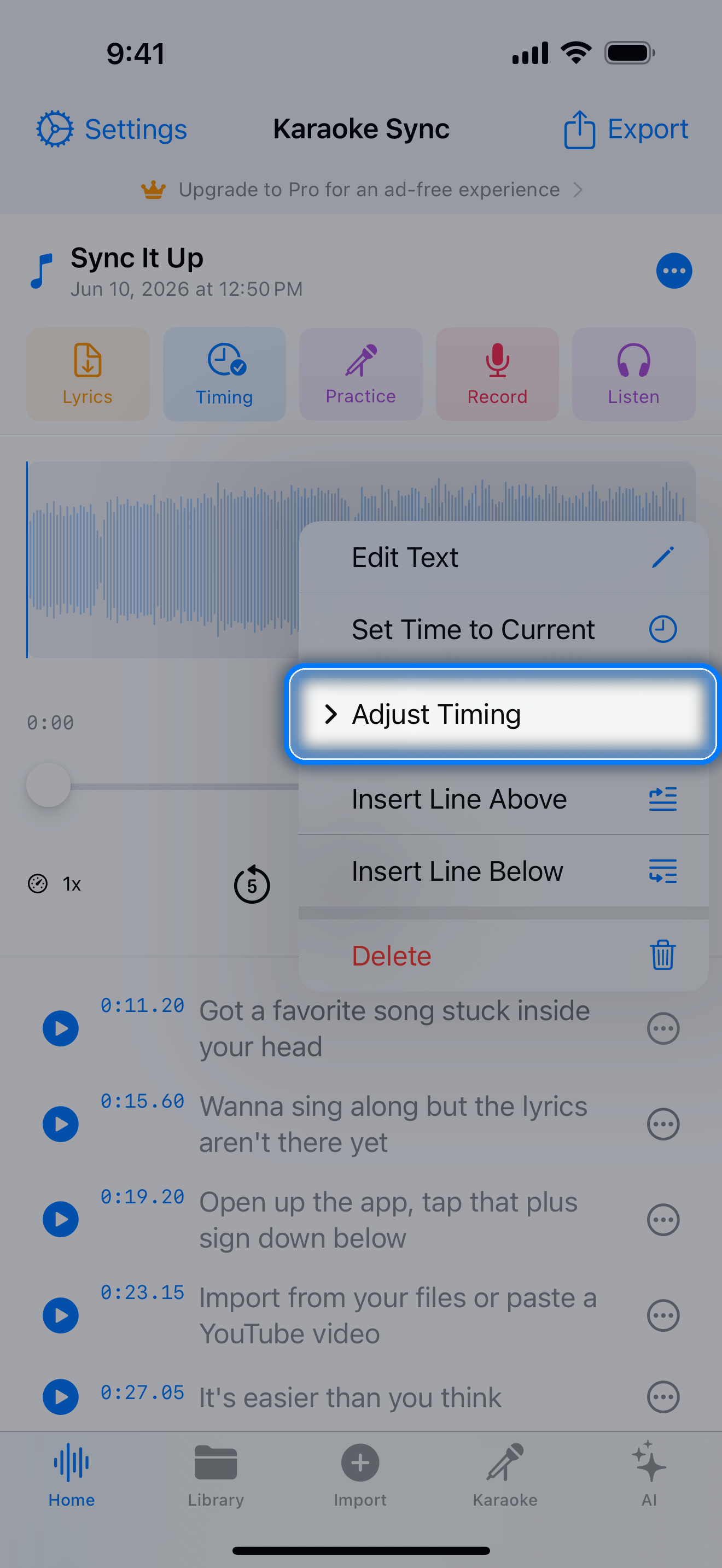
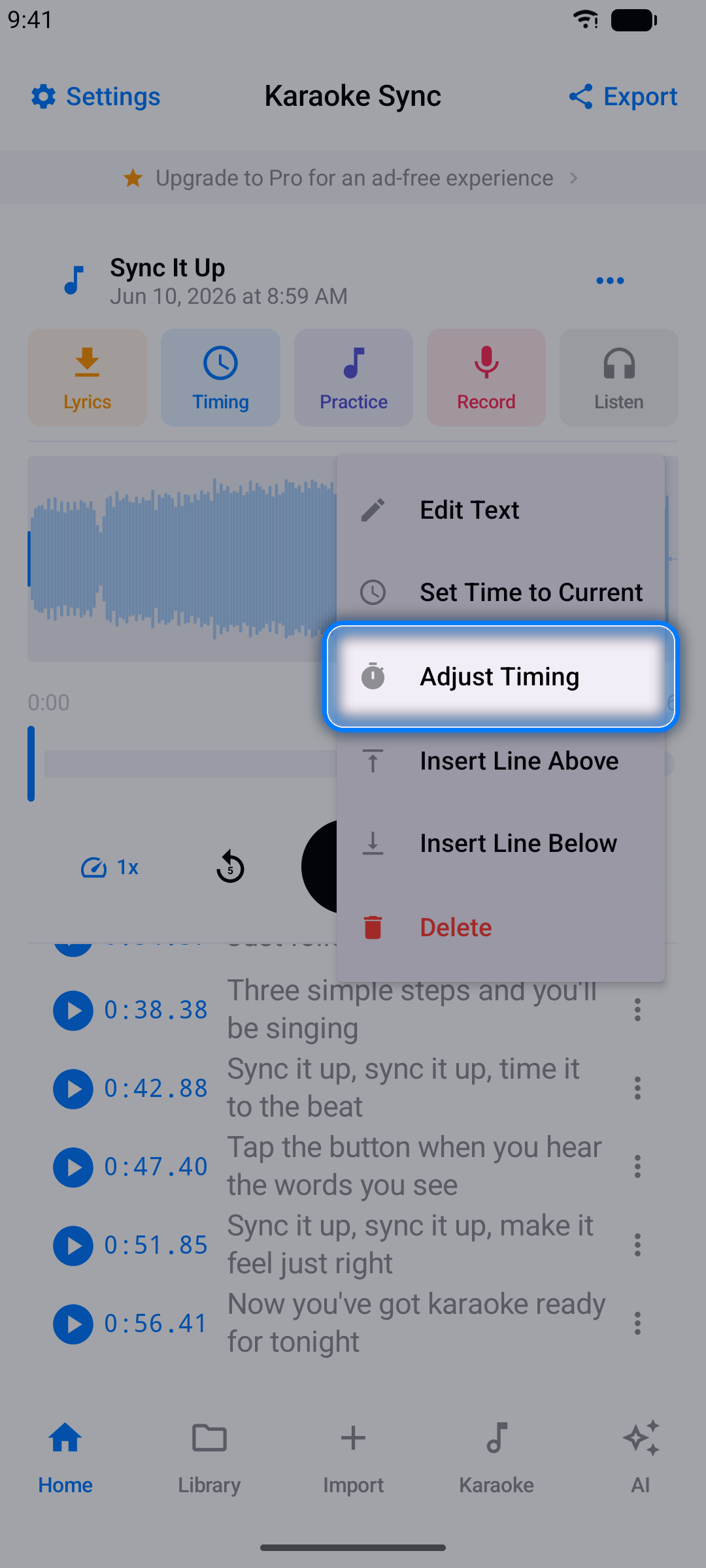
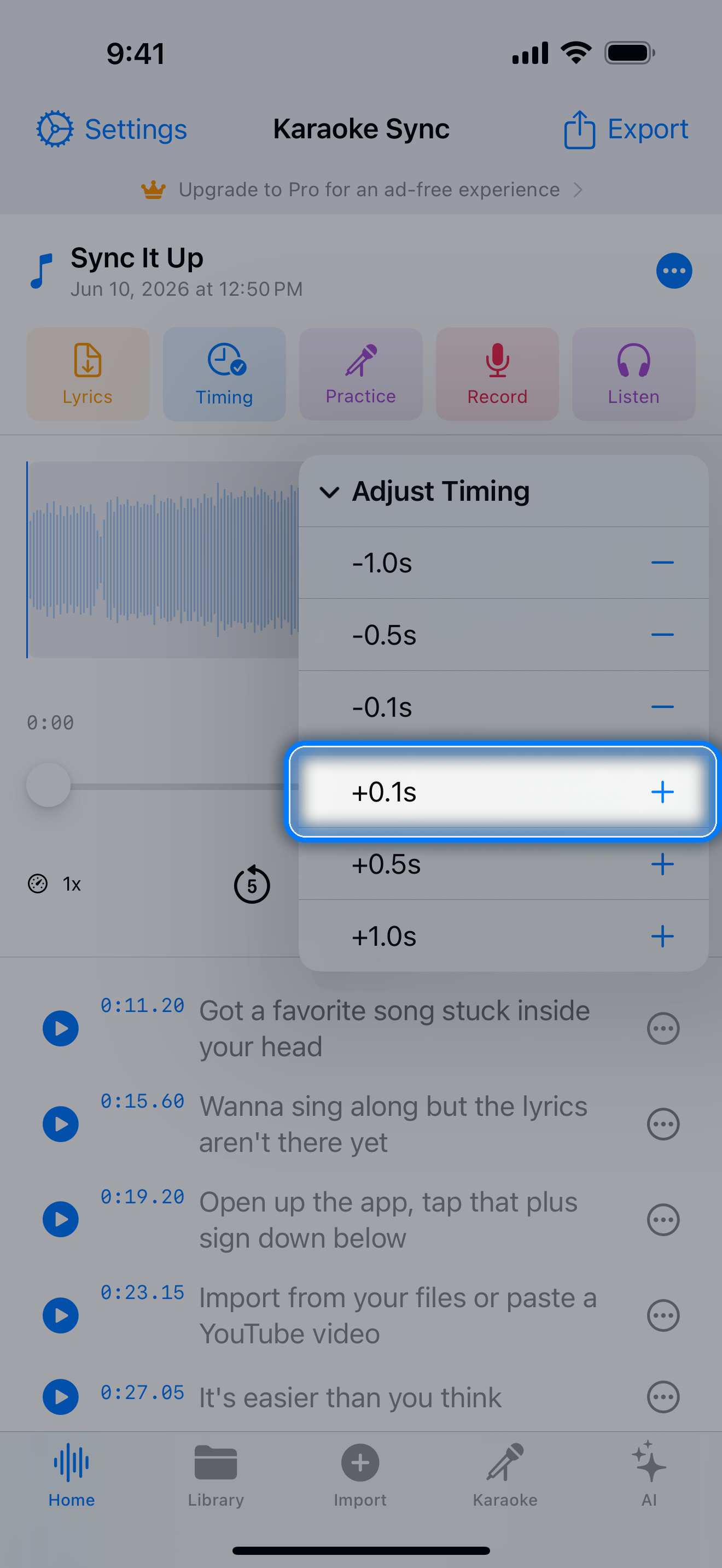
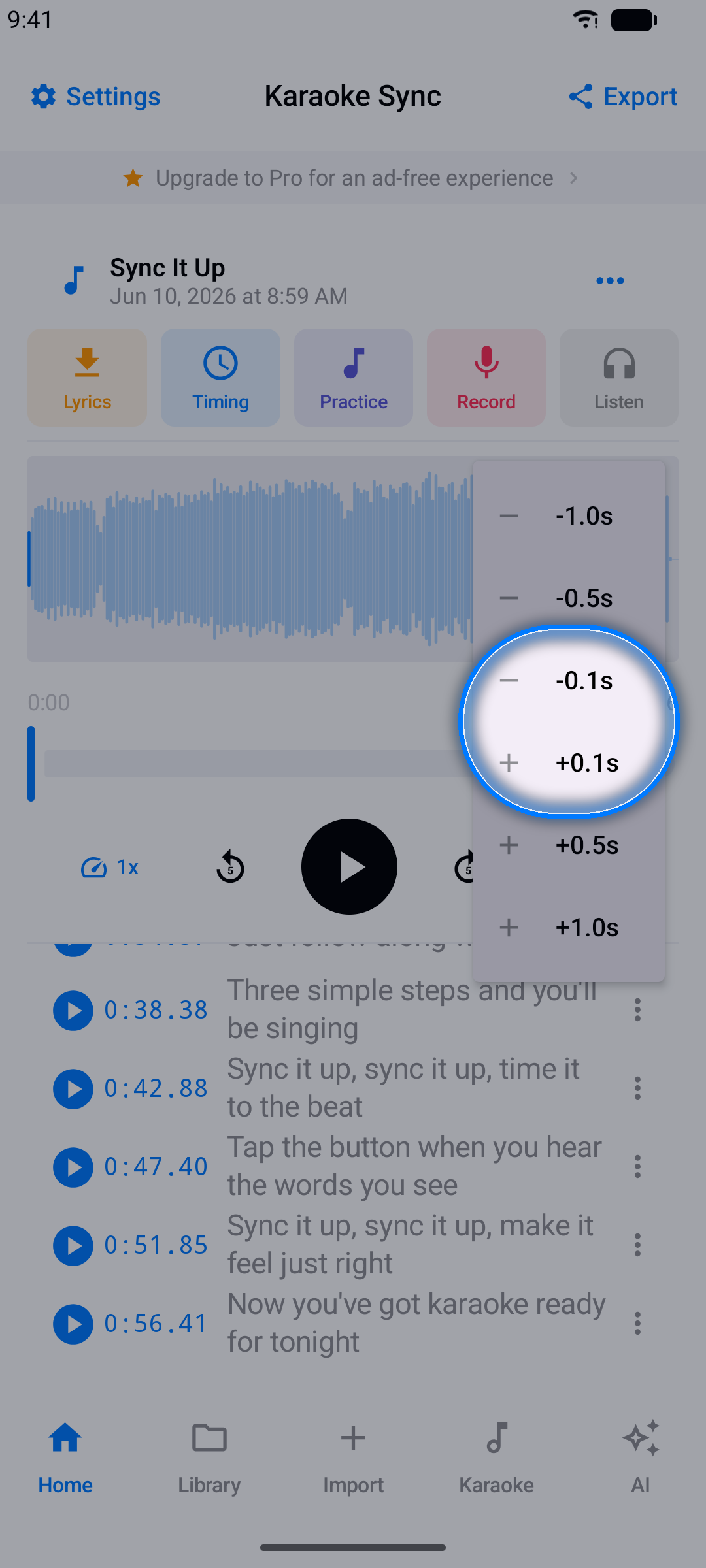
In the project editor, tap the ... button next to any lyric line and choose Adjust Timing.
Step 2: Nudge the Timestamp
Pick how far to move the line - earlier (-) or later (+):
- 0.1 seconds - small nudges
- 0.5 seconds - medium adjustments
- 1.0 second - big moves
A word-timed line moves together with all of its words.
Step 3: Fine-Tune on the Timing Screen
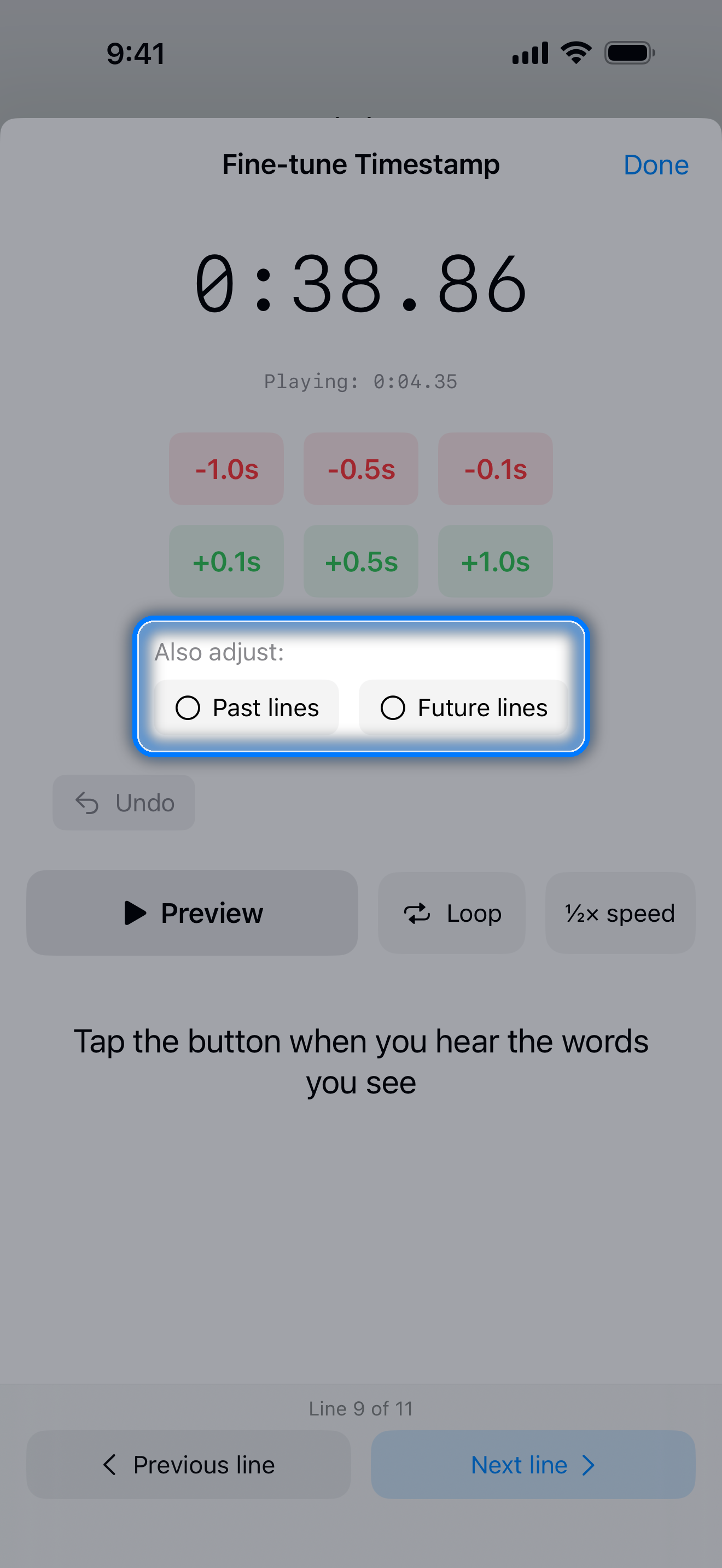
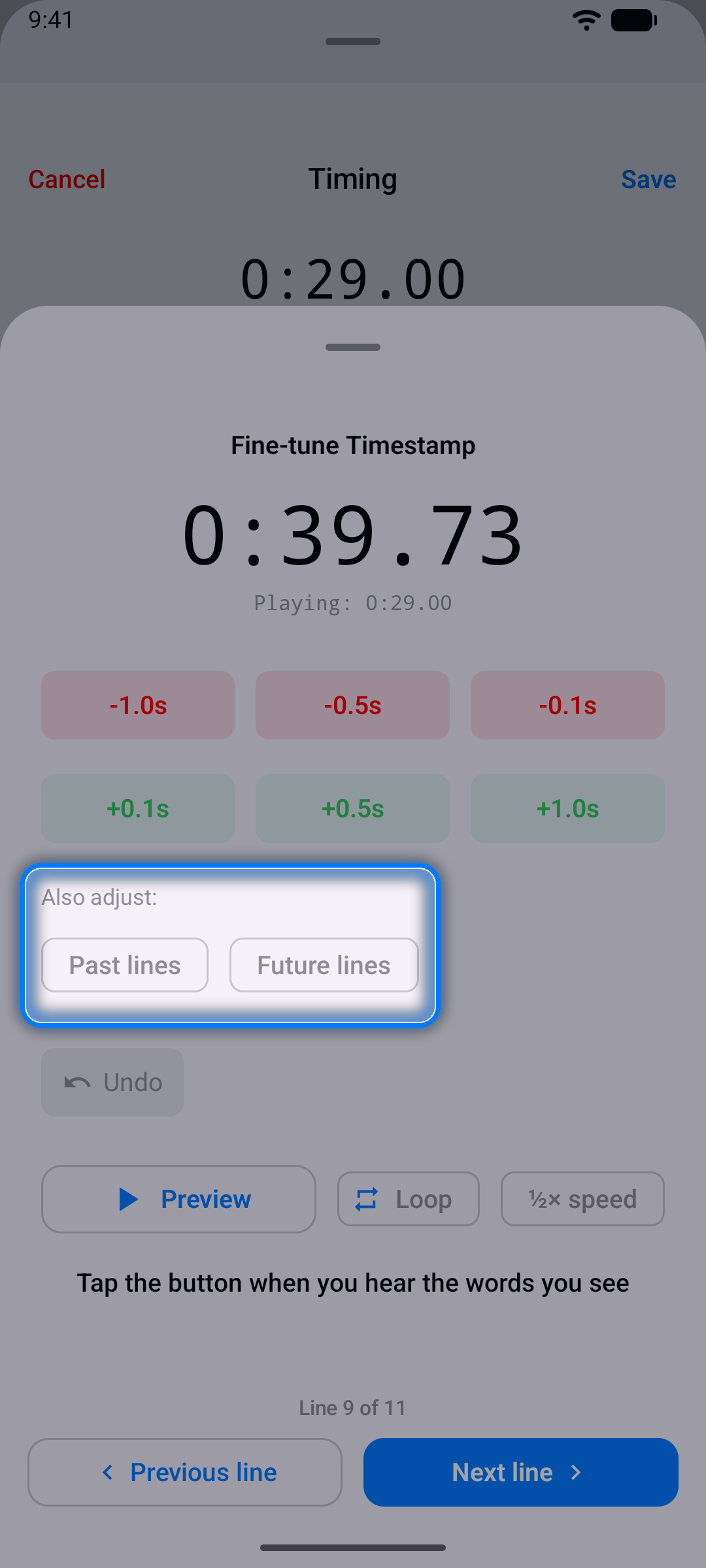
For precise work, open Timing and tap the ... button next to a line to open Fine-tune Timestamp:
- the same +/- buttons, plus Undo
- Preview plays just that line, Loop repeats it, and ½× speed slows it down
- Previous line and Next line step through the song (Line x of y) without closing the sheet
- a word-timed line shows the word timeline from Word-by-Word Timing instead of the buttons
Step 4: Check It
Tap the ▶ button next to a line in the editor to play the song from there, or use Preview in the Fine-tune sheet.
Tip: If the whole song drifts (for example, every line is half a second late), open a line's Fine-tune sheet, turn on Past lines or Future lines under Also adjust:, and tap a +/- button - the shift applies to all of those lines at once (for lines without word timing).
The Project Editor
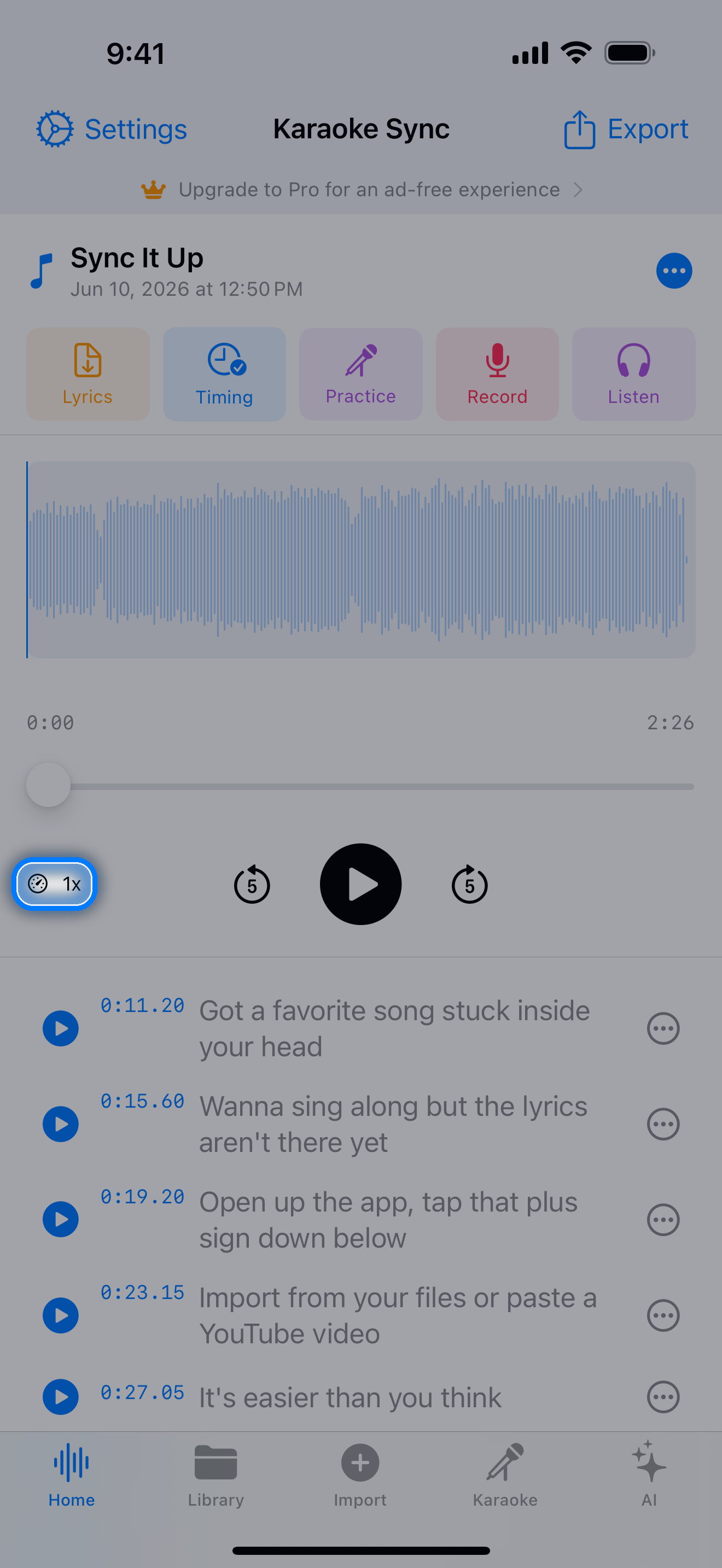
A quick tour of the tools around your lyrics:
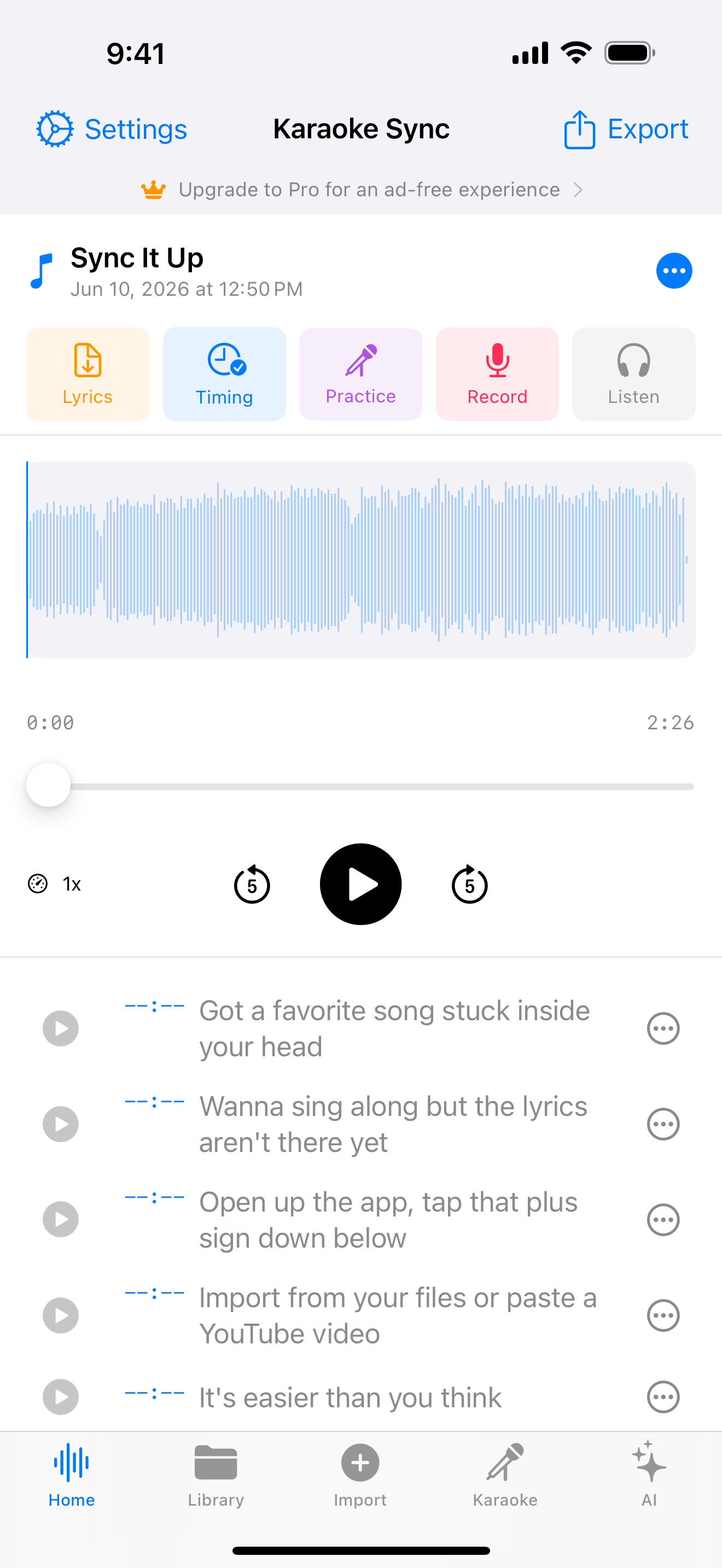
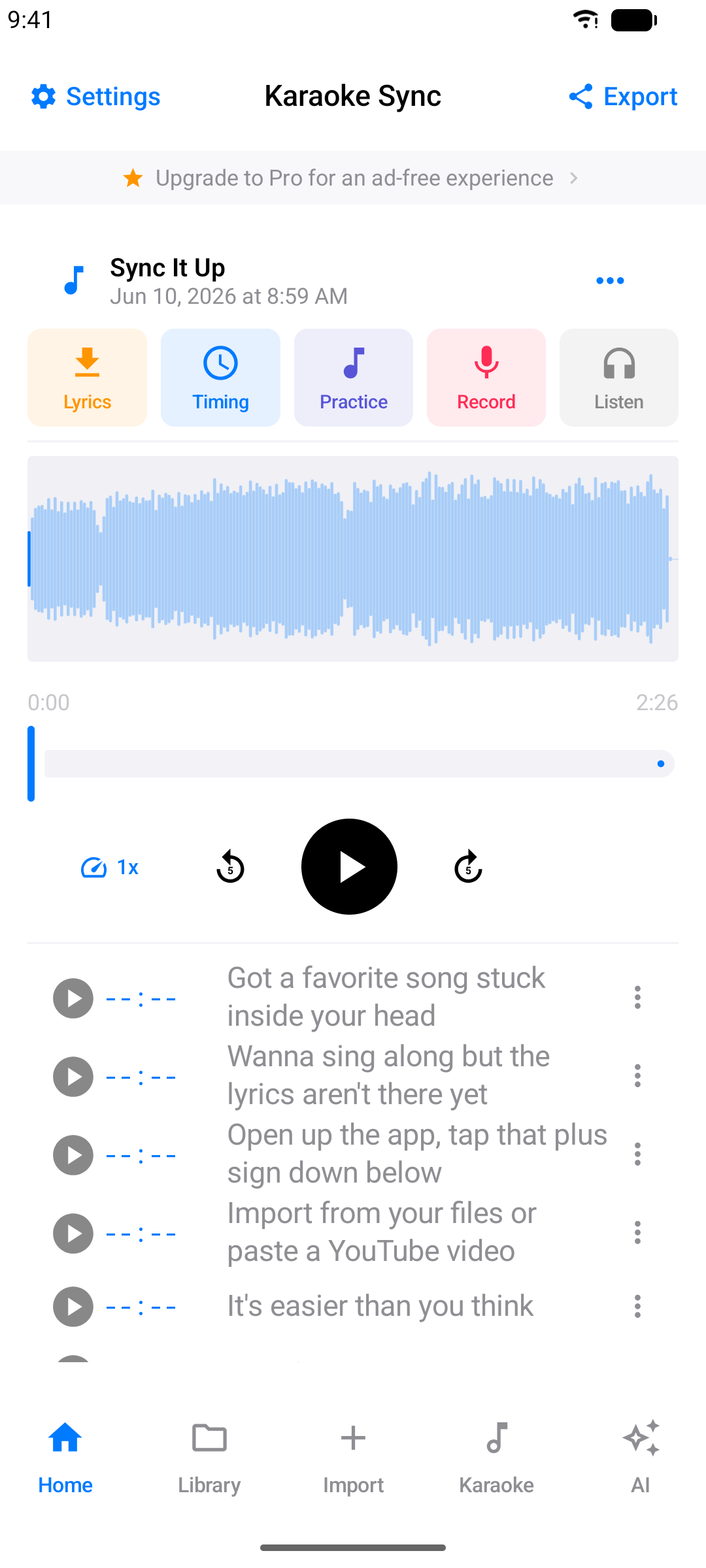
- Action buttons - Lyrics, Timing, Practice, Record, and Listen (plays your latest recording)
- Waveform - audio projects show the song's waveform, so you can see verses, choruses, and quiet moments at a glance; tap it to jump around (on iPhone you can also drag). A video project shows your video here instead, playing along with the song
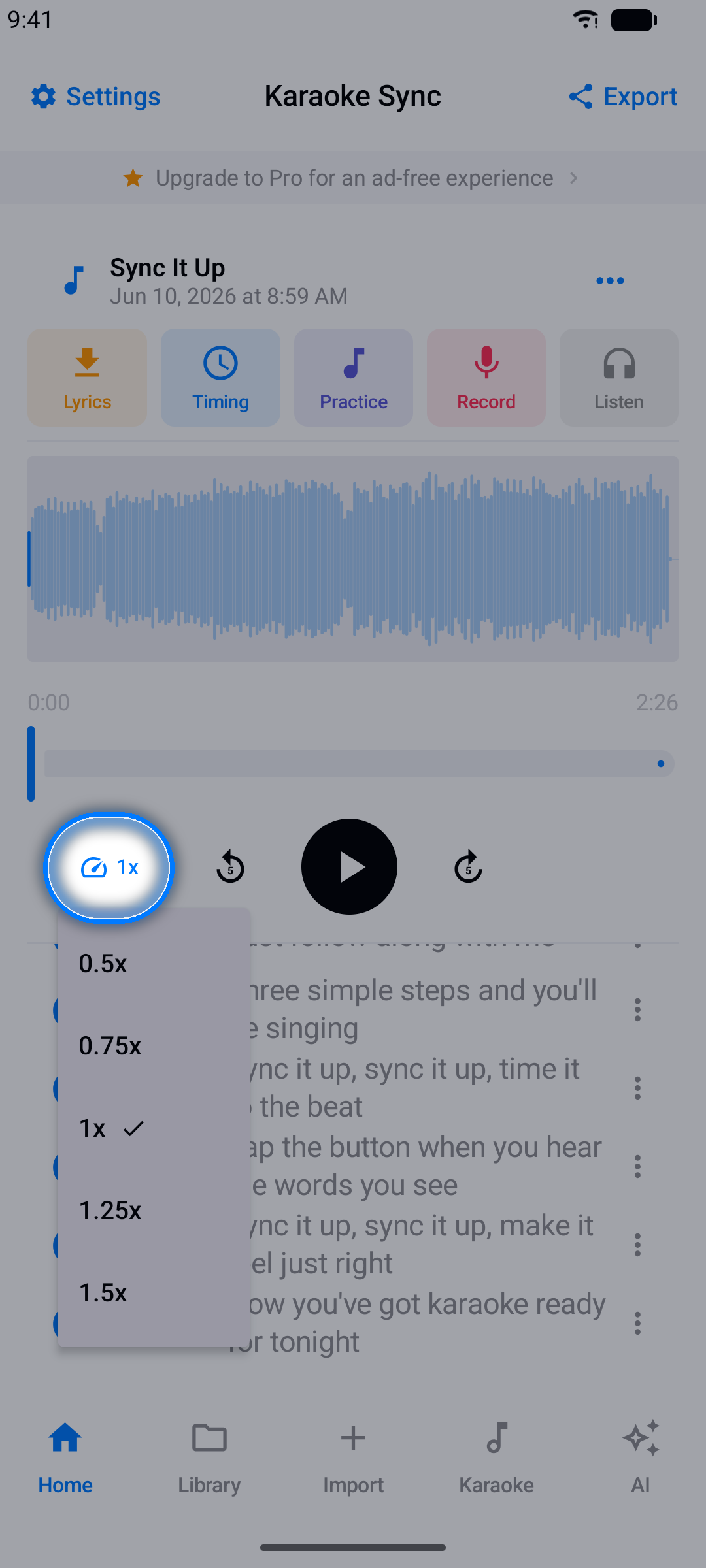
- Playback controls - play, pause, and skip 5 seconds back or forward; change the playback speed (0.5x to 1.5x) to slow the song down while timing tricky fast sections, then check the result at full speed
- Lyric list - tap ▶ on a line to play from there, or tap the line itself to edit its text; its ... menu lets you set the line to the current playback time, adjust its timing, insert lines, select, copy, and paste lines (see Editing and Copying Lines), or delete it
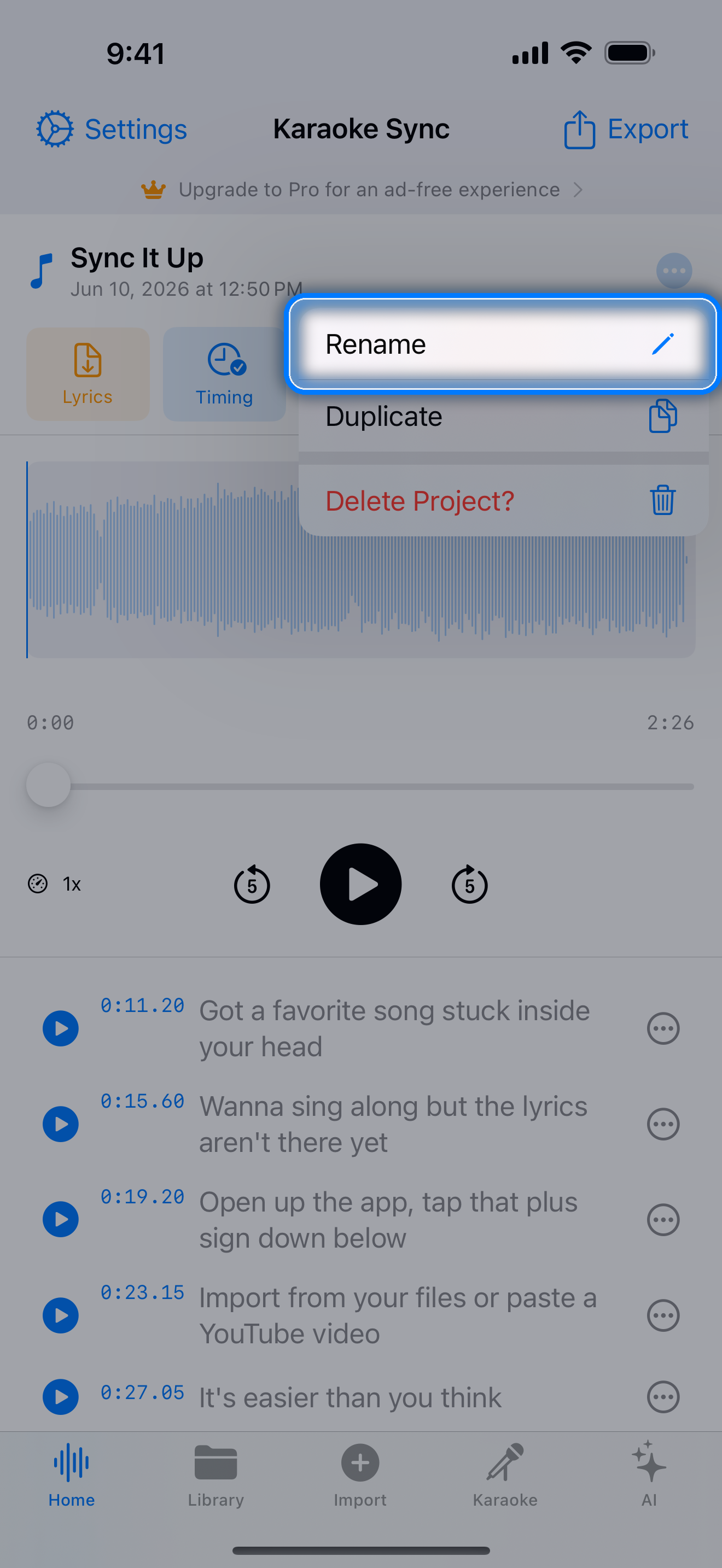
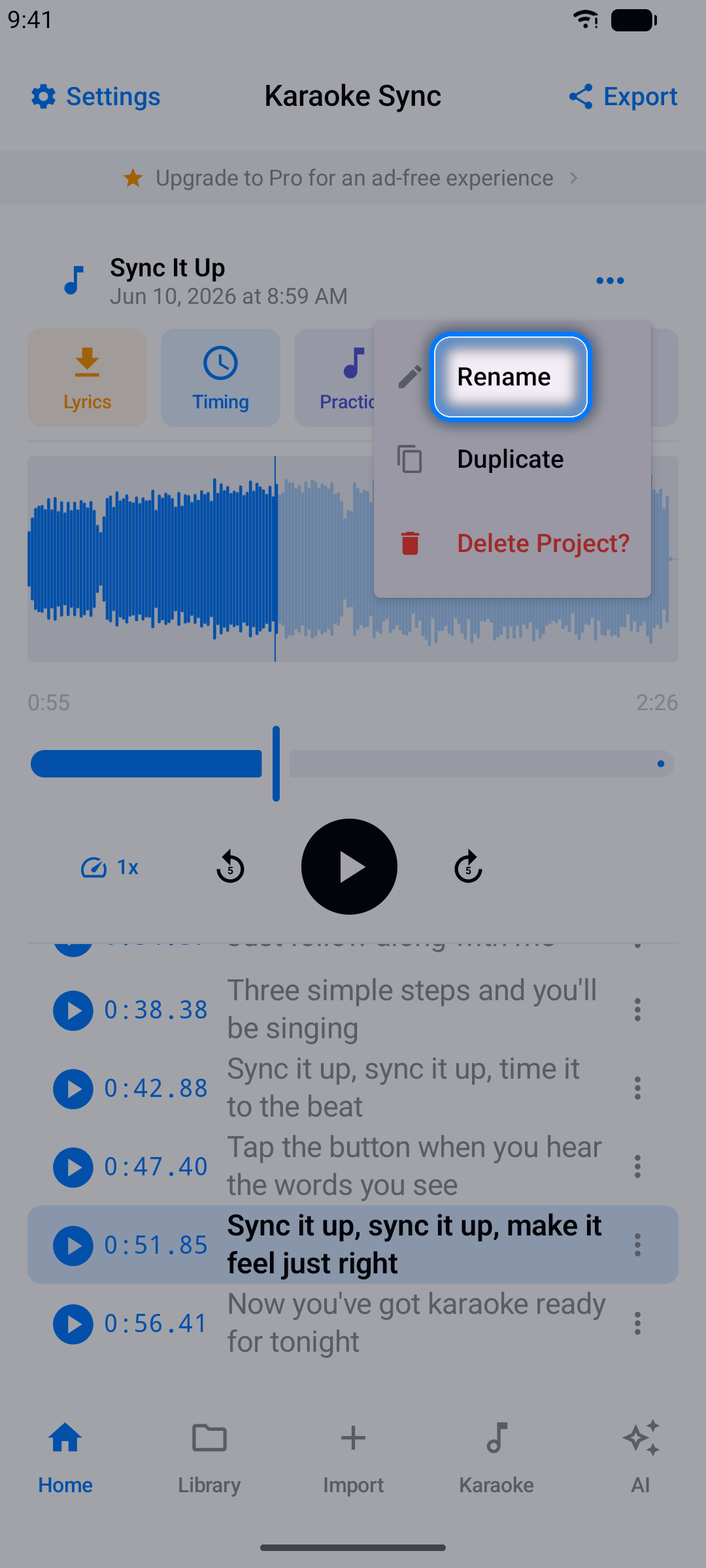
- Project menu - the ... next to the project name lets you rename, duplicate, or delete the project; Export sits in the top-right corner
Editing and Copying Lines
Fix a word, type out a song line by line, or reuse a chorus that comes back later - right in the project editor's lyric list.
Edit a Line
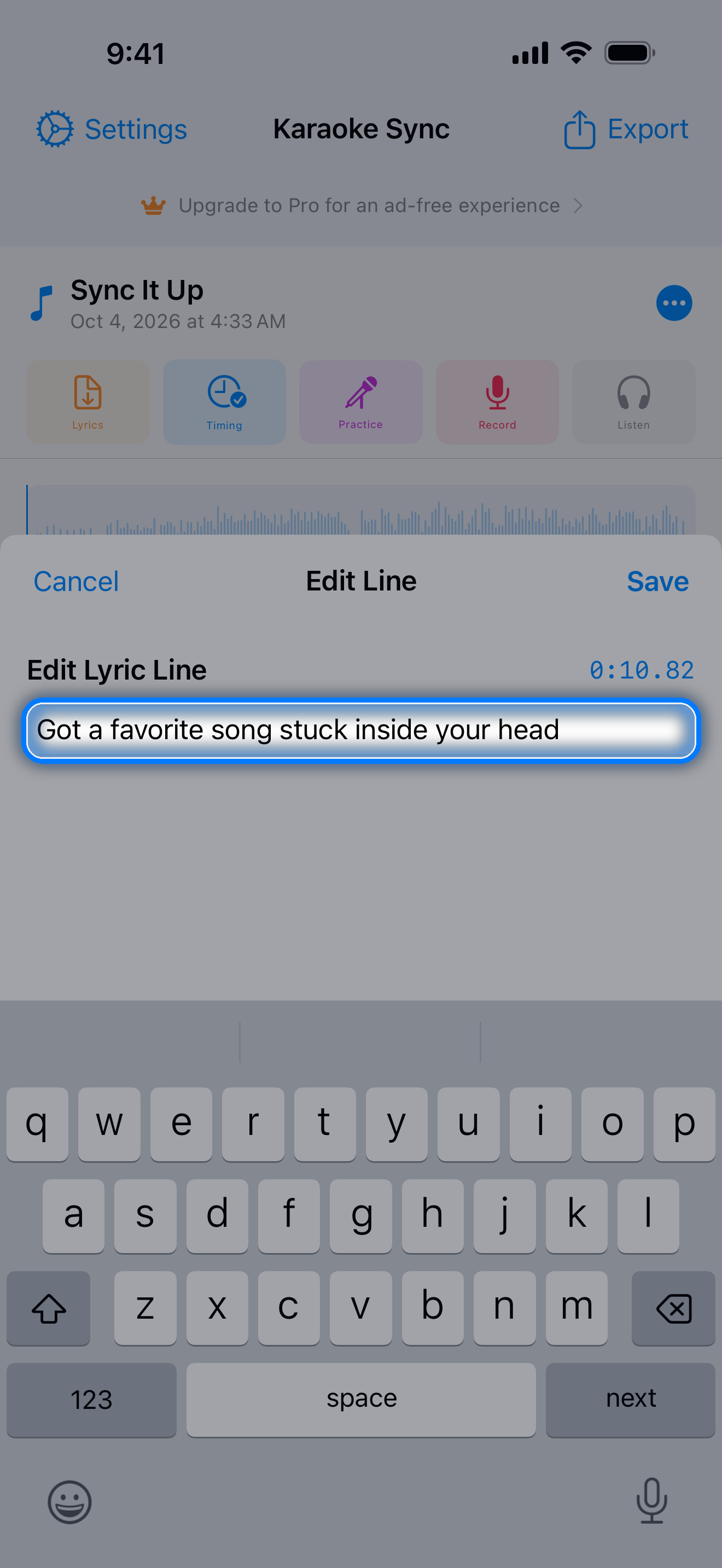
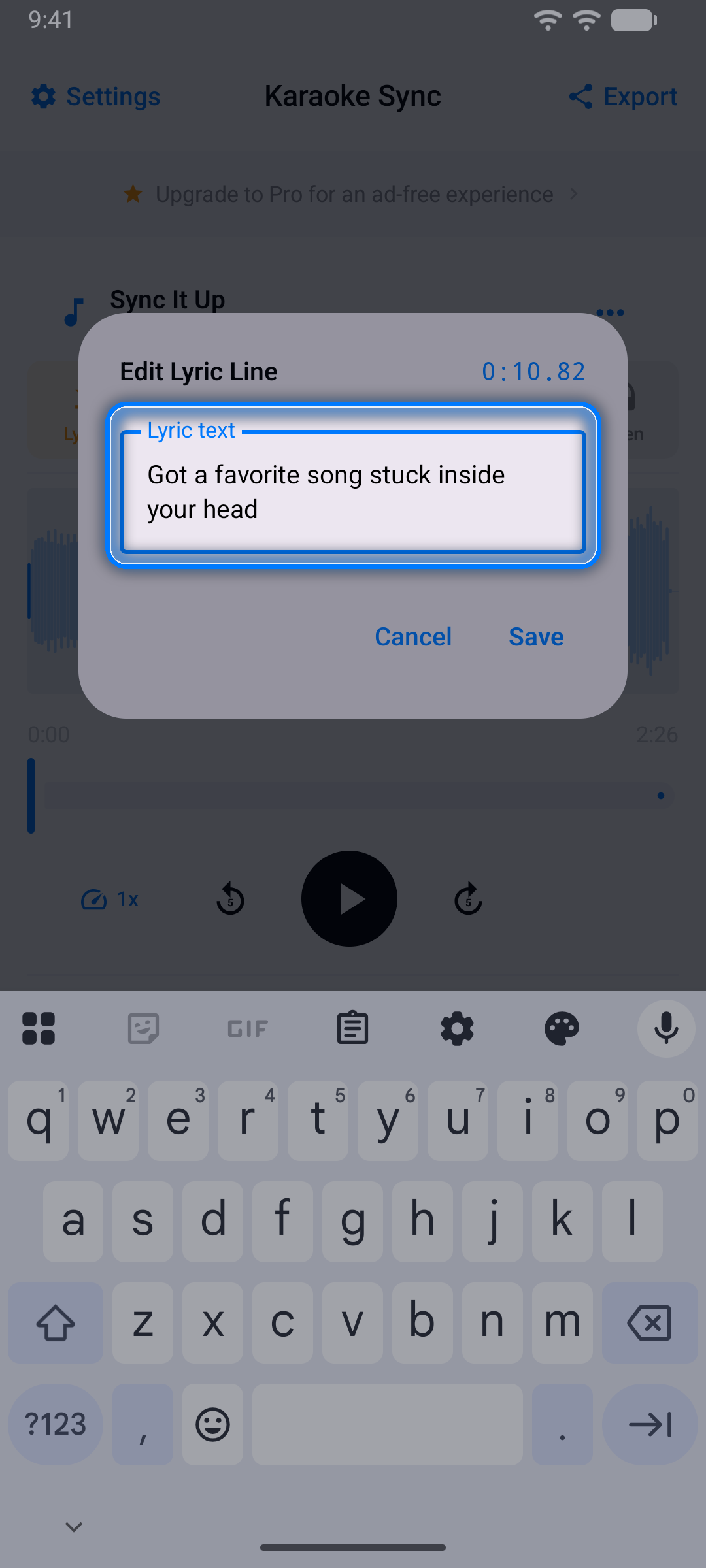
Tap a line's text to edit it. The Edit Lyric Line editor opens with the keyboard ready and shows the line's time. The keyboard's Next key saves the line and opens the next one, so you can work through a whole song without leaving the keyboard; on the last line it saves and closes. A line you just added with Insert Line Below opens empty, ready to type.
Tip: Fixing a typo keeps the line's word timing, as long as the number of words stays the same.
Copy and Paste Lines with Their Timing
- Tap a line's ... button and choose Select Lines, then tap any other lines you want - each gets a check mark
- Tap Copy in the bar above the list
- Play or pause the song where the part comes back, open the ... menu of the line it should follow, and choose Paste Lines Below
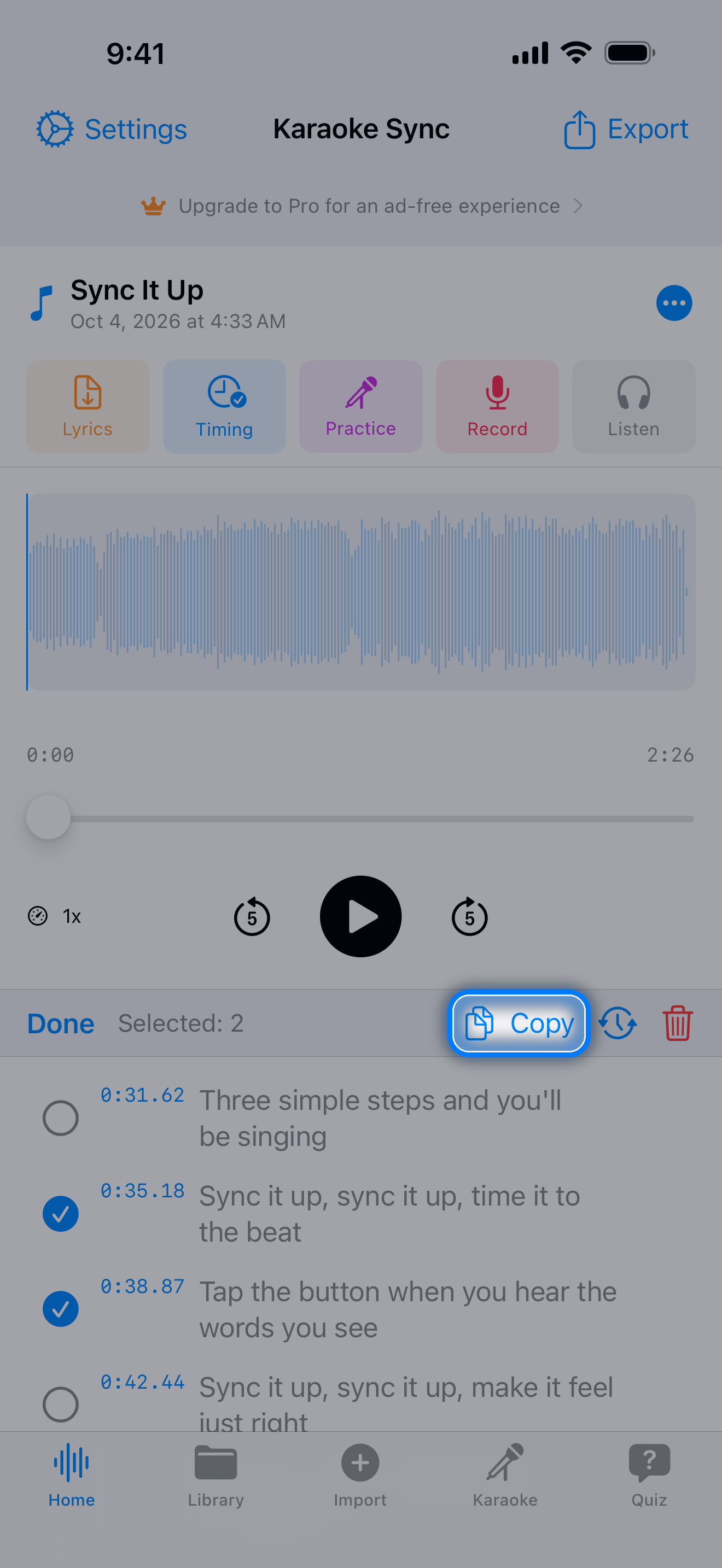
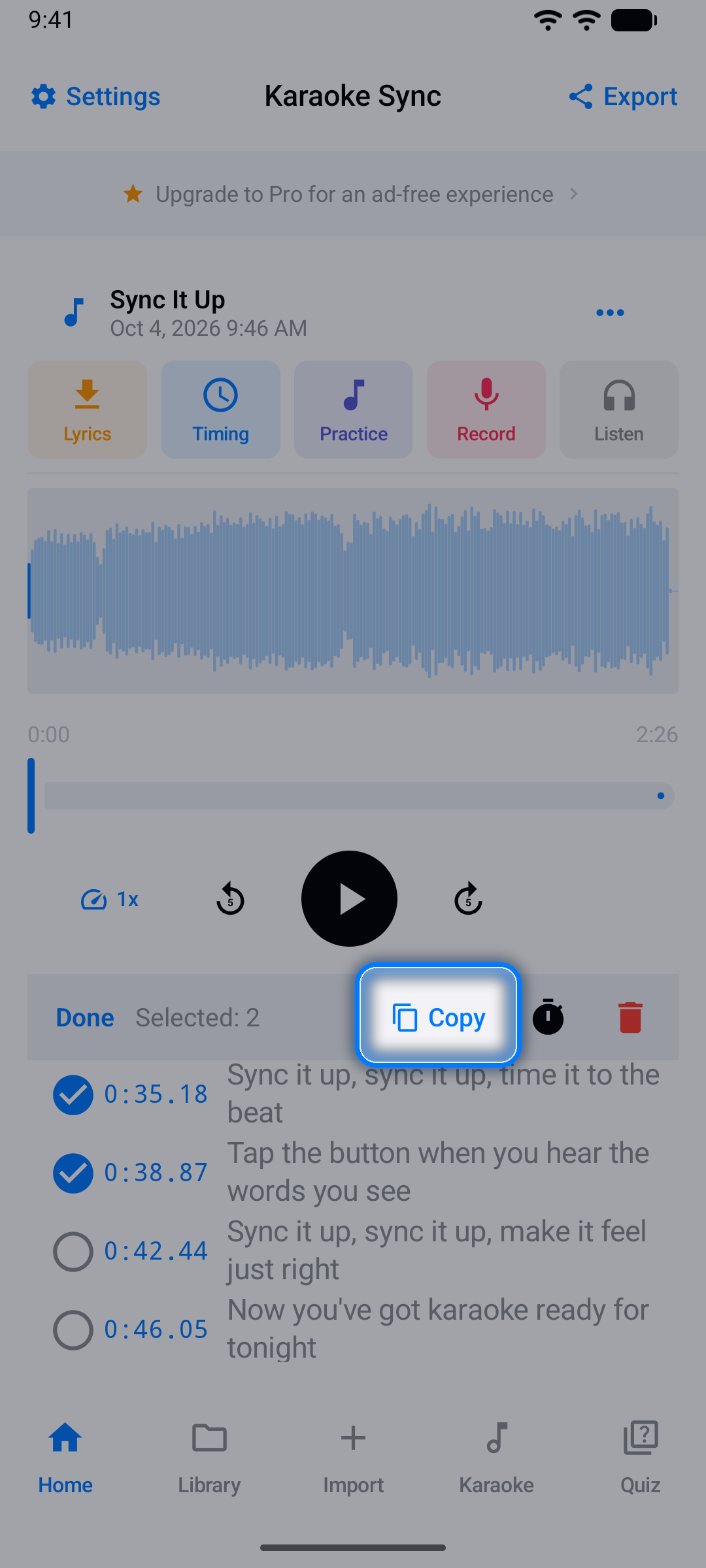
The pasted lines keep their timing relative to each other - word timing included - and the first one lands at the playback position. If the song isn't between that line and the next timed line, they go after it with the same gap they had where you copied them, and they never run past the next timed line. They come back selected: the bar's Adjust Timing button moves them all at once (-1.0 to +1.0 seconds), and its trash button deletes them. Tap Done when you're finished.
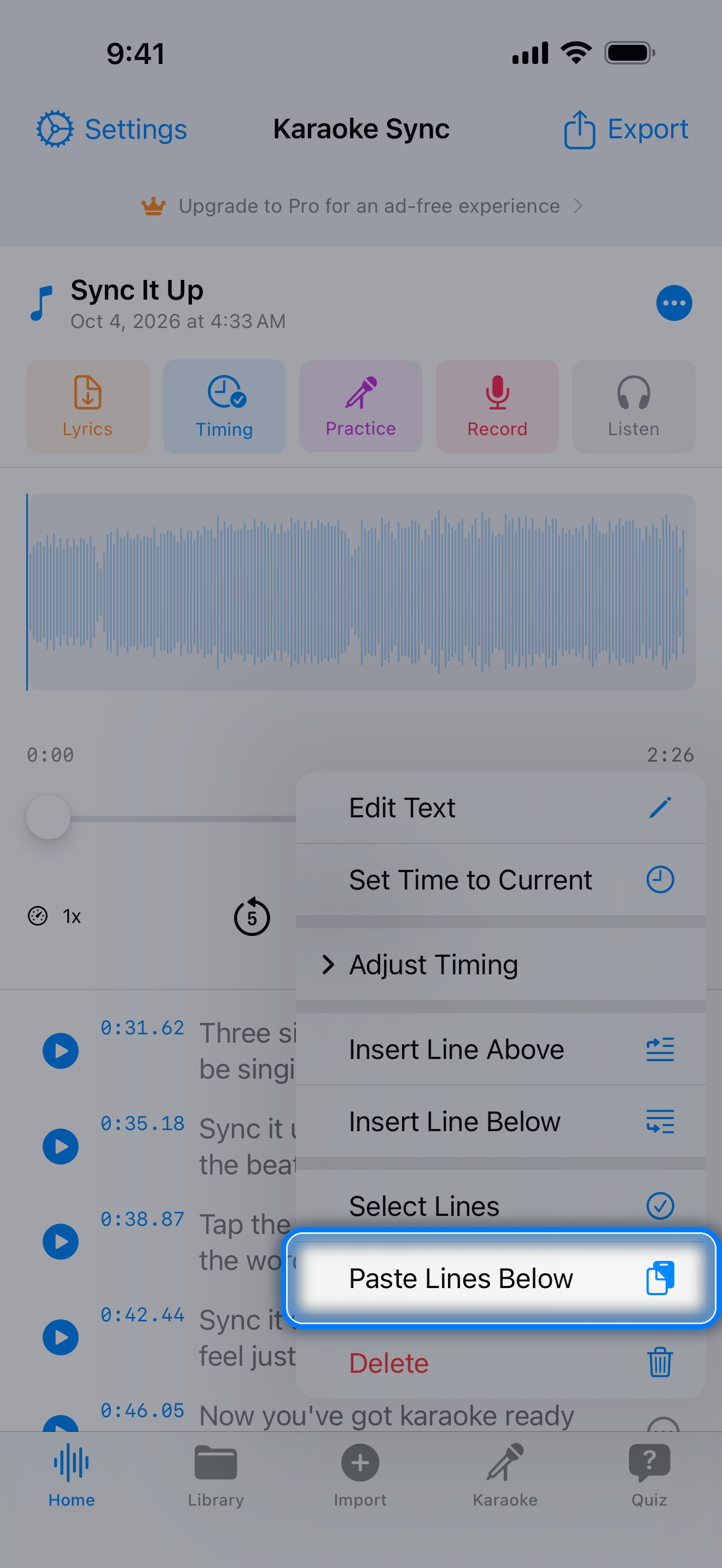
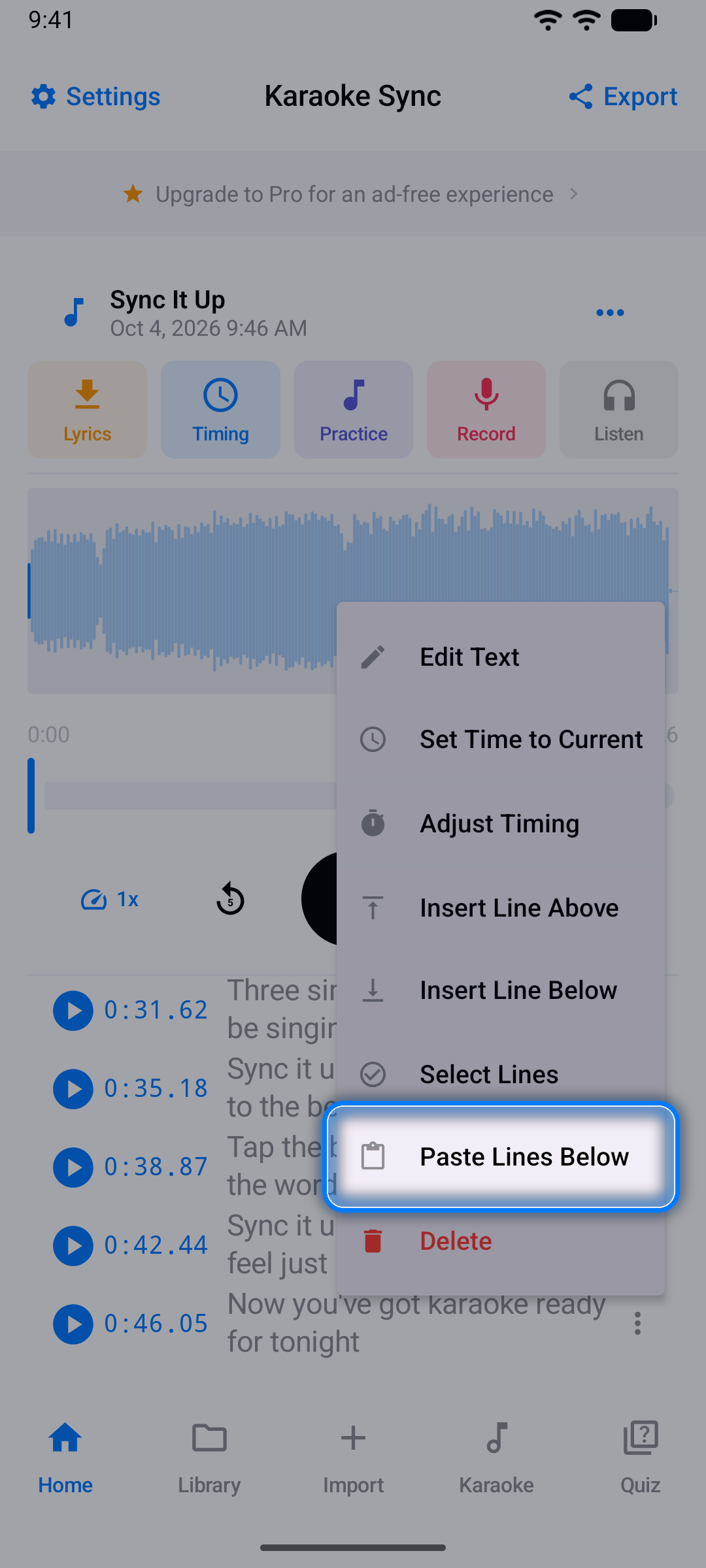
Copied lines stay ready to paste while the app is open - into another project, too.
Practice Mode
Sing along with your timed lyrics - no recording, no pressure.
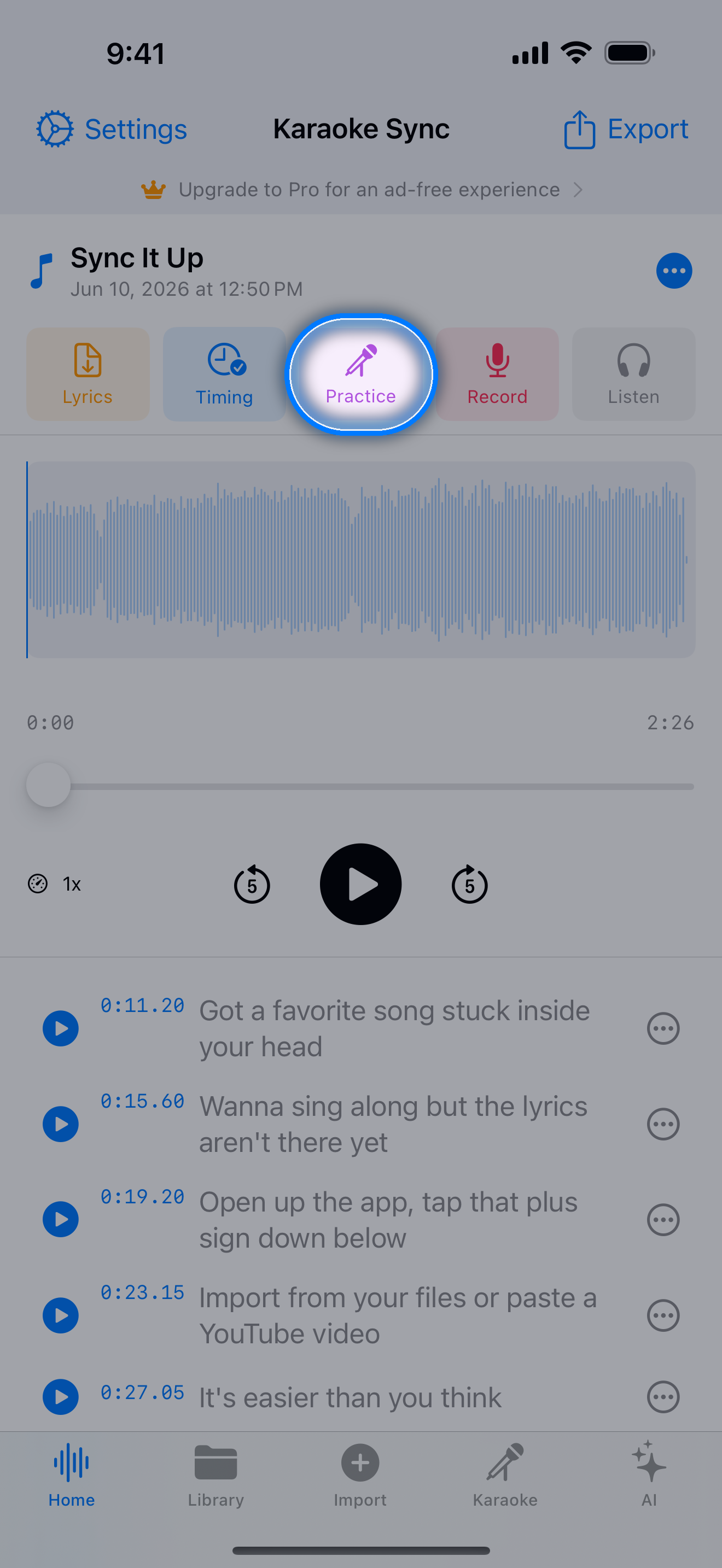
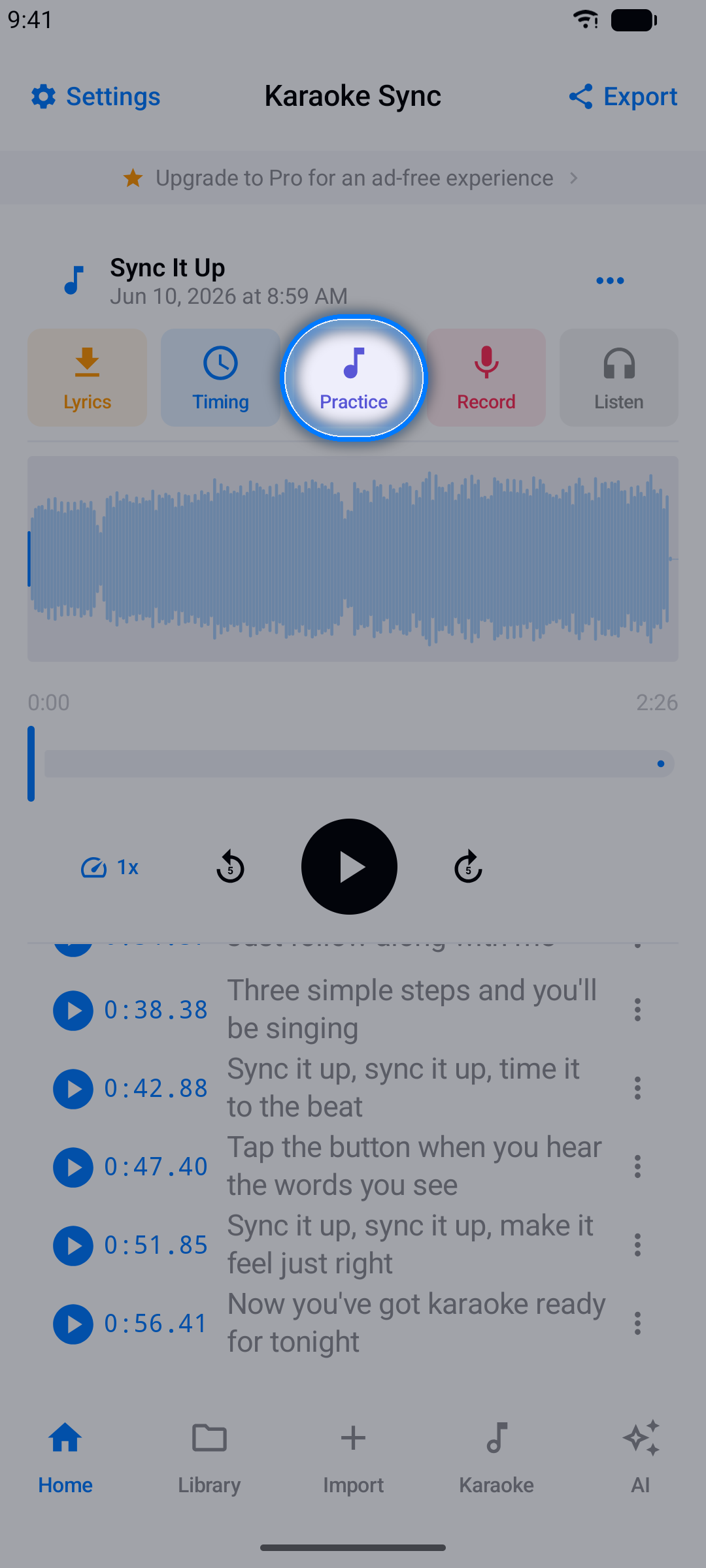
Step 1: Open Practice
With a project open, tap Practice.
Step 2: Sing Along
- Lyrics scroll automatically with the current line highlighted - word by word on word-timed lines
- Tap any line to jump straight to that part of the song
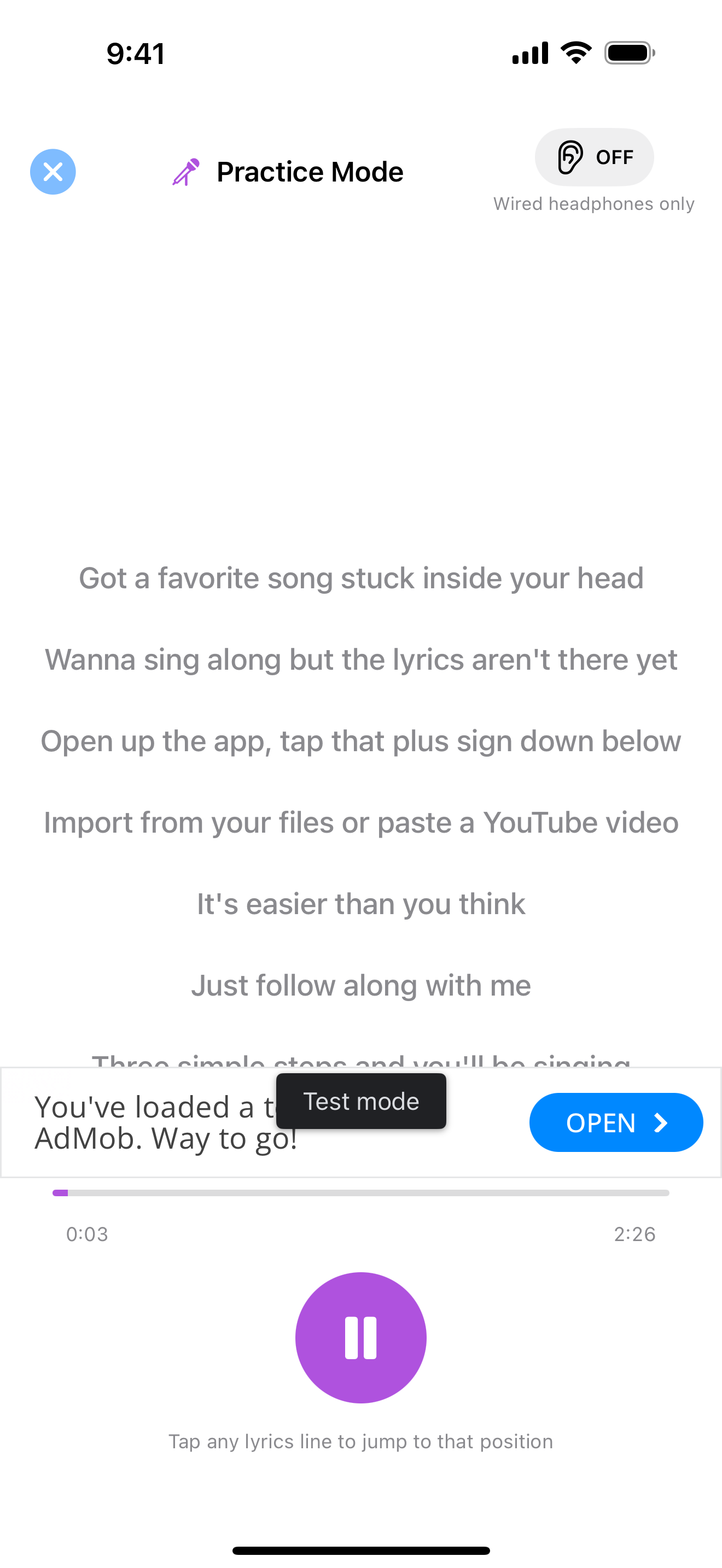
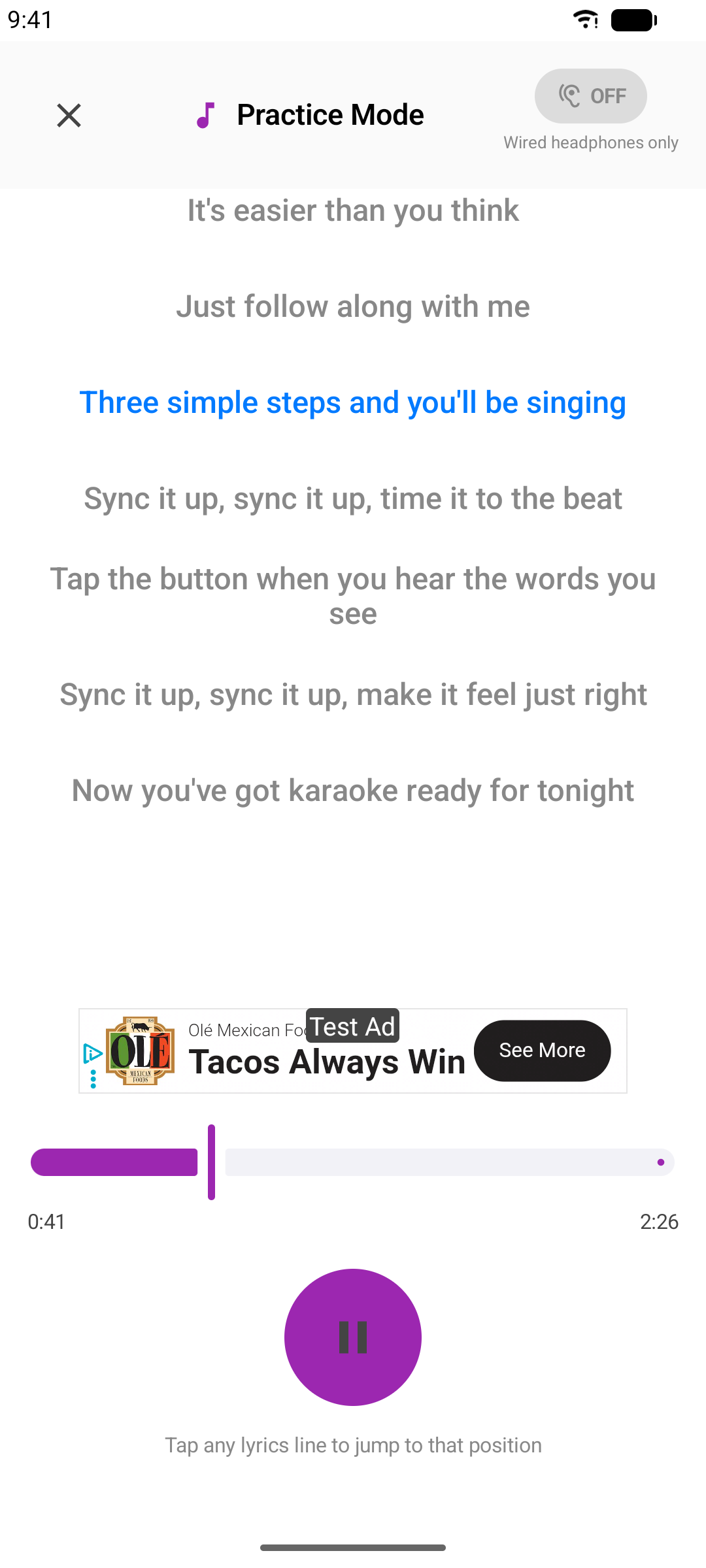
Tip: Plug in wired headphones to hear your own voice mixed in live (passthrough). Bluetooth headphones have too much delay for real-time monitoring.
Sing Mode (Recording)
Record your voice over the music for a real karaoke take.
Step 1: Start a Recording
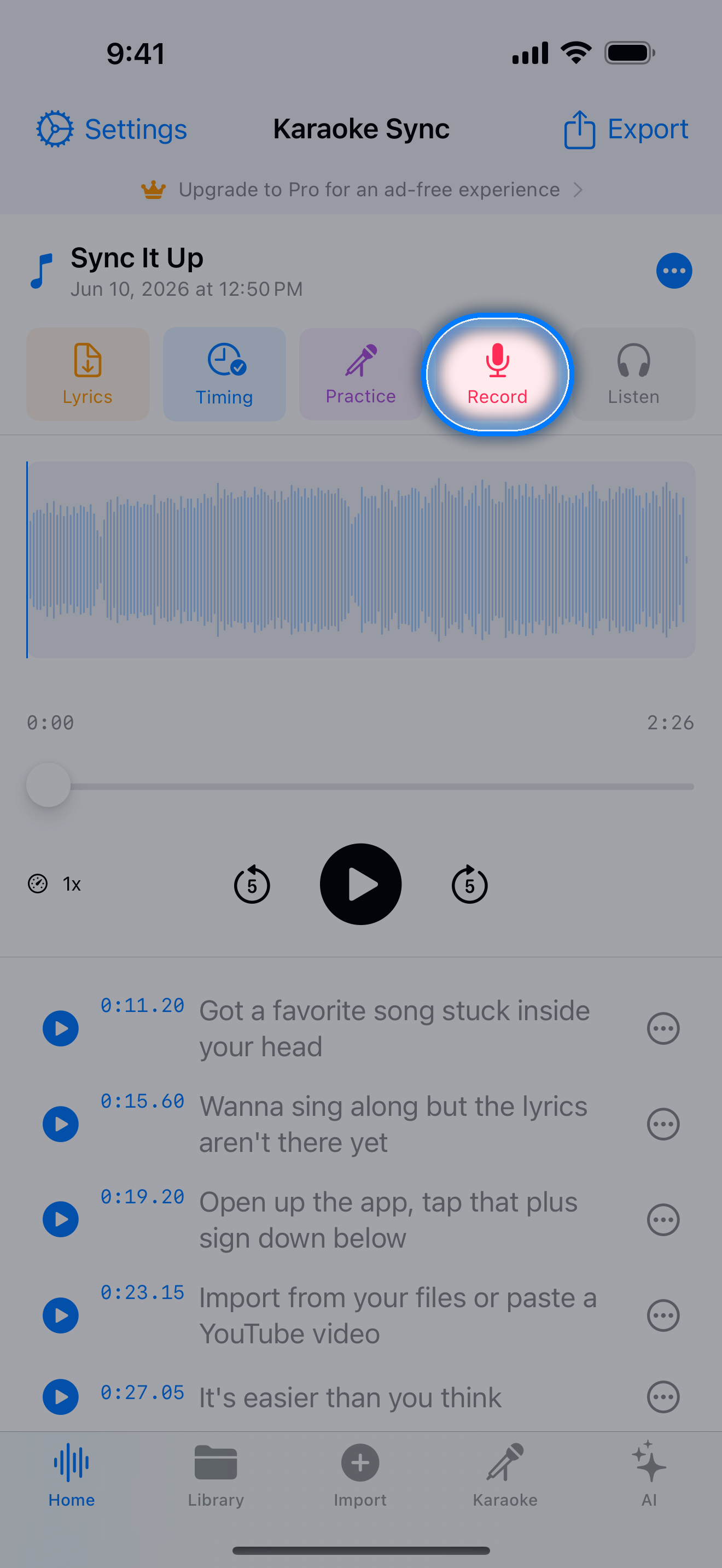
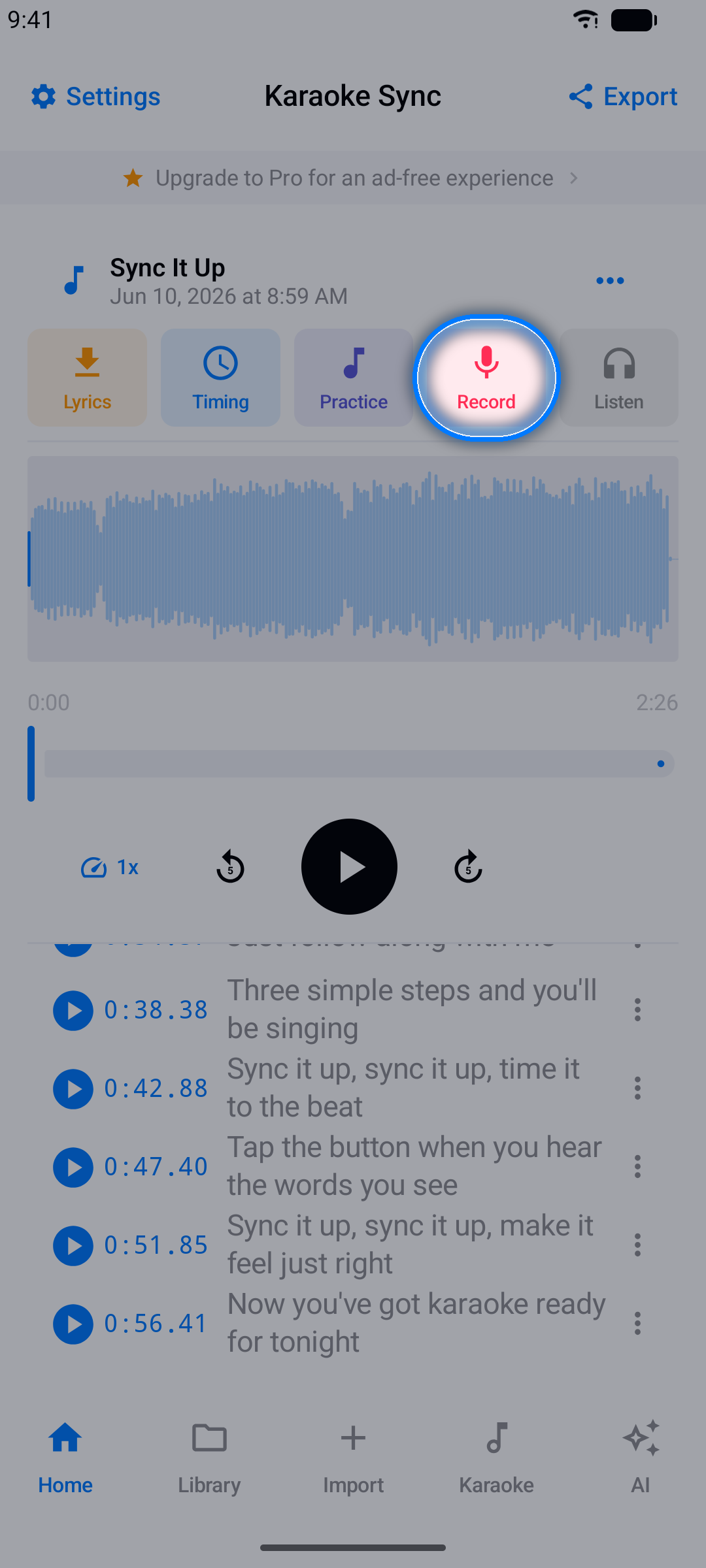
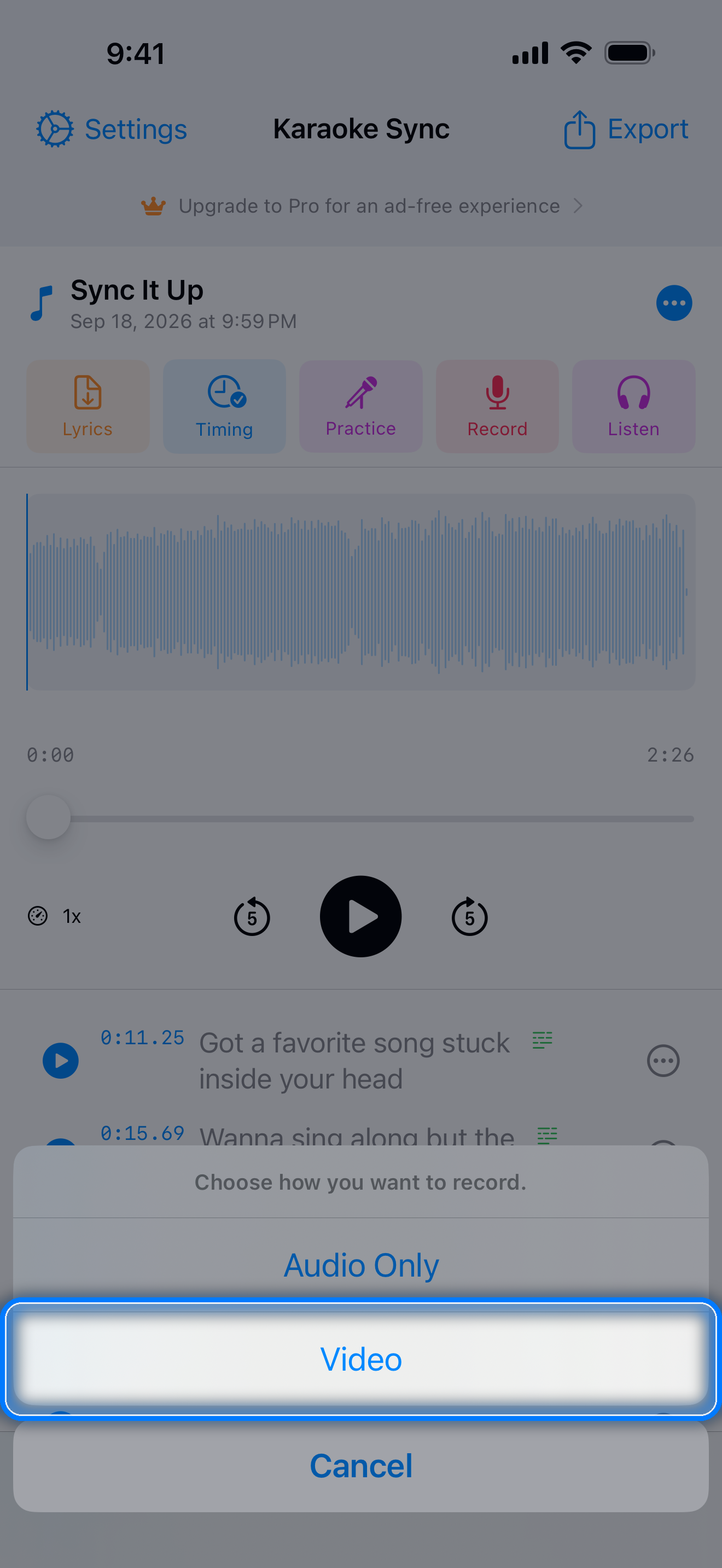
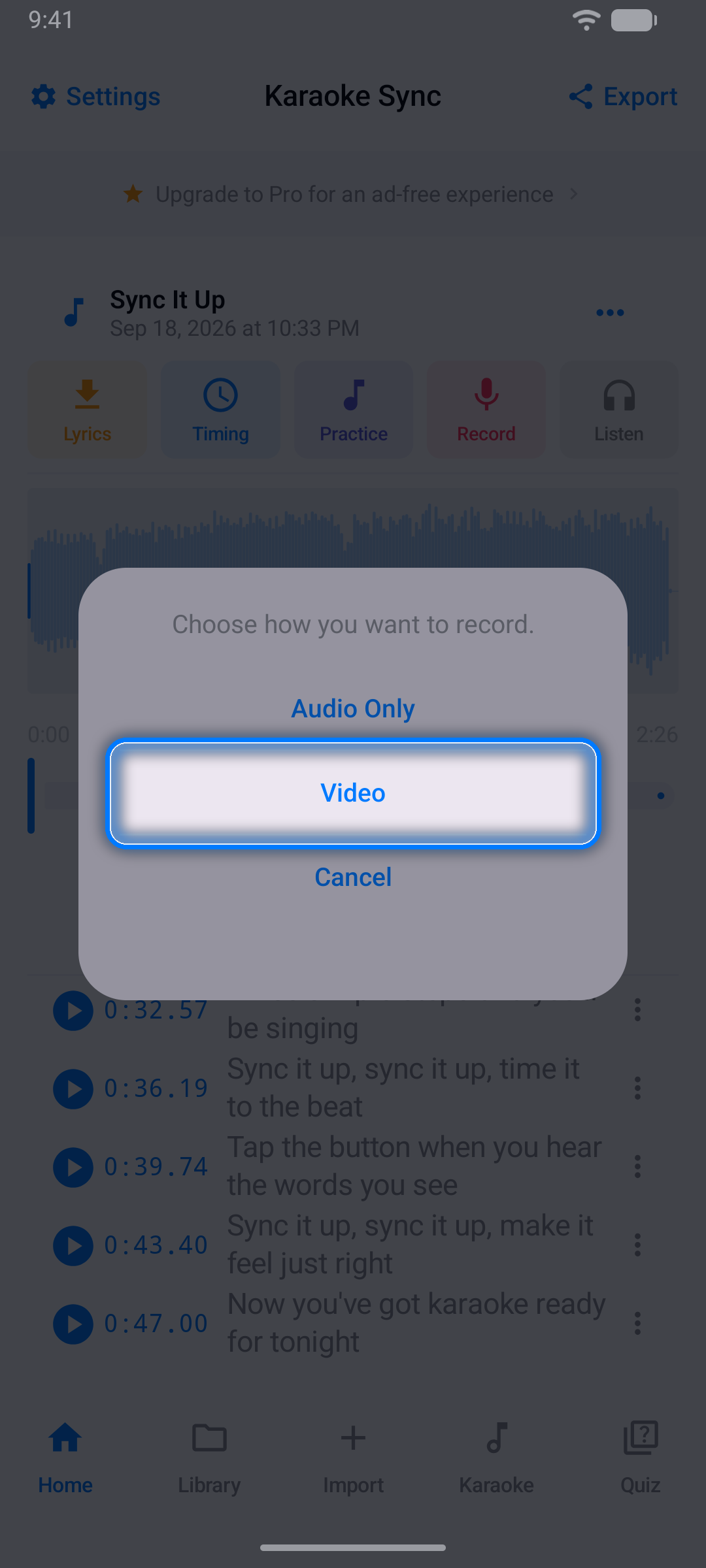
Open a project and tap Record, then choose Audio Only - or Video to film yourself with the front camera at the same time. Allow microphone (and camera) access if asked.
Step 2: Get Ready
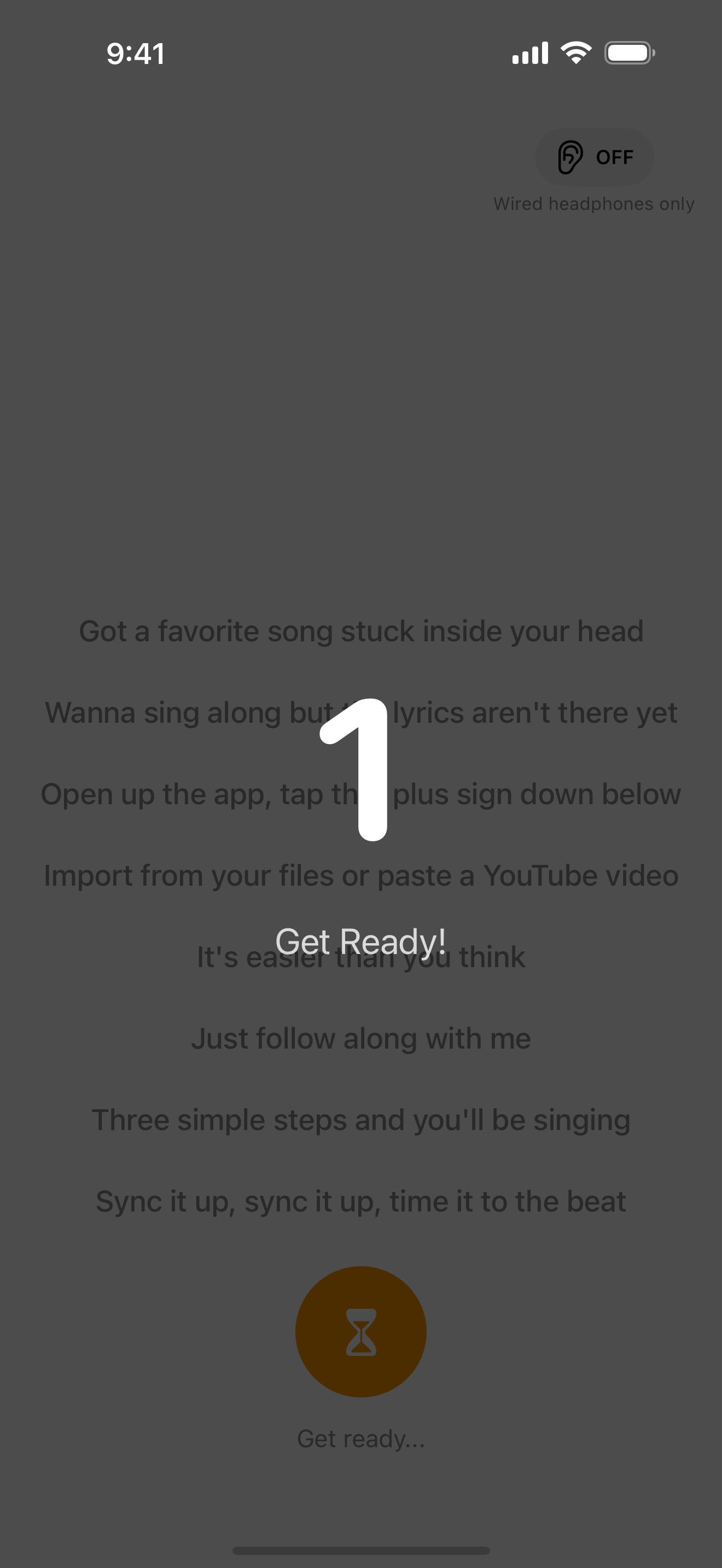
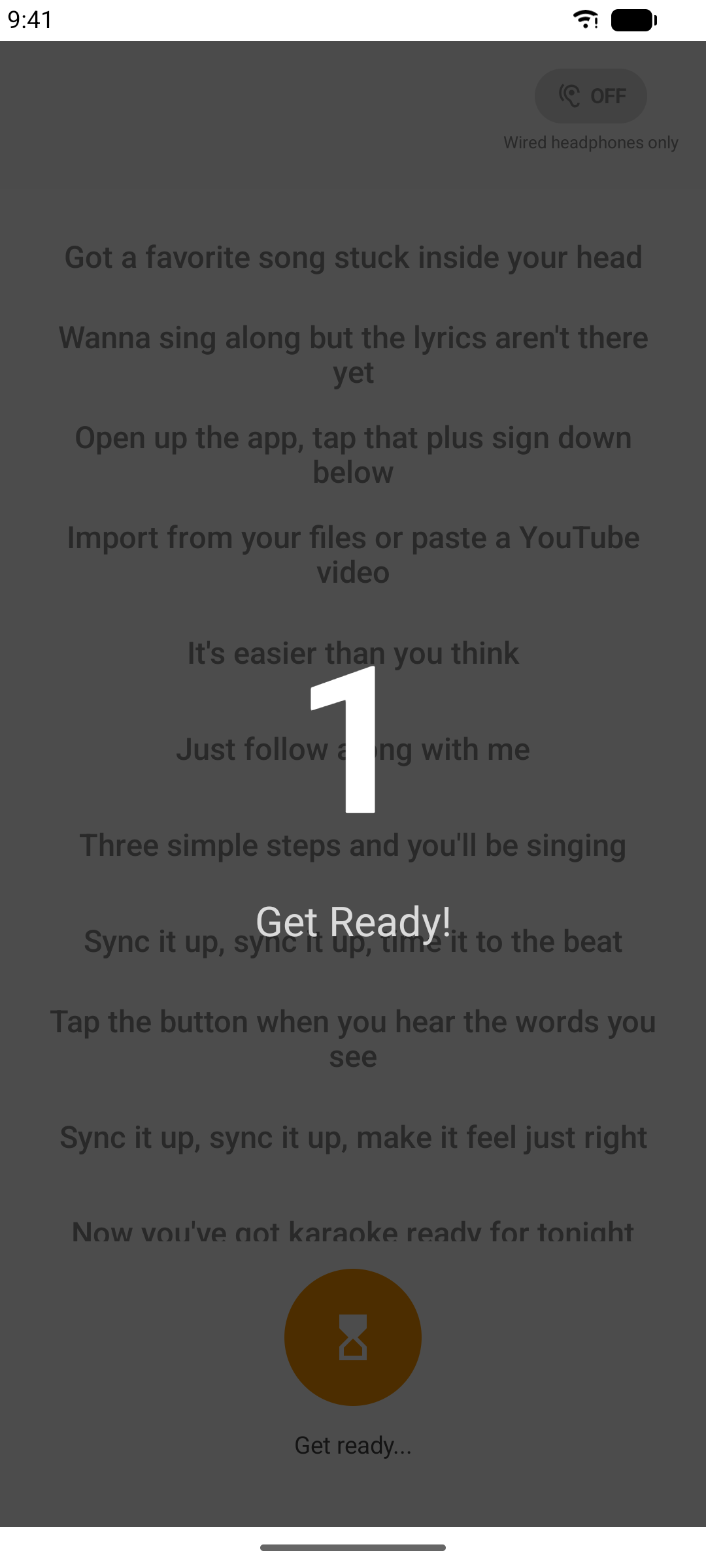
Tap the red microphone button - a 3-2-1 countdown gives you a moment to breathe.
Step 3: Sing!
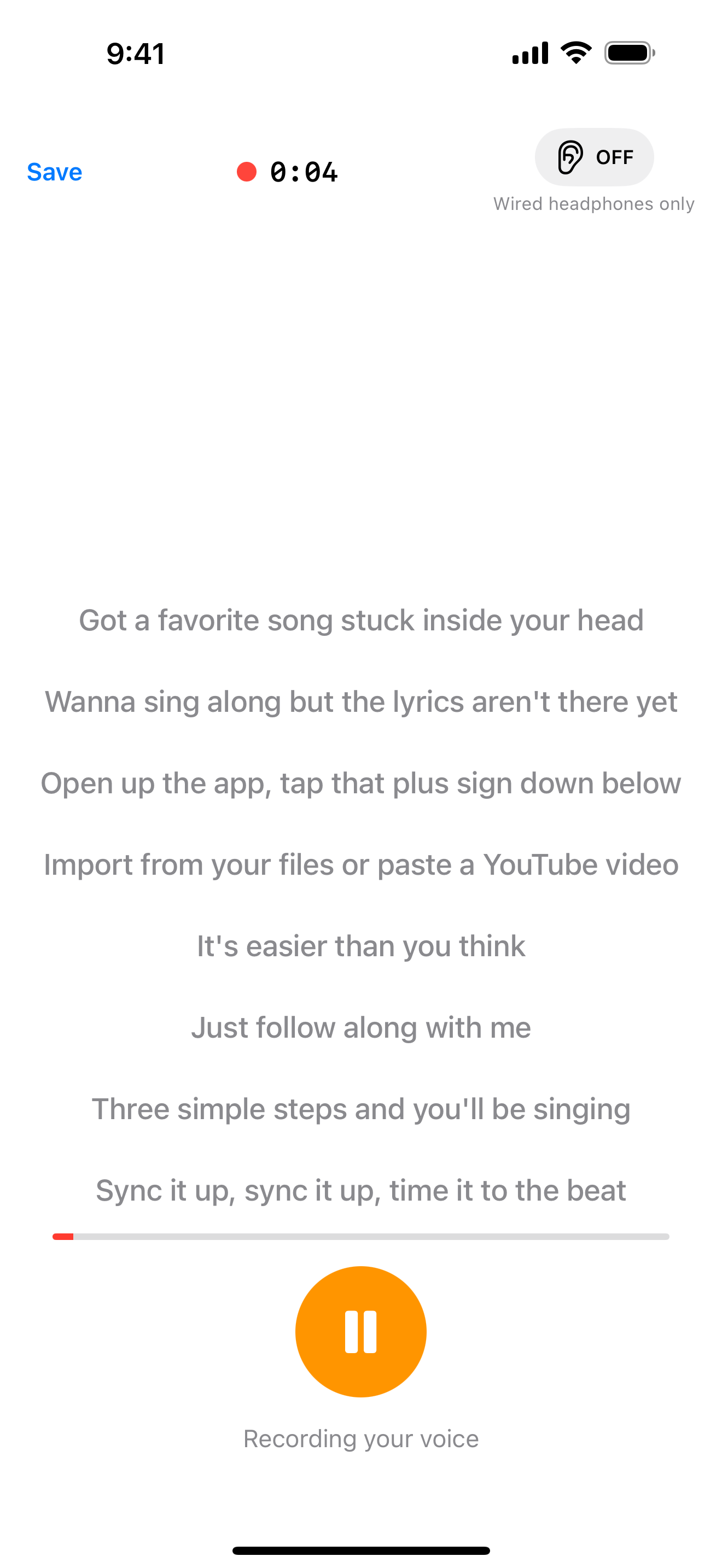
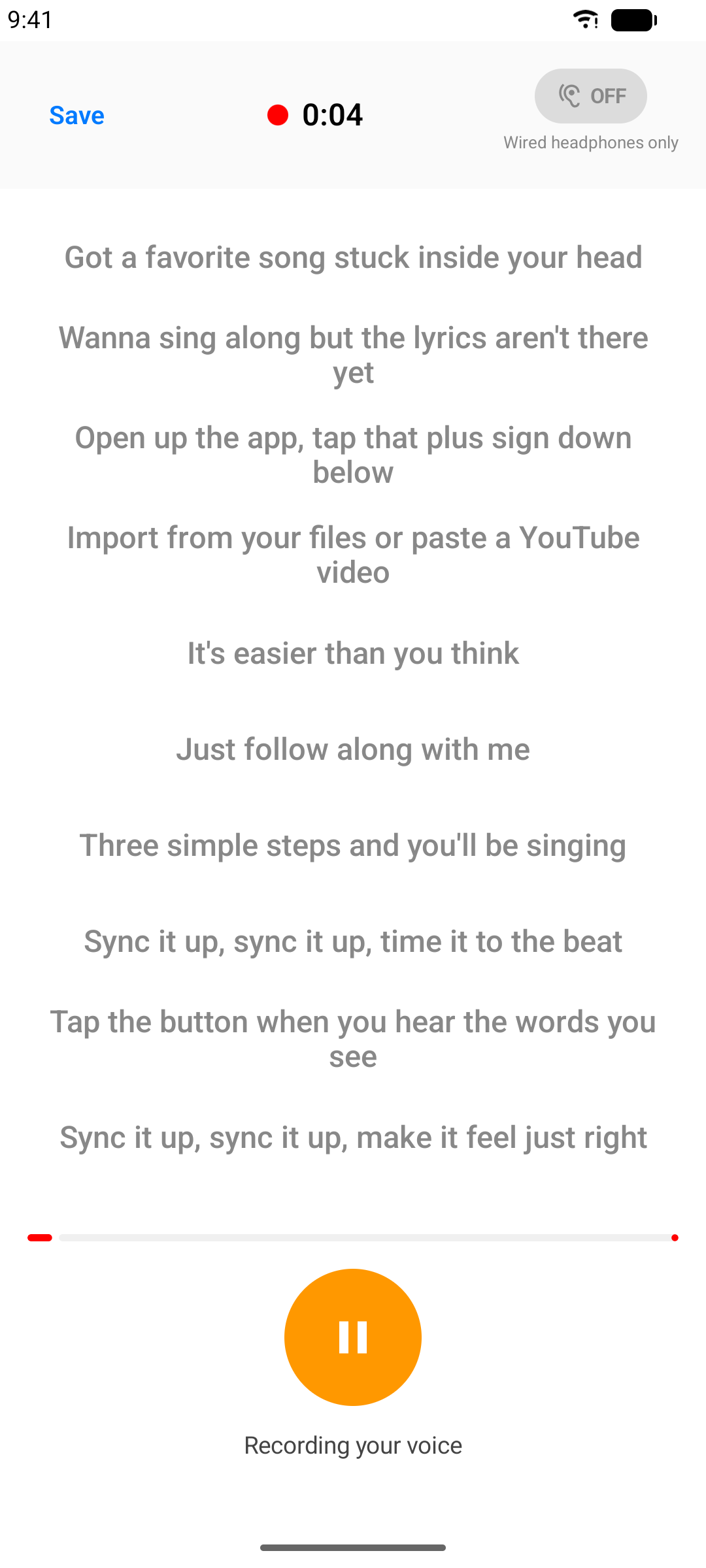
The music plays while your voice is recorded, with lyrics scrolling karaoke-style. Tap Save when you're done. In an audio-file or video project, a take that runs to the end of the song is saved for you.
Step 4: Review Your Take
When you stop, the playback screen lets you listen to your voice mixed with the music:
- Adjust Sync (Voice Sync on Android) if your vocals sit slightly early or late
- Re-record to try again
- Export Mix saves your voice and the music together as an M4A audio file; Export Voice saves just your voice
- Video takes offer Export Video (an MP4 file) and an audio-only export instead
- Switch on Lyric Video when you export an audio take to turn it into a video with your lyrics on screen (see Lyrics on Your Video below) - in a video project the switch is called Video, and it exports your imported video with your voice mixed in
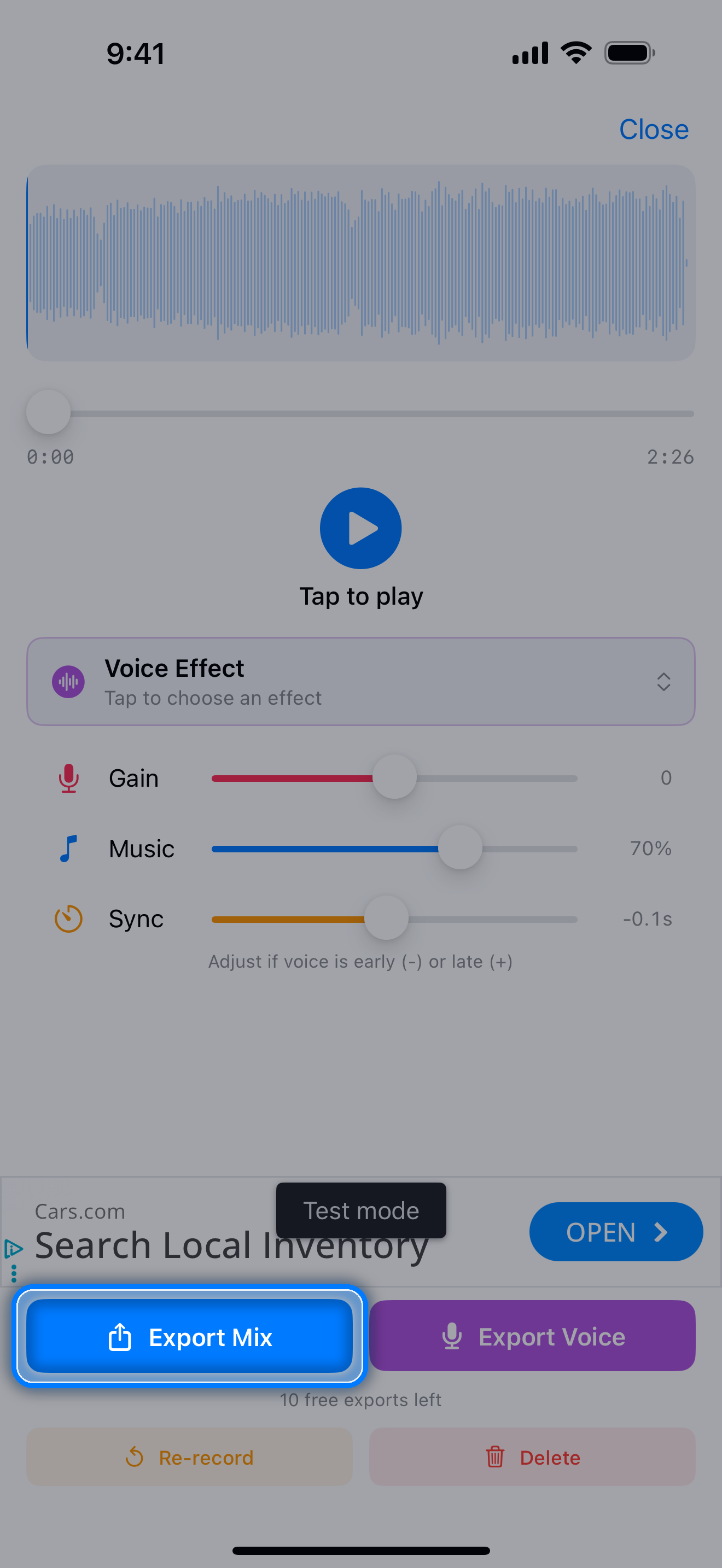
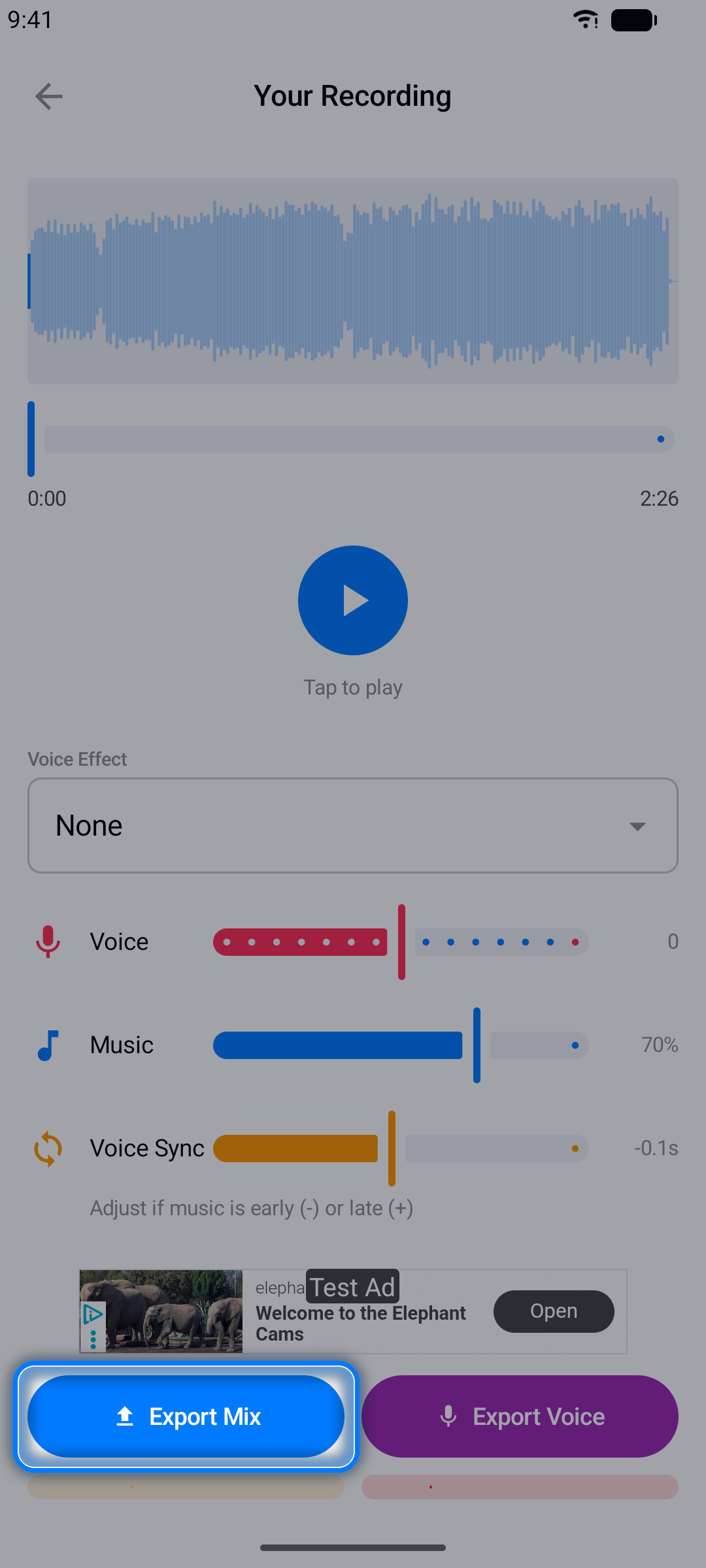
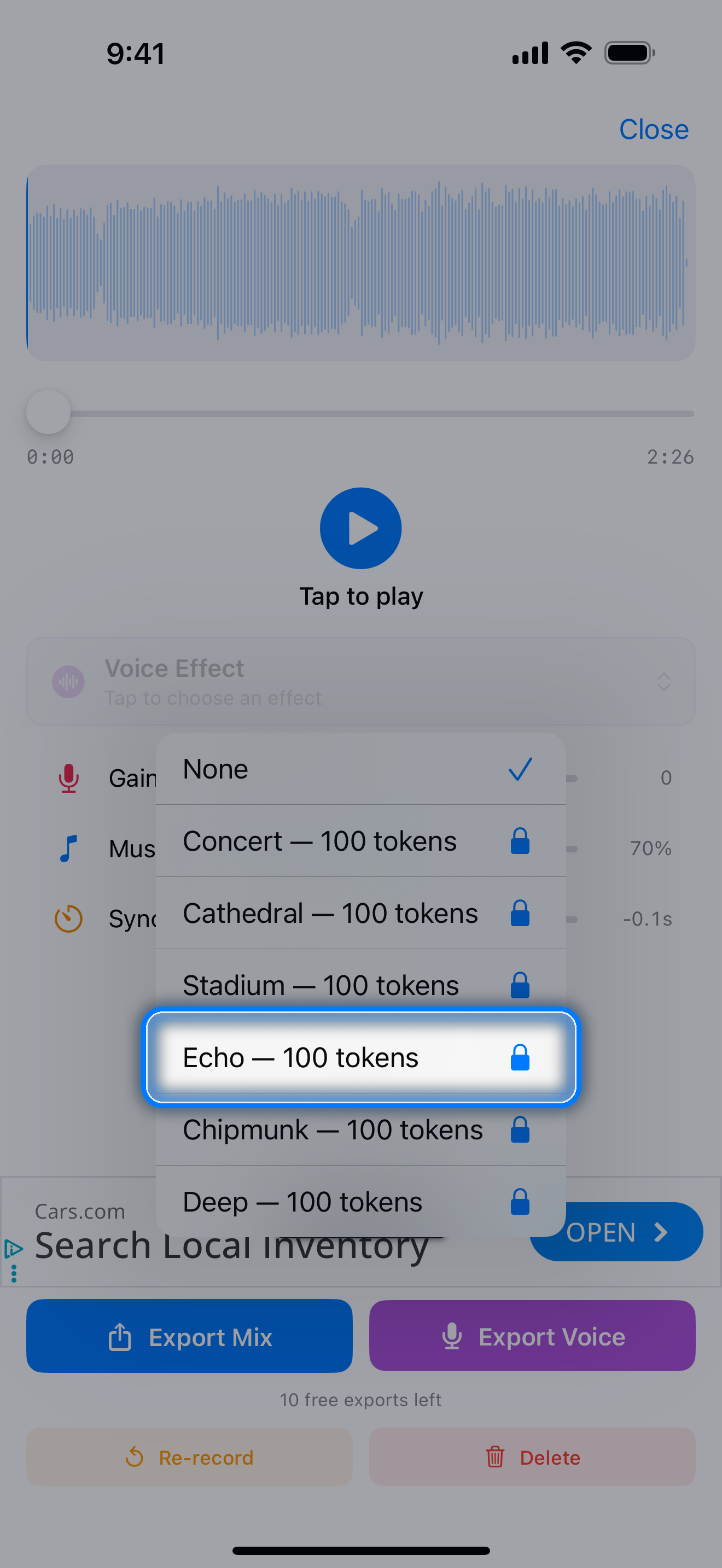
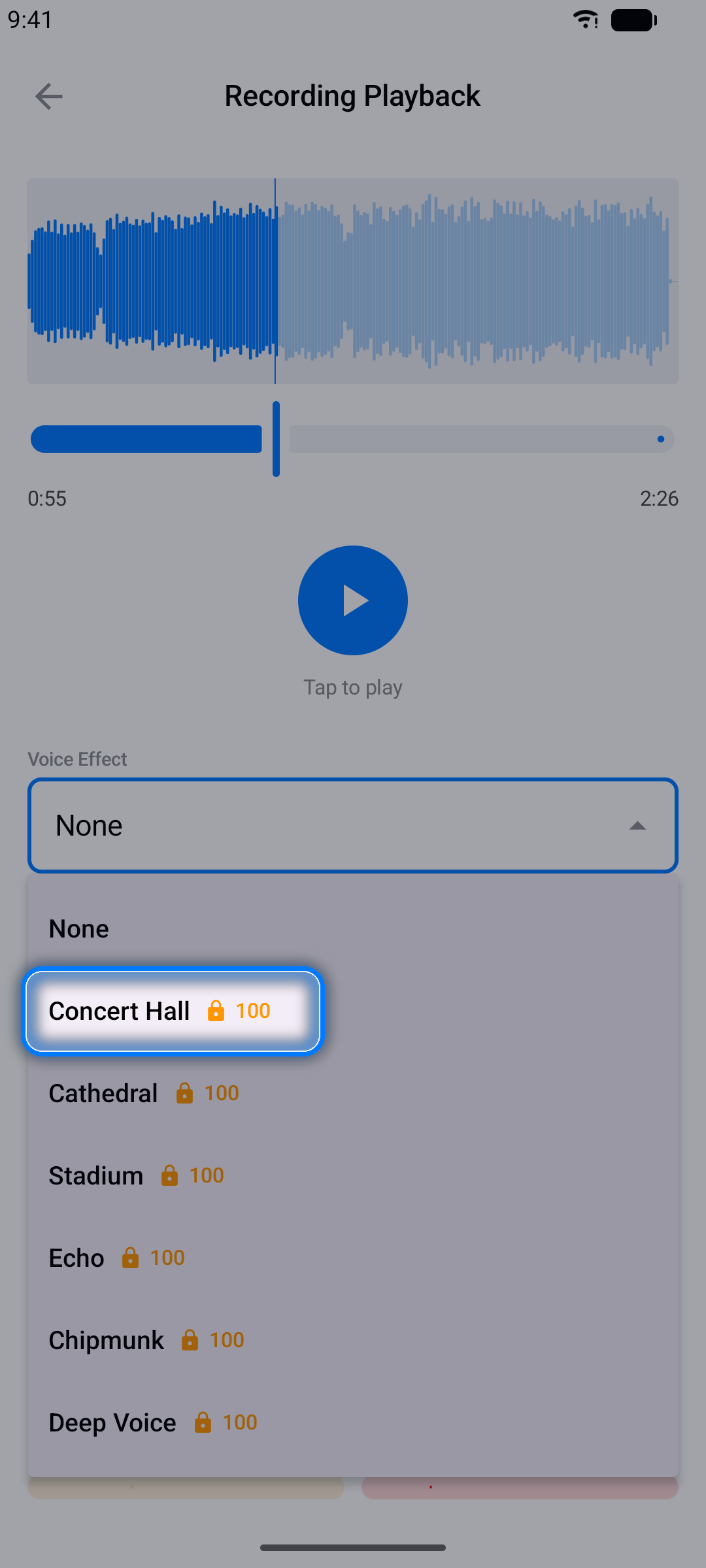
Voice Effects
Make your takes more fun with voice effects - from concert-hall reverb to chipmunk and beyond. Each effect is unlocked with 100 tokens you earn in the app (see Tokens).
Lyrics on Your Video
Your timed lyrics can be burned right into an exported video, karaoke-style - from a video take, or from an audio take with no filming at all.
- Tap Listen to open your take. For a video take, tap Export Video (Export Voice Video in a YouTube project on iPhone); for an audio take, tap Export Mix (Export Voice in a YouTube project)
- Switch on Lyrics on video (on an audio take's sheet it's called Lyric Video; in a video project, switch on Video first and Lyrics on video appears under it), then tap Style… to open the Lyric Style screen - skip it and the video uses your current style
- Drag the lyrics up or down in the preview to place them, then choose a Font, Size, Color, a Background behind lyrics, and an Animation - Static, Fade, or Karaoke, which fills in each word-timed line as it's sung (lines without word timing simply appear and disappear)
- Tap Use Style, then Export - the video comes out exactly as the preview shows
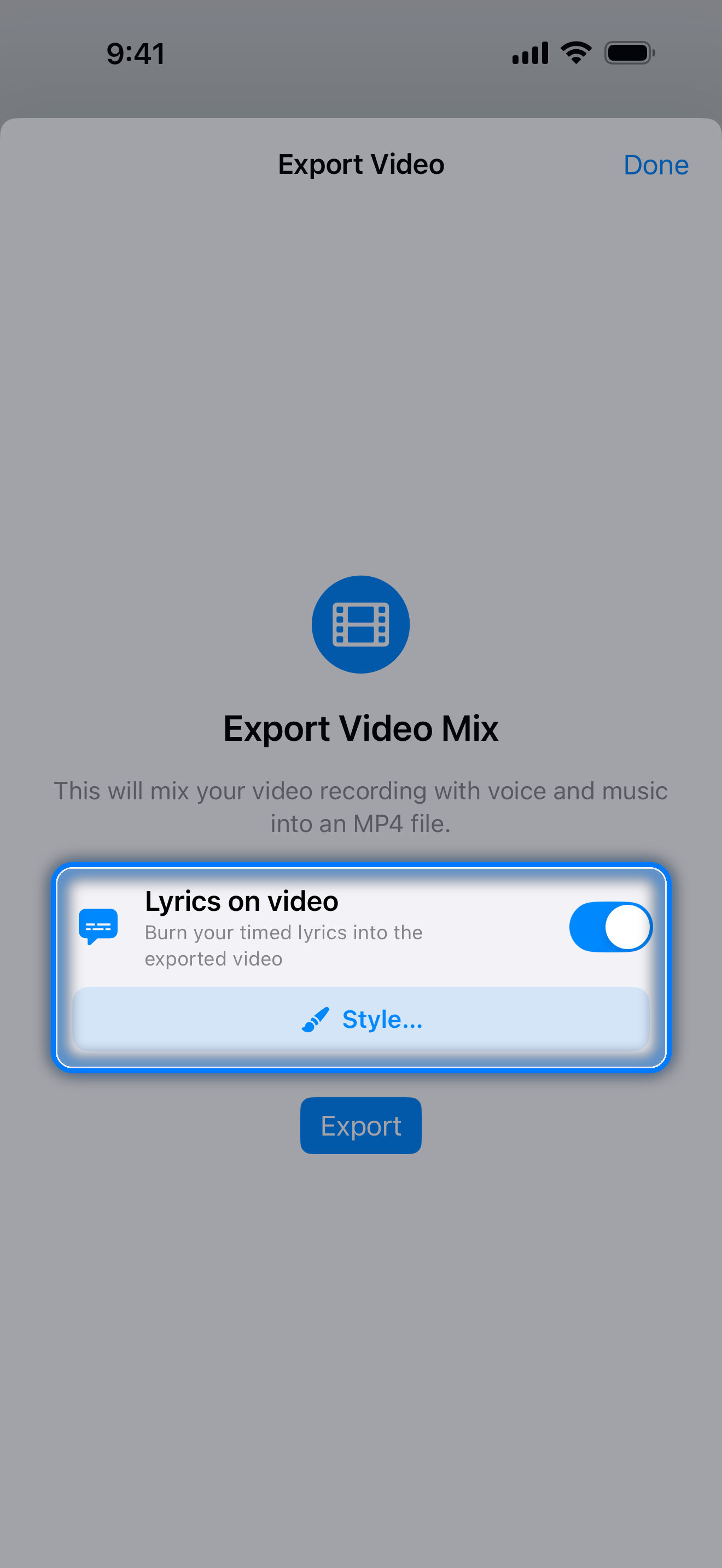
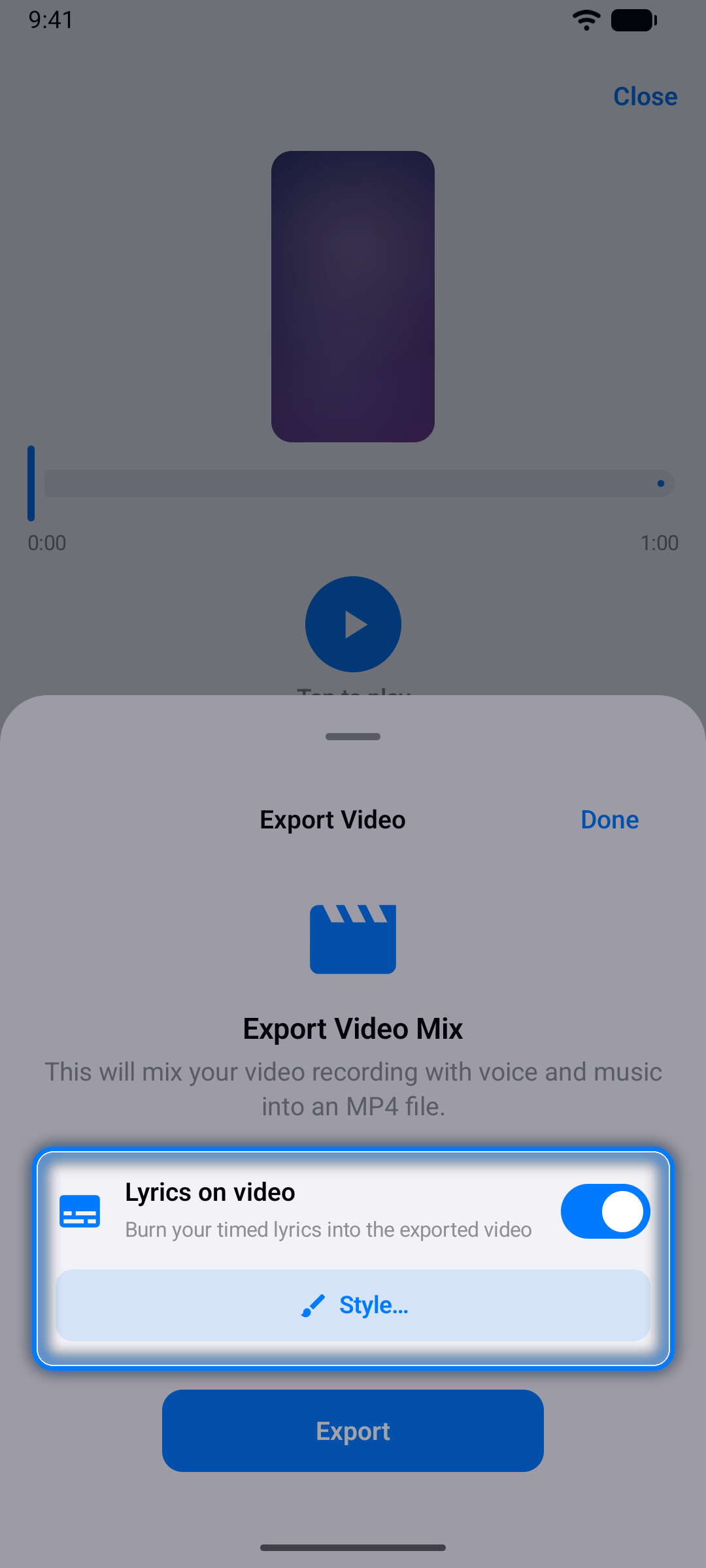
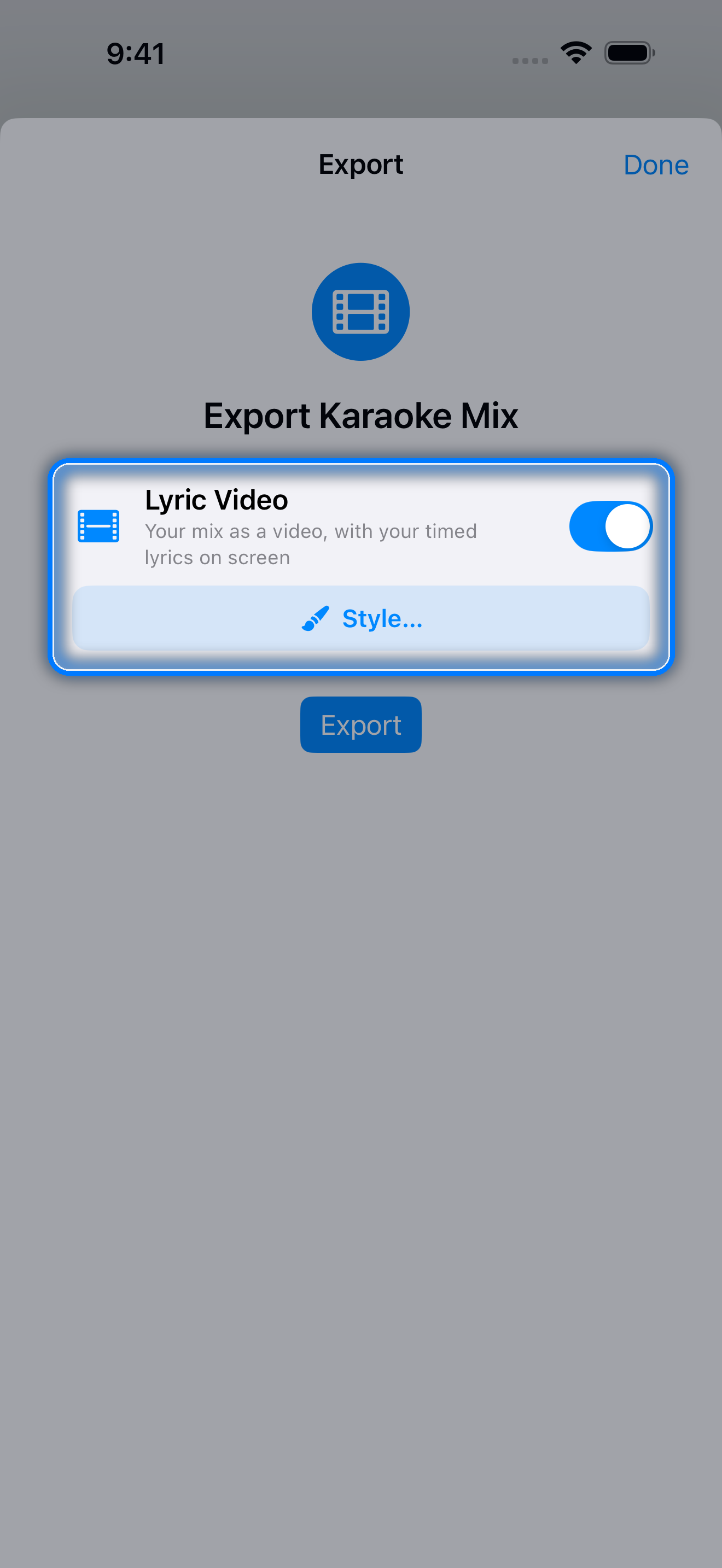
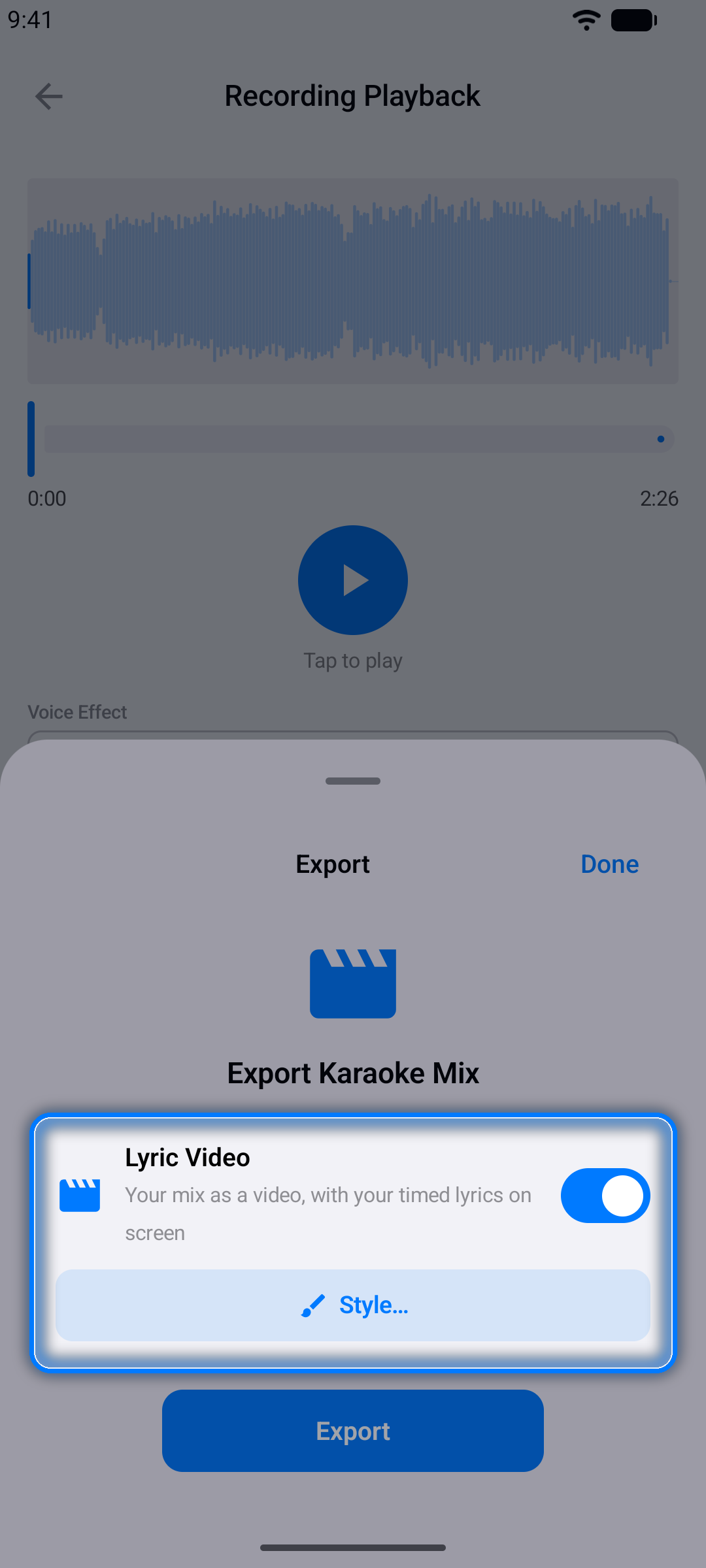
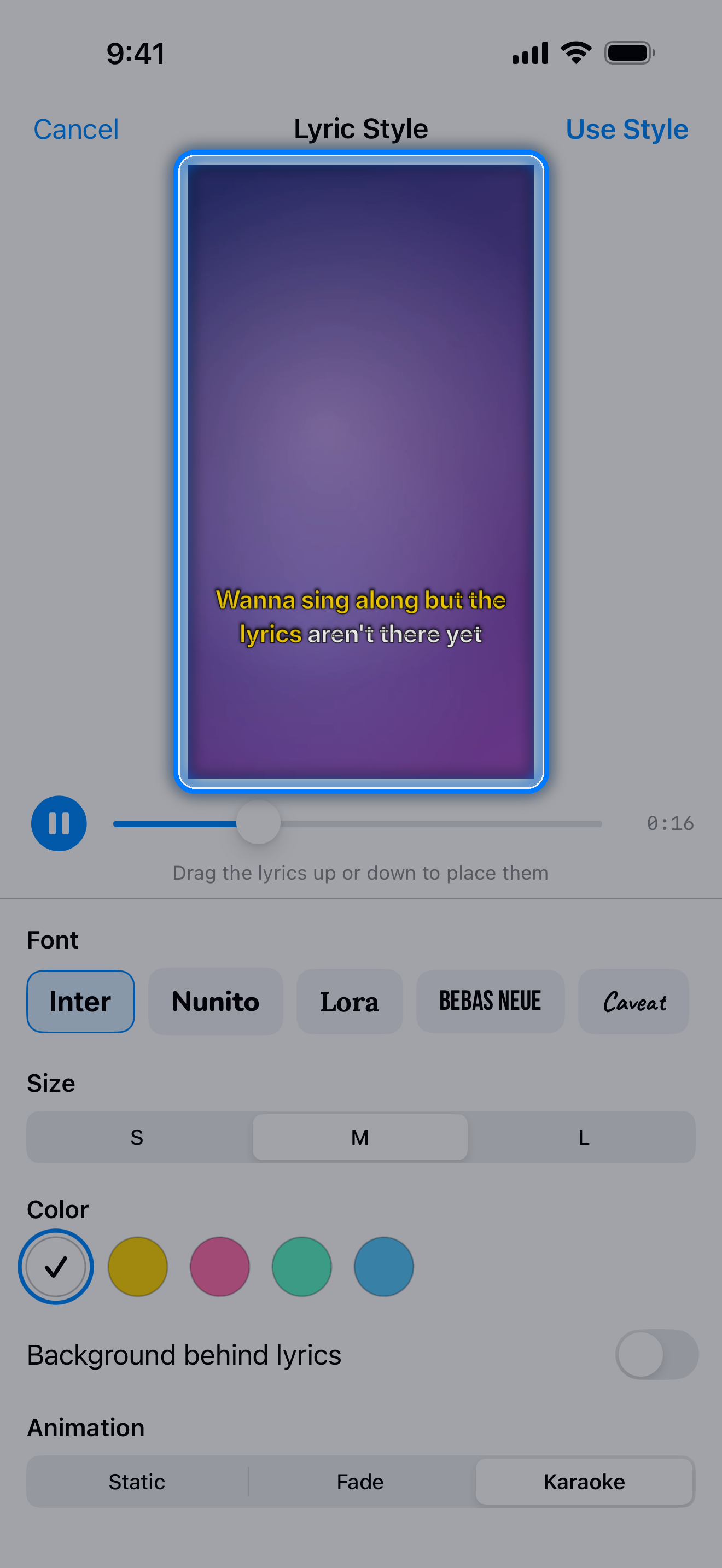
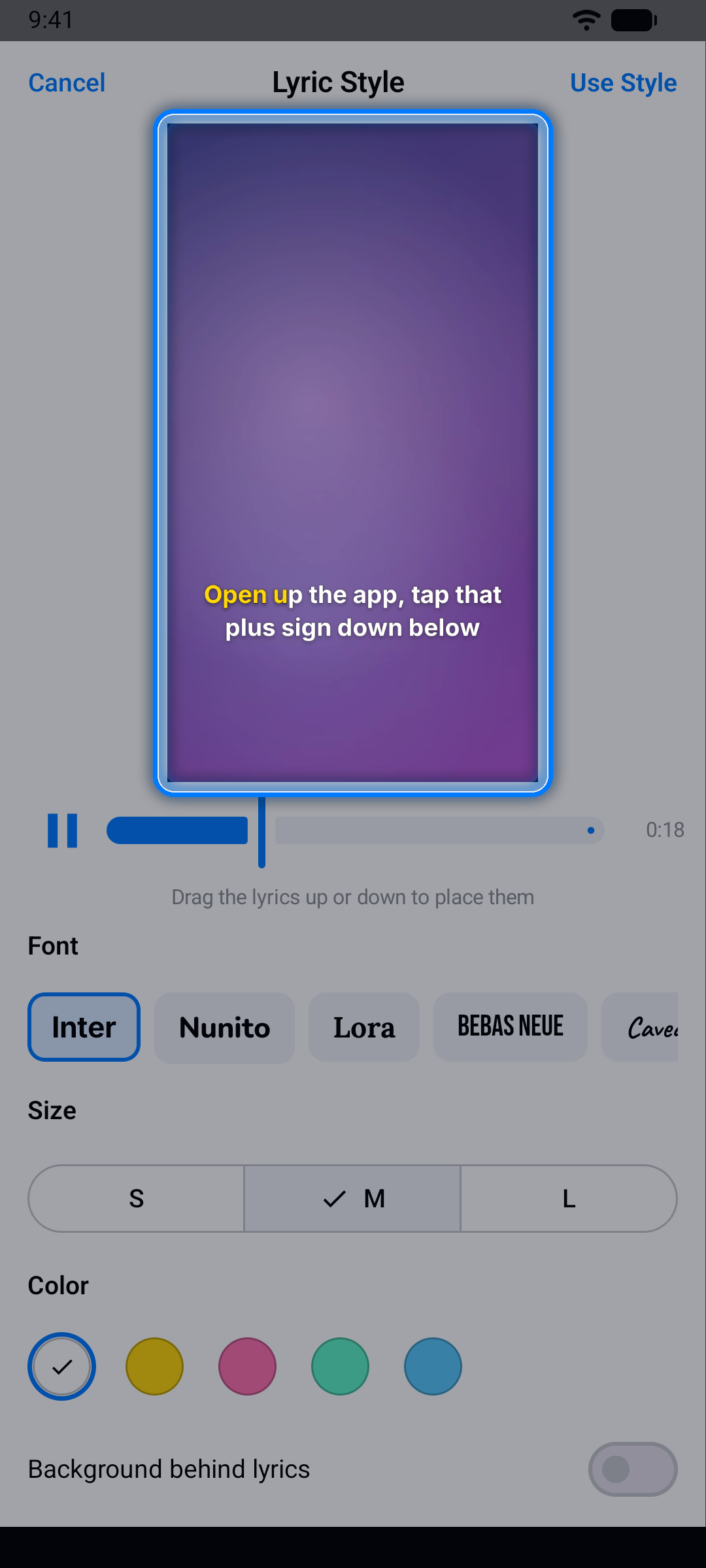
Your style is saved with the project, and your latest choice becomes the starting point for your next video. A lyric video made from an audio take shows your lyrics on a purple background - in a video project, on your imported video - and lasts as long as your take; in a YouTube project it carries your voice only. The Lyric Video and Video switches remember their setting for each project. Lyrics on video works for audio and video takes in audio-file, video, and YouTube projects, and each video you export counts as one export.
For the whole process on one page, see the guide Make a lyric video on your phone.
Note: Audio-file and video projects record your voice over the music. YouTube projects can be recorded too, as audio or video, but the YouTube sound is never captured, so those recordings contain your voice (and camera) only.
Karaoke Mode
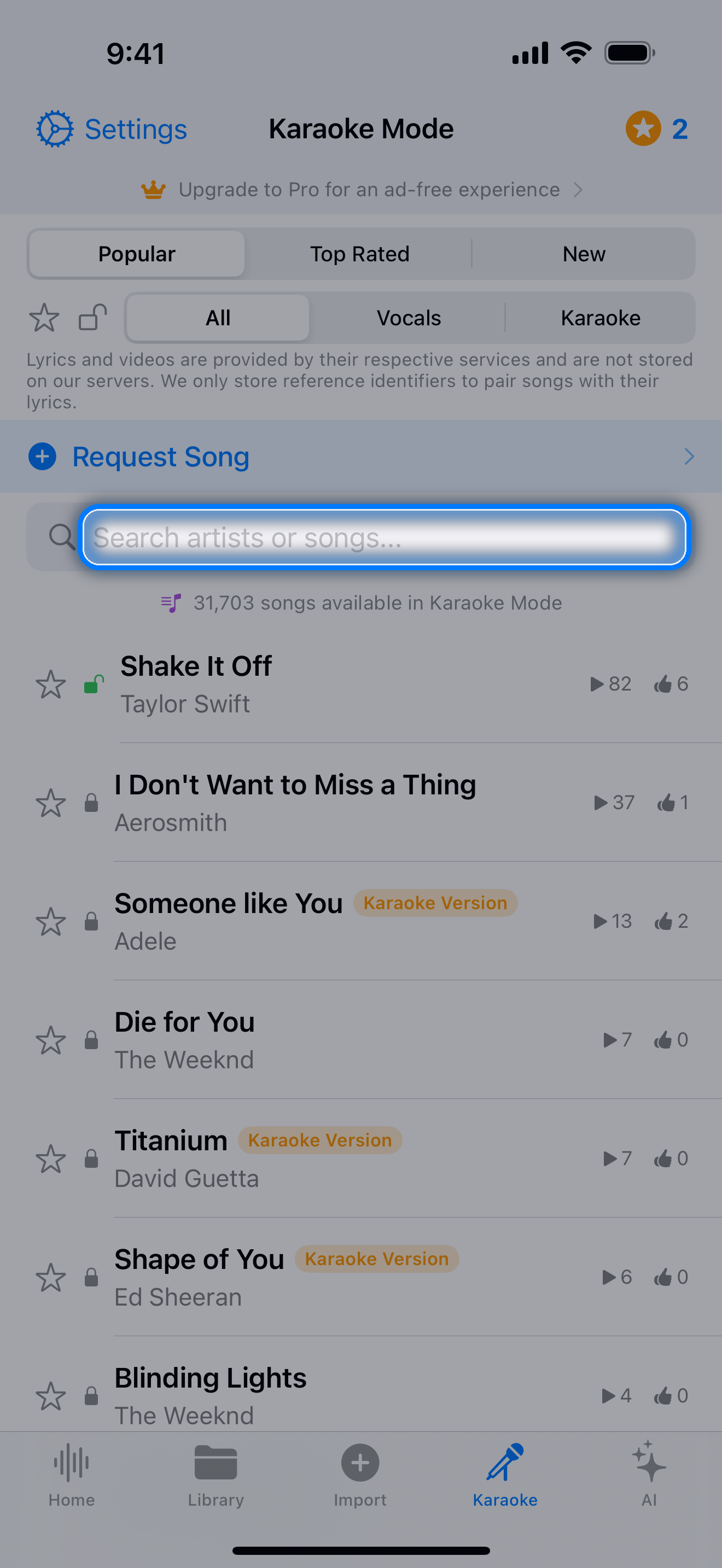
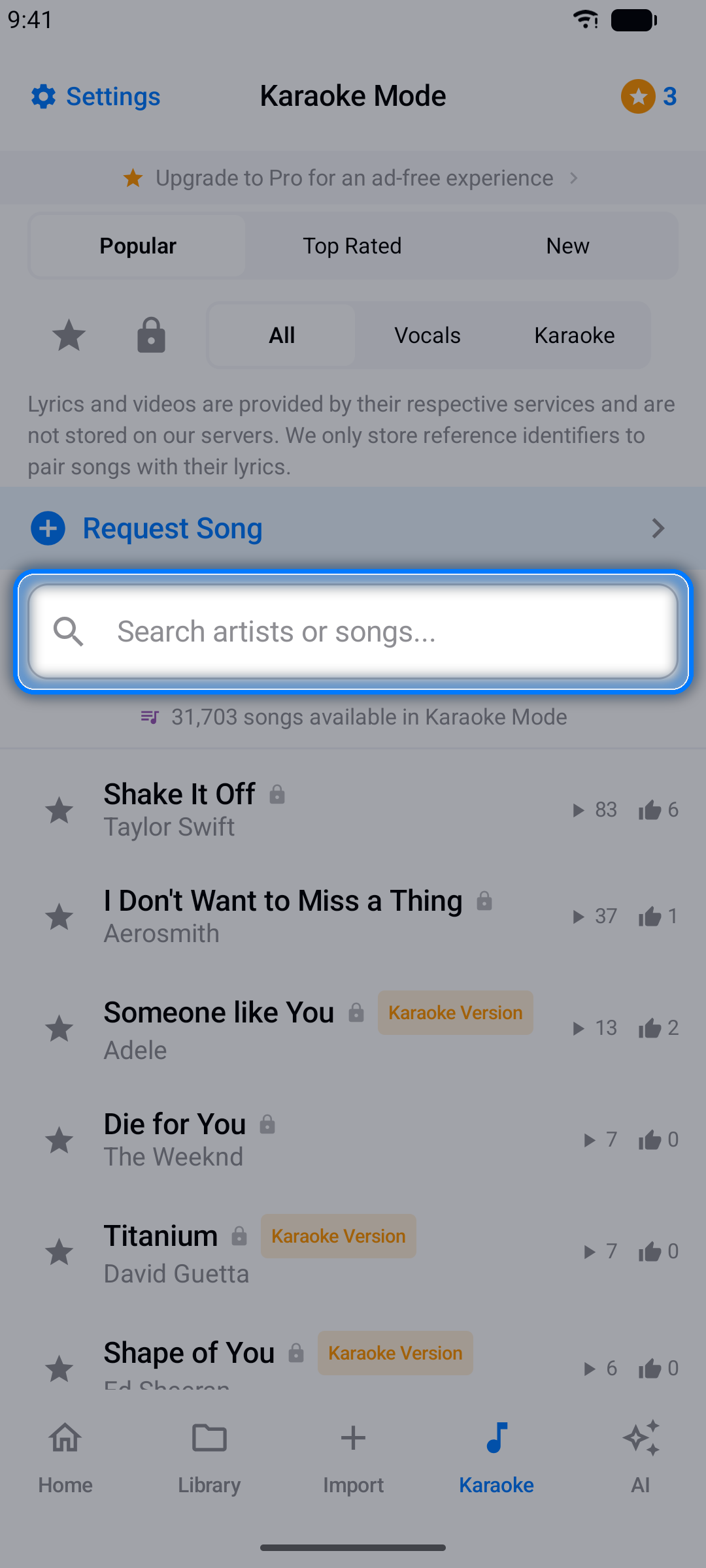
Want to sing right now, without building a project first? The Karaoke tab is a ready-made catalog of songs paired with synced lyrics.
Step 1: Find a Song
Browse the catalog - sort it by Popular, Top Rated, or New, or show only Vocals or Karaoke (instrumental) versions - or search for an artist or song. Tap the star next to a song to add it to your favorites.
Step 2: Unlock It
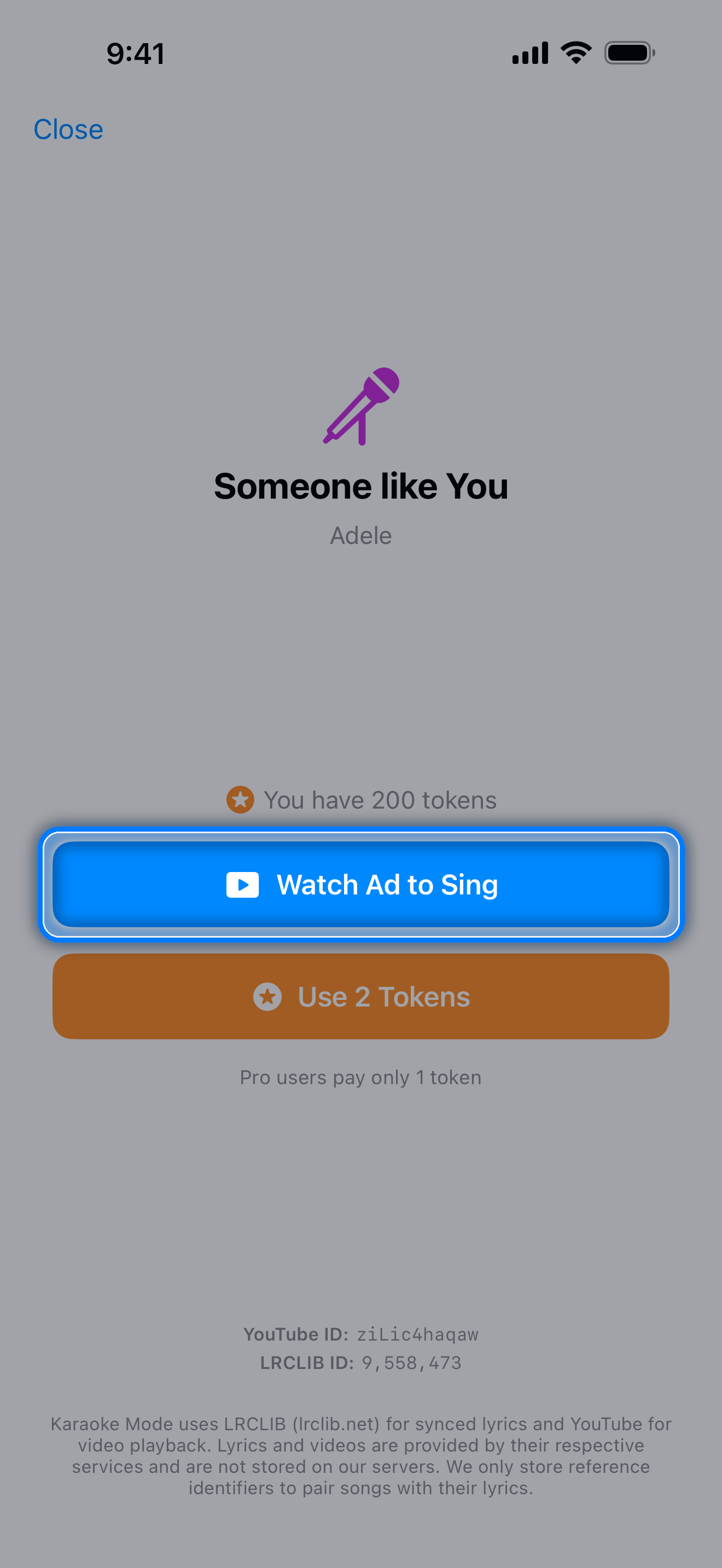
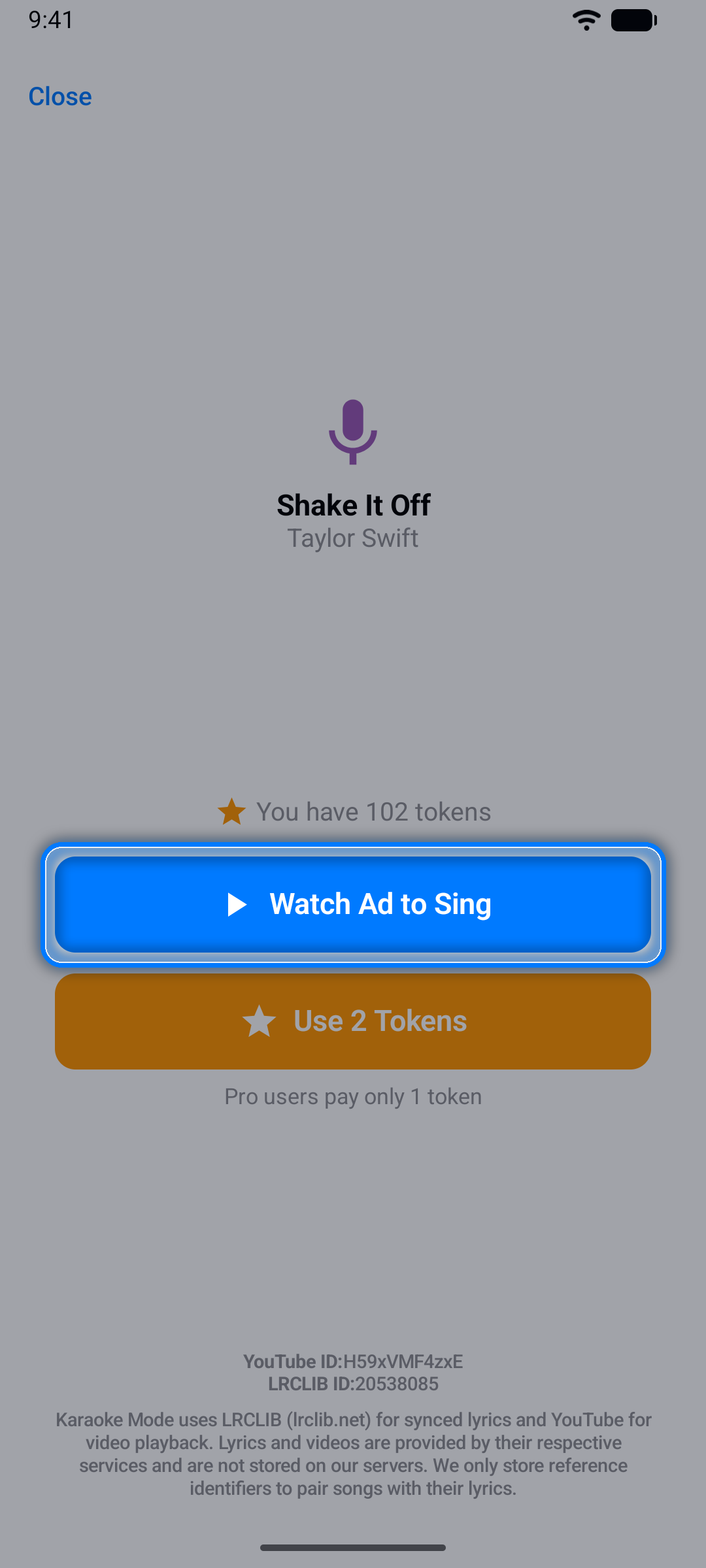
The first time you open a song, unlock it with Watch Ad to Sing (a short video) or Use 2 Tokens - Pro members pay just 1 token. Once unlocked, the song is yours to sing again on that device, free. If the video ad can't load - ad blockers and some DNS settings stop ads - the app tells you, and you can unlock the song with tokens instead.
Step 3: Sing Along
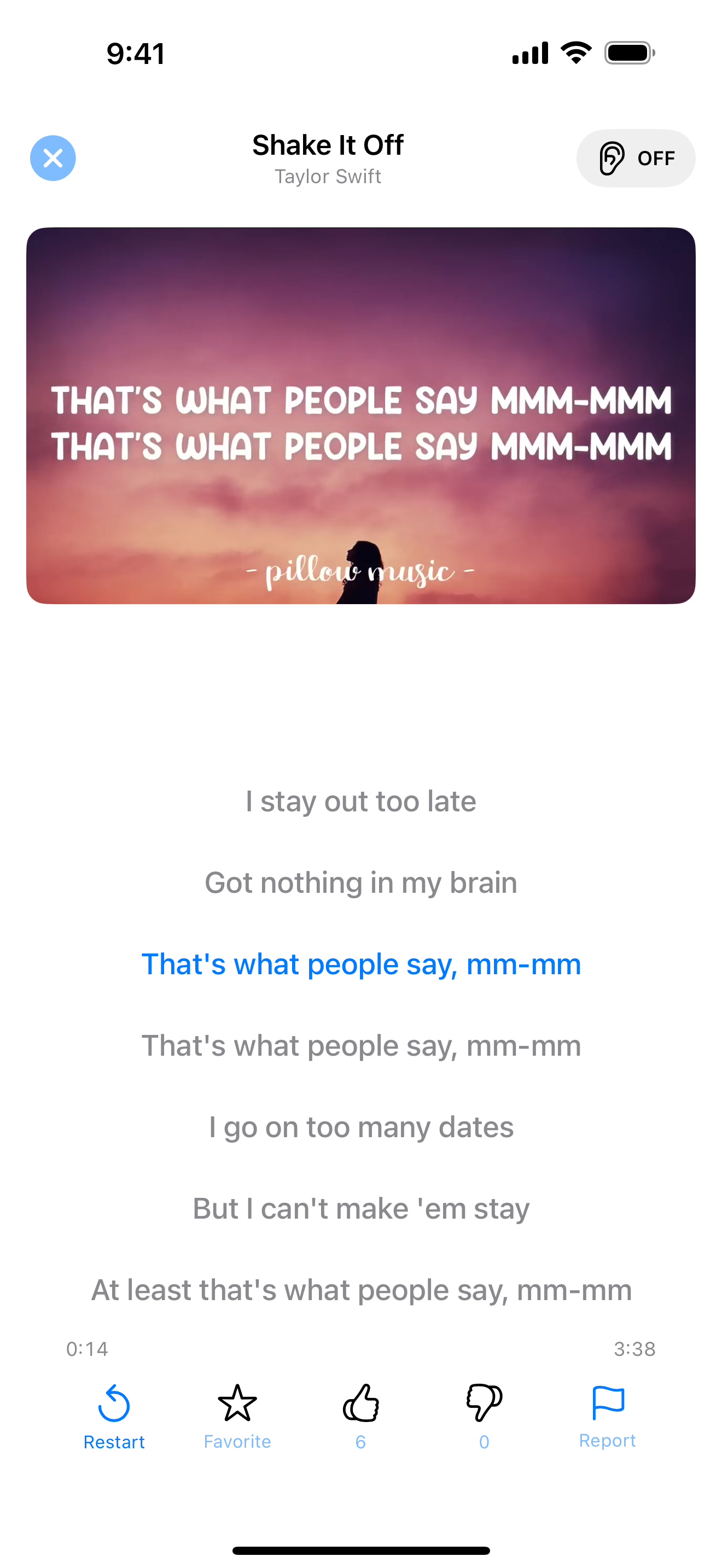
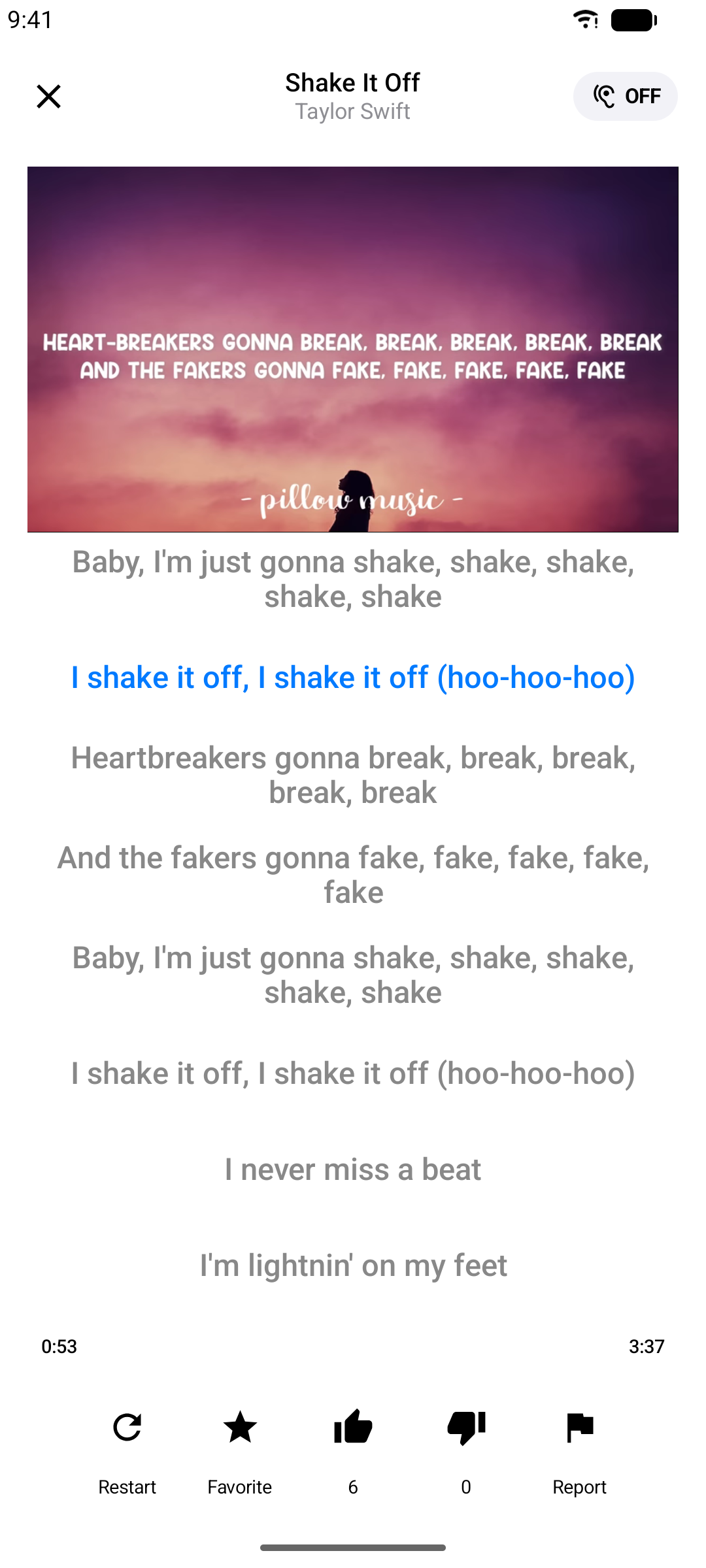
The video plays with karaoke-style scrolling lyrics - tap any line to jump there.
- For many songs, a Did you know? card shares a fun fact while the song loads
- If the lyrics run ahead of or behind the video, tap Lyrics sync under the video and nudge them with Lyrics earlier or Lyrics later (0.1 seconds at a time, up to 3 seconds). Karaoke Sync remembers the setting for that song on your device
- Rate songs with the thumbs, add them to your favorites, or Report a problem
Missing a song? Tap Request Song at the top of the catalog.
Note: Screenshots show songs from the in-app karaoke catalog for illustration only. All songs, videos, artwork, and trademarks remain the property of their respective owners.
AI Song Quiz & Facts
The Quiz tab turns music trivia into a game:
- Song Quiz - pick Easy, Medium, or Hard (5, 10, or 15 questions) and answer multiple-choice and true-or-false questions about a song, its artist, and its story
- Song Facts - surprising background facts about the songs you love, alongside the song's video
Browse or search the catalog, then tap Quiz or Facts on a song.
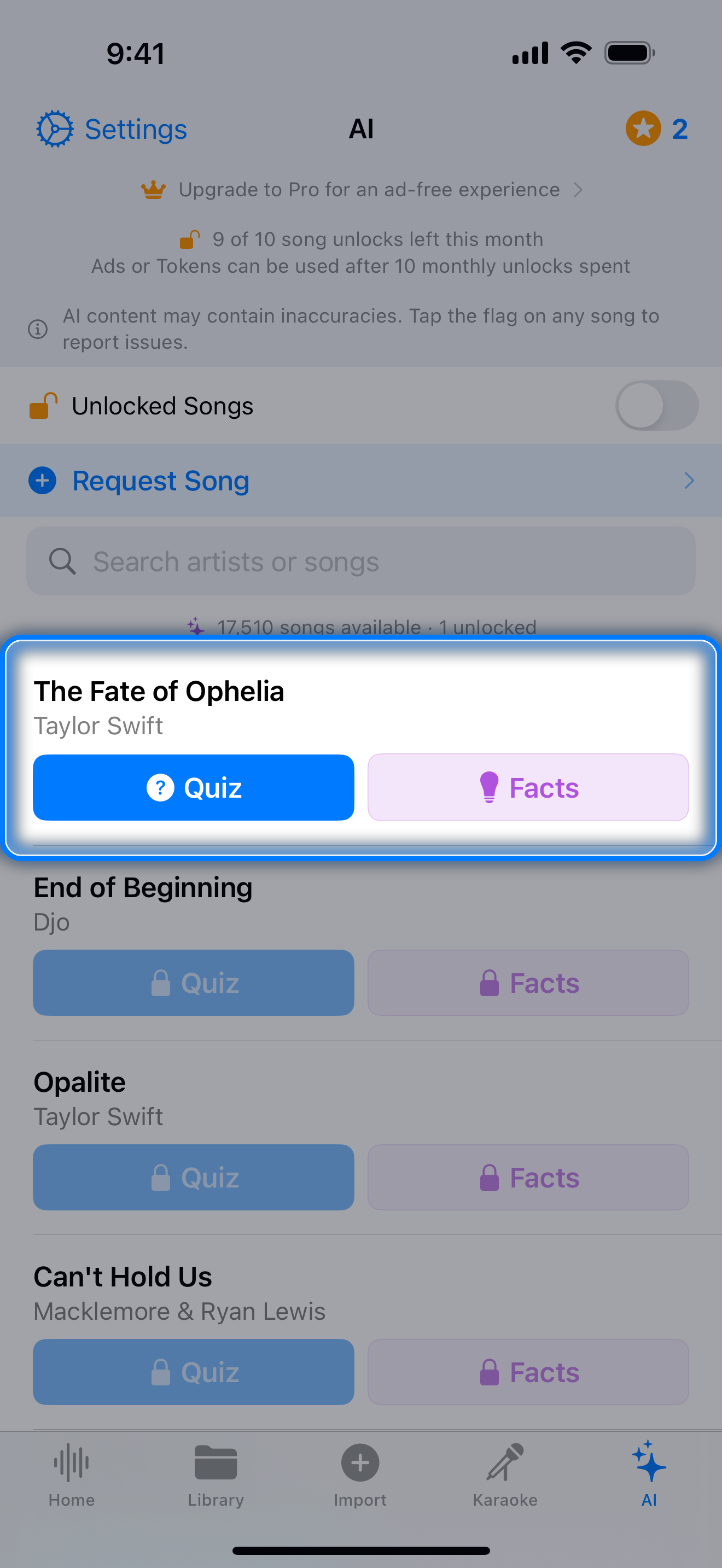
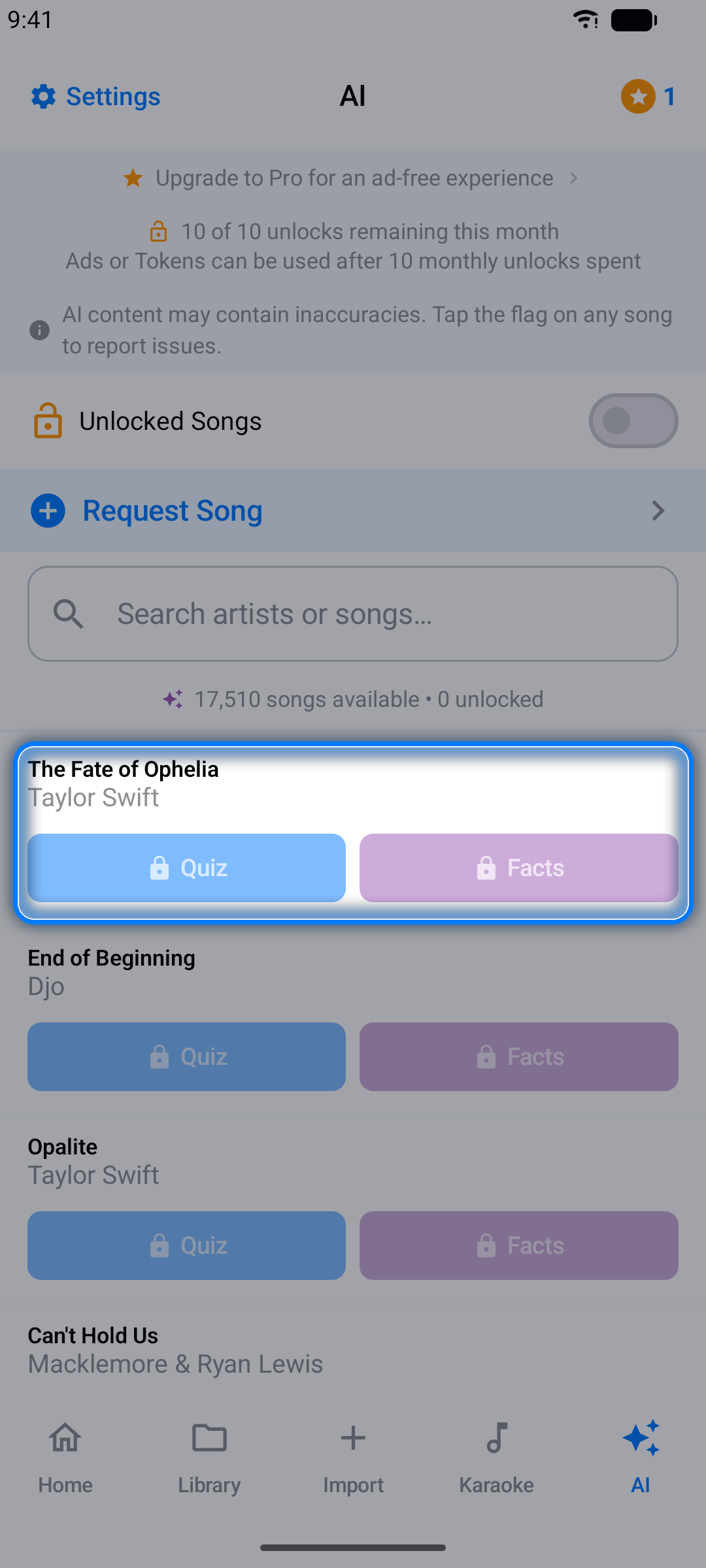
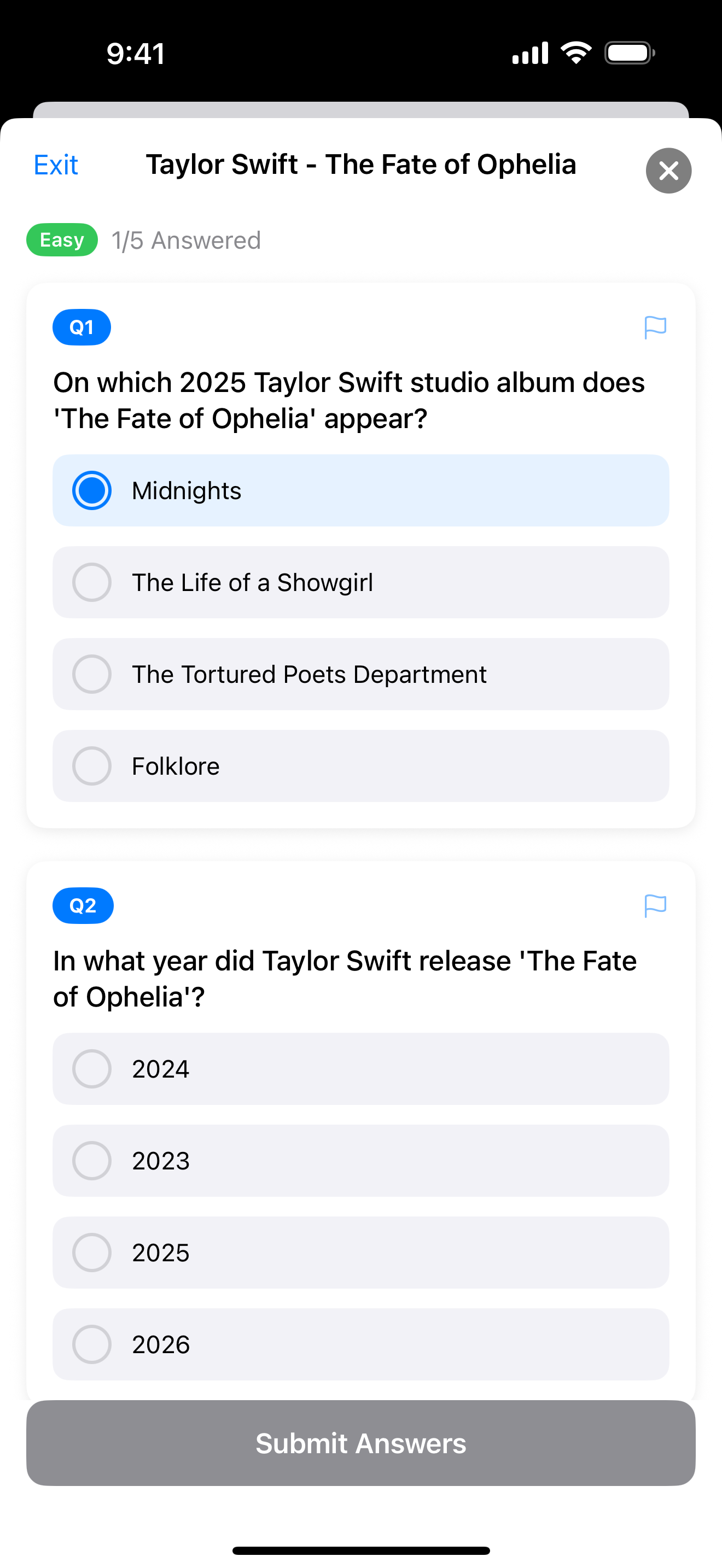
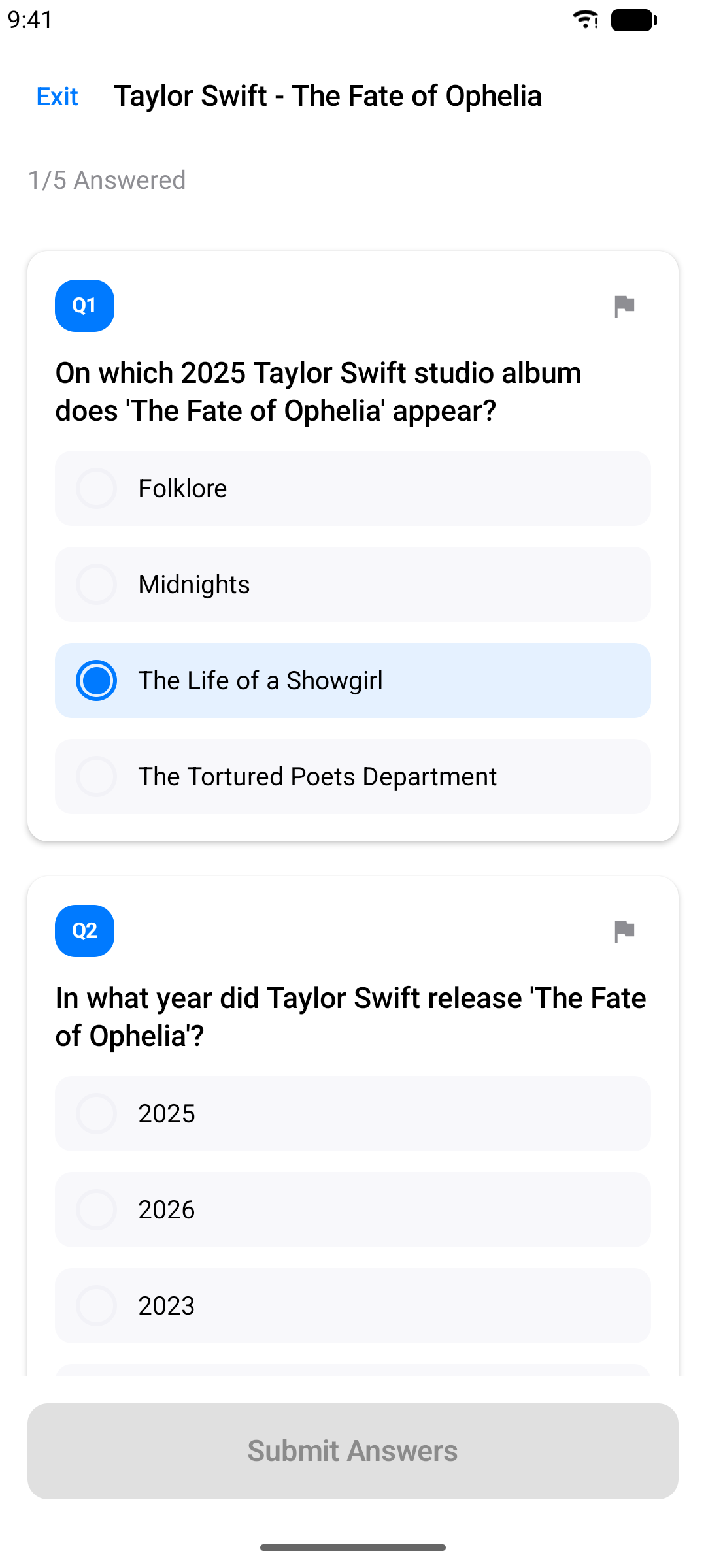
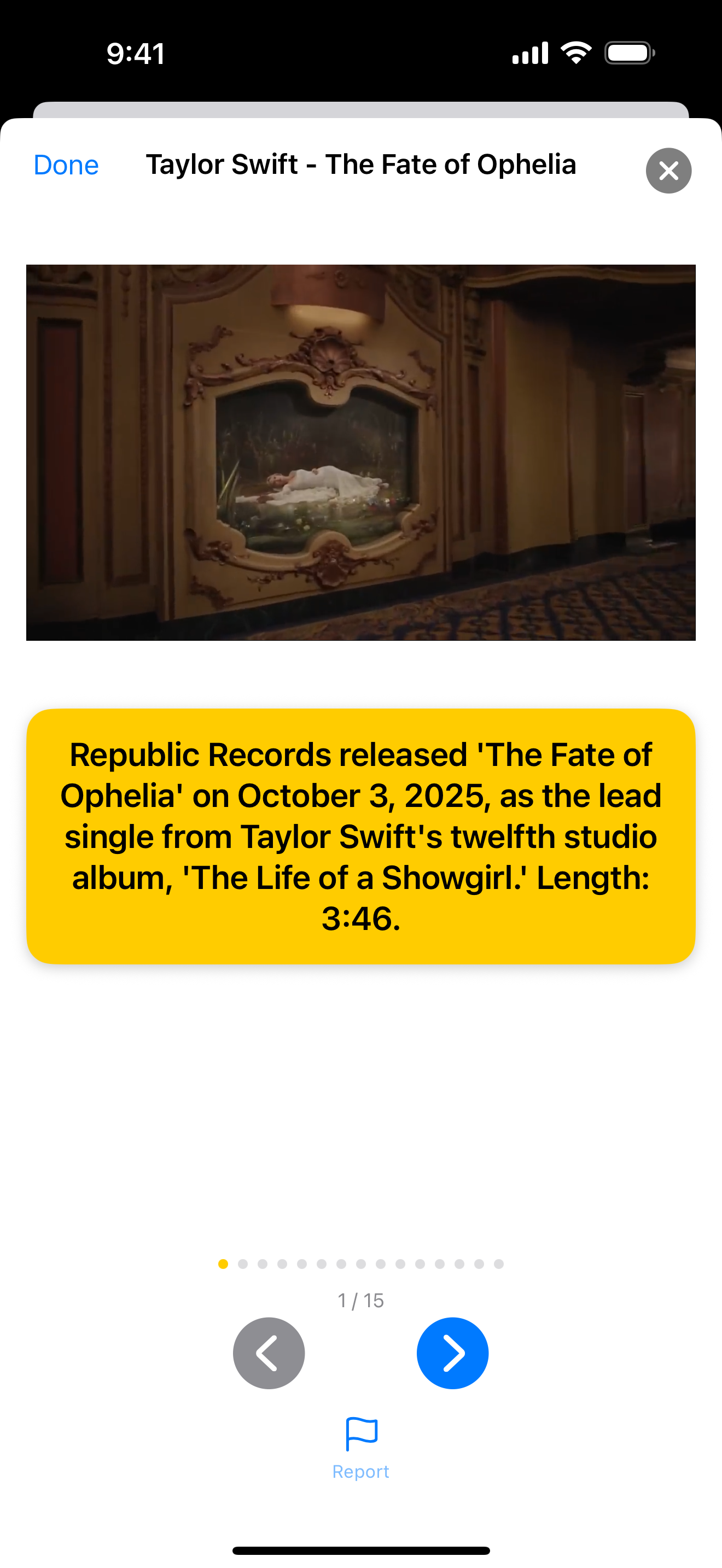
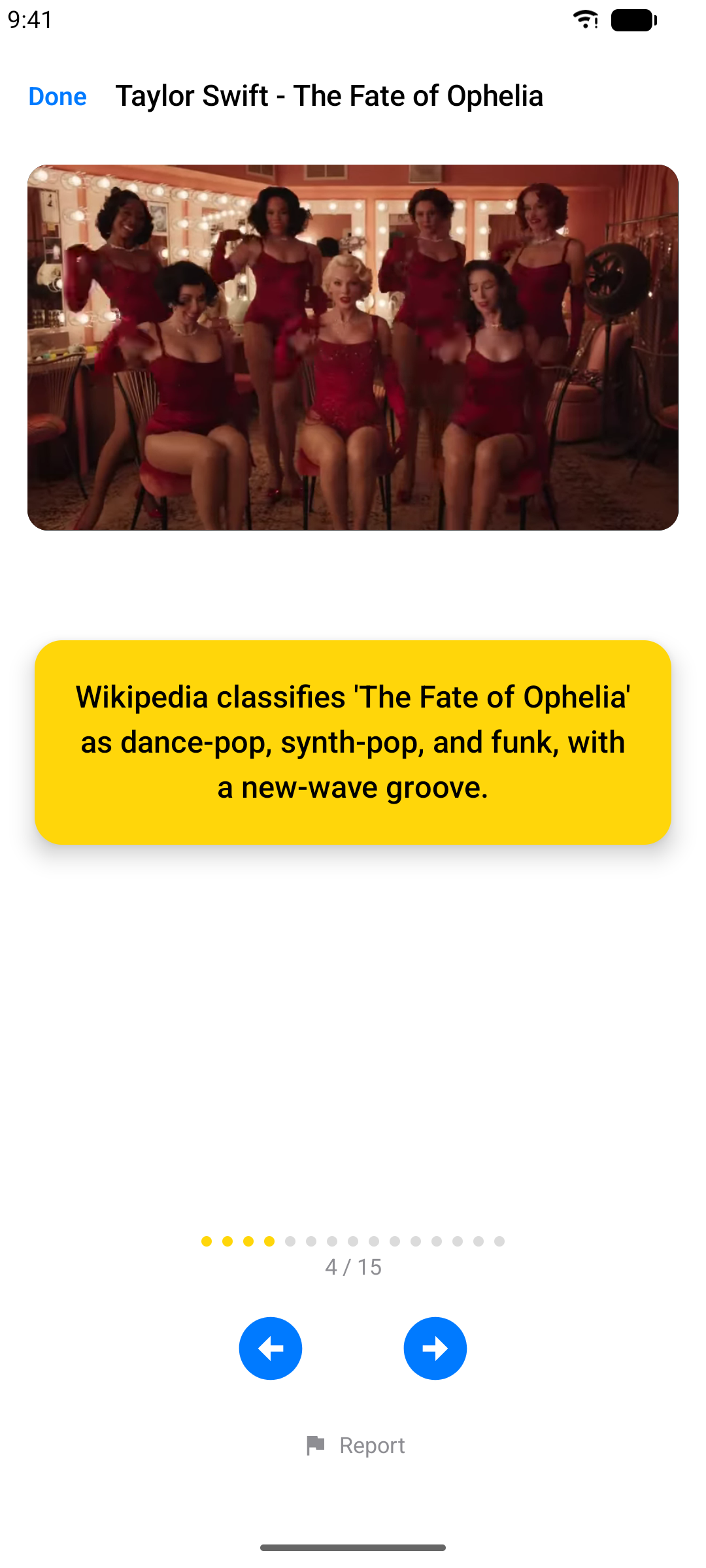
Each song you unlock opens both its quiz and its facts, forever on that device. Free accounts get 10 song unlocks a month and Pro gets 100 - the count is shown at the top of the tab and resets on the 1st. Used them all? Unlock more with a short ad or 2 tokens (1 for Pro). Quizzes and facts aren't available in every region.
Note: Screenshots show songs from the in-app music catalog for illustration only. All songs, videos, artwork, and trademarks remain the property of their respective owners.
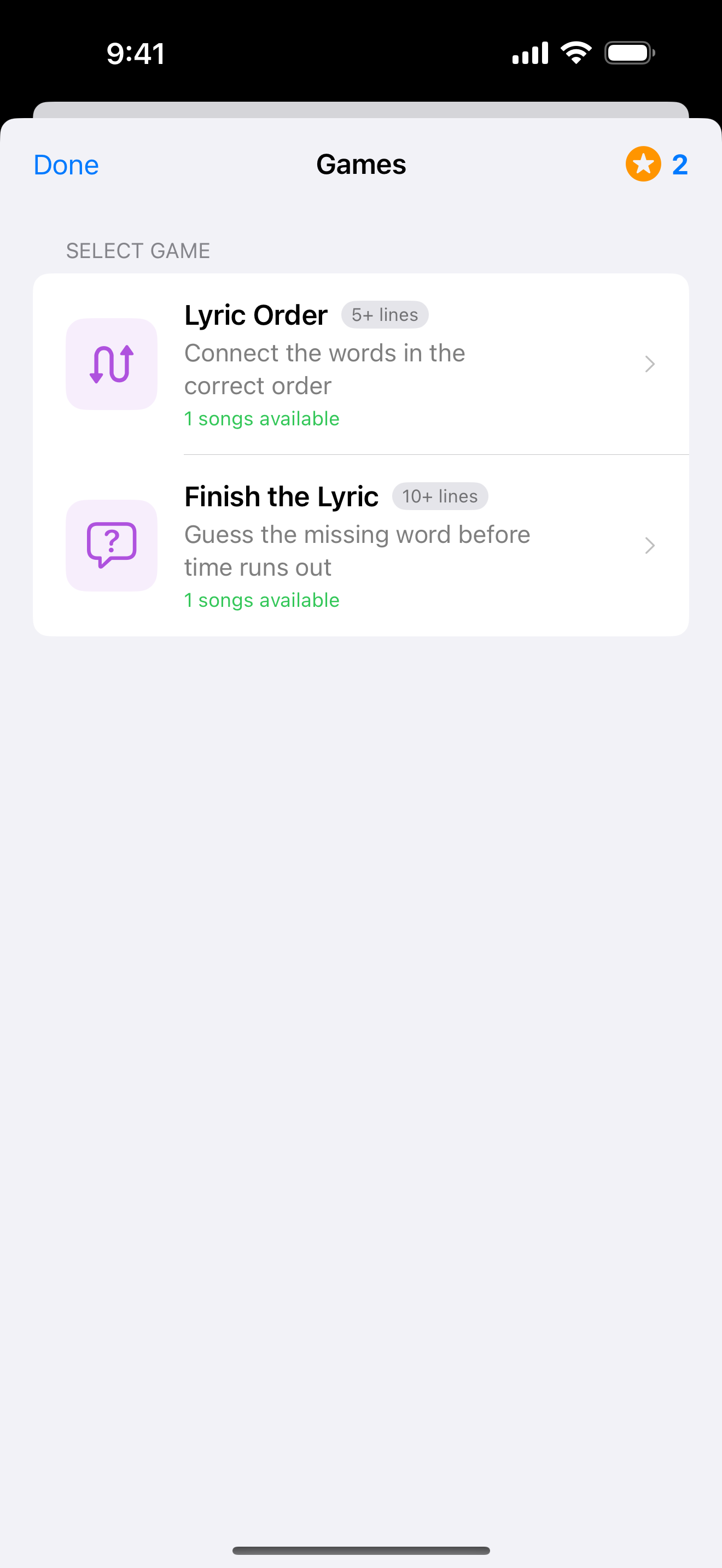
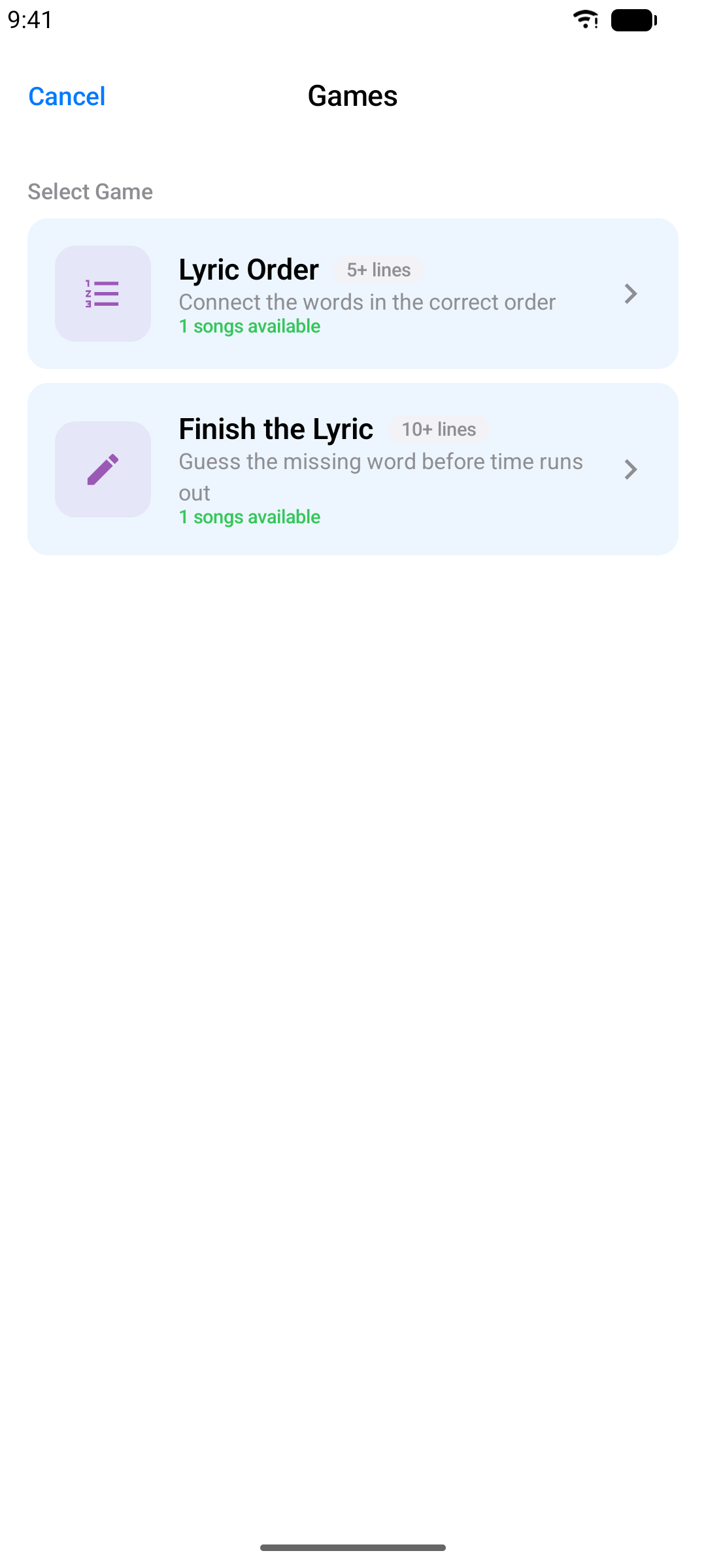
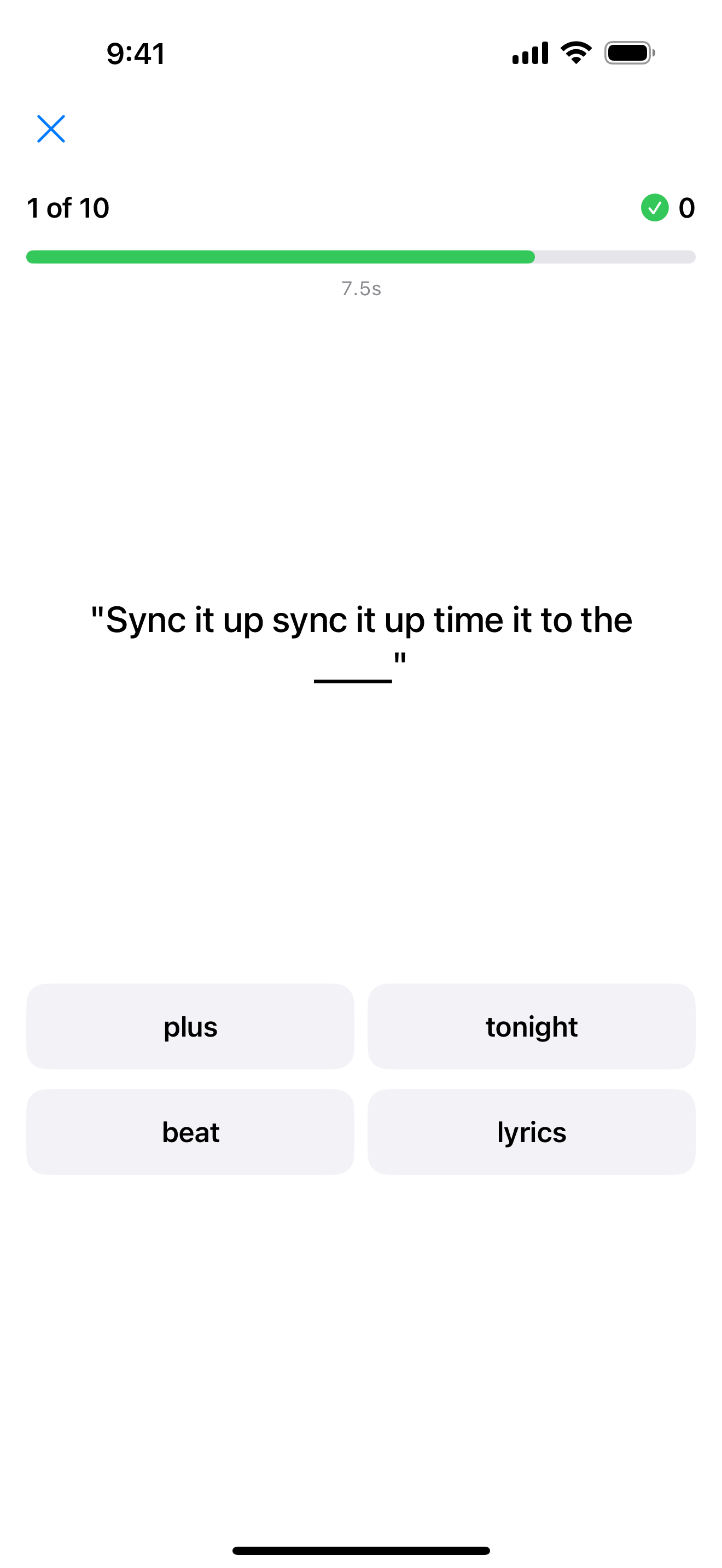
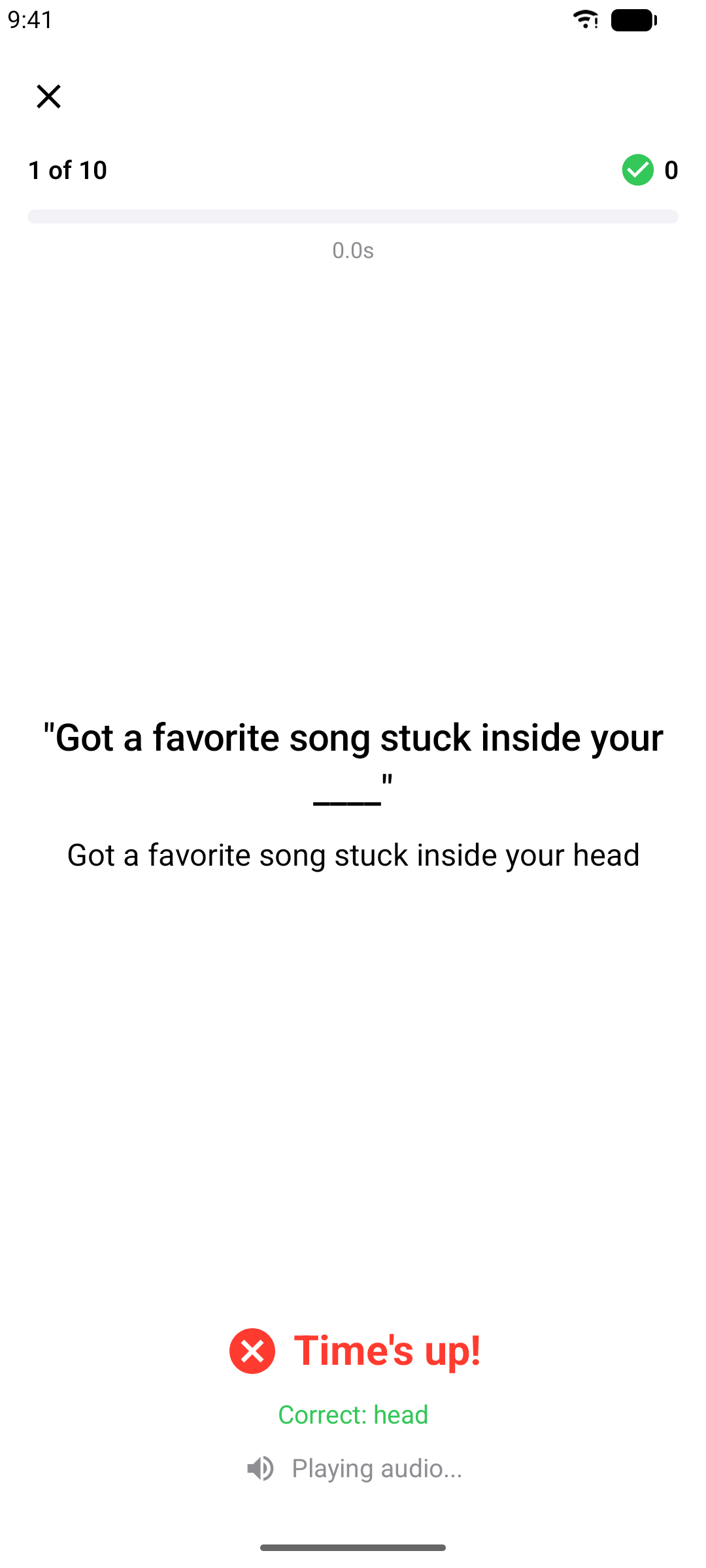
Karaoke Games
Your own timed projects double as game material. From the Library tab, tap Play Games:
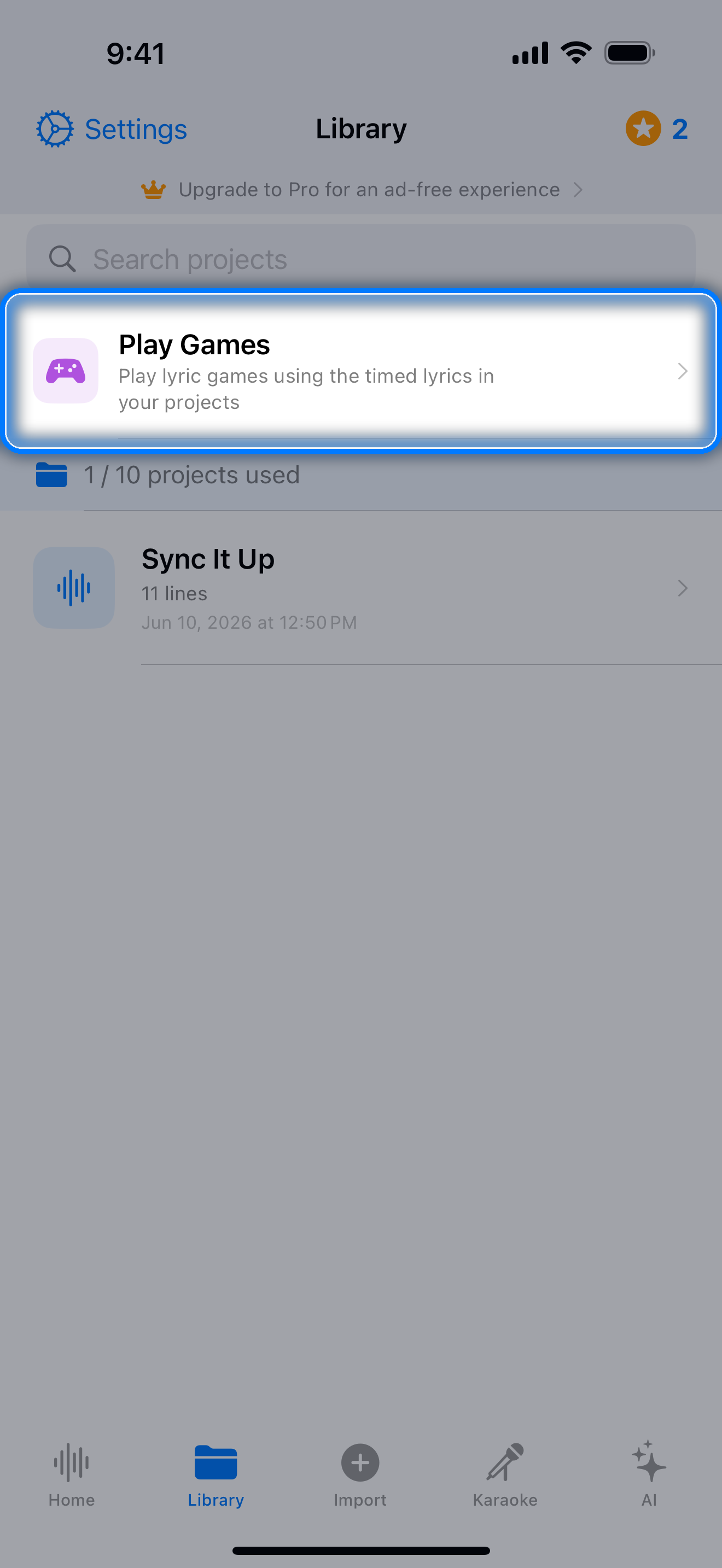
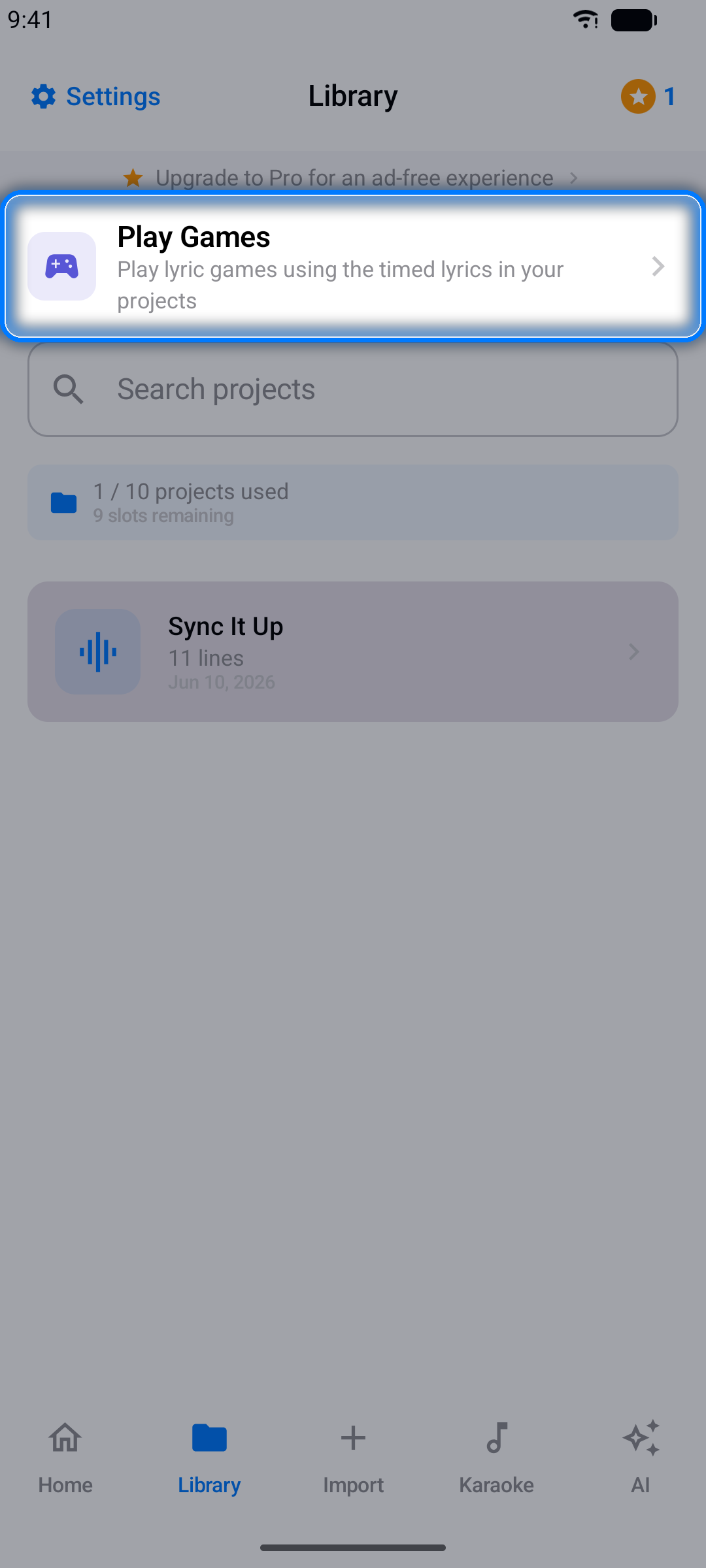
- Finish the Lyric - the song plays, then cuts off: pick the missing word before the timer runs out
- Lyric Order - put the shuffled words of a line back in the right order
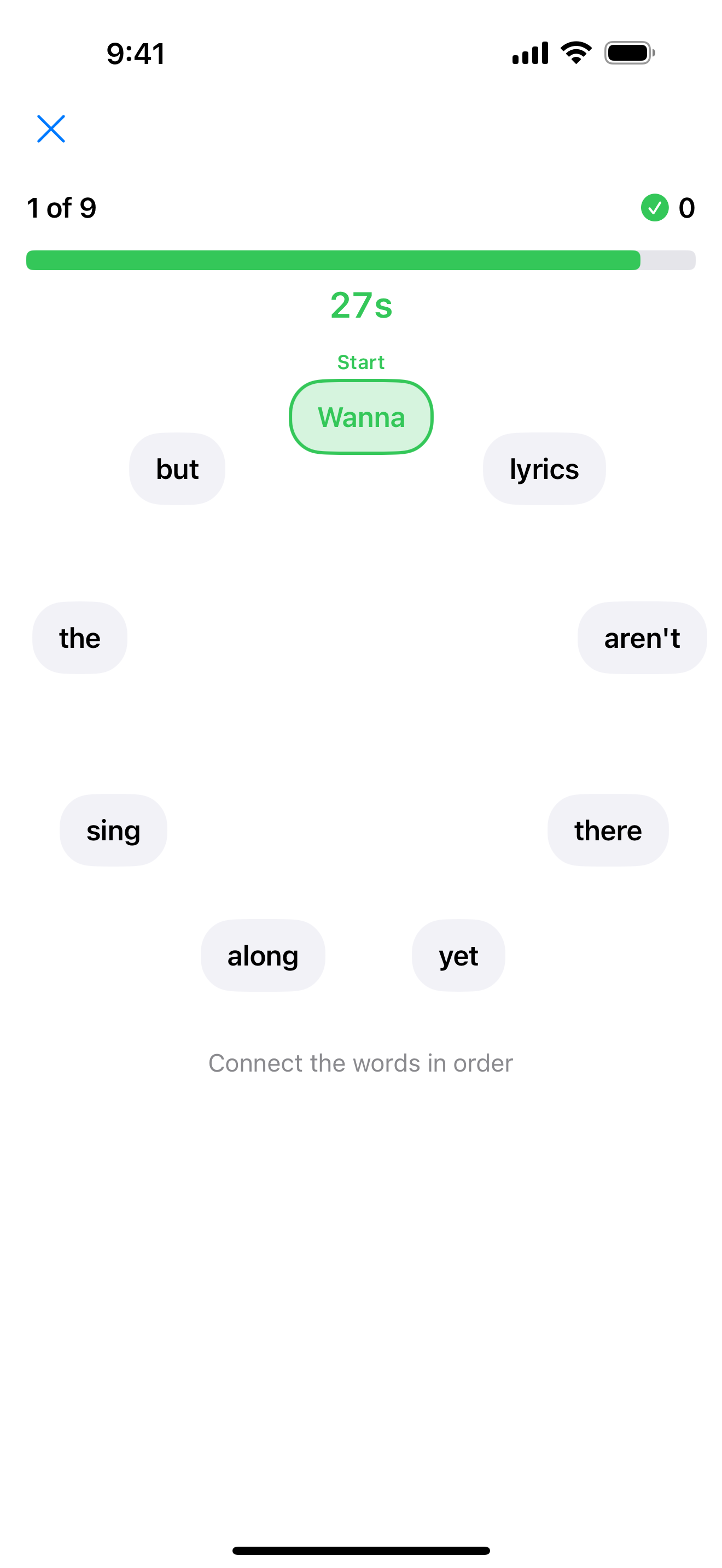
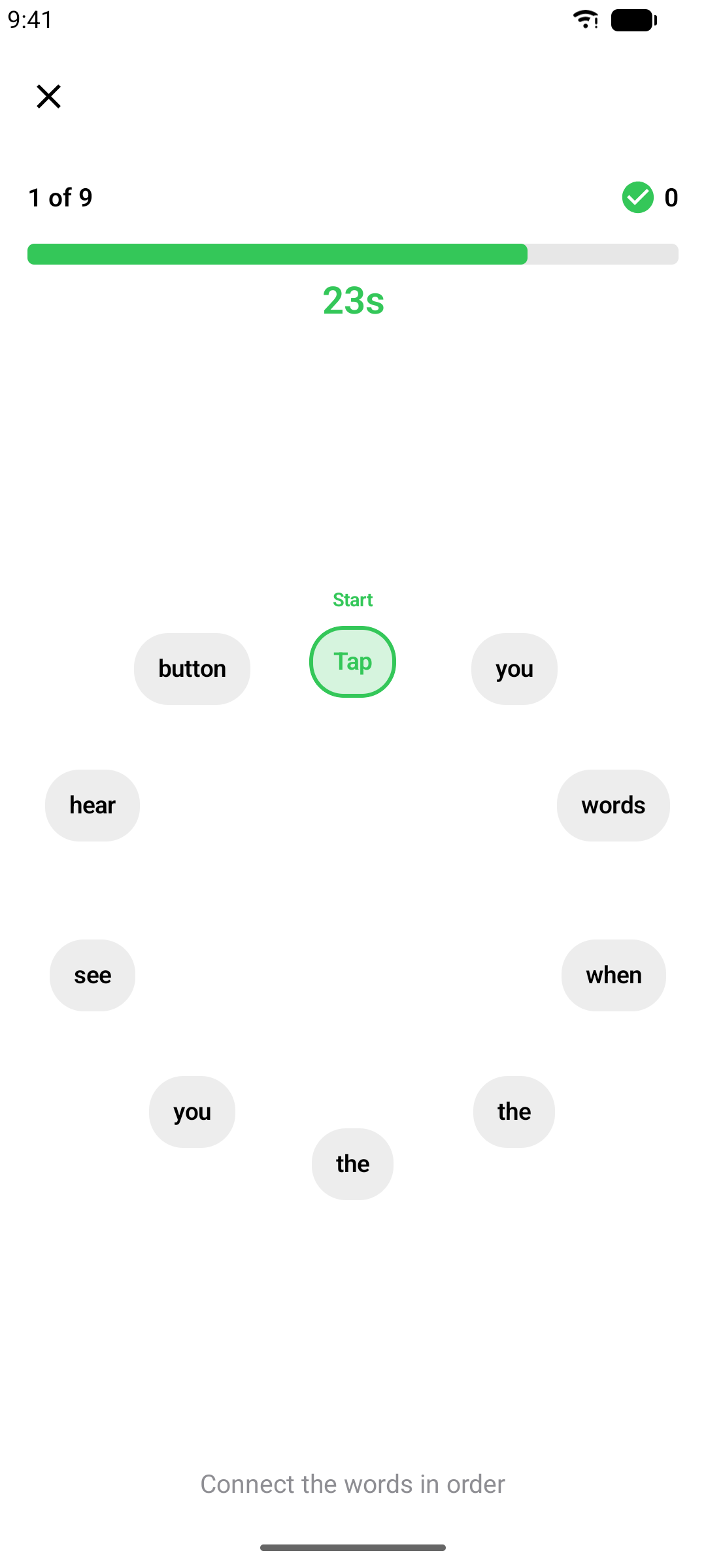
The better your lyric timing, the better the games play - one more reason to fine-tune!
Note: Games need enough timed material: Lyric Order wants at least 5 timed lines of 3 to 10 words, Finish the Lyric at least 10 timed lines of 4 or more words.
Tokens
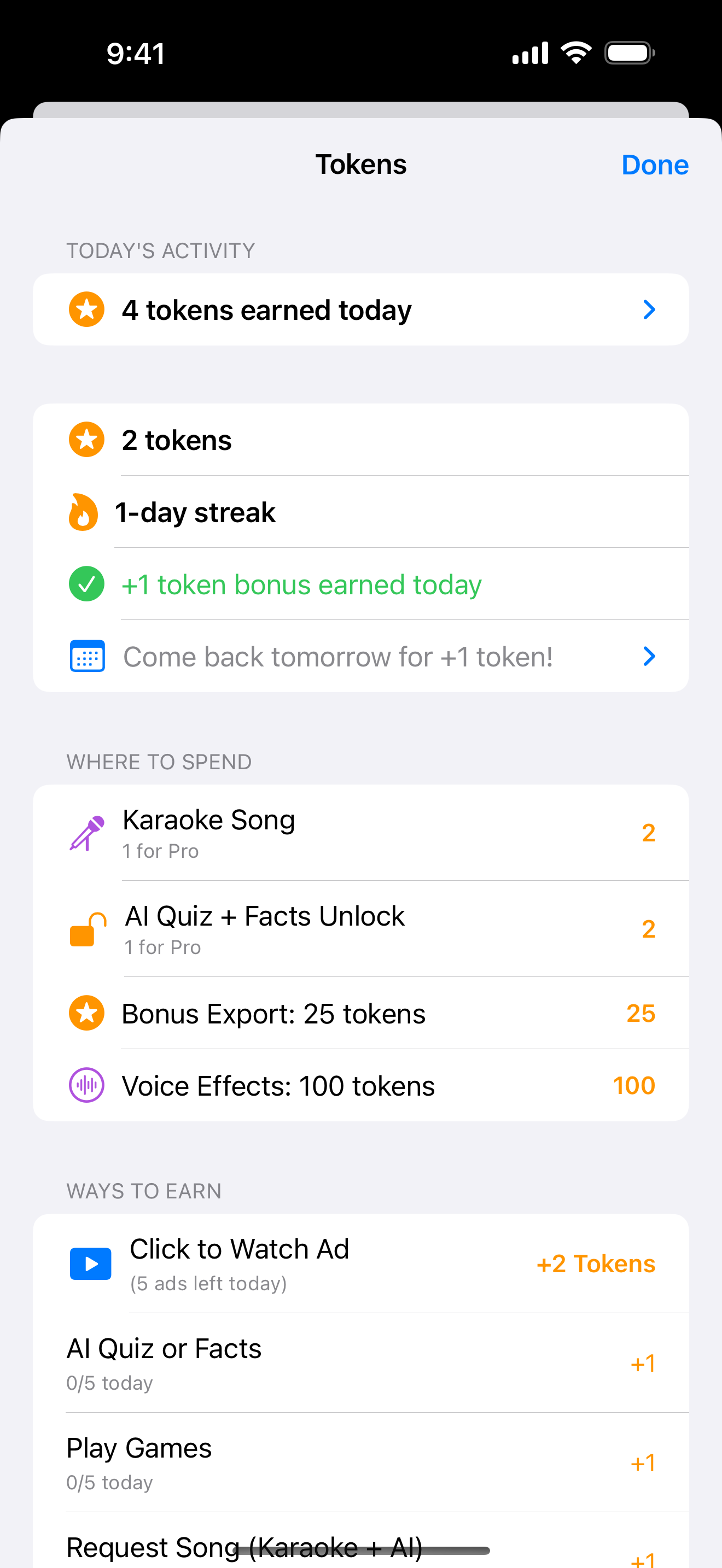
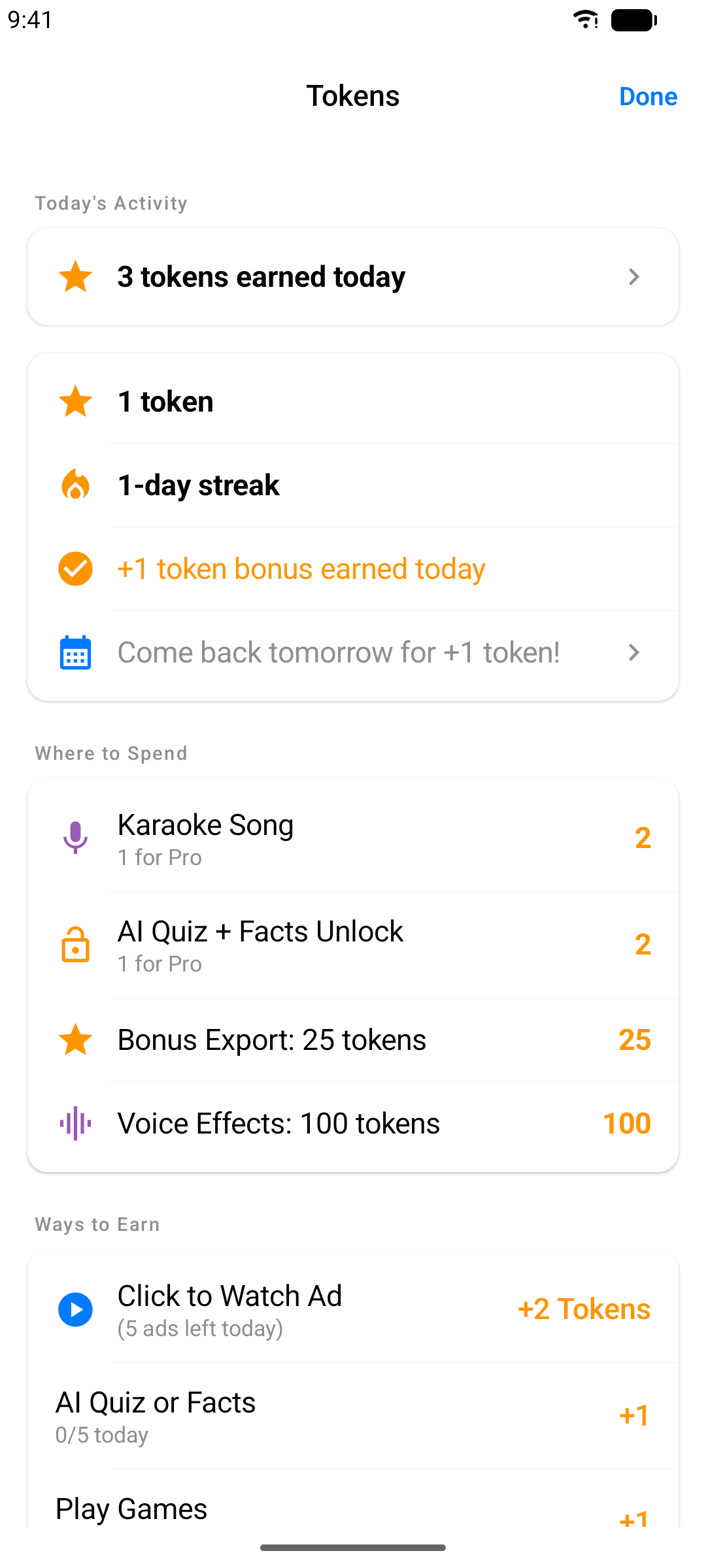
Karaoke Sync rewards you for showing up. You earn tokens by keeping a daily streak, creating projects, exporting, playing games and quizzes, requesting songs, and watching optional ads - then spend them on karaoke songs (2 tokens), extra quiz unlocks (2), bonus exports (25), and voice effects (100 each). Tap the token badge in the toolbar to see your balance, streak, and every way to earn and spend.
Exporting Your Project
Share your timed lyrics - or your recorded performance - in the format you need.
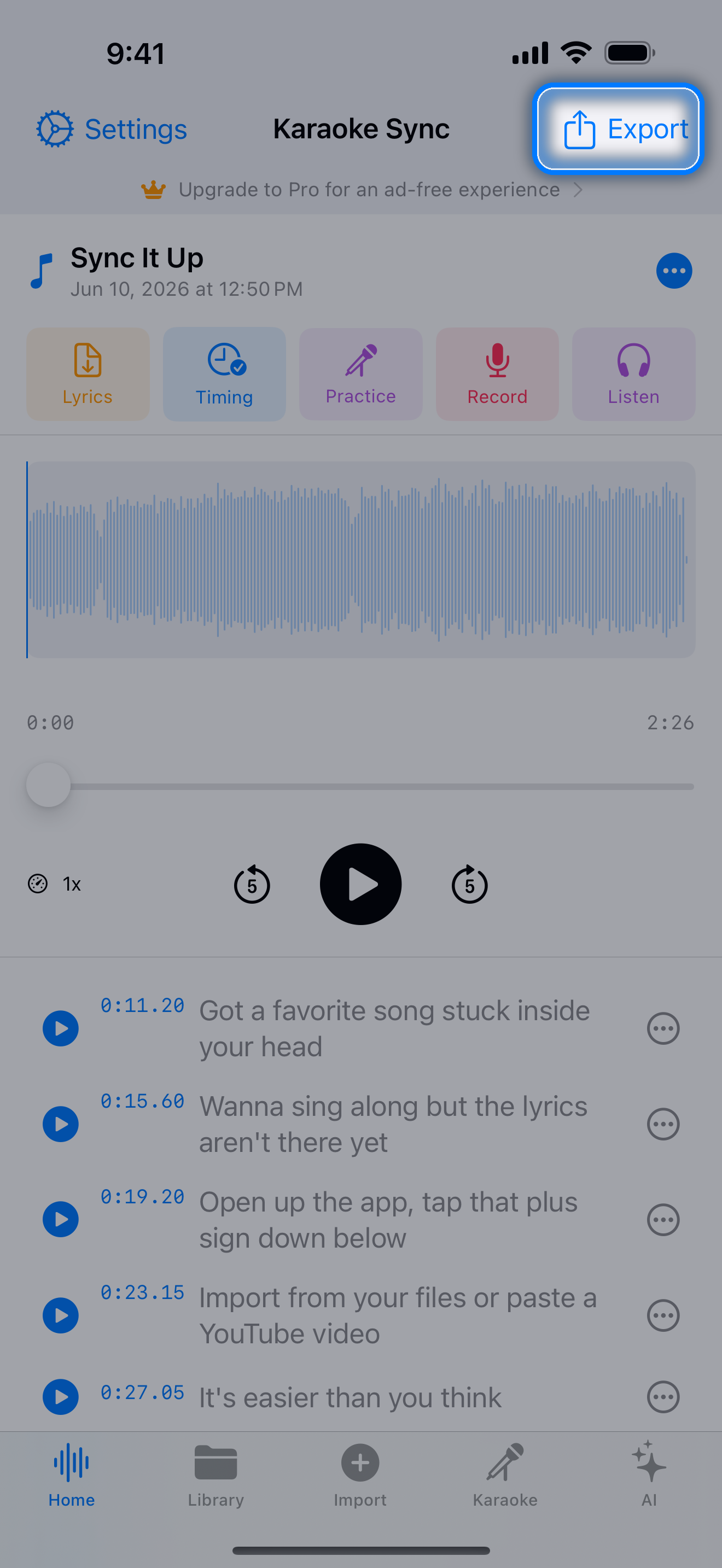
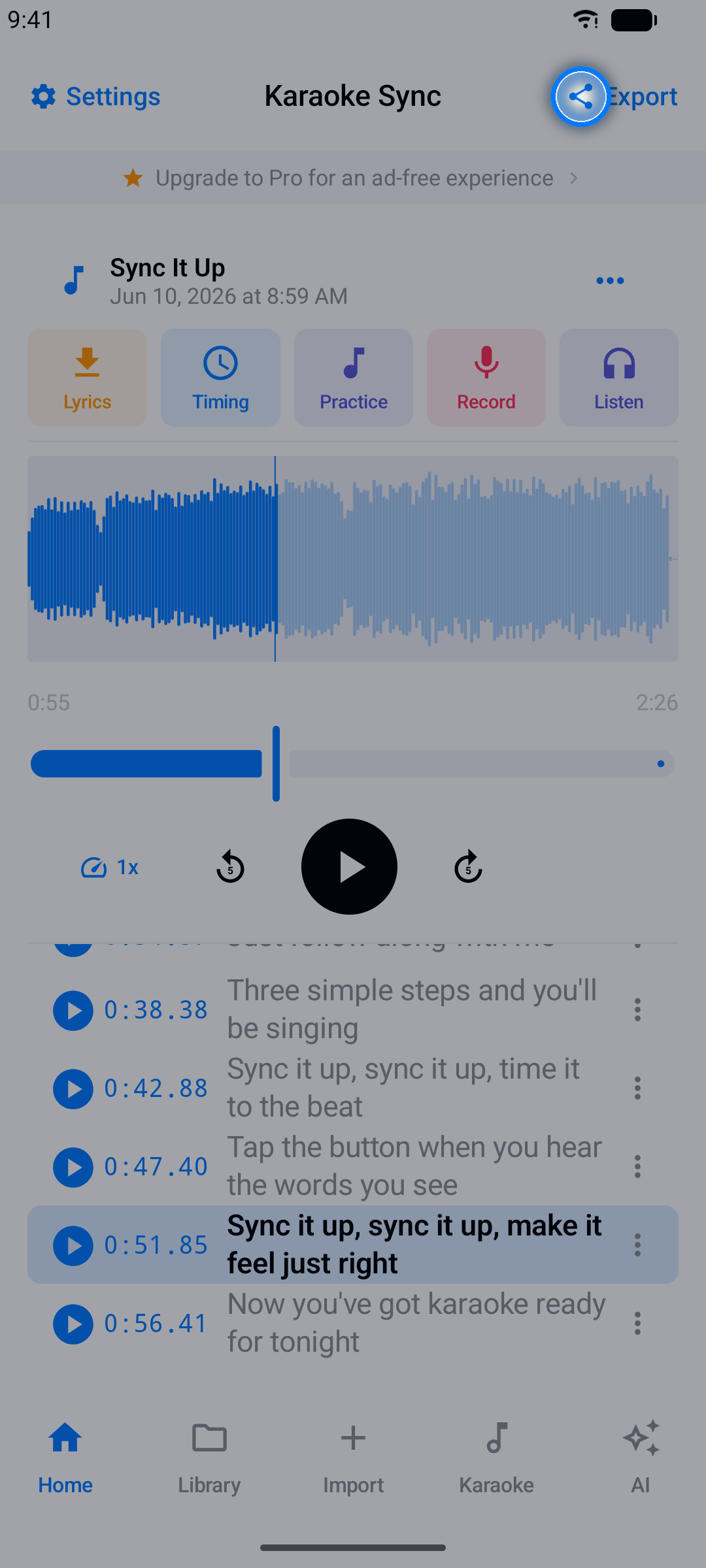
Step 1: Open Export
In the project editor, tap Export in the top-right corner.
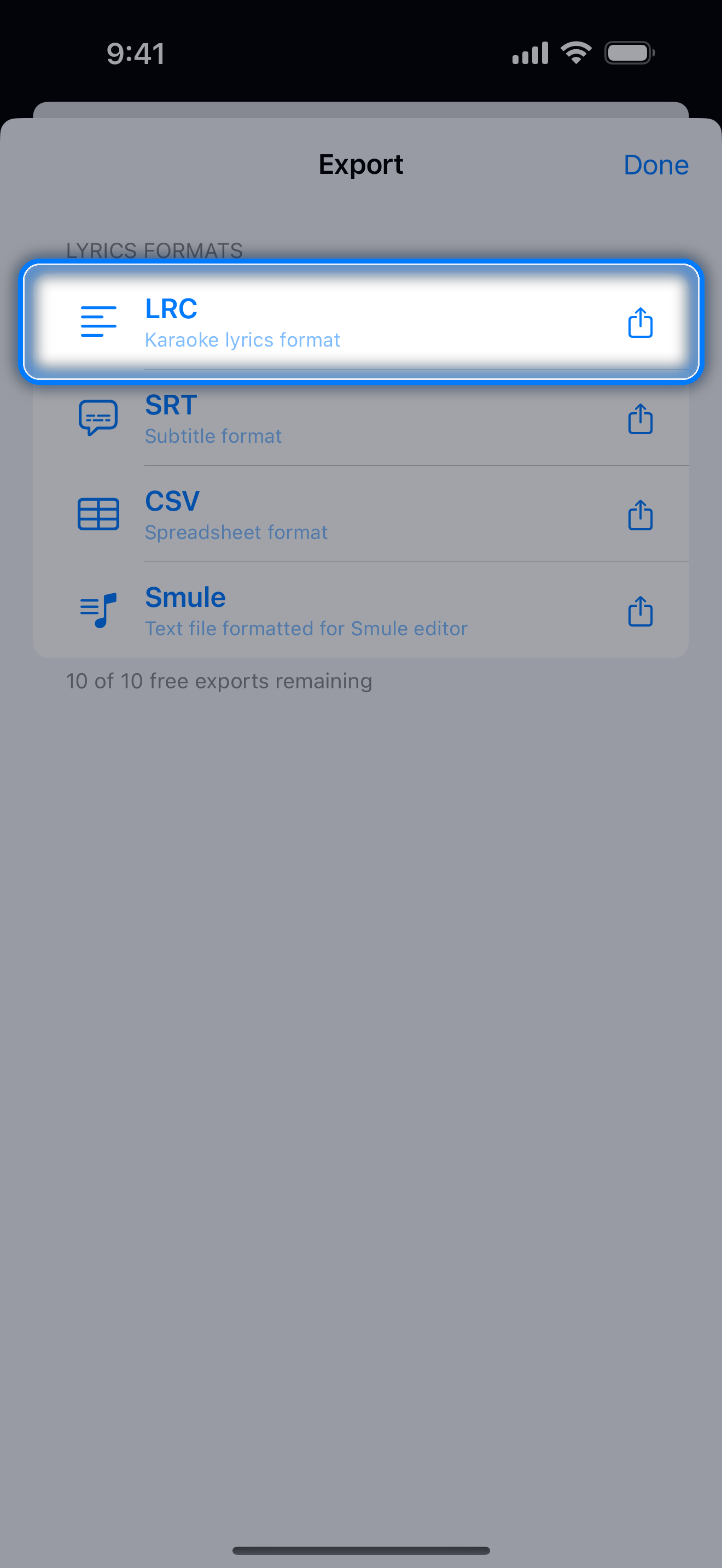
Step 2: Choose a Format
| Format | Best For |
|---|---|
| LRC | Karaoke apps and music players |
| Enhanced LRC | Players that highlight lyrics word by word (needs word timing) |
| SRT | Video subtitles |
| CSV | Spreadsheets and data tools |
| Smule | The Smule karaoke app (lines wrapped to fit) |
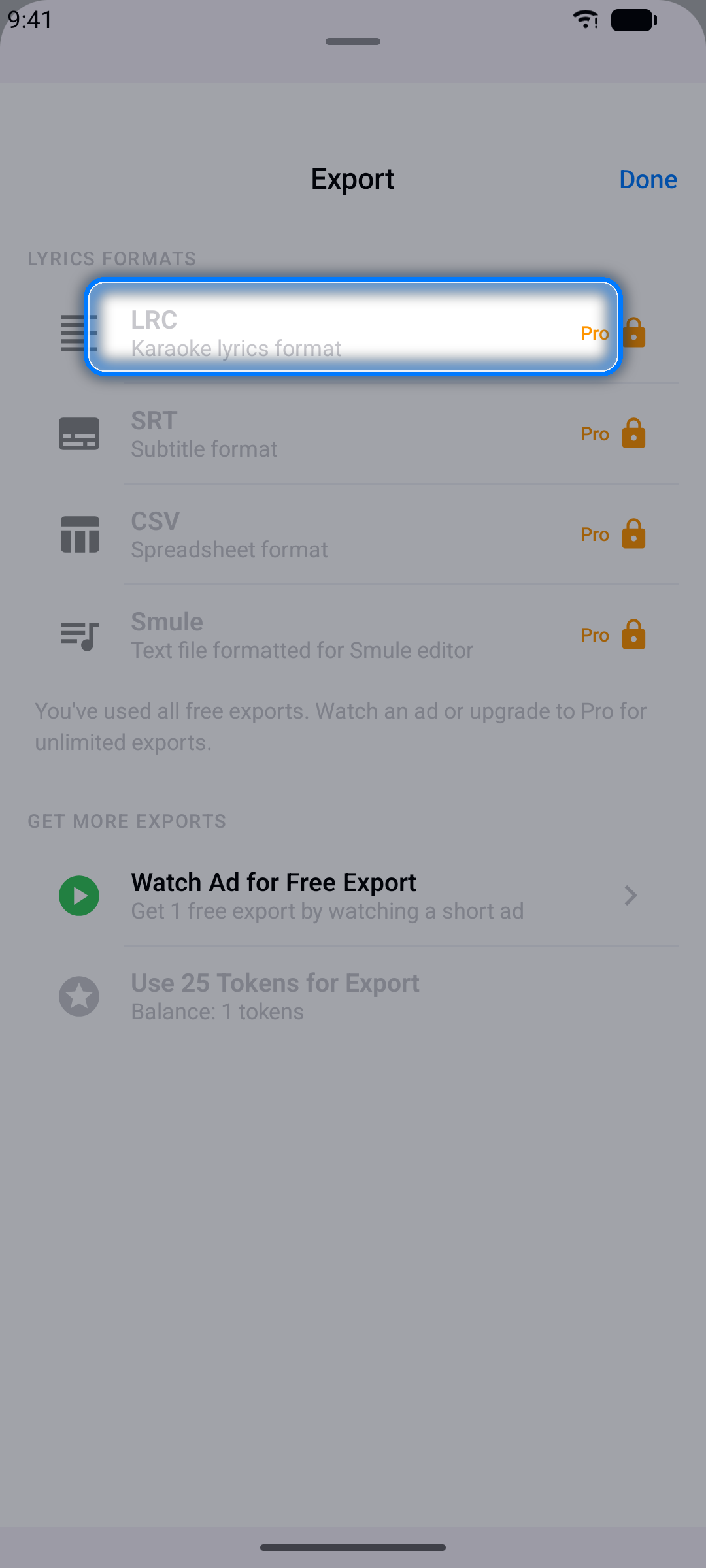
Step 3: Save or Share
Recorded performances export as audio - the full mix (your voice + the music) as an M4A file, or just your voice (M4A on iPhone and iPad, WAV on Android) - and as MP4 video: a video take, an audio take with Lyric Video switched on (see Sing Mode), or, in a video project, your imported video with your voice mixed in (see Creating a Project from a Video).
On iPhone and iPad, lyrics files open the share sheet right away, and recordings offer Share / Save to Files - save them to Files, AirDrop them, or send them straight to another app.
On Android, exports are saved to your Downloads folder, where any file manager or media app can pick them up; lyrics files also offer Copy to clipboard.
Note: Free accounts include 10 exports with no ads (lyrics files, audio, and video combined). After that, exporting keeps working - watch a short ad for another export, or spend 25 tokens you have earned in the app. Pro removes the ads and the limit entirely.
Guides for two popular formats: Make an LRC file on your phone and Make SRT subtitles for a song.
Managing Projects
The Library tab is home base for everything you've made.
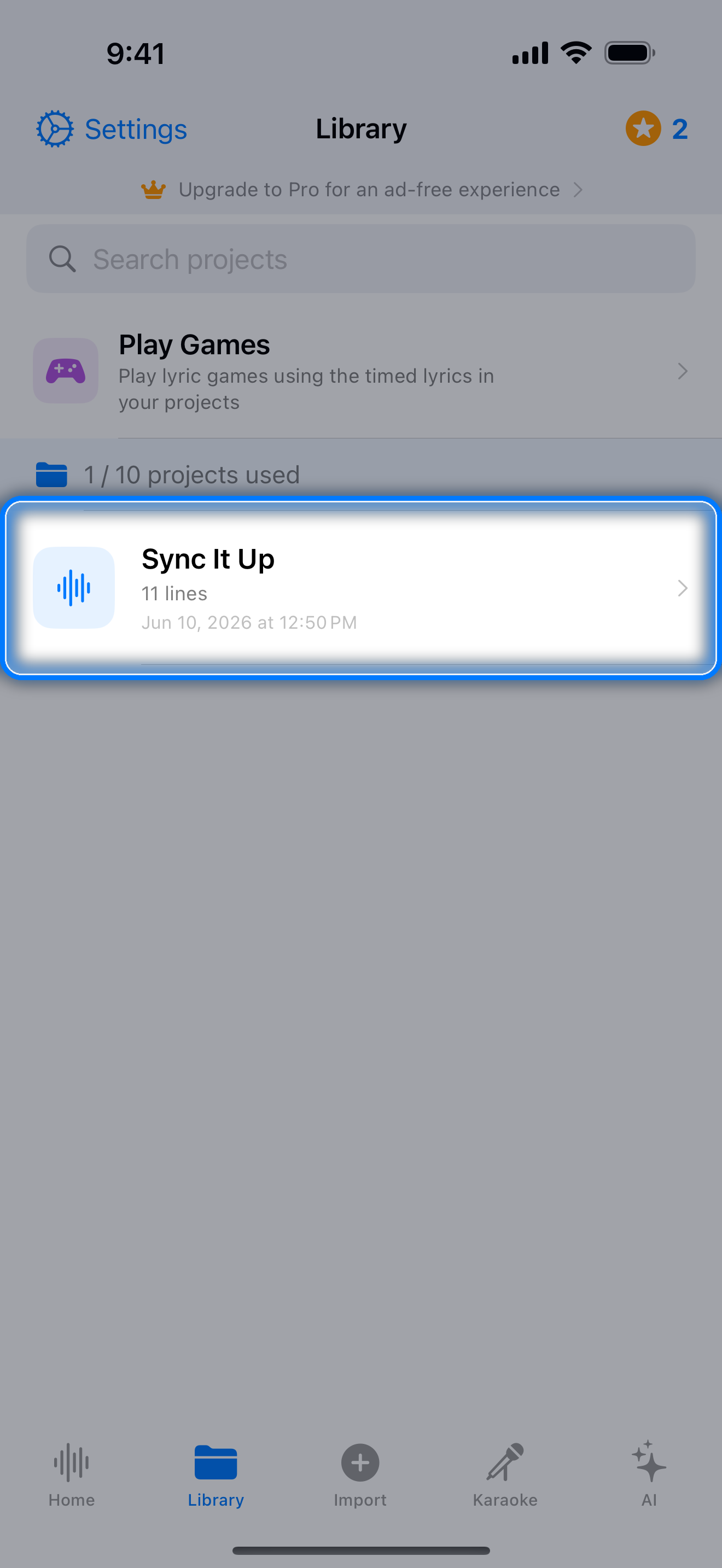
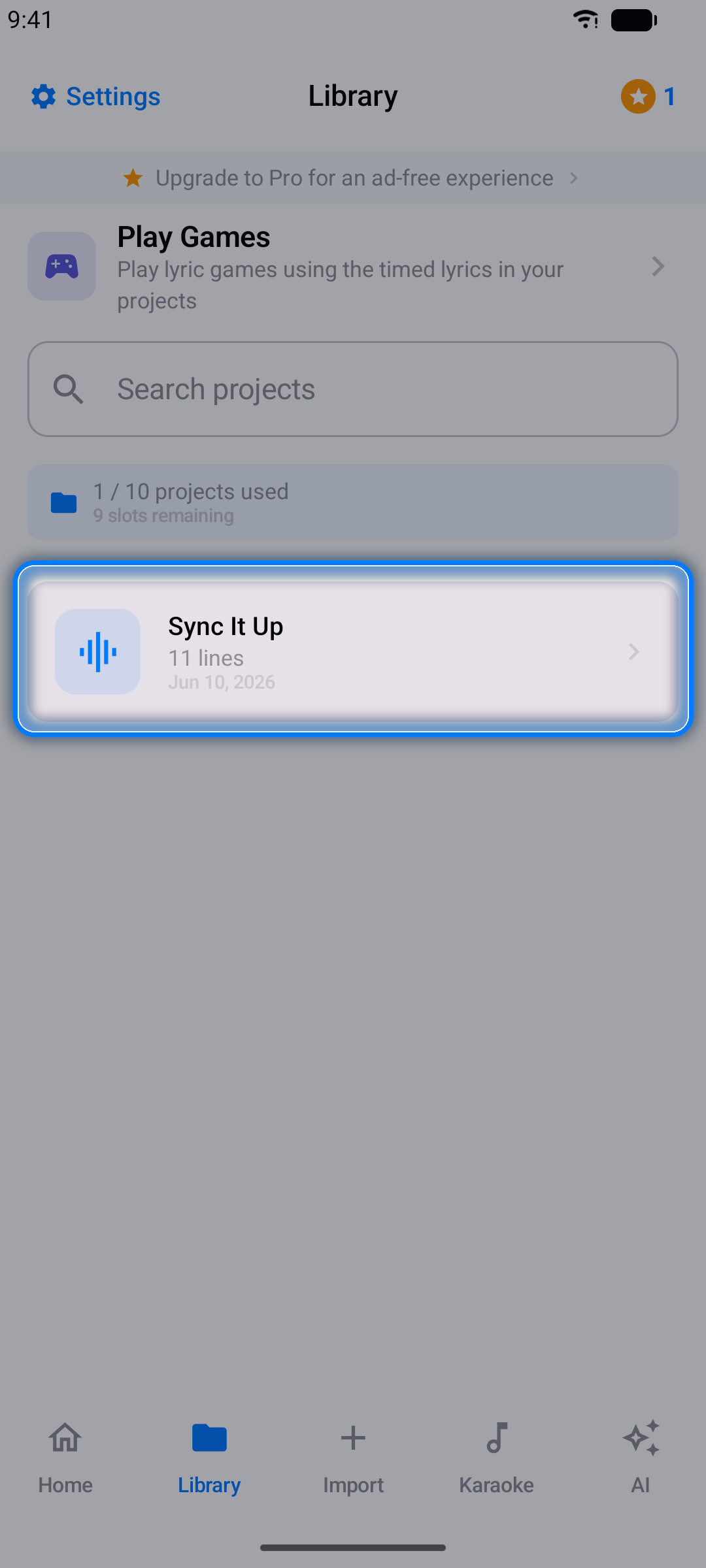
- Open - tap any project to load it in the editor
- Rename - open the project, tap the menu button (three dots) next to its name, and choose Rename
- Duplicate - make a copy from the same menu (the copy counts as a new project)
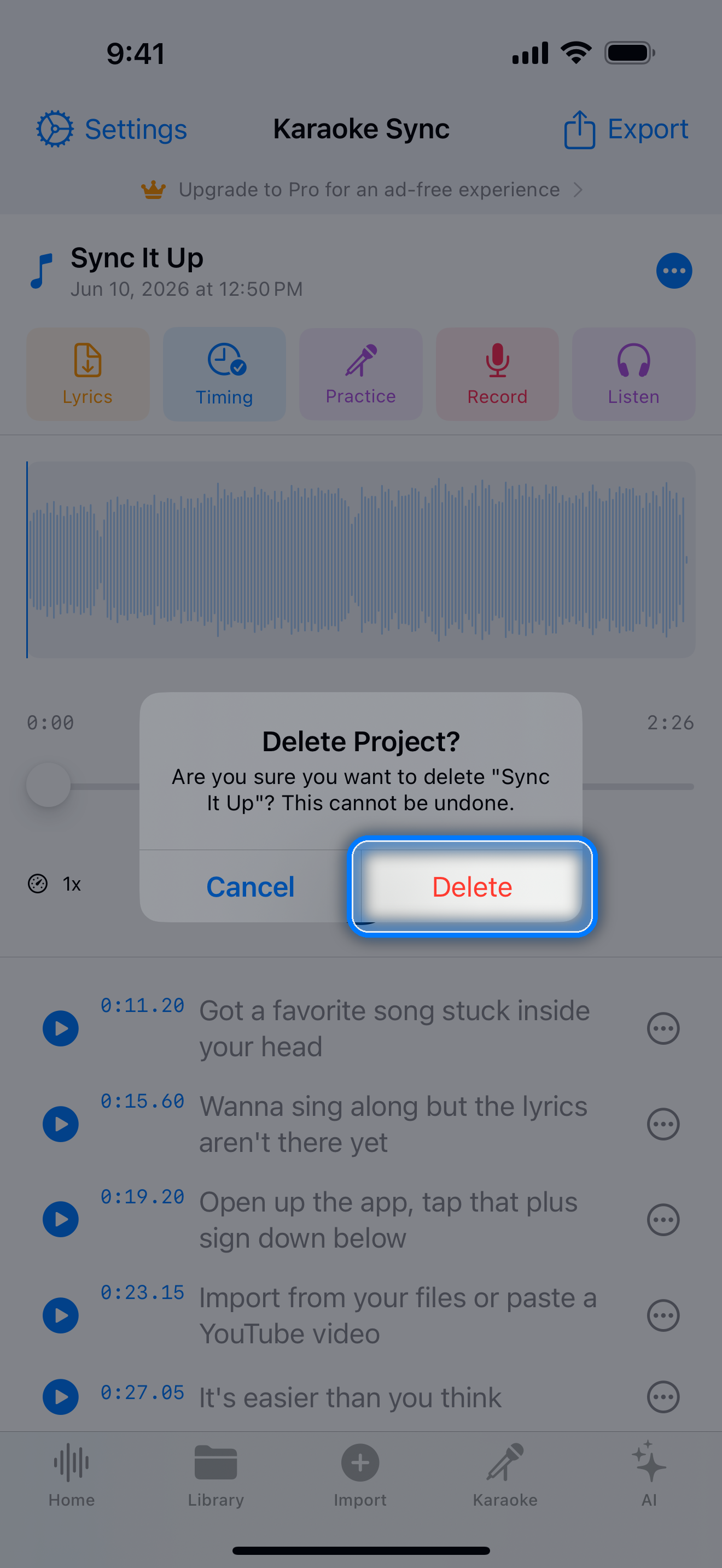
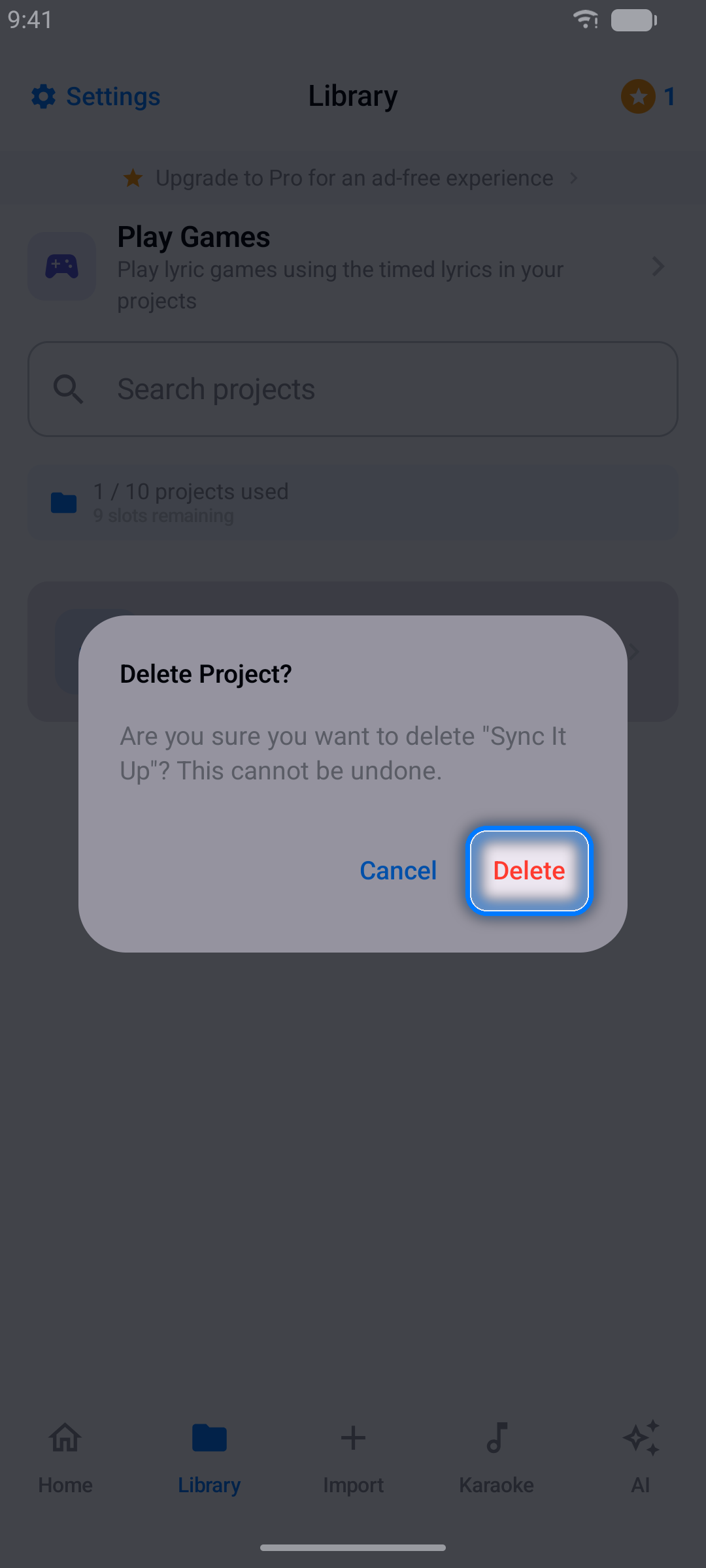
- Delete - swipe a project in the Library (on Android you can also long-press it), or choose Delete Project? in the project menu; you'll be asked to confirm
- Search - find projects fast as your collection grows
Pro Subscription
Upgrade to Pro for the full experience:
- Unlimited projects and exports - lyrics files, studio mixes, and videos
- No ads, ever
- 100 song unlocks a month in the Quiz tab (instead of 10)
- Karaoke songs for just 1 token each
- The best value for regular singers - choose Yearly or Monthly
How to Subscribe
- Open Settings and tap Upgrade to Pro - or tap any Upgrade to Pro banner in the app
- Pick Yearly (the best value) or Monthly
- Tap Unlock Pro and confirm the purchase with your app store
Managing Your Subscription
On iPhone and iPad, subscriptions are managed by the App Store: open the Settings app, tap your name, then Subscriptions, and choose Karaoke Sync.
On Android, subscriptions are managed by Google Play: open the Play Store app, tap your profile picture, then Payments & subscriptions → Subscriptions, and choose Karaoke Sync.
Settings
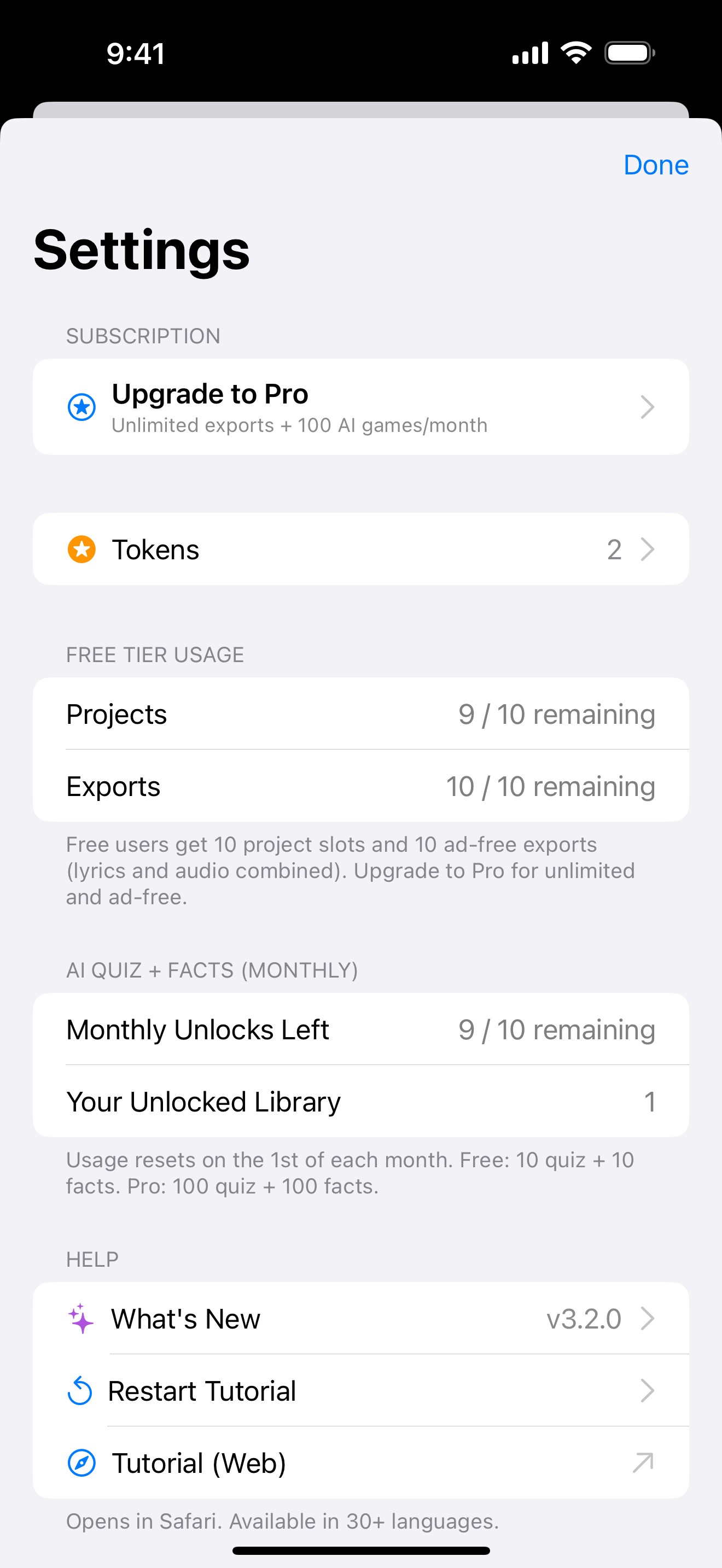
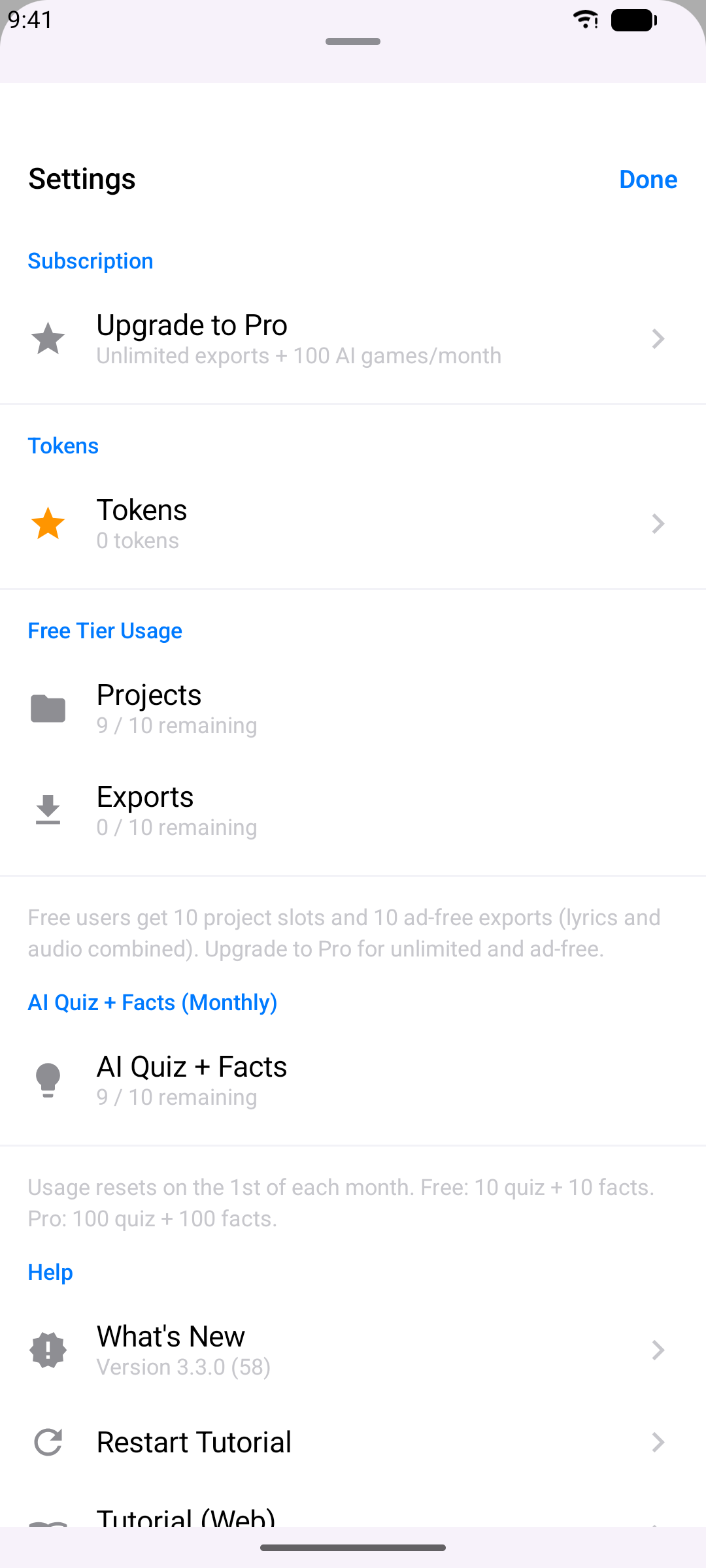
Tap Settings in the top-left corner to:
- See your token balance and your free-tier usage (projects, exports, and monthly quiz unlocks)
- Upgrade to Pro or Restore Purchases
- Open What's New, Restart Tutorial, or this Tutorial (Web)
- Read the terms and privacy policy - and, in the EEA, the UK, and Switzerland, change your Privacy options
- Rate the app, e-mail the developer, and see the app version
Tips & Tricks
- Use wired headphones for Practice and Sing modes - Bluetooth adds too much delay for live monitoring
- Paste LRC lyrics when you can - timestamps import automatically and you may barely need to touch the timing
- Slow the song down while timing fast verses, then verify at full speed
- Preview as you go - tap ▶ on a line in the editor, or use Preview in the Fine-tune sheet
- Fine-tune in 0.1s steps - small nudges beat big corrections
- Shift lines in bulk when the whole song drifts - turn on Past lines or Future lines in the Fine-tune sheet instead of editing line by line
- Time lines first, then words - Words mode places each line's words for you, so you only drag the ones that are off
- Use an audio file or your own video when you want the music in your recording - YouTube projects never capture the YouTube sound
- Keep your streak - daily visits earn tokens you can spend on karaoke songs, voice effects, and extras
- Make a lyric video - film your take with Lyrics on video switched on, or switch on Lyric Video when you export an audio take, and you get a karaoke clip that's ready to share - or import your own video and export it with your voice and lyrics on it