Karaoke Sync™ - User Tutorial
The complete guide to Karaoke Sync for iOS and Android — from your first project to timed lyrics, recordings, karaoke nights, games, and more.
Getting Started
Karaoke Sync turns any song into a karaoke track with perfectly timed lyrics. You import a song, add its lyrics, tap along to time each line, and then practice, sing, record, export — or play games with what you made.
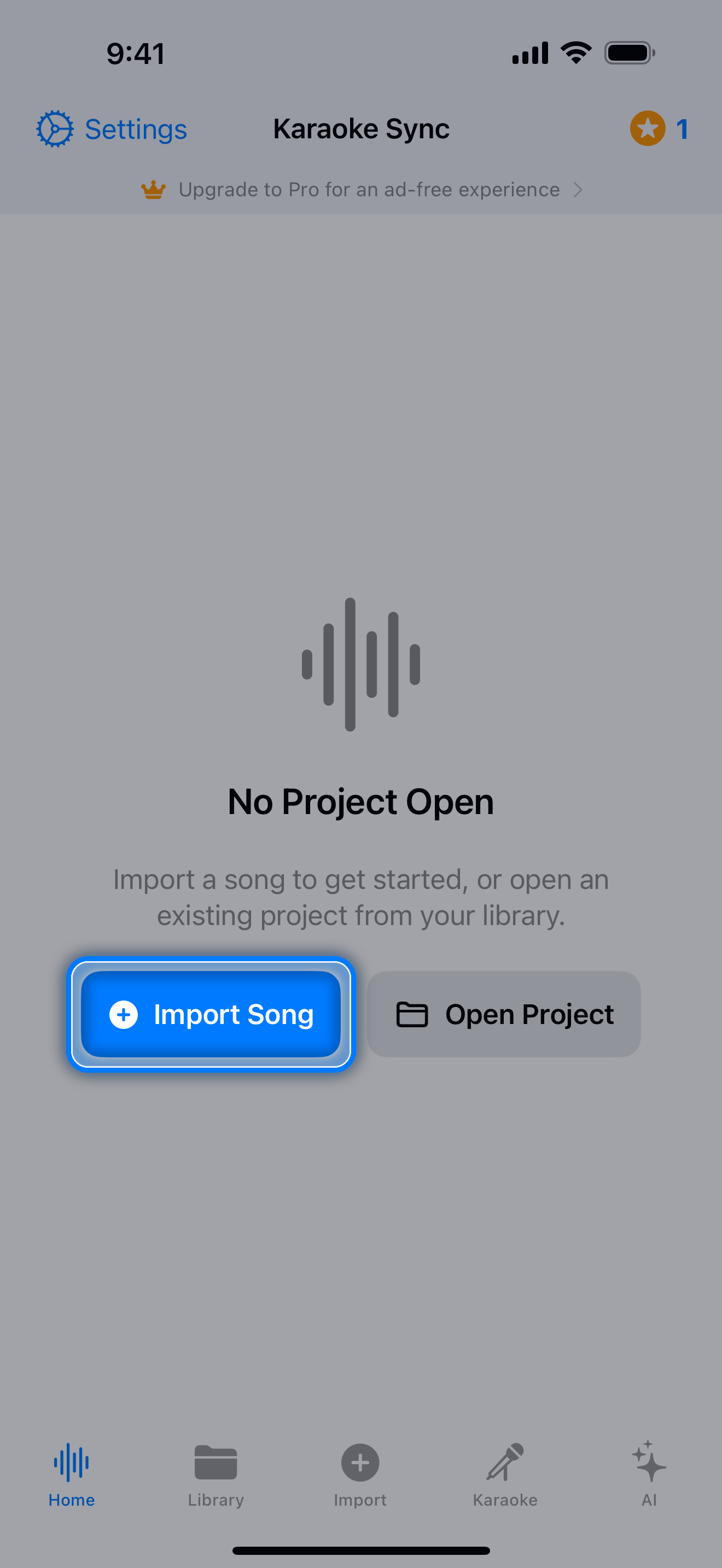
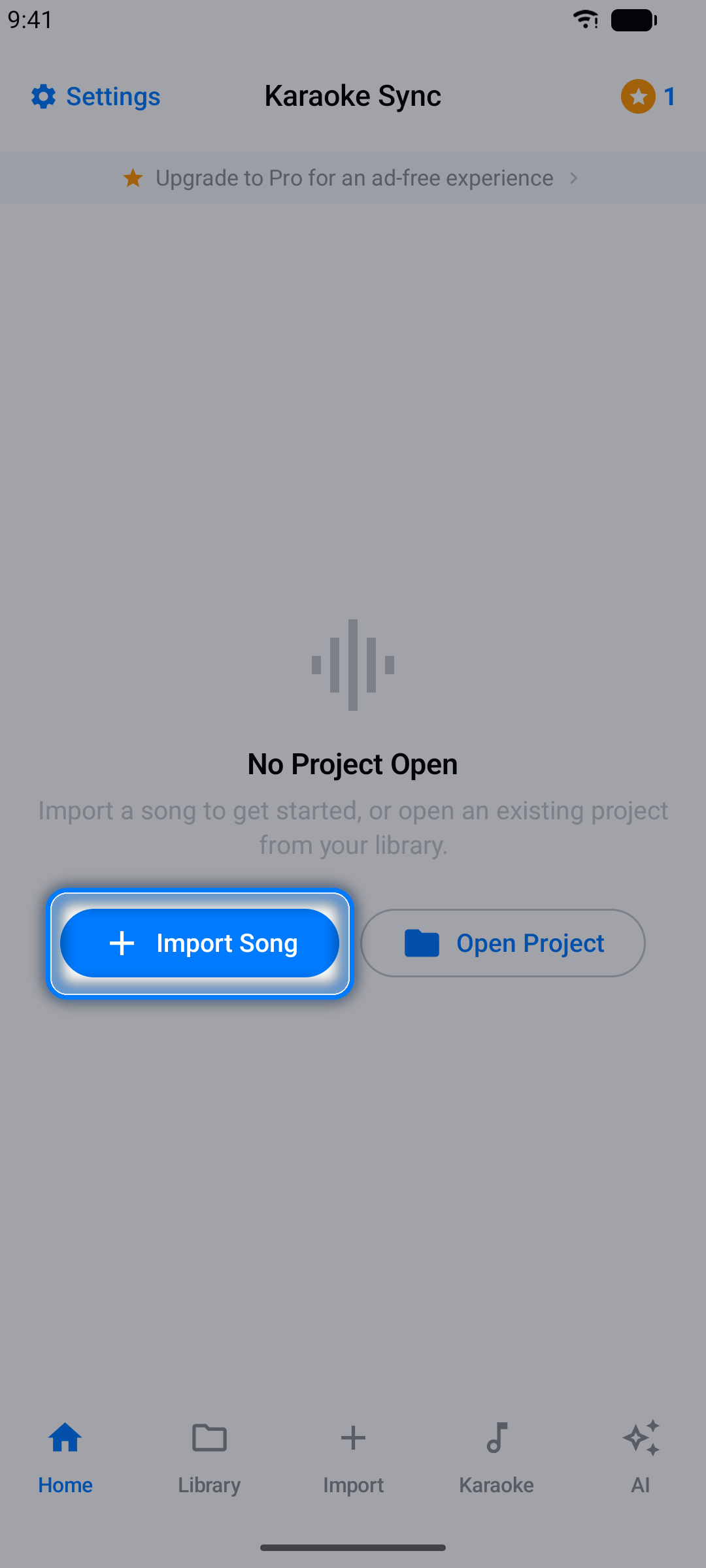
The app is organized into five tabs along the bottom of the screen:
- Home - your project editor, where the current project lives
- Library - all of your saved projects
- Import - create a new project from an audio file or a YouTube video
- Karaoke - a ready-to-sing catalog of karaoke songs with synced lyrics
- AI - song quizzes and fun facts powered by AI
Settings are always one tap away via the gear icon in the top corner.
Free vs Pro
- Free: up to 10 projects and 10 lifetime exports, plus a monthly allowance of AI quizzes and facts
- Pro: unlimited projects and exports and a much larger monthly AI allowance
You can upgrade any time - see Pro Subscription.
The Built-In Interactive Tutorial
The fastest way to learn Karaoke Sync is inside the app itself. The first time you open it, a welcome screen offers you a guided tour.
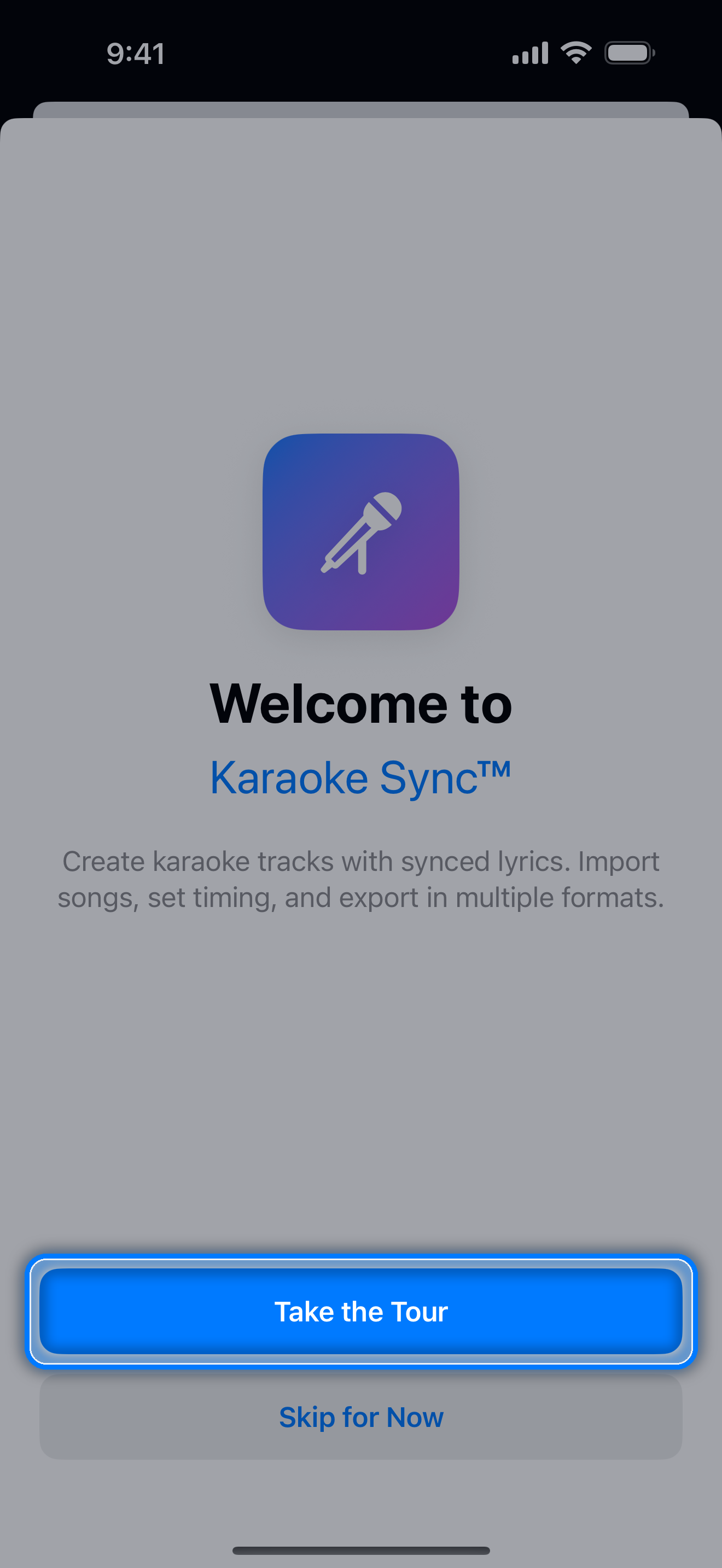
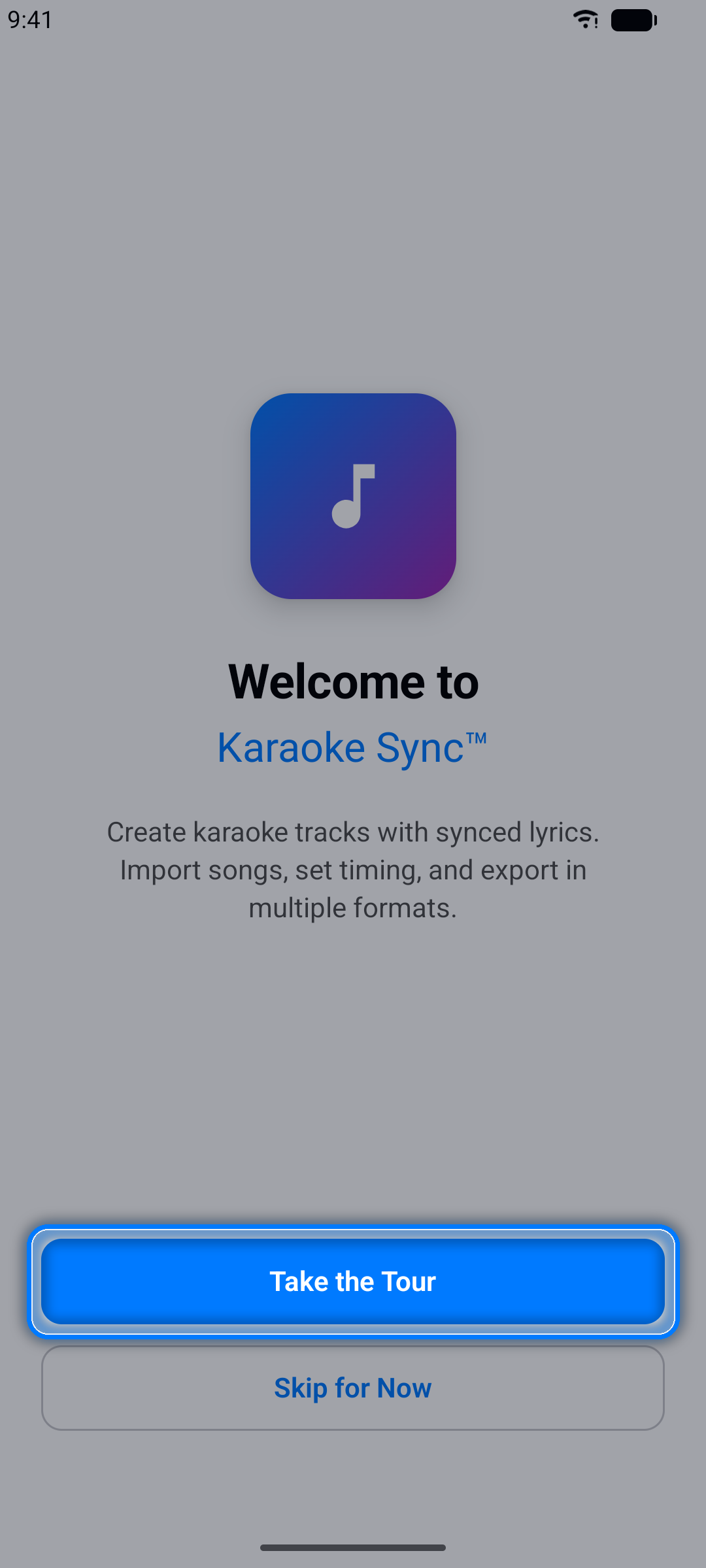
Choose Take the Tour and the app walks you through creating your first project step by step - a glowing spotlight highlights exactly what to tap at every stage, from importing a song to timing your first lyrics.
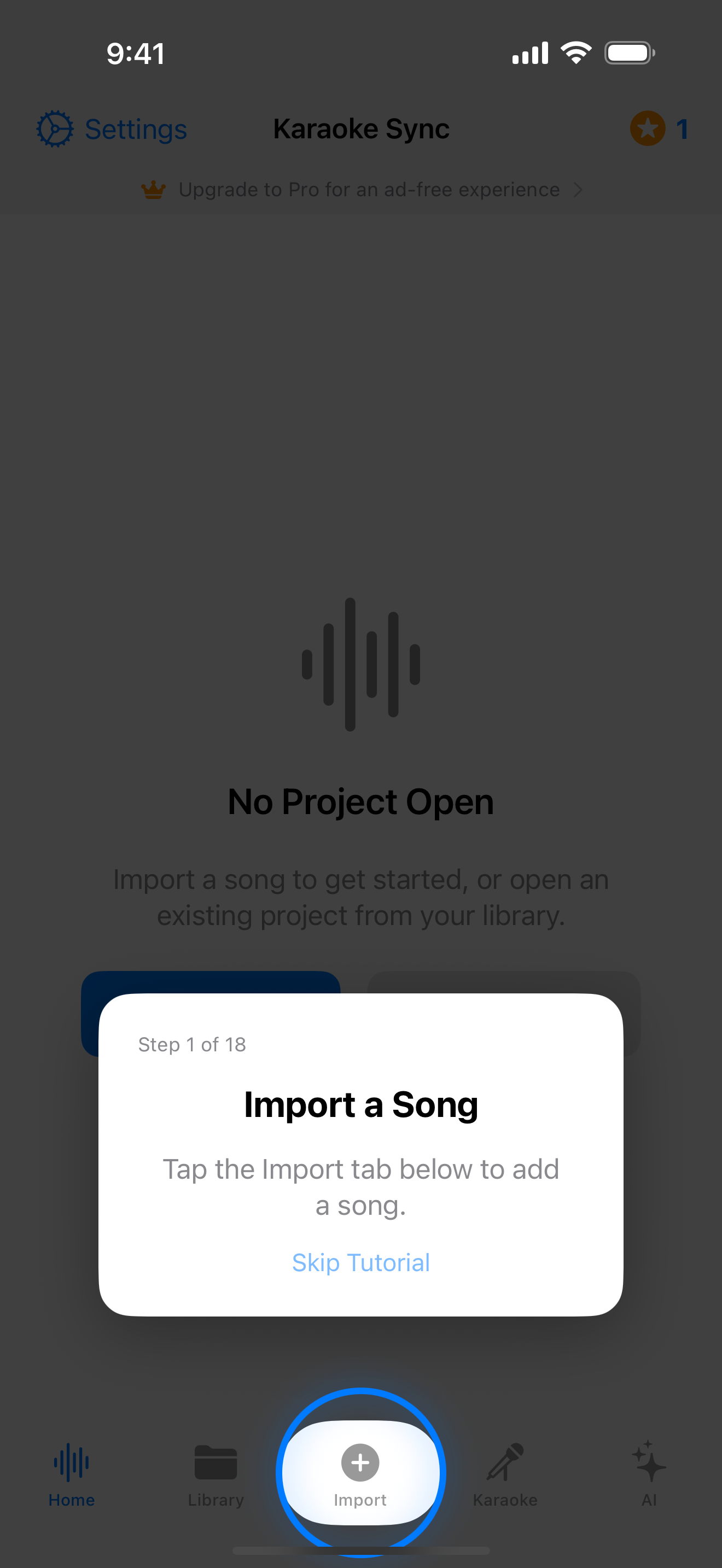
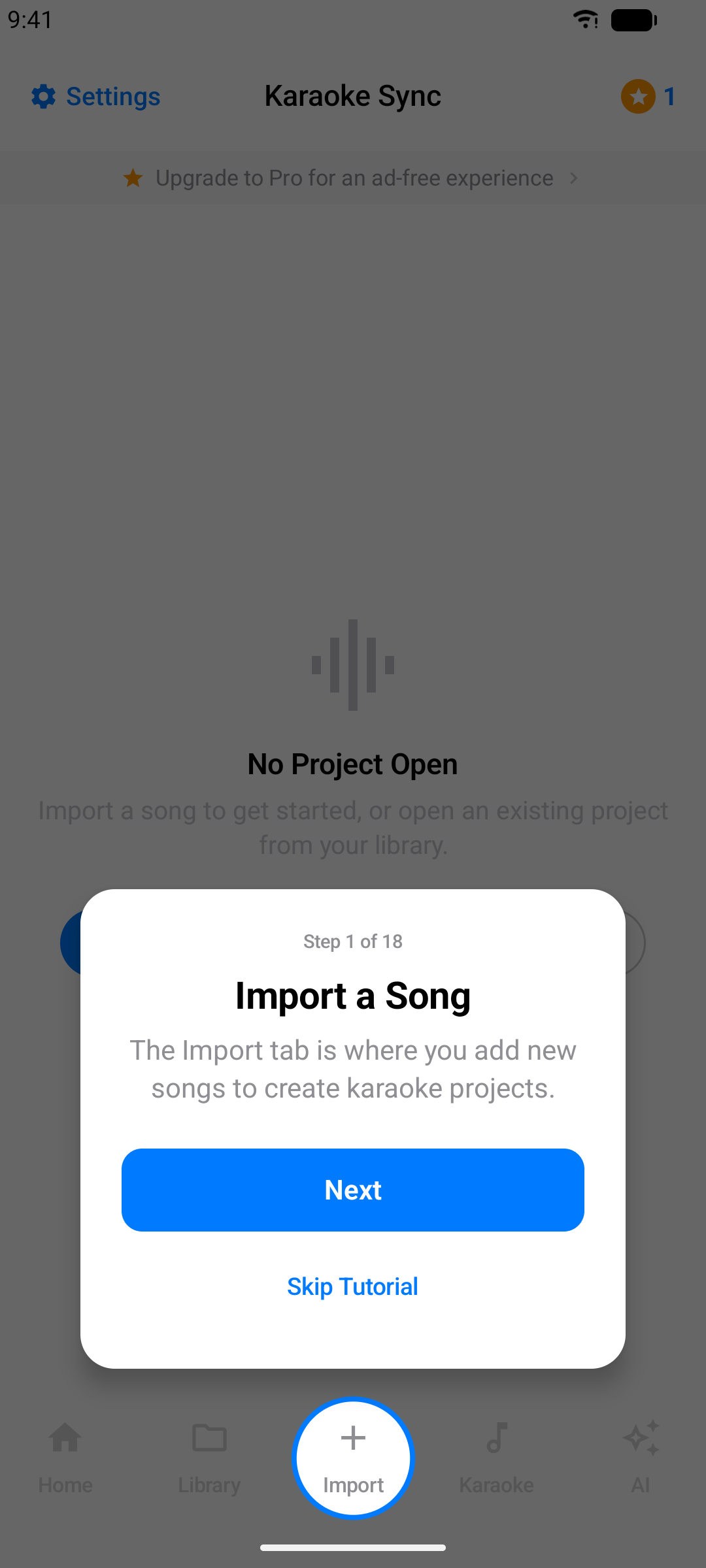
Tip: You can skip the tour and take it later - or run it again any time from Settings.
This web tutorial covers the same ground in more depth, so you can read along on a second screen while you work.
Creating a Project from Audio
Use this option when you have a song file (MP3, M4A, WAV, FLAC, or AAC) on your device.
Step 1: Open the Import Tab
Tap Import in the bottom tab bar.
Step 2: Select "Audio File"
Make sure Audio File is selected as the source at the top of the screen.
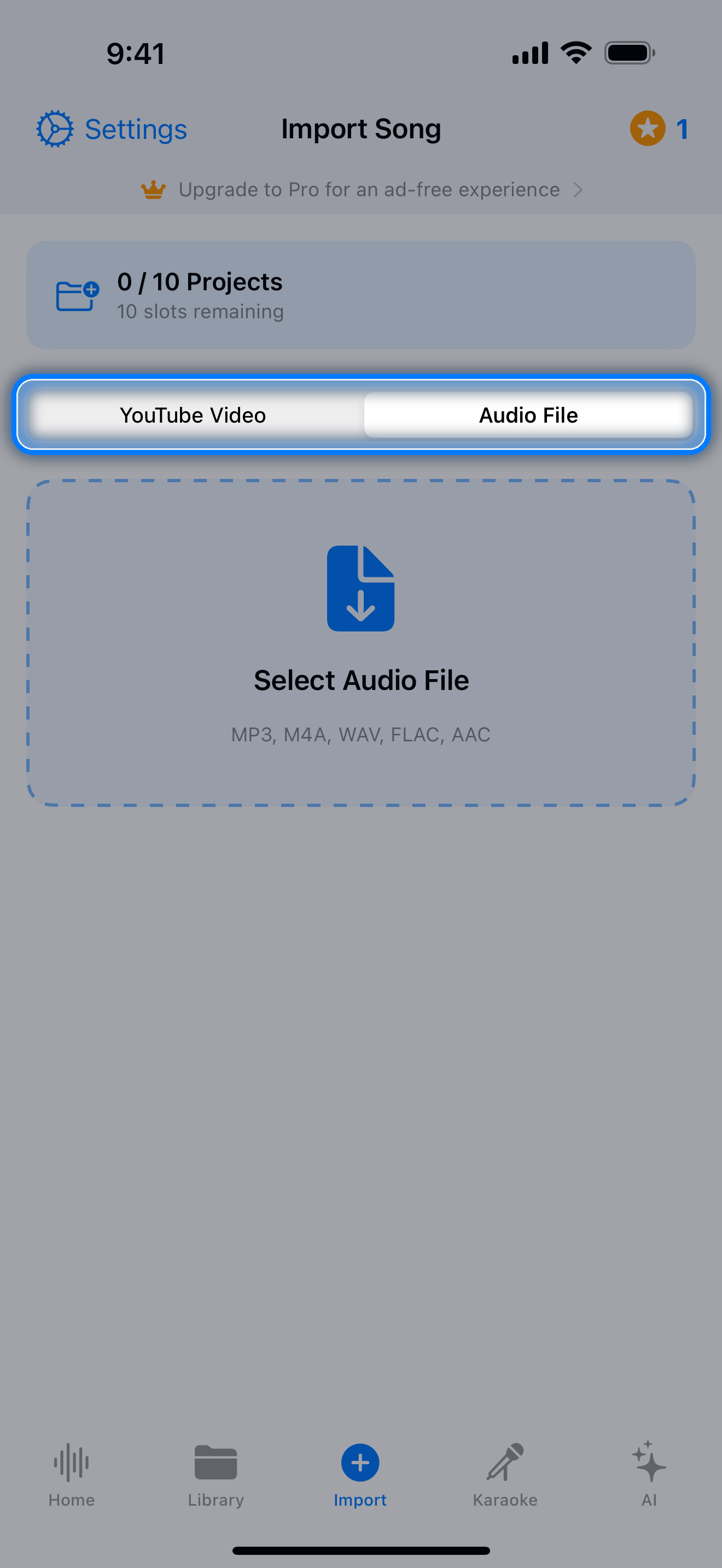
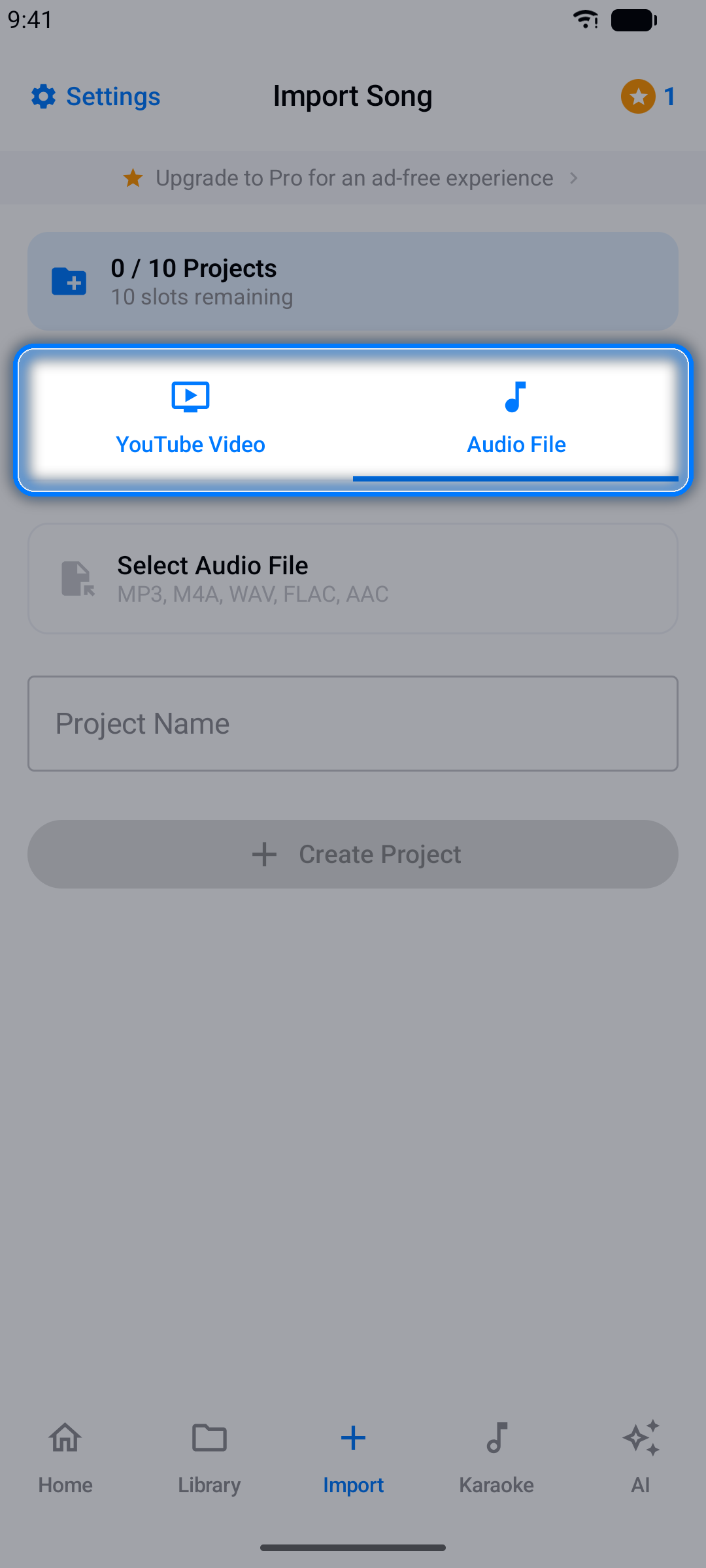
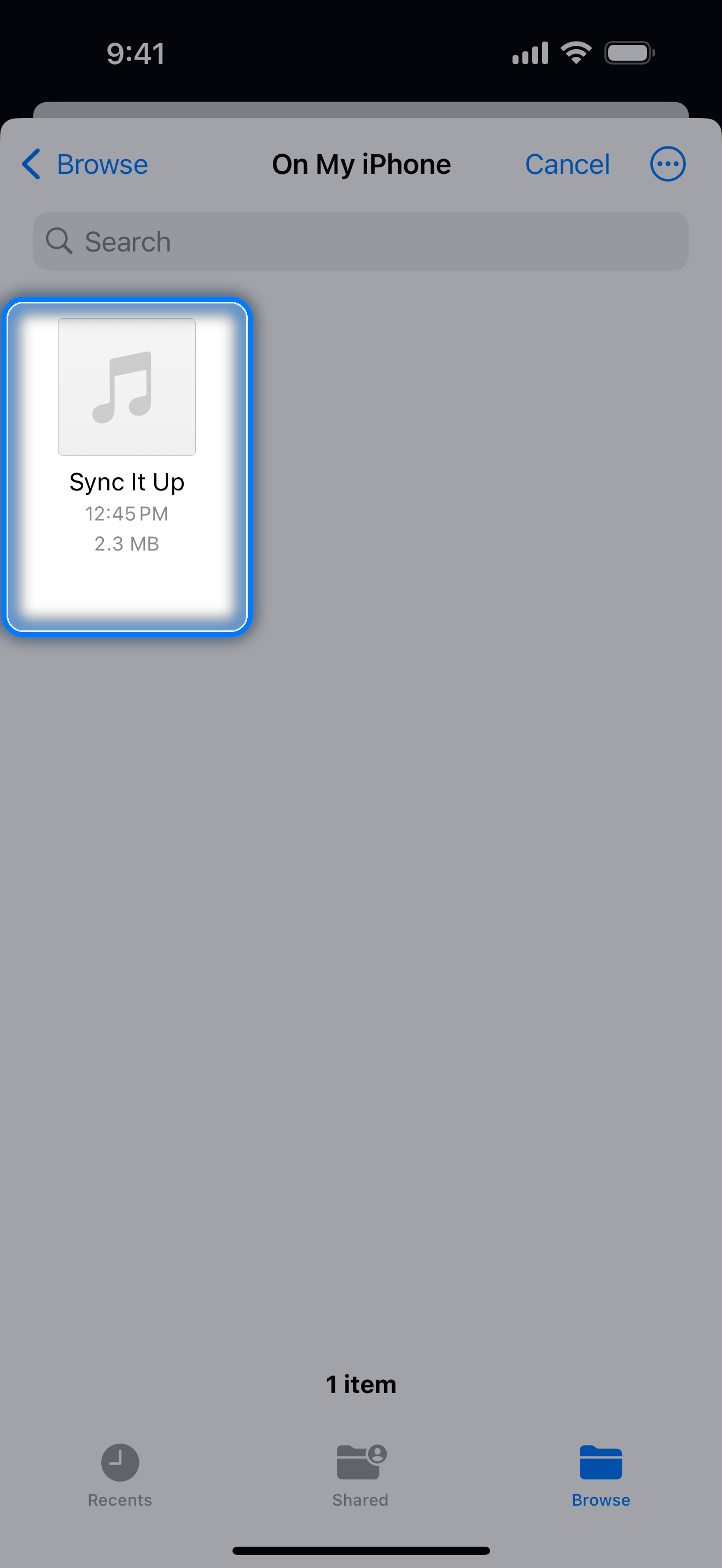
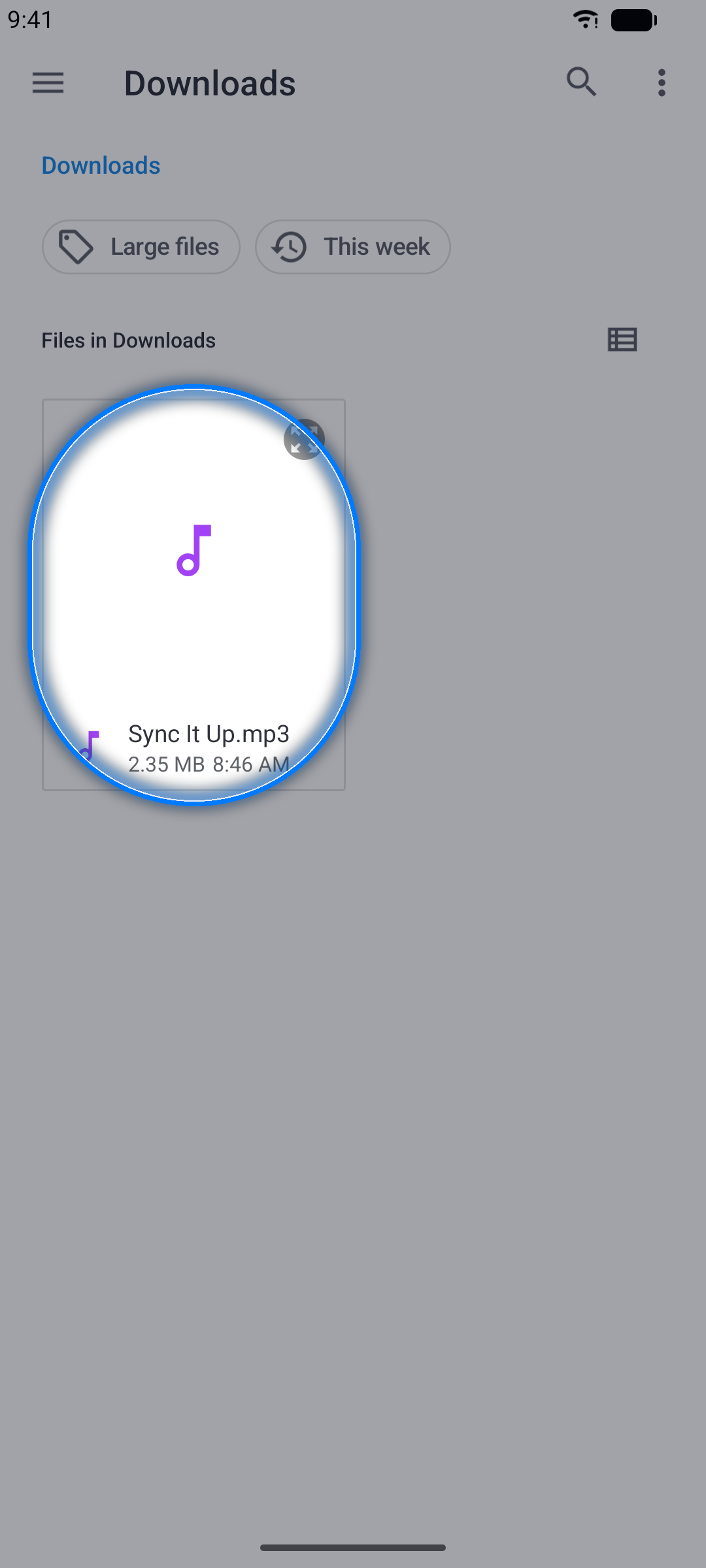
Step 3: Choose Your Song
Tap the file selection button and browse to your song.
Step 4: Project Created
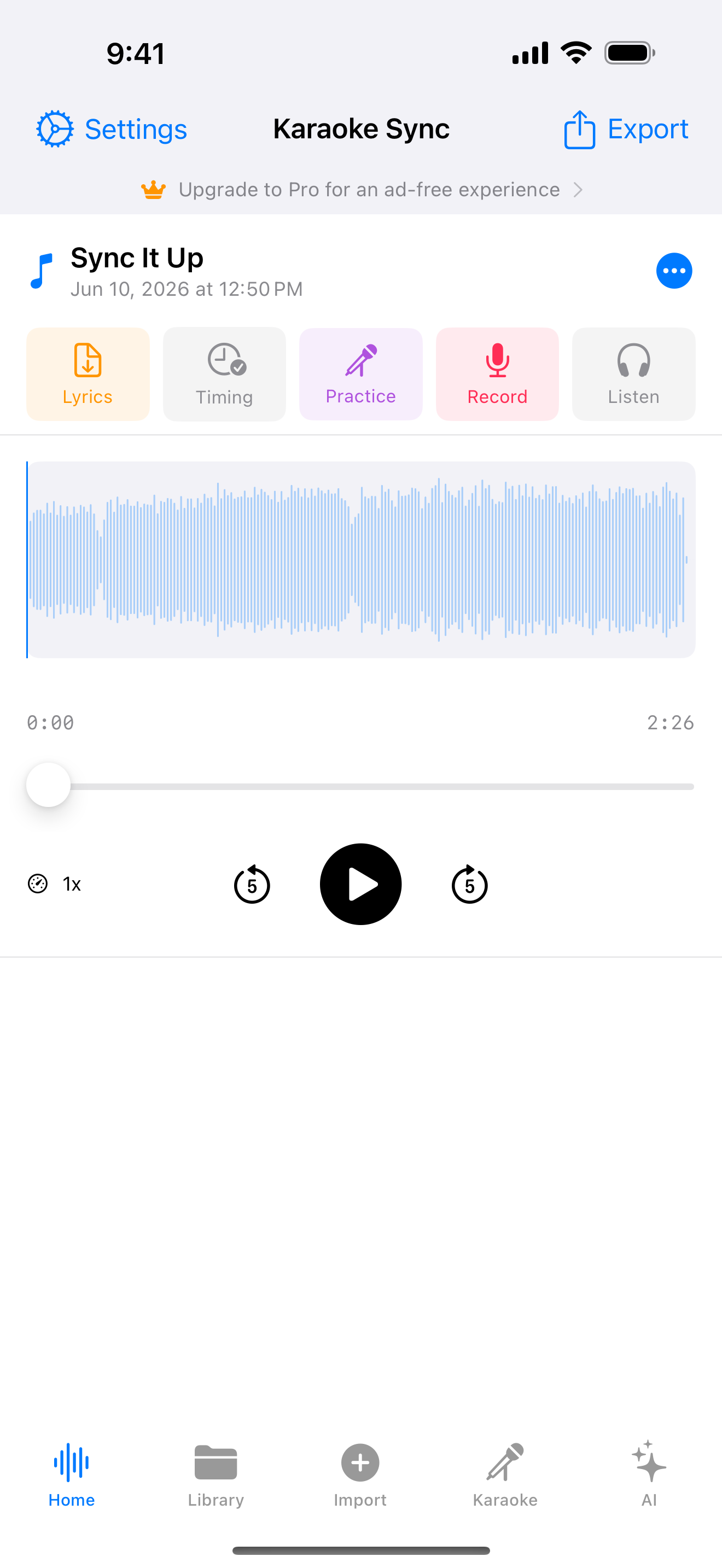
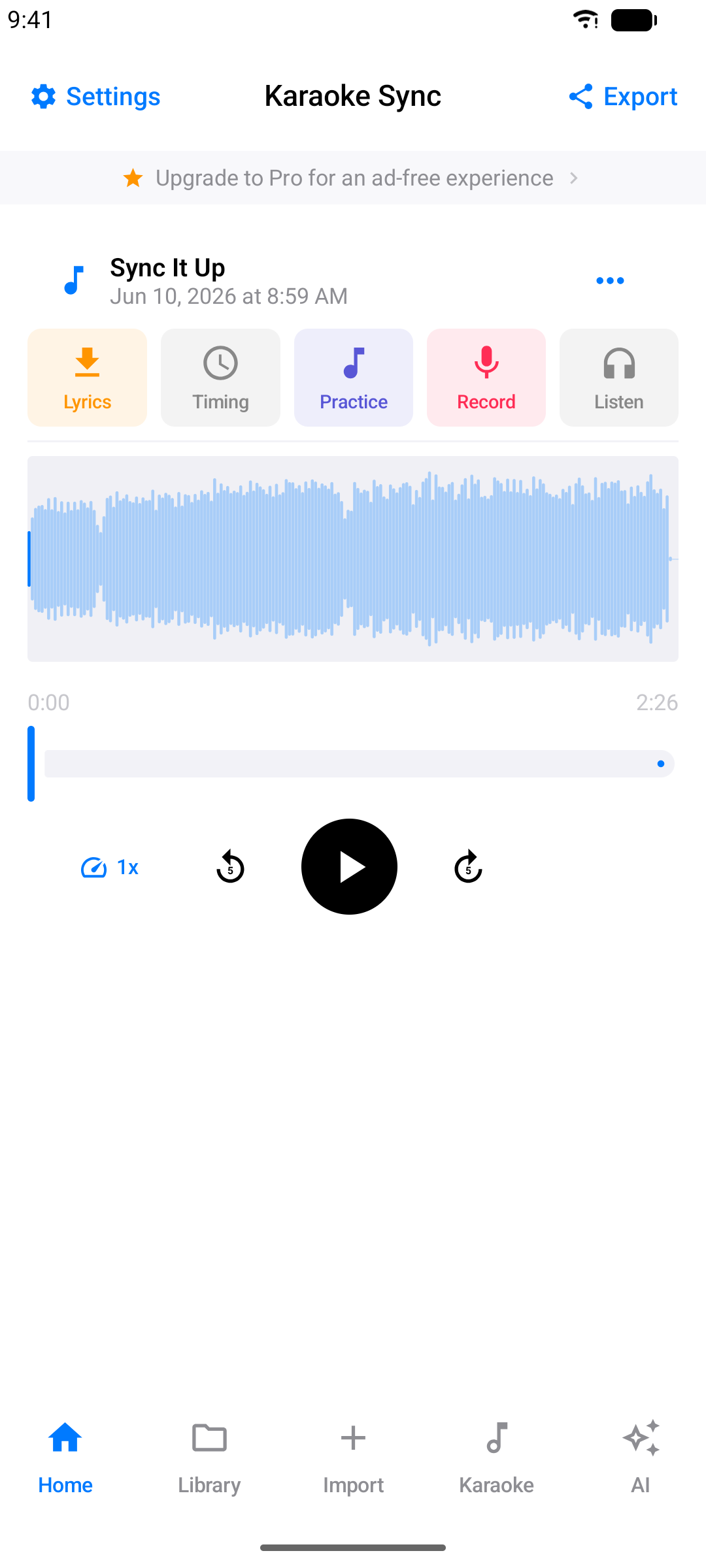
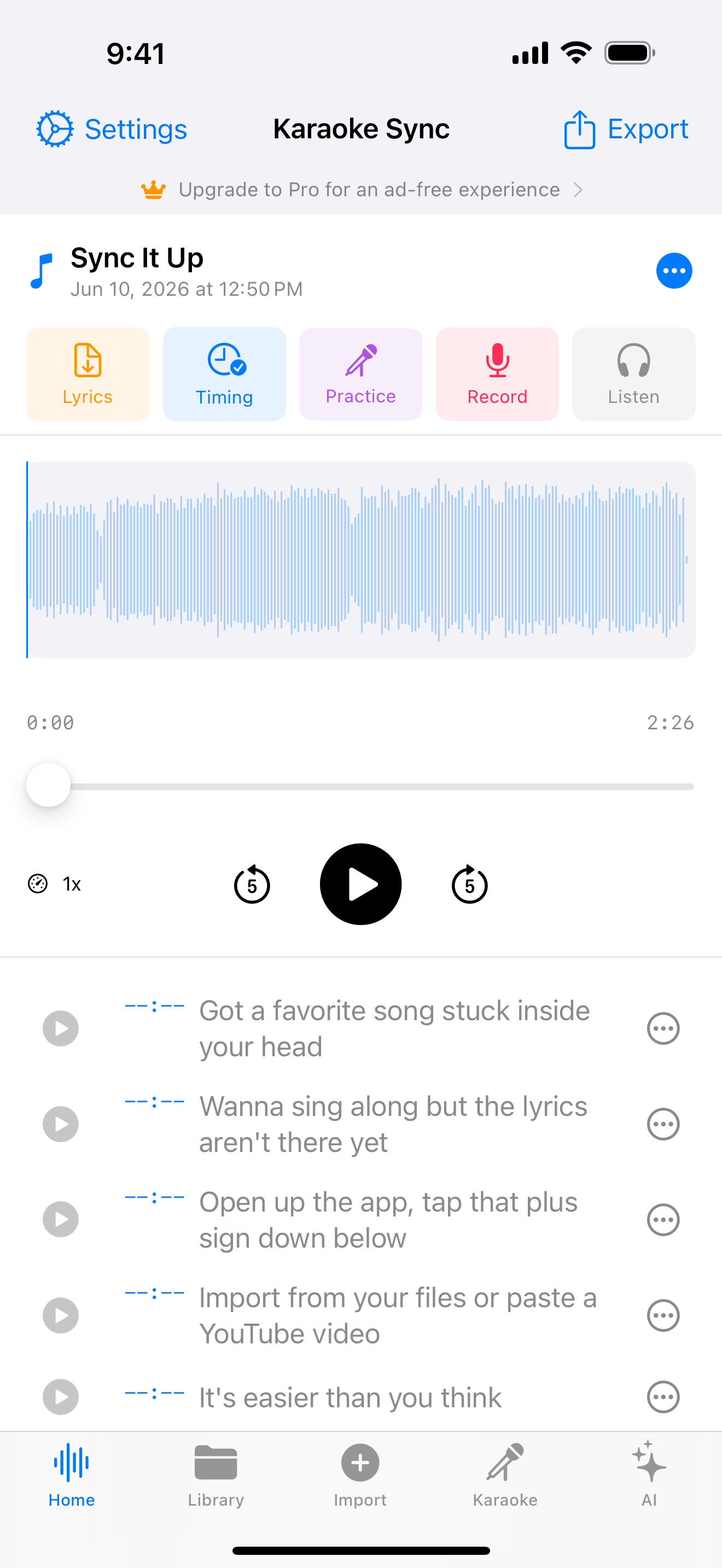
The project is created automatically, named after the audio file. You land in the editor with the song's waveform ready to play.
Creating a Project from YouTube
You can also build karaoke timing for any YouTube video - great for practicing with music videos.
Step 1: Select "YouTube Video"
On the Import tab, choose YouTube Video as the source.
Step 2: Paste the YouTube URL
Copy a video link from the YouTube app or website and paste it in. Supported link styles:
youtube.com/watch?v=...youtu.be/...
The video's title is fetched automatically.
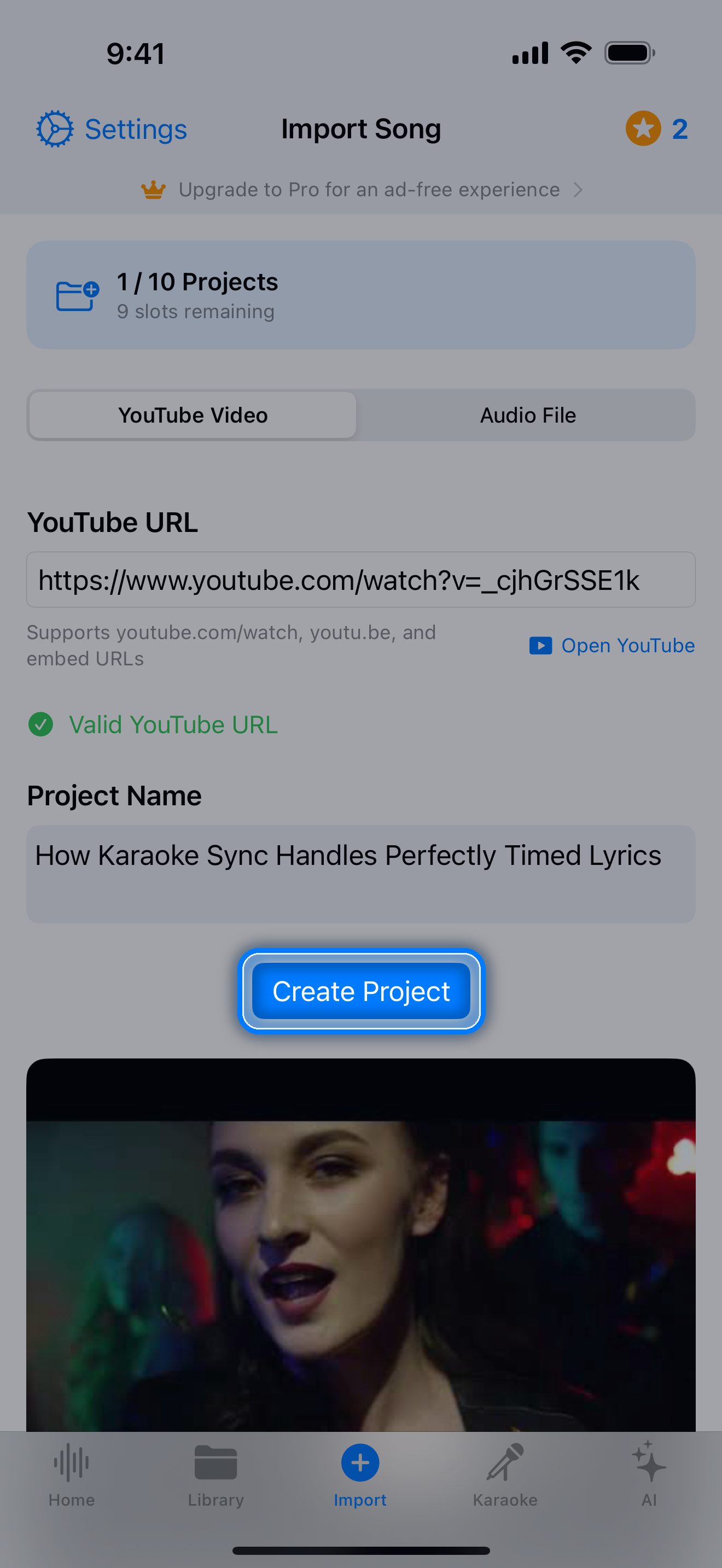
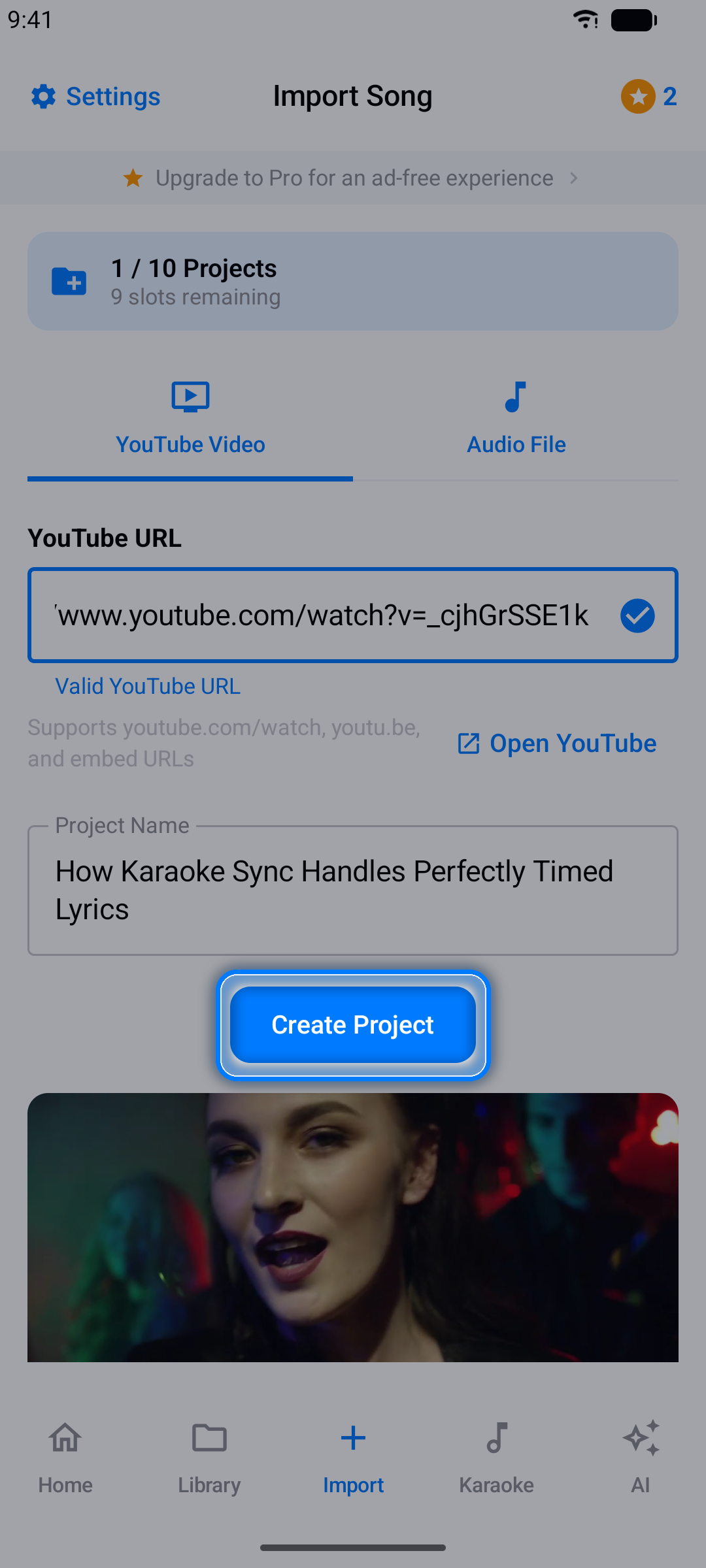
Step 3: Create the Project
Tap Create Project. The video appears in your project with a built-in player.
Note: YouTube projects stream the original video, so they are perfect for timing and practice - but recording your voice over them and exporting audio is only available for audio-file projects.
Adding Lyrics
With a project open, it's time to add the words.
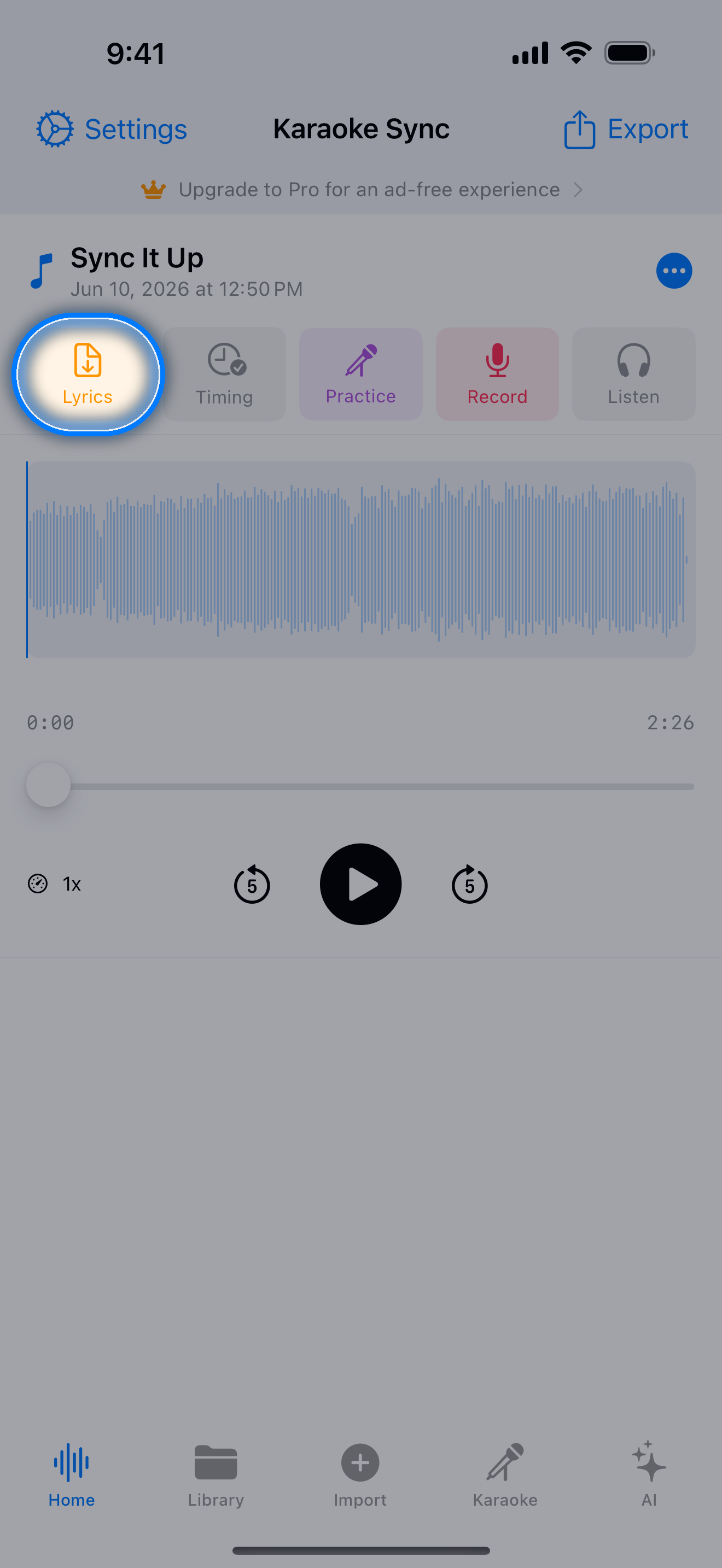
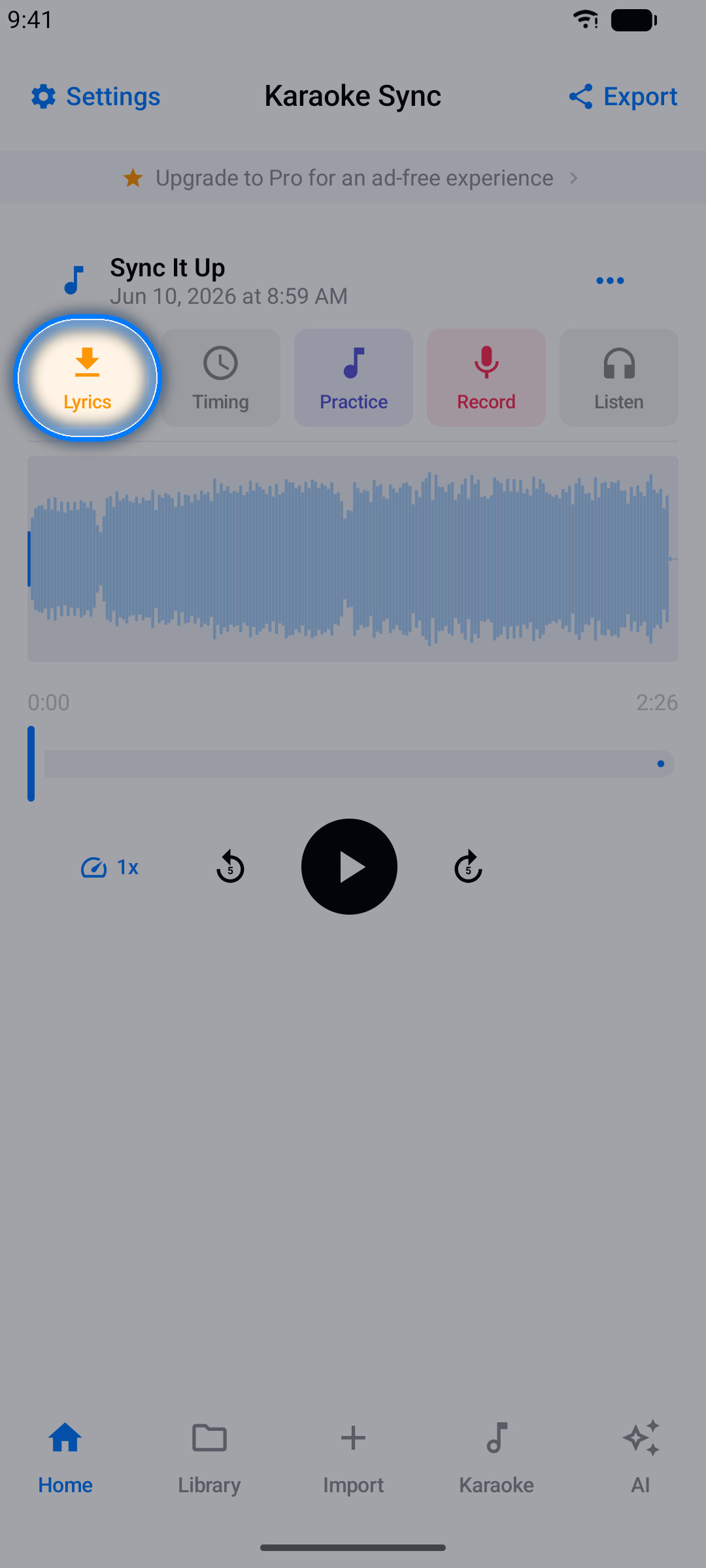
Step 1: Open the Lyrics Importer
Tap the Lyrics button in the project editor.
Step 2: Paste Your Lyrics
- Copy the lyrics from a lyrics website
- Paste them into the text field, one line per line
- The app parses them instantly and shows a line count
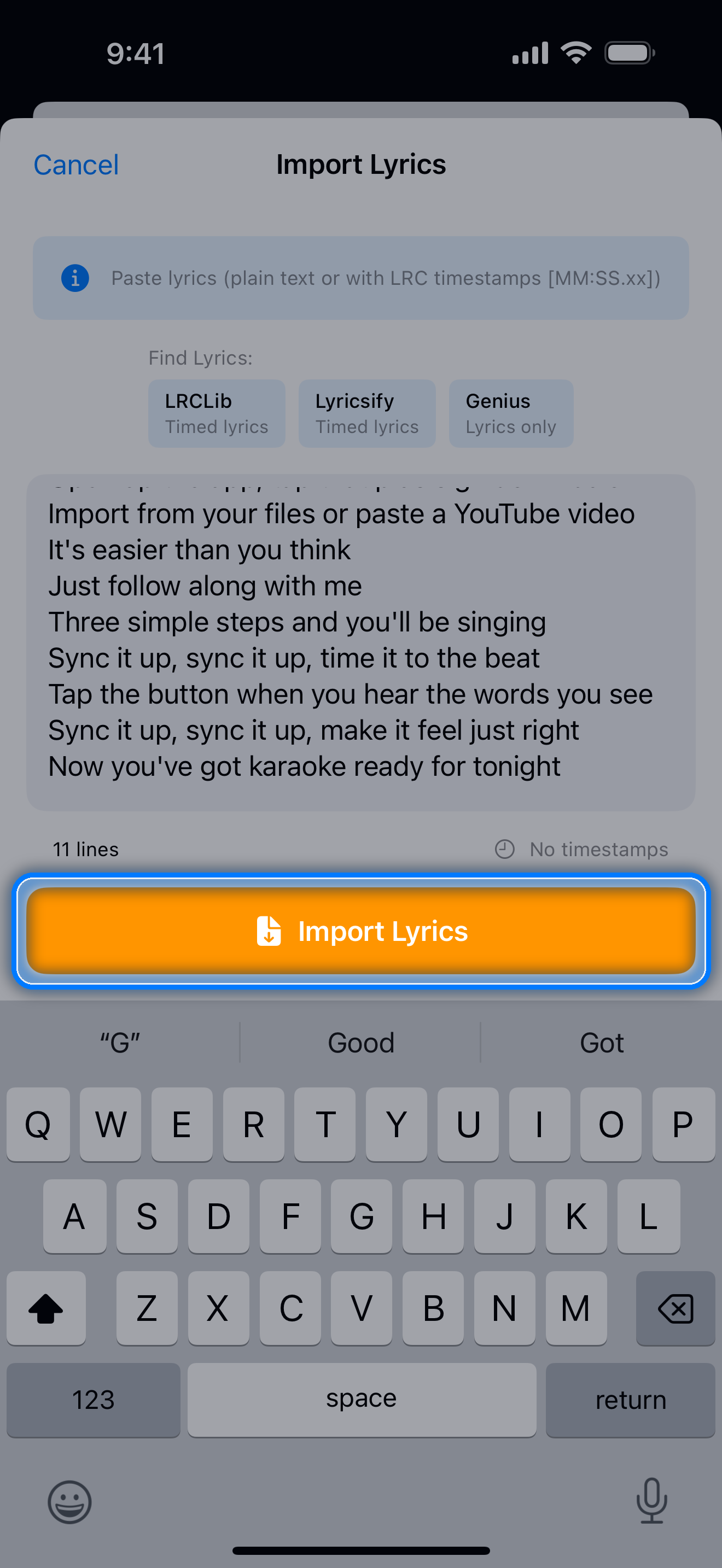
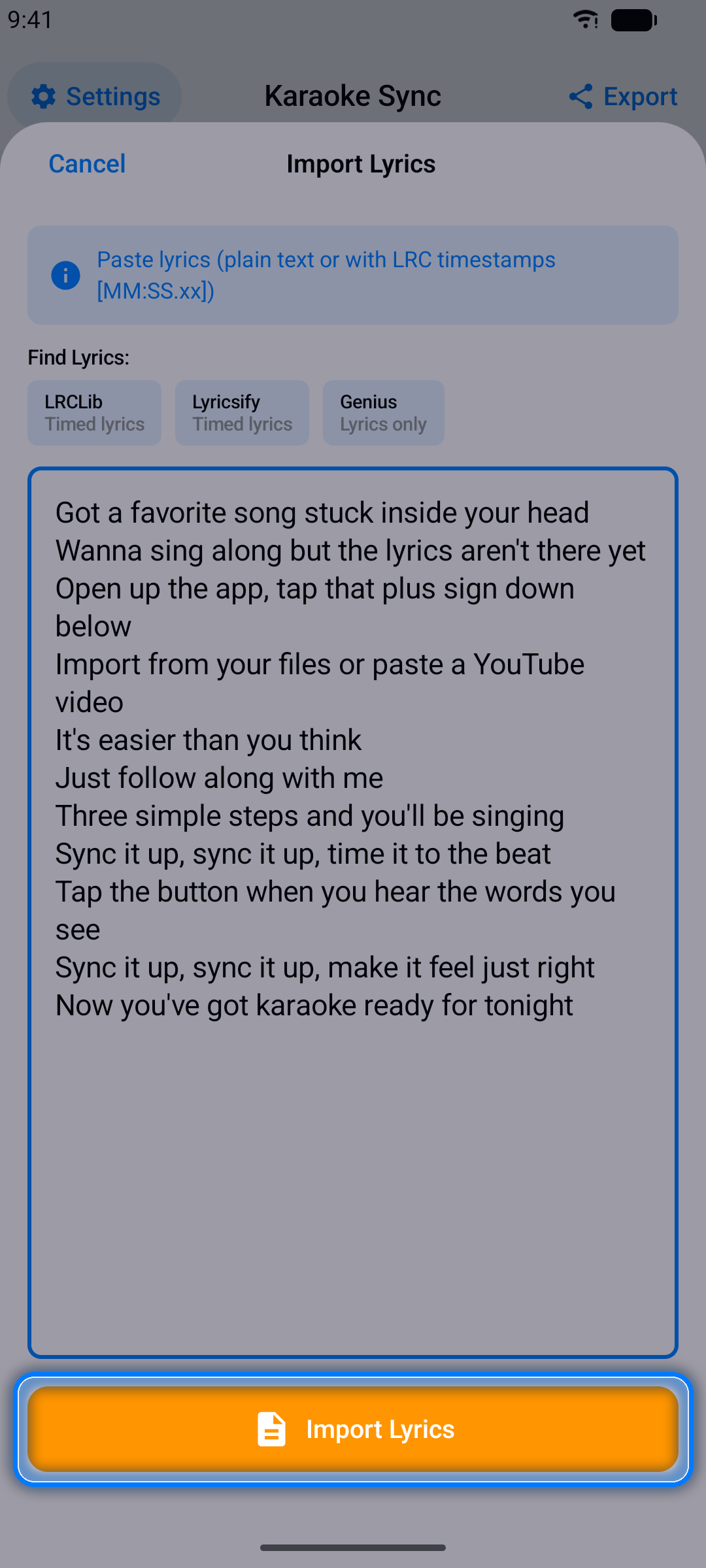
Tip: Already have timestamps? Paste LRC-format lyrics (lines like [00:15.50] Lyrics here) and Karaoke Sync imports the timing automatically.
Step 3: Import
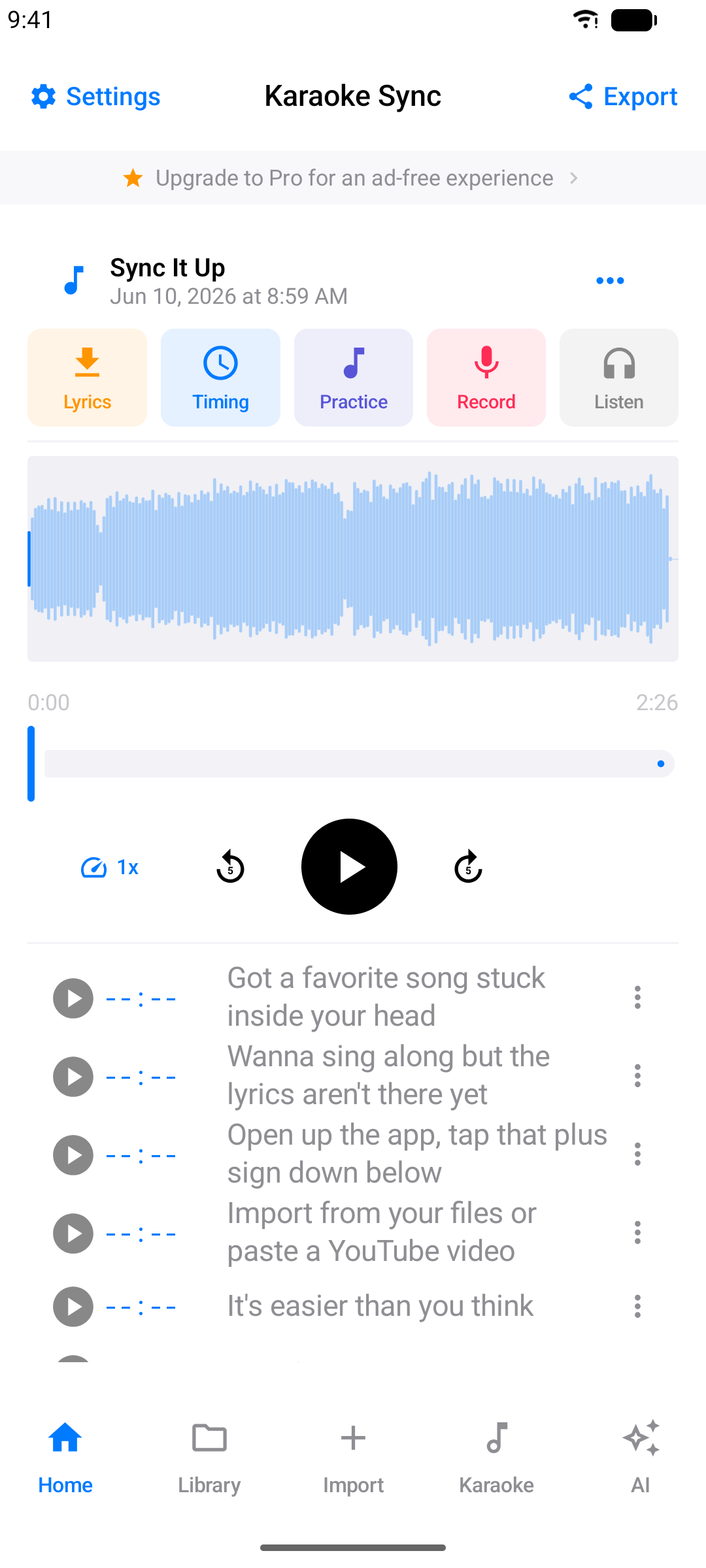
Tap Import Lyrics. Your lines appear in the editor, ready to be timed.
Timing Your Lyrics
This is the heart of Karaoke Sync: syncing each lyric line to the exact moment it's sung.
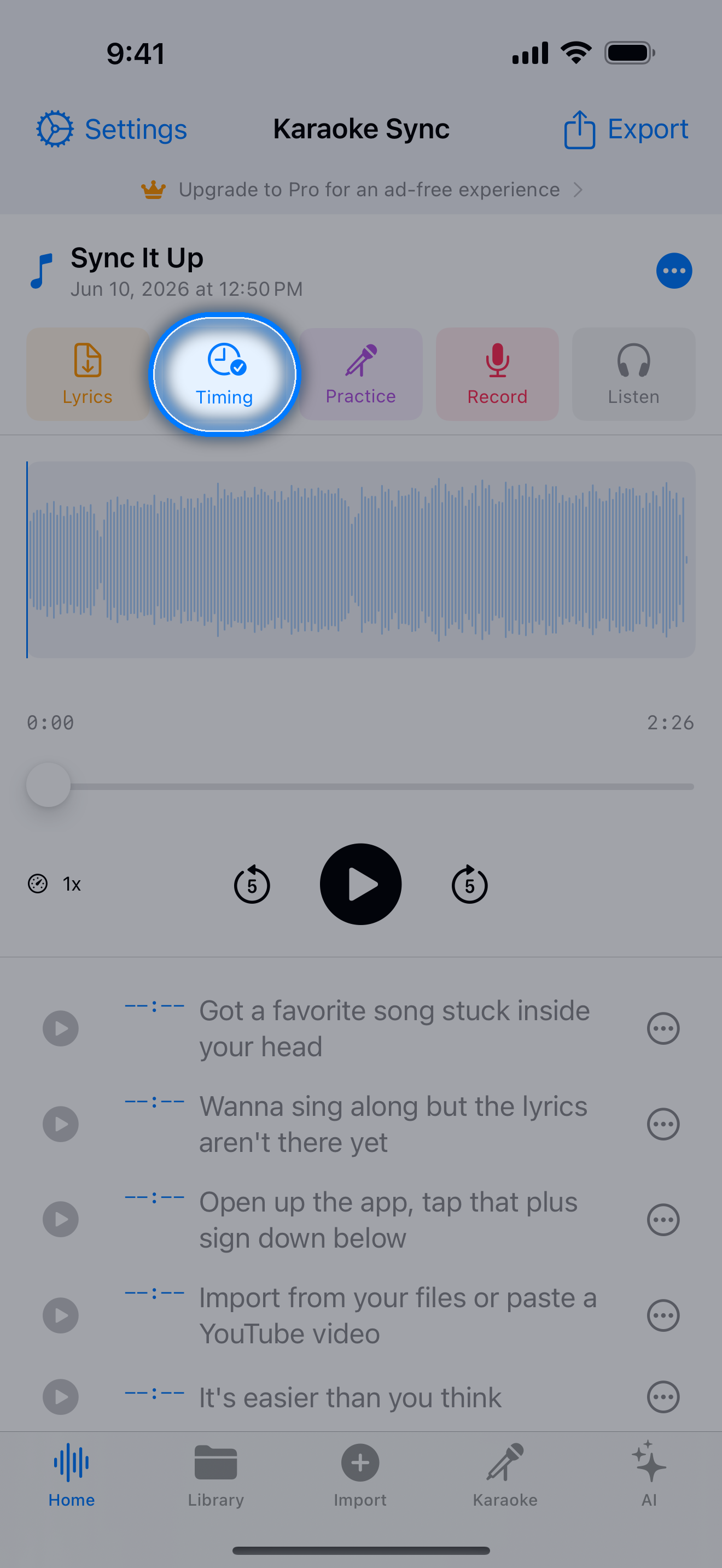
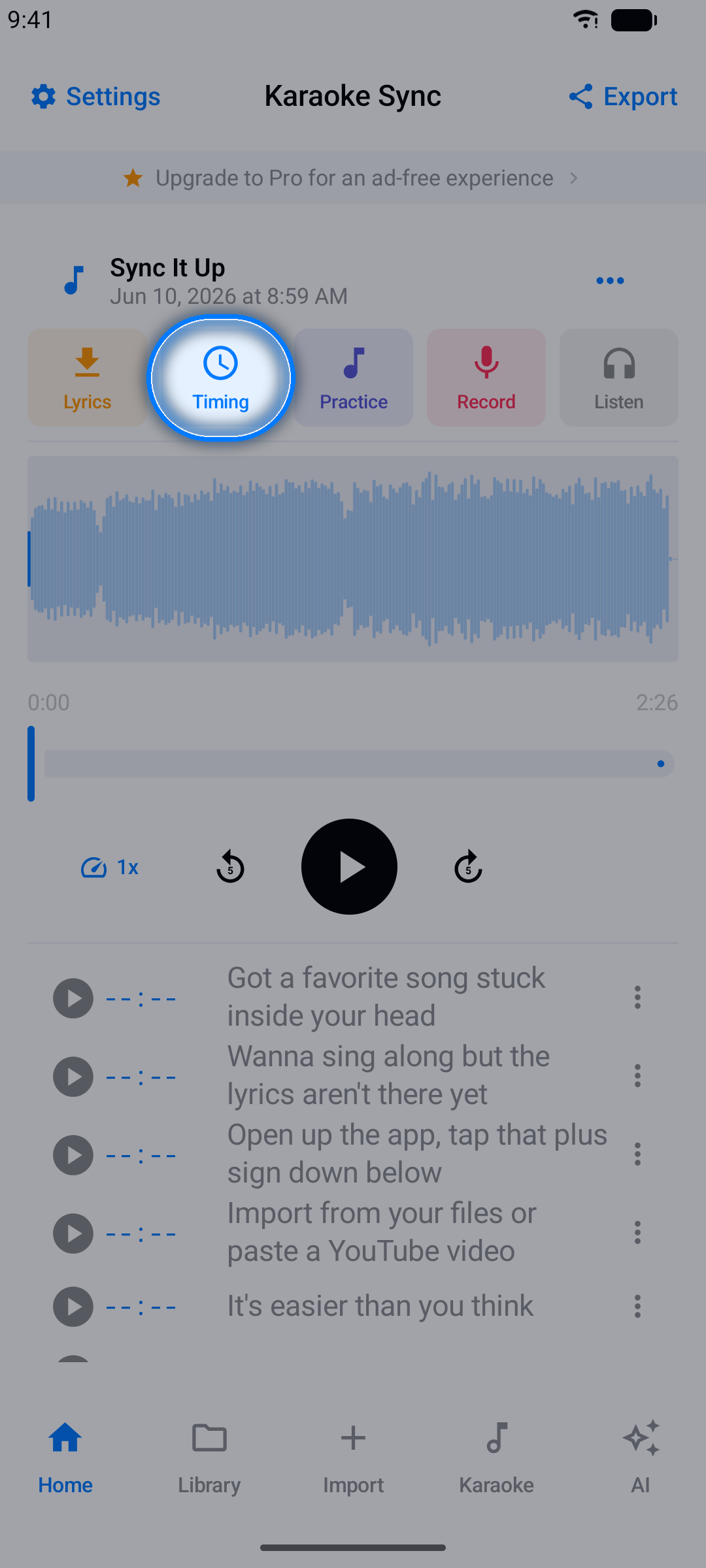
Step 1: Open the Timing Screen
Tap the Timing button.
Step 2: Start Timing
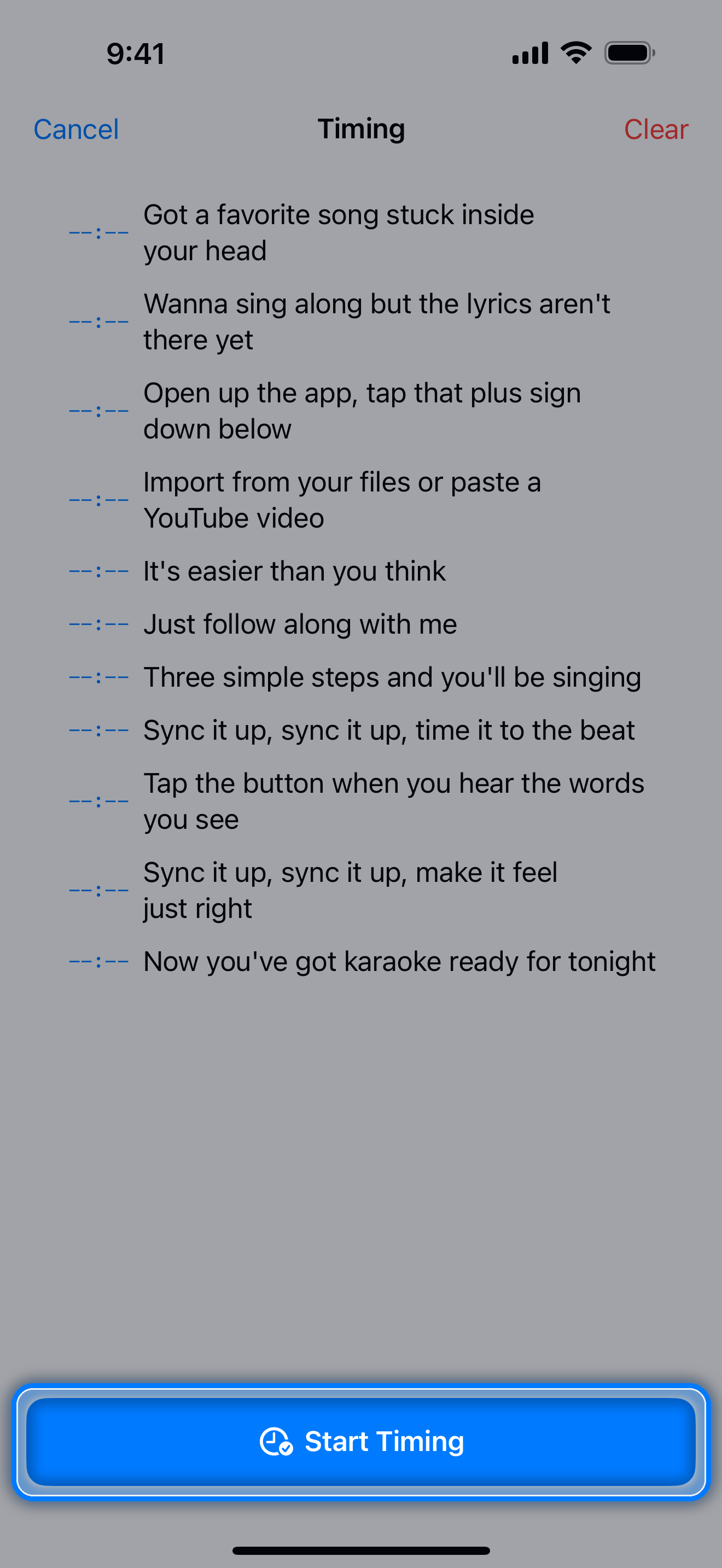
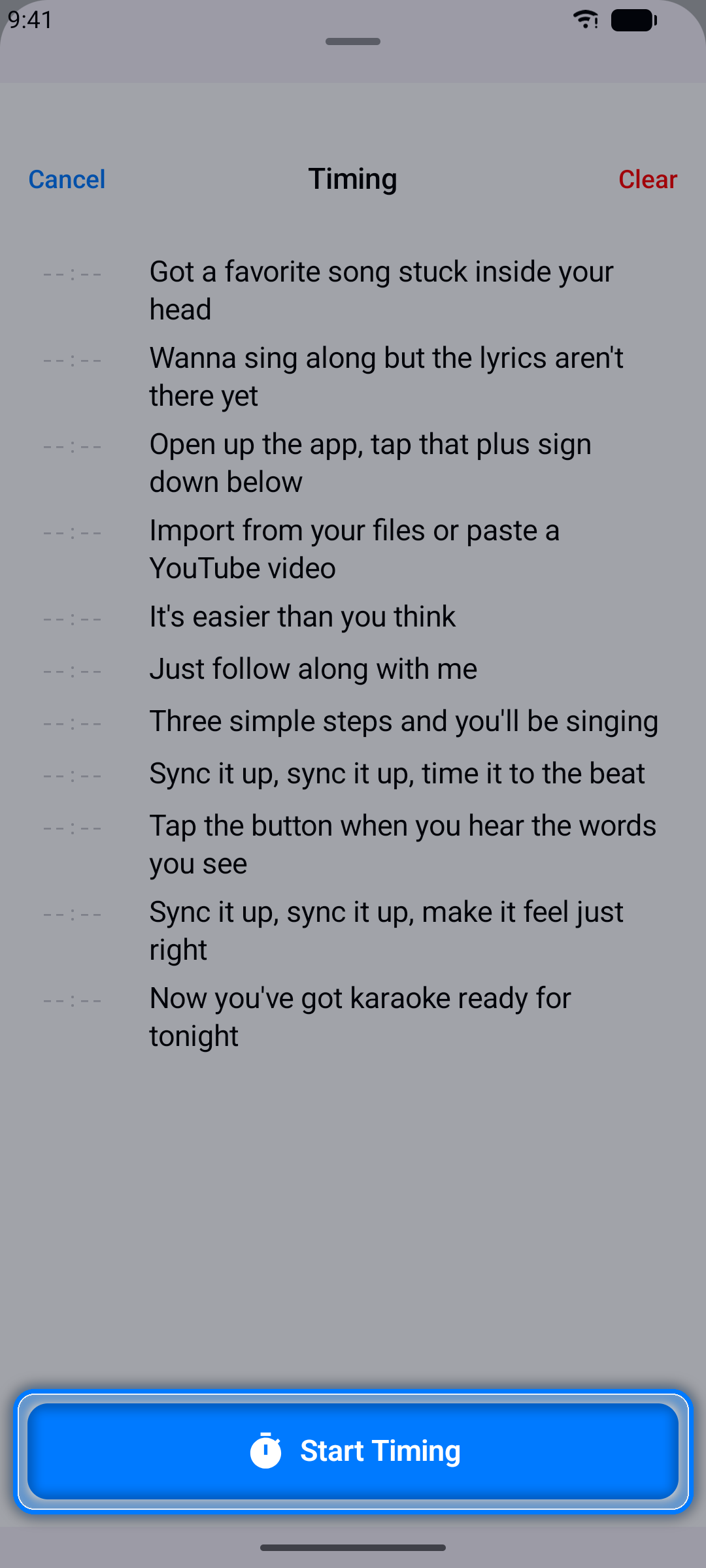
Tap Start Timing. The song begins to play.
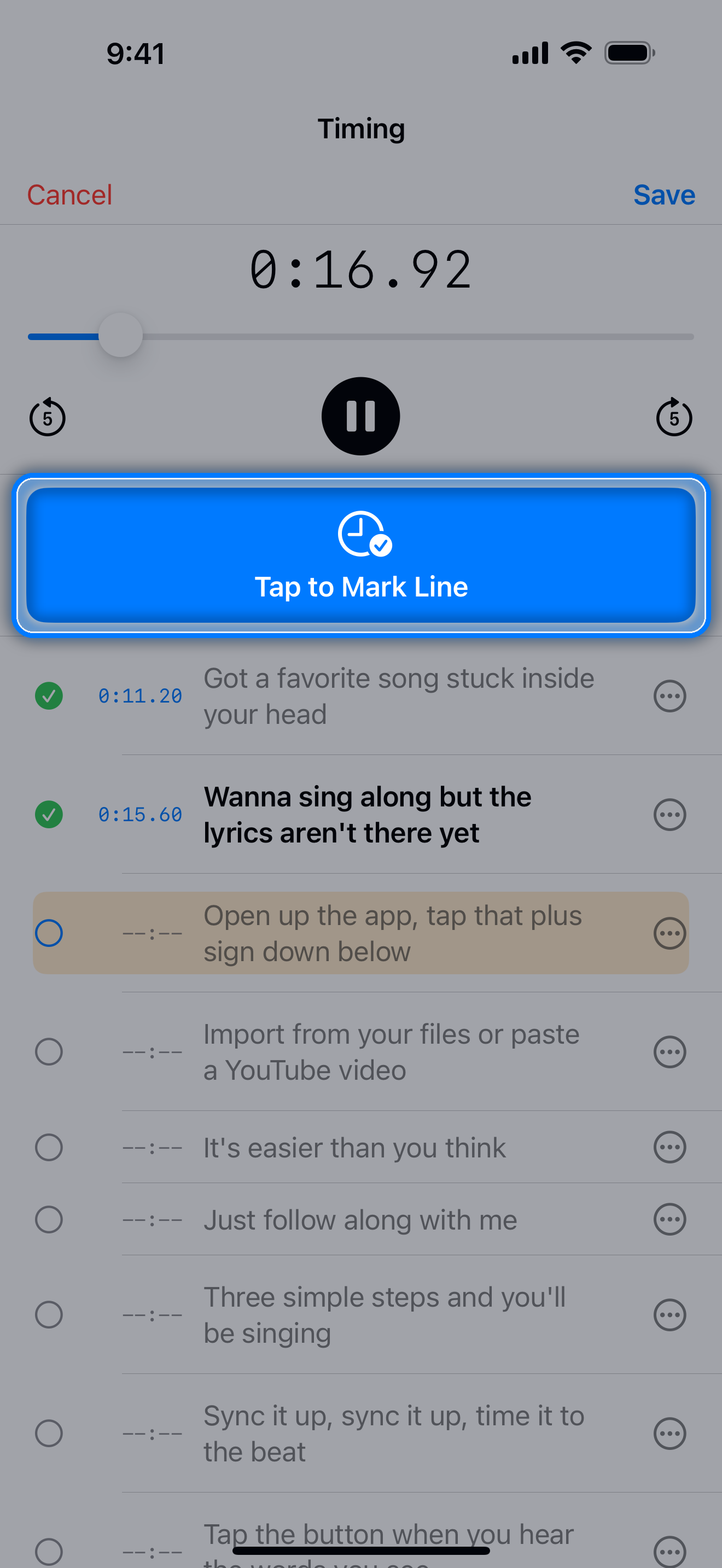
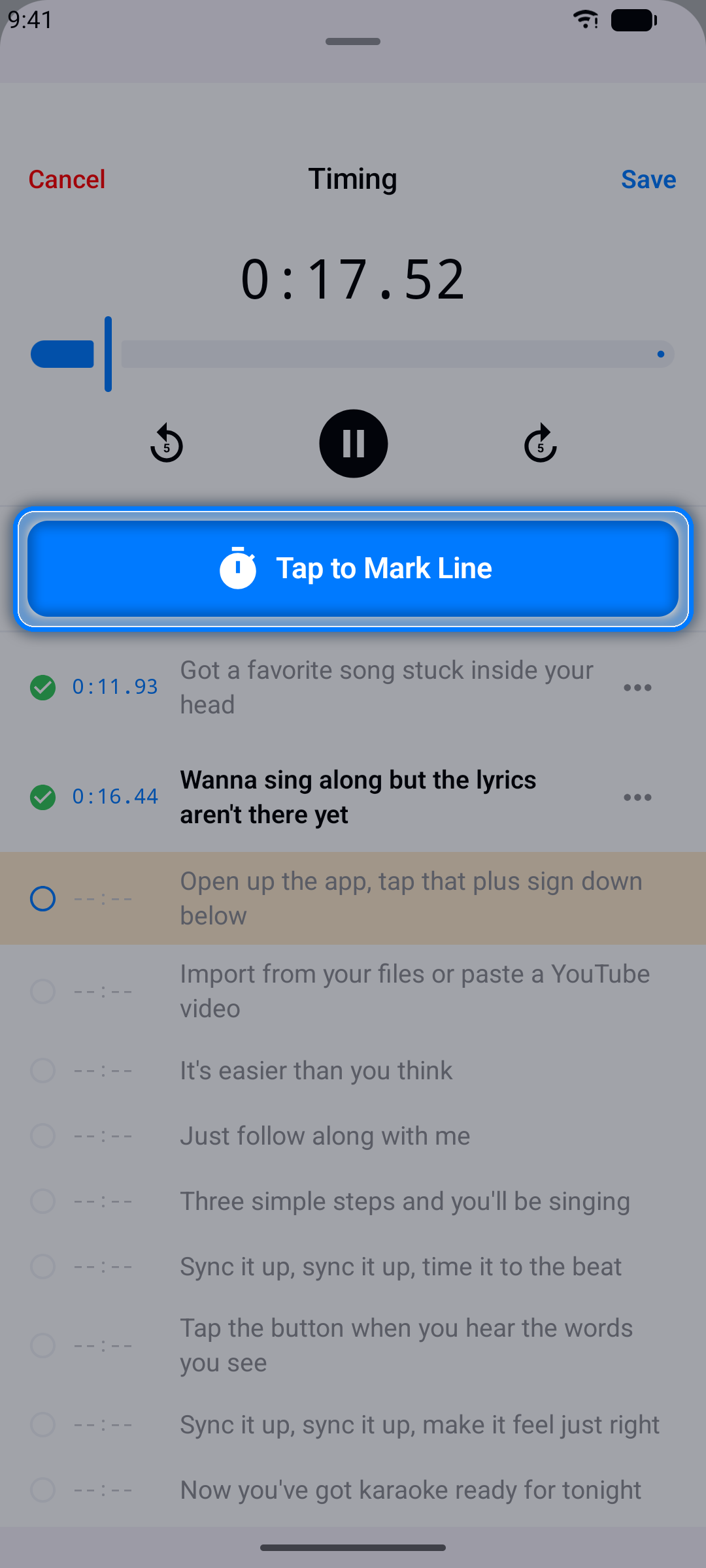
Step 3: Mark Each Line
The moment you hear a line begin, tap the big Tap to Mark Line button. The current playback time is saved to that line and the app advances to the next one.
Step 4: Finish and Save
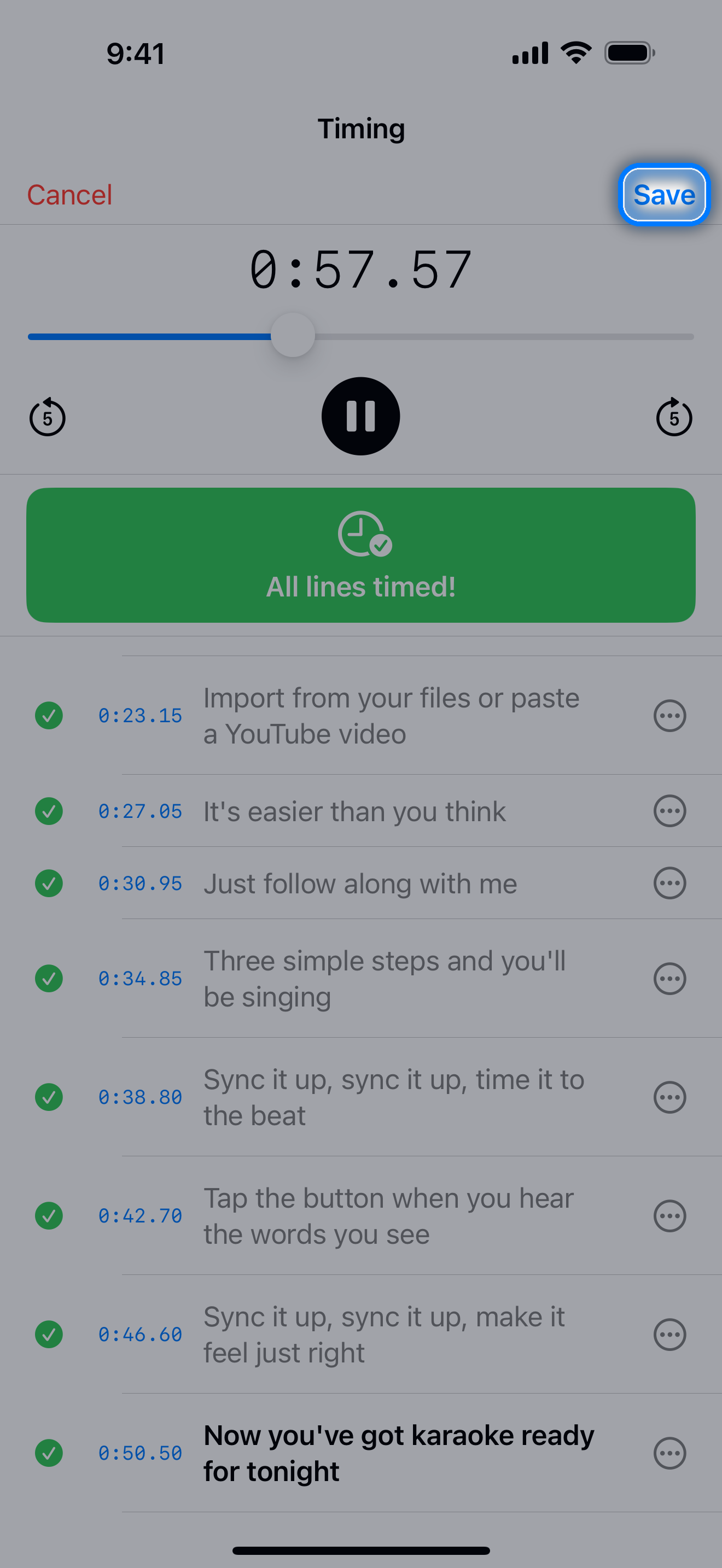
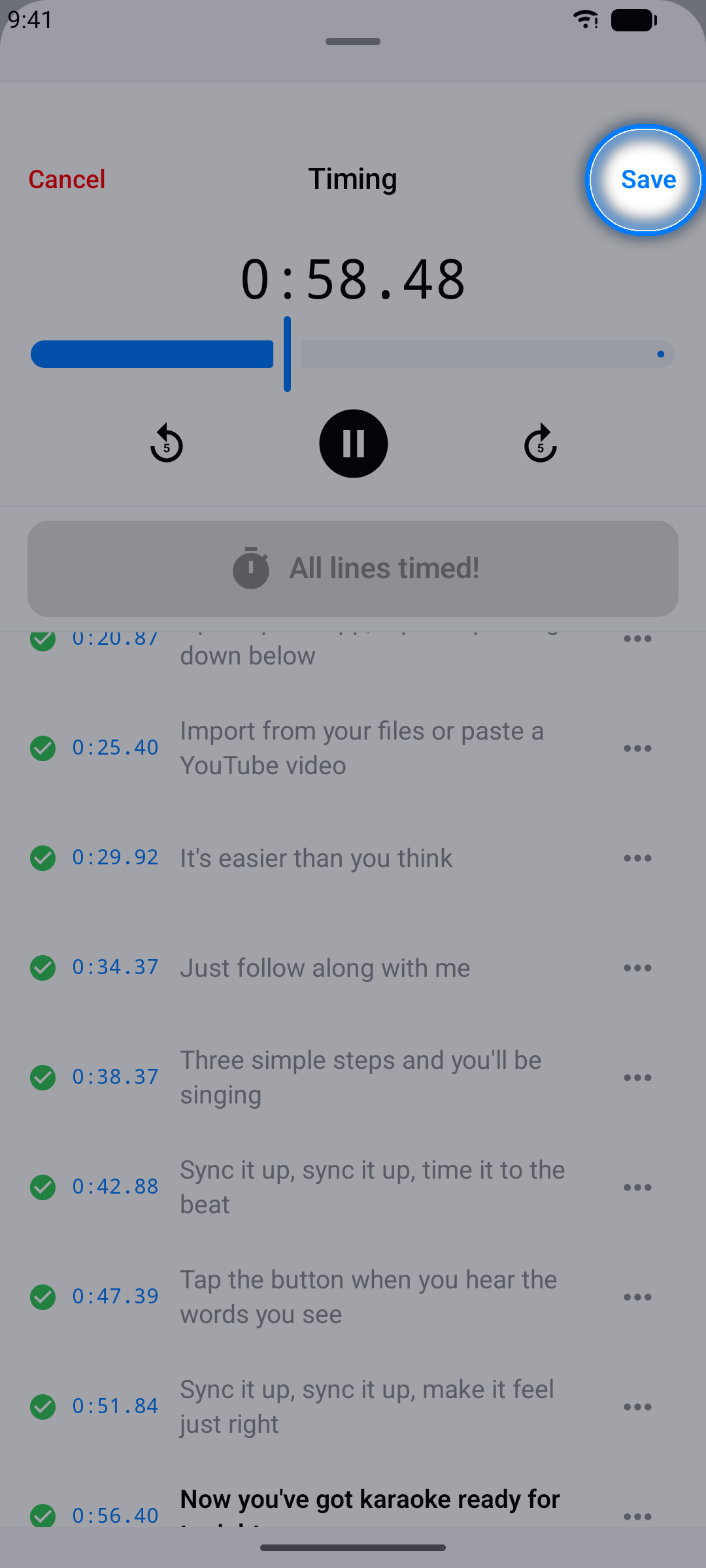
Work through the whole song - when every line is timed, tap Save.
Tip: Don't worry about being perfect on the first pass. You can fine-tune any line afterwards.
Fine-Tuning Timestamps
After the first timing pass, polish individual lines until the sync feels perfect.
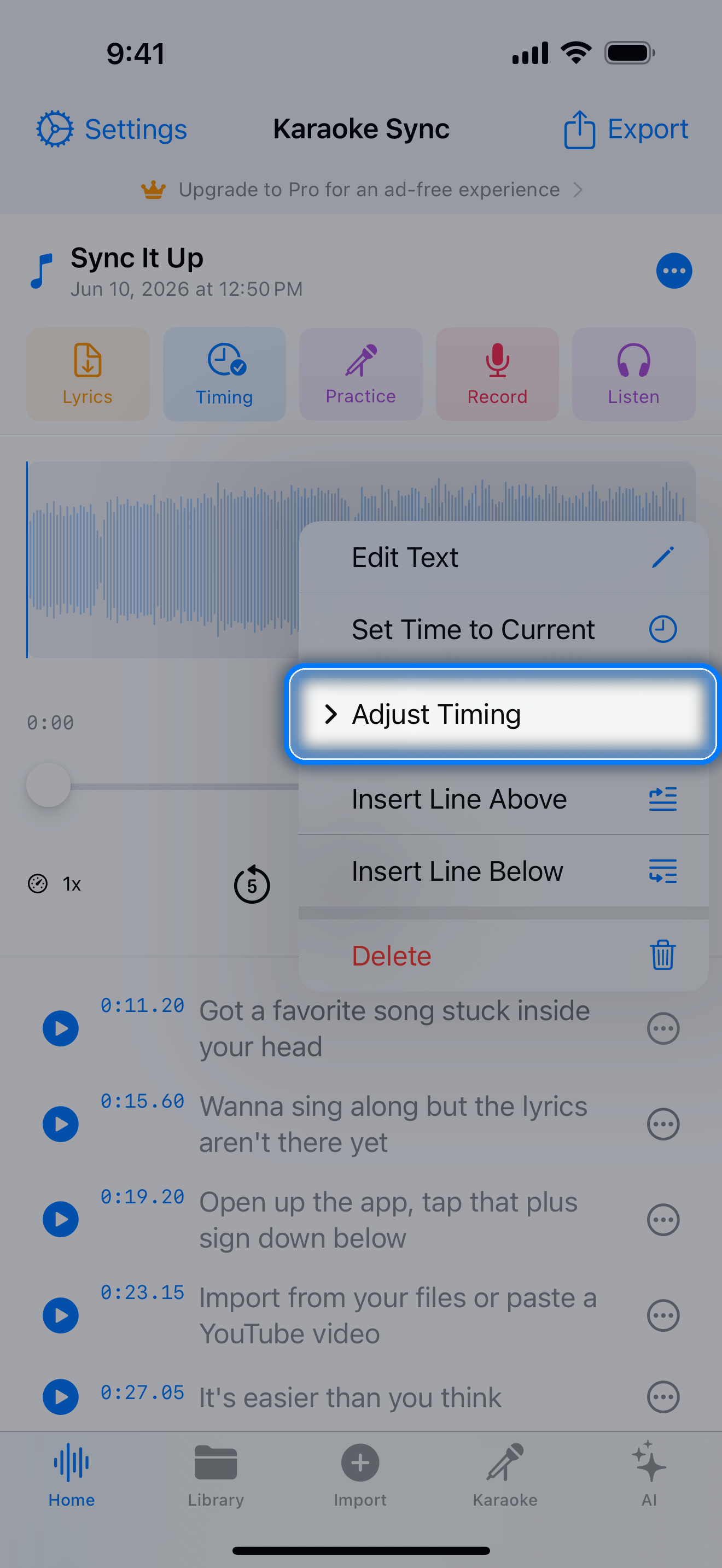
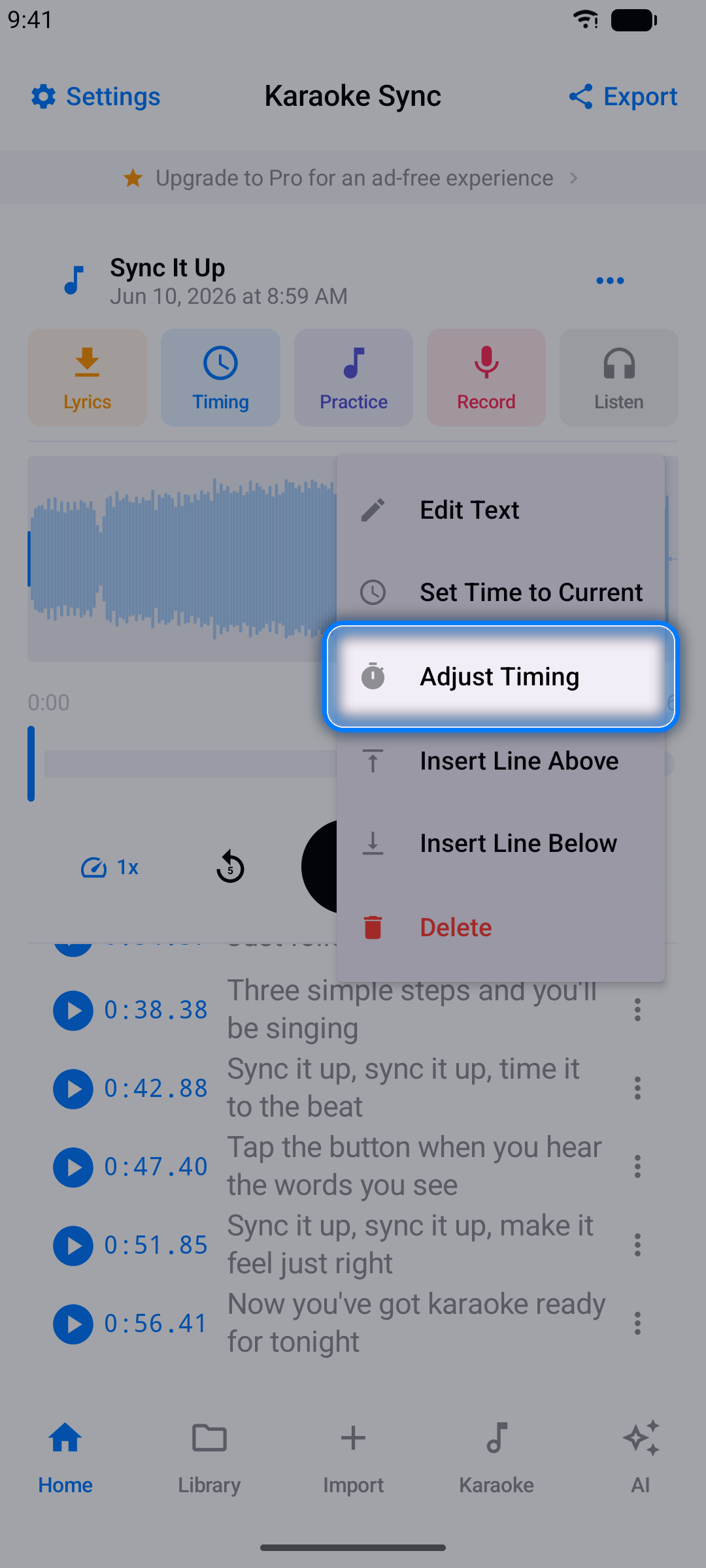
Step 1: Open a Line's Options
Tap the ... button next to any lyric line.
Step 2: Nudge the Timestamp
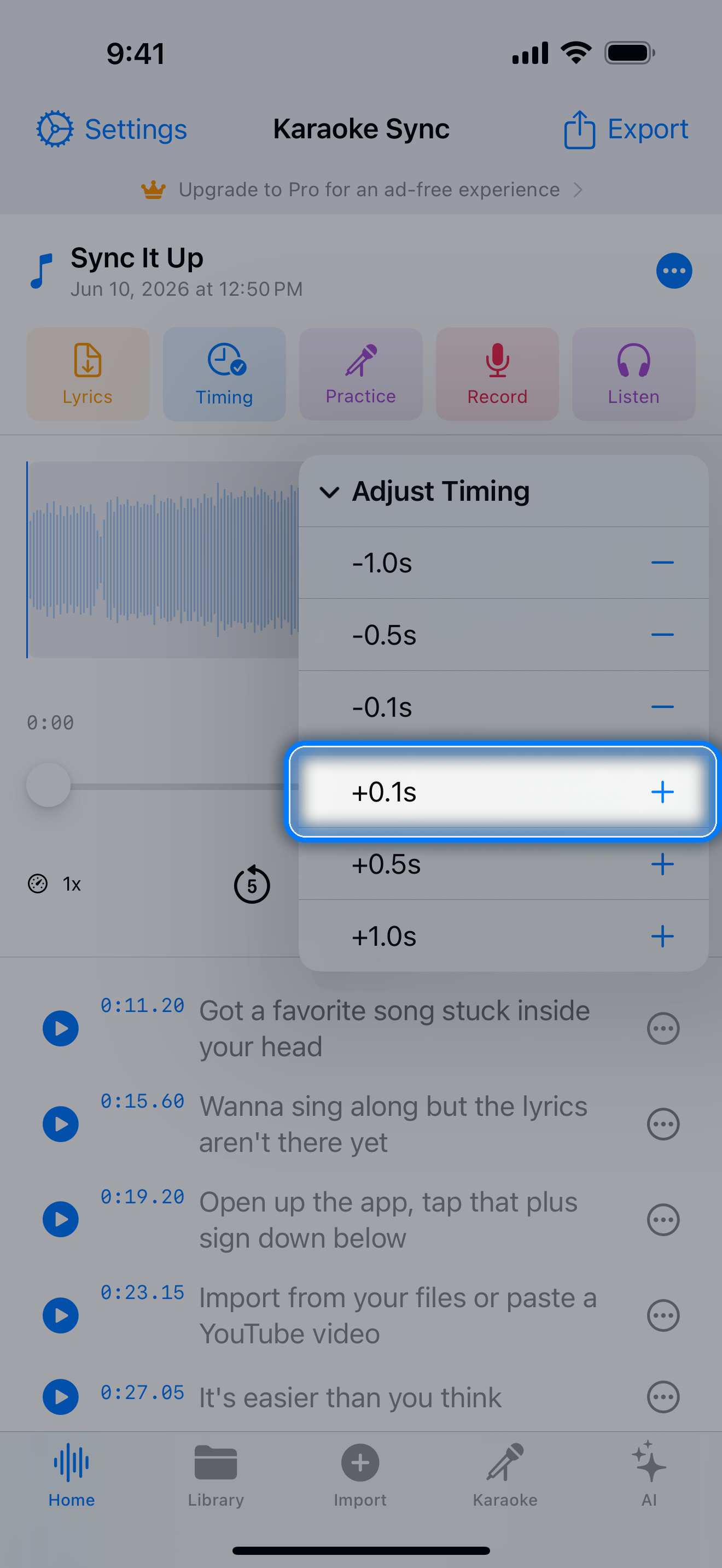
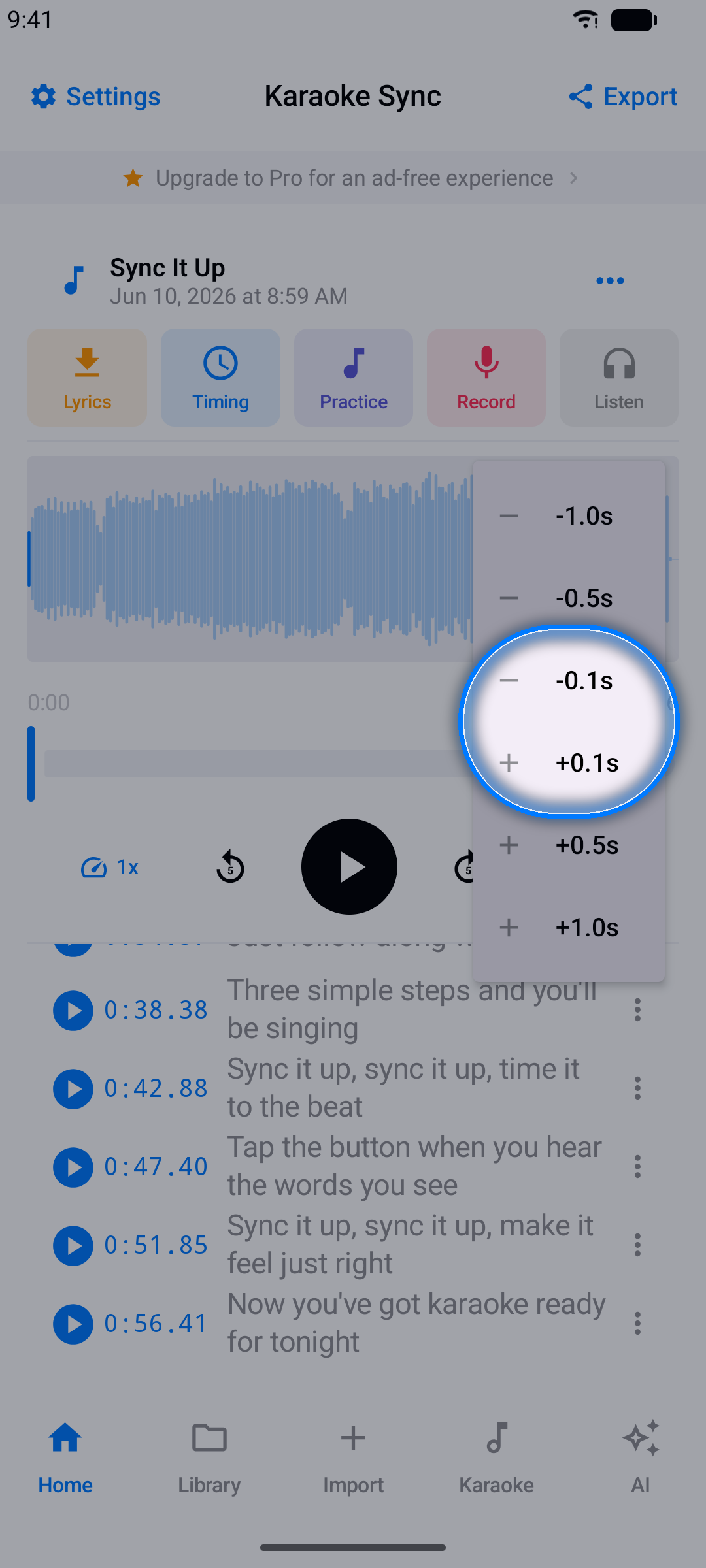
Use the +/- buttons to shift the line by:
- 0.1 seconds - small nudges
- 0.5 seconds - medium adjustments
- 1.0 second - big moves
Step 3: Preview
Tap a line's timestamp to jump there and hear whether it lands right.
Tip: If the whole song drifts (for example, every line is half a second late), use the option to shift past lines or future lines together instead of fixing them one by one.
The Project Editor
A quick tour of the tools around your lyrics:
- Waveform - audio projects show the song's waveform, so you can see verses, choruses, and quiet moments at a glance; tap or drag to jump around
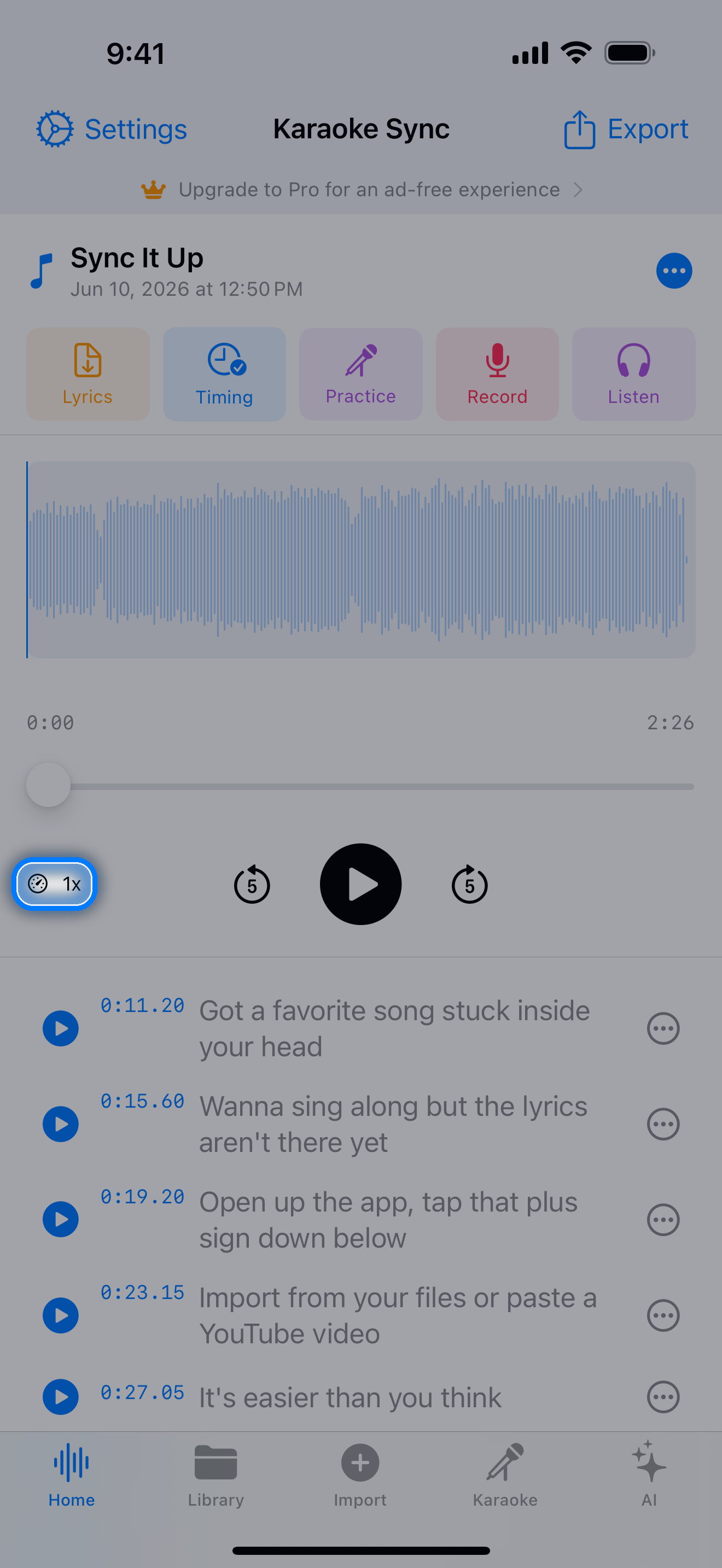
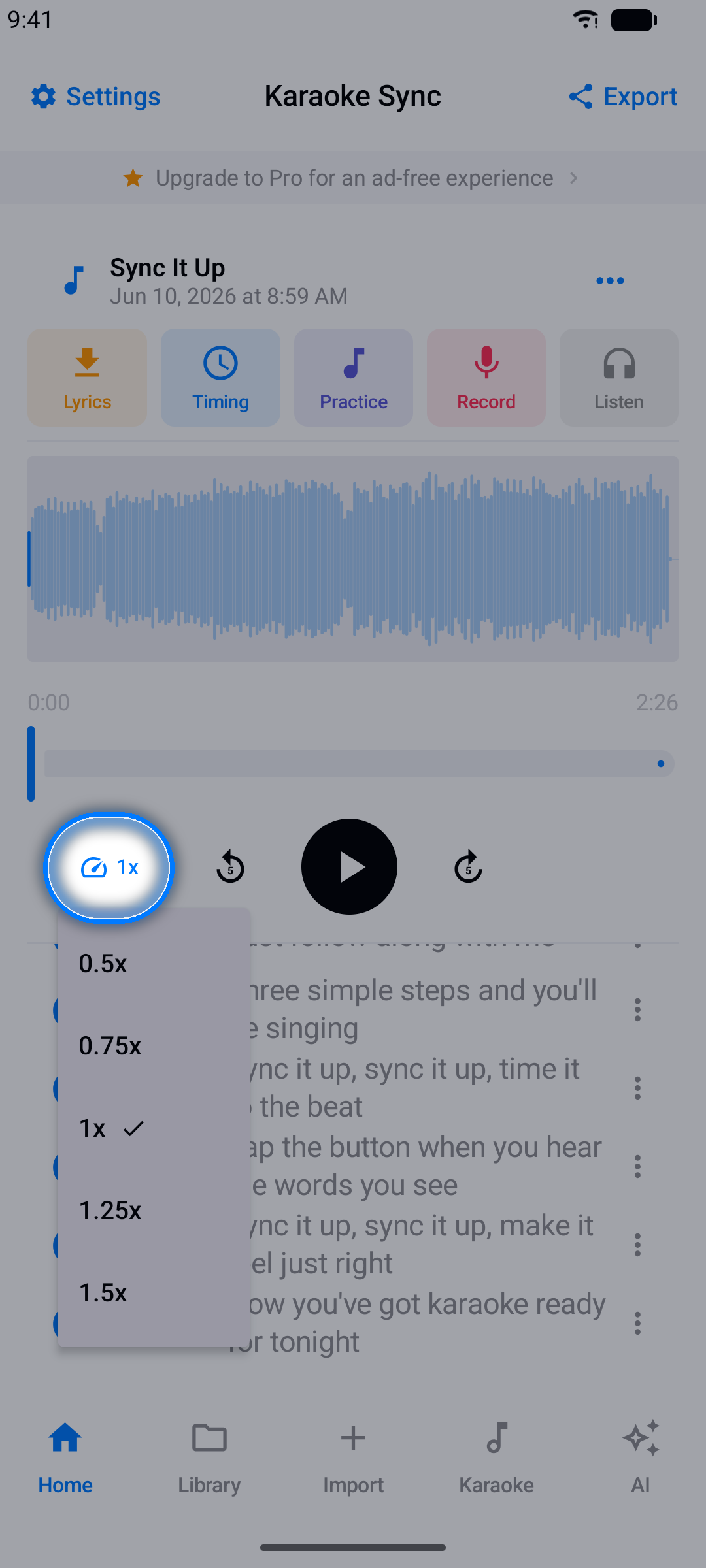
- Playback controls - play, pause, and skip; adjust the playback speed (slow the song down while timing tricky fast sections, then check the result at full speed)
- Lyric list - tap a line to select it; use its ... menu to edit the text, adjust timing, or remove it
- Project menu - rename your project or open export options from the toolbar
Practice Mode
Sing along with your timed lyrics - no recording, no pressure.
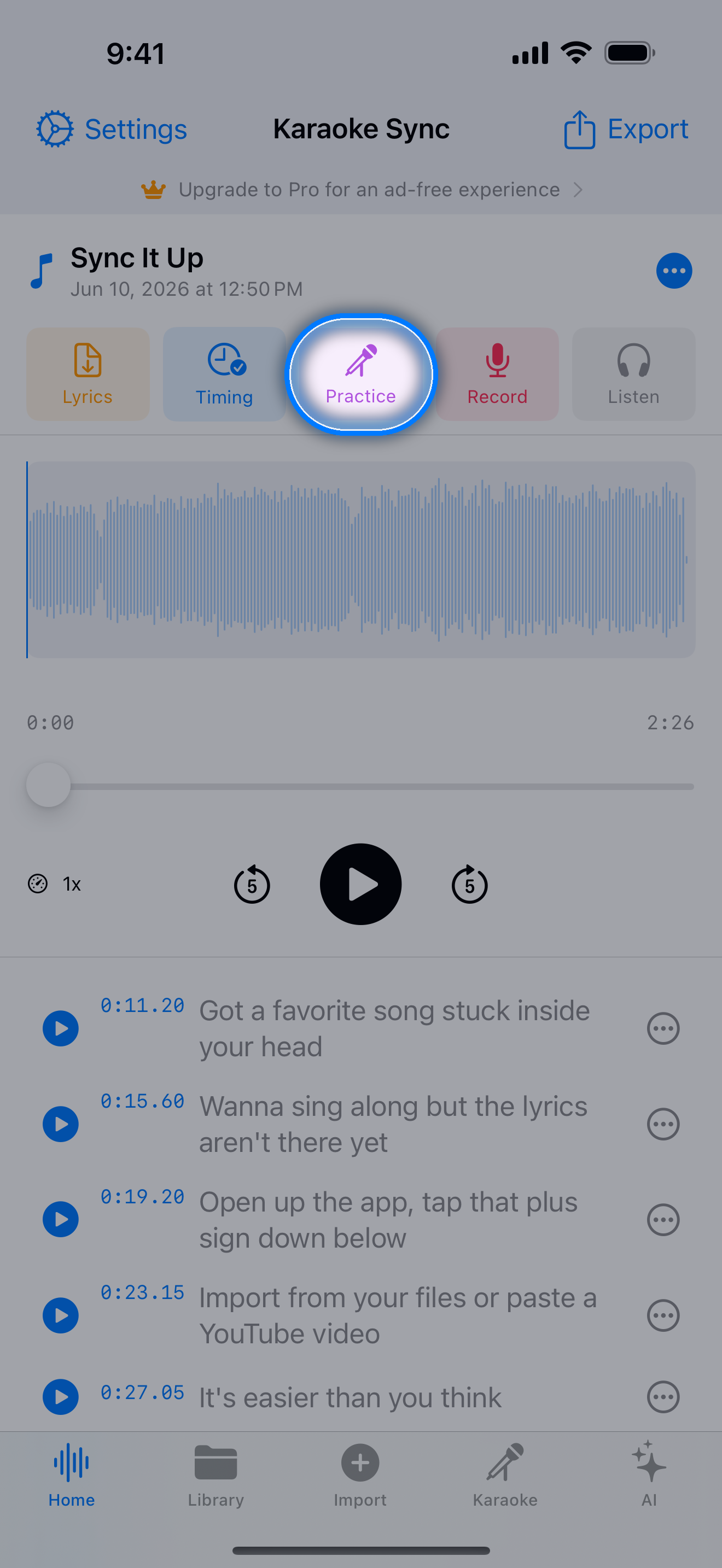
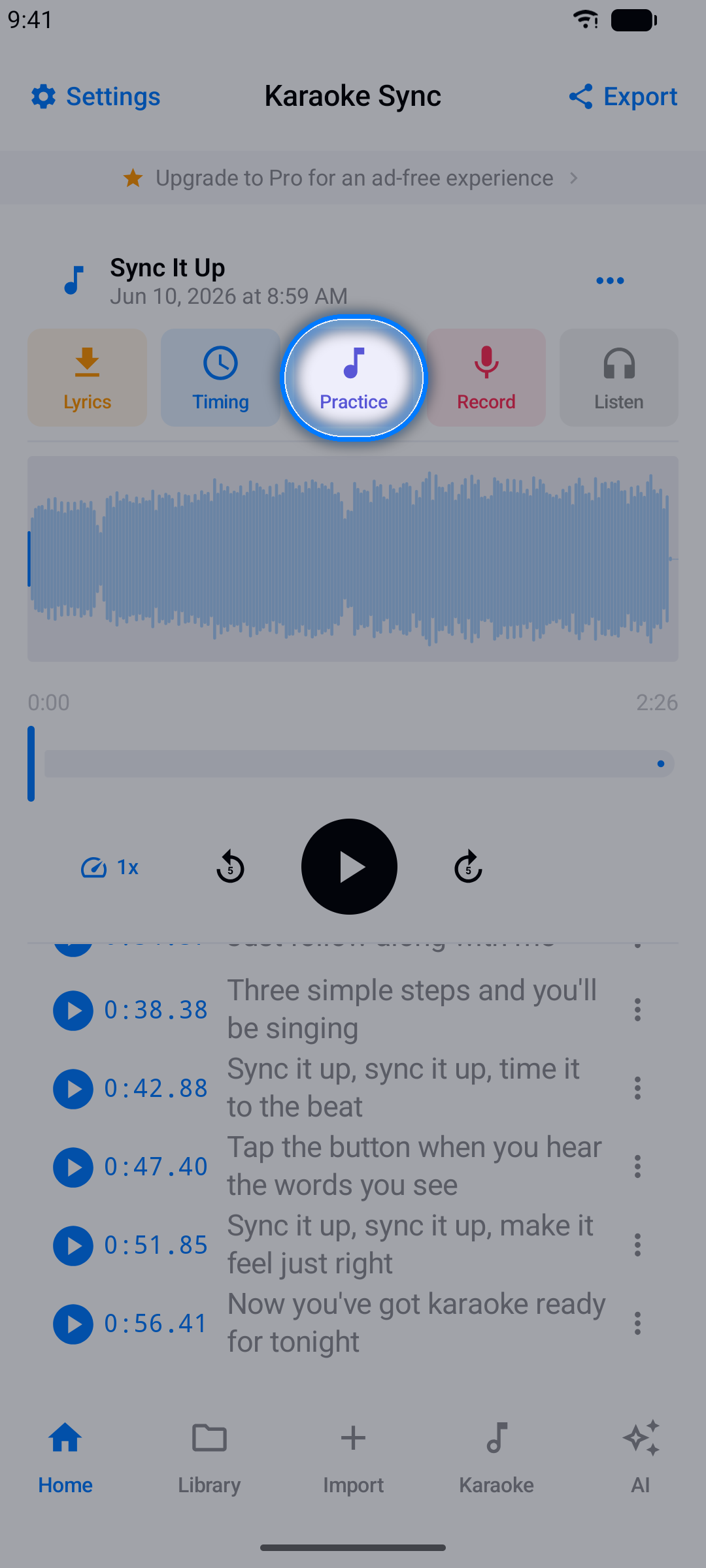
Step 1: Open Practice
With a project open, tap Practice.
Step 2: Sing Along
- Lyrics scroll automatically with the current line highlighted
- Tap any line to jump straight to that part of the song
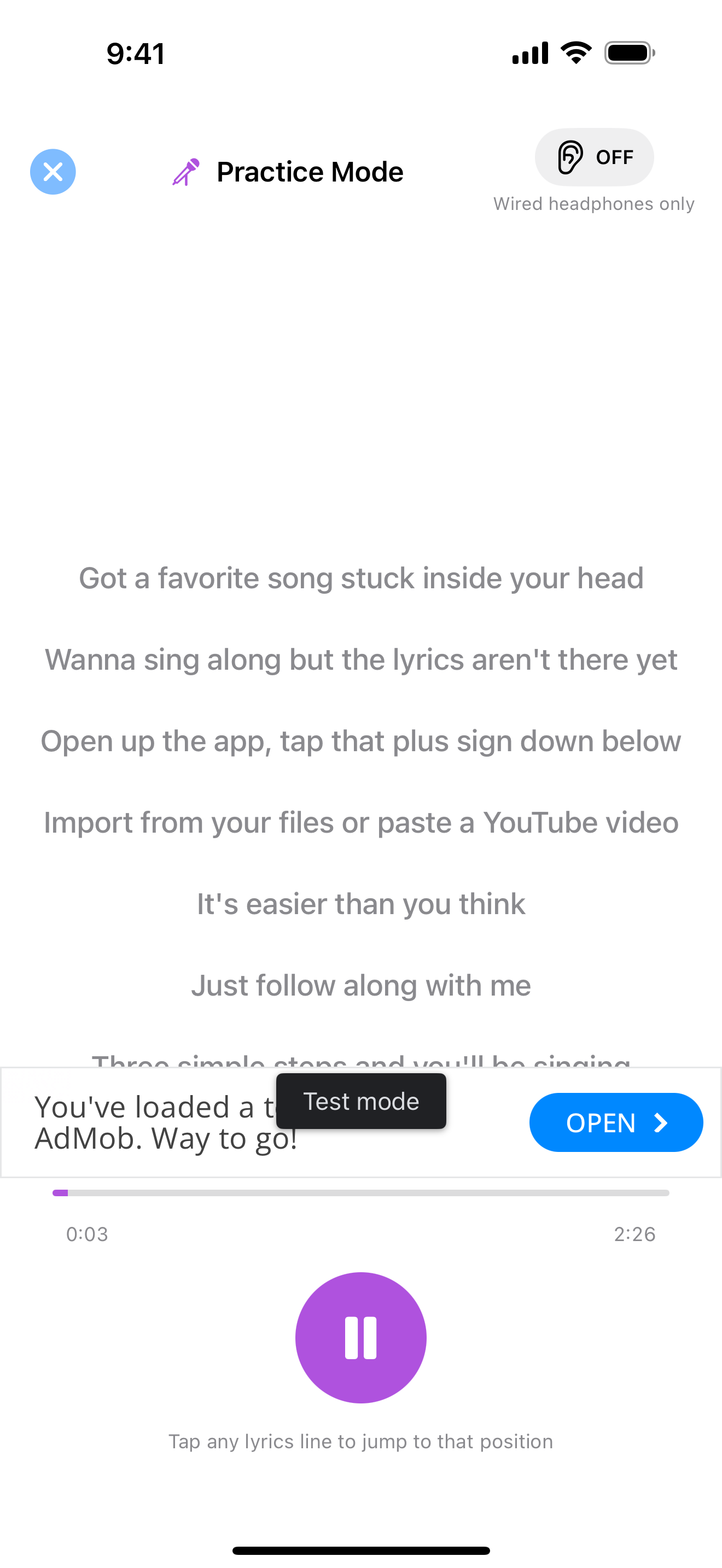
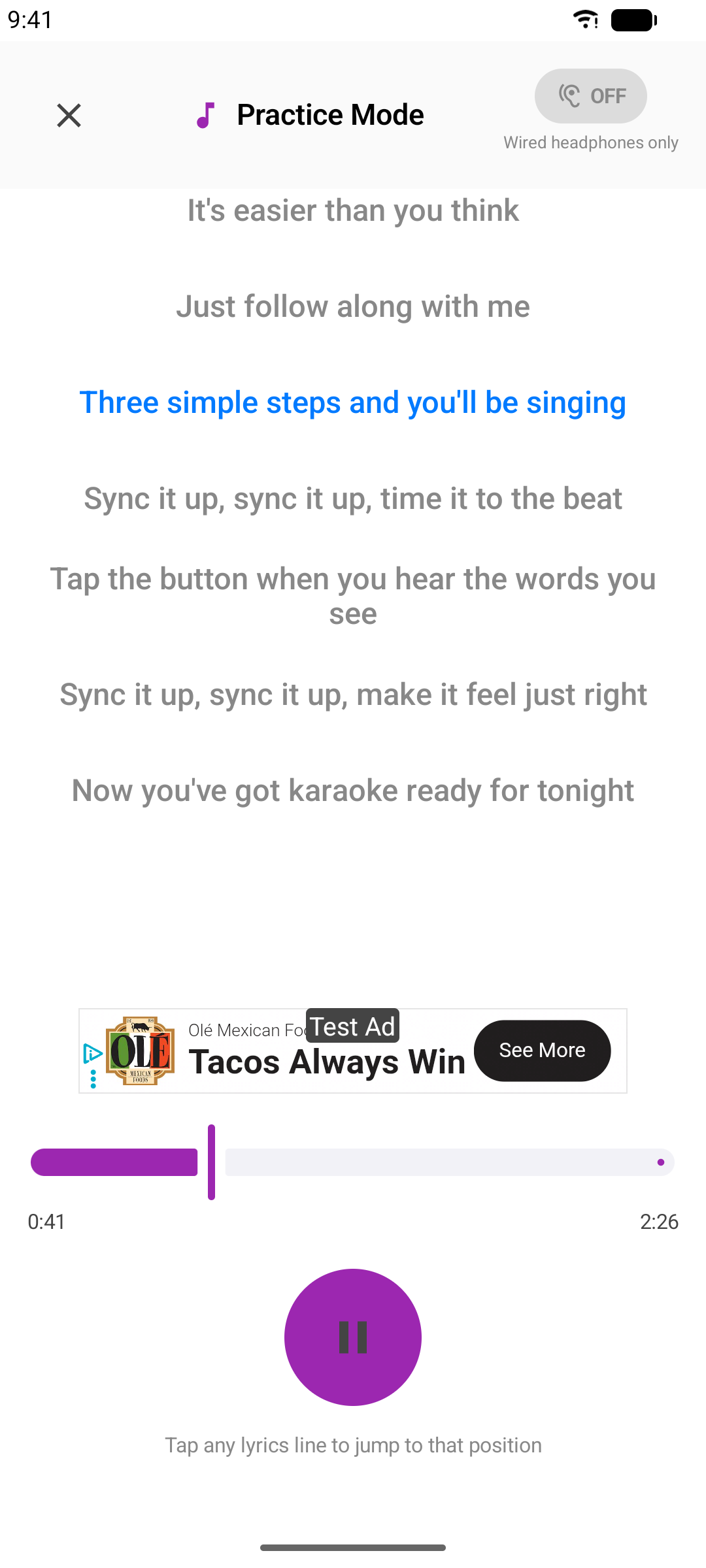
Tip: Plug in wired headphones to hear your own voice mixed in live (passthrough). Bluetooth headphones have too much delay for real-time monitoring.
Sing Mode (Recording)
Record your voice over the music for a real karaoke take.
Step 1: Start a Recording
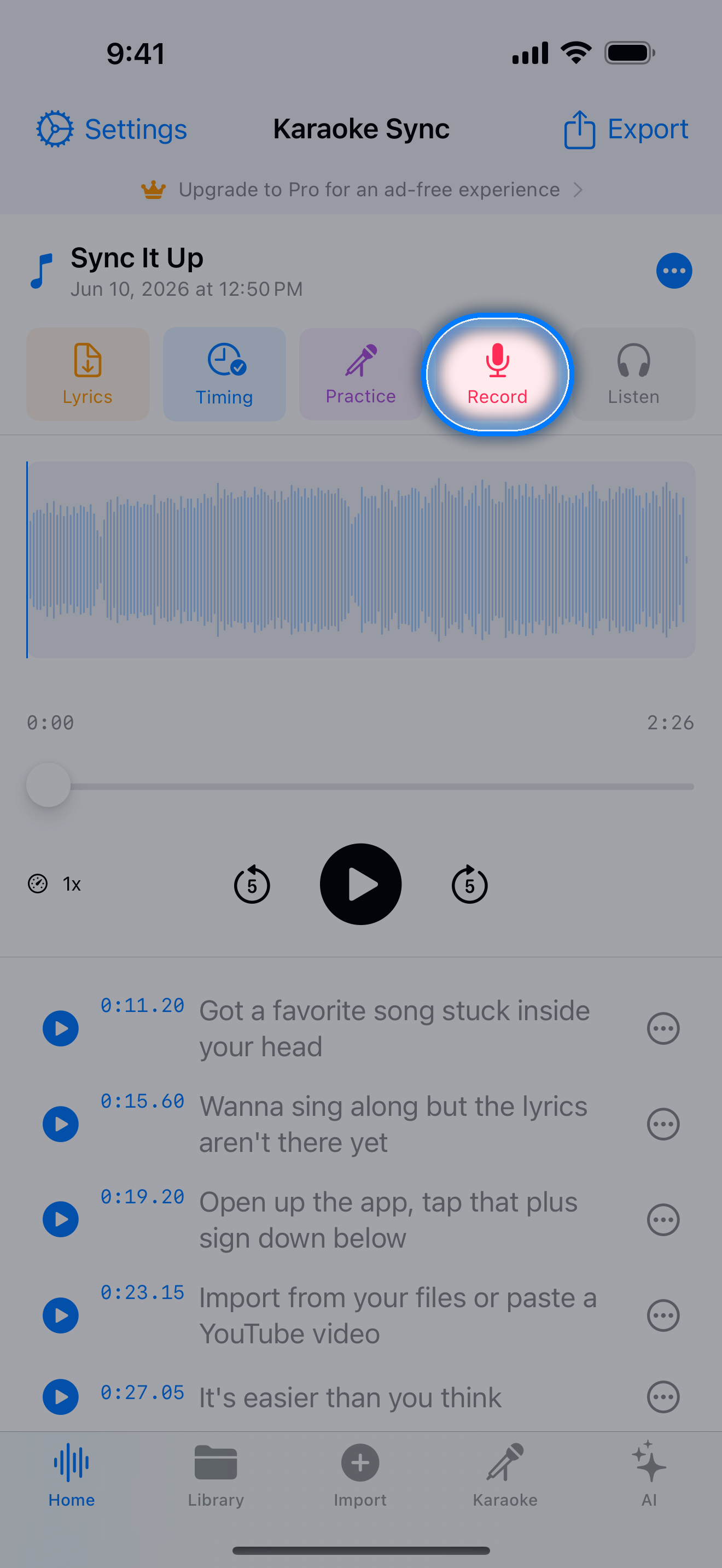
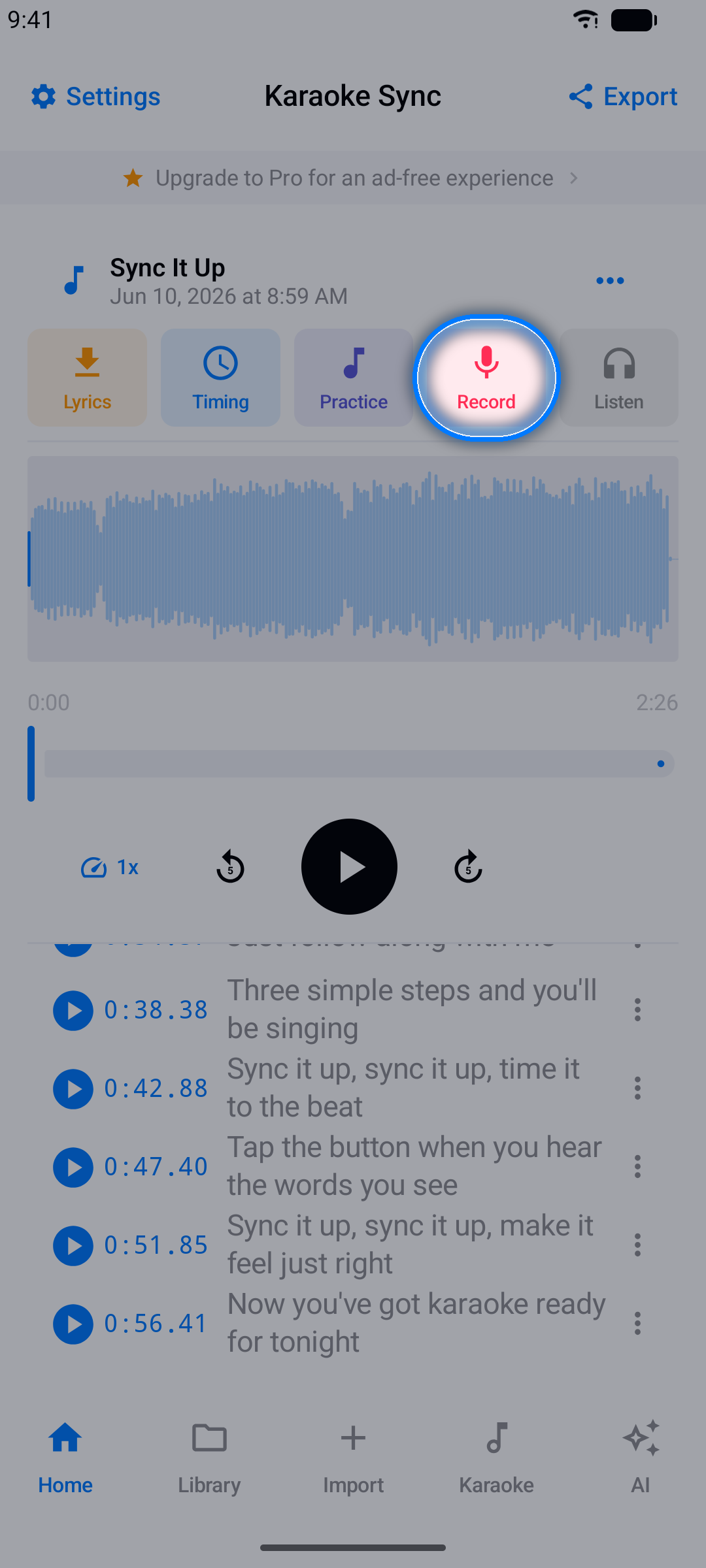
Open an audio-file project and tap Record. If the app asks, choose an audio-only take - or pick video to record with your camera at the same time. Allow microphone access if asked.
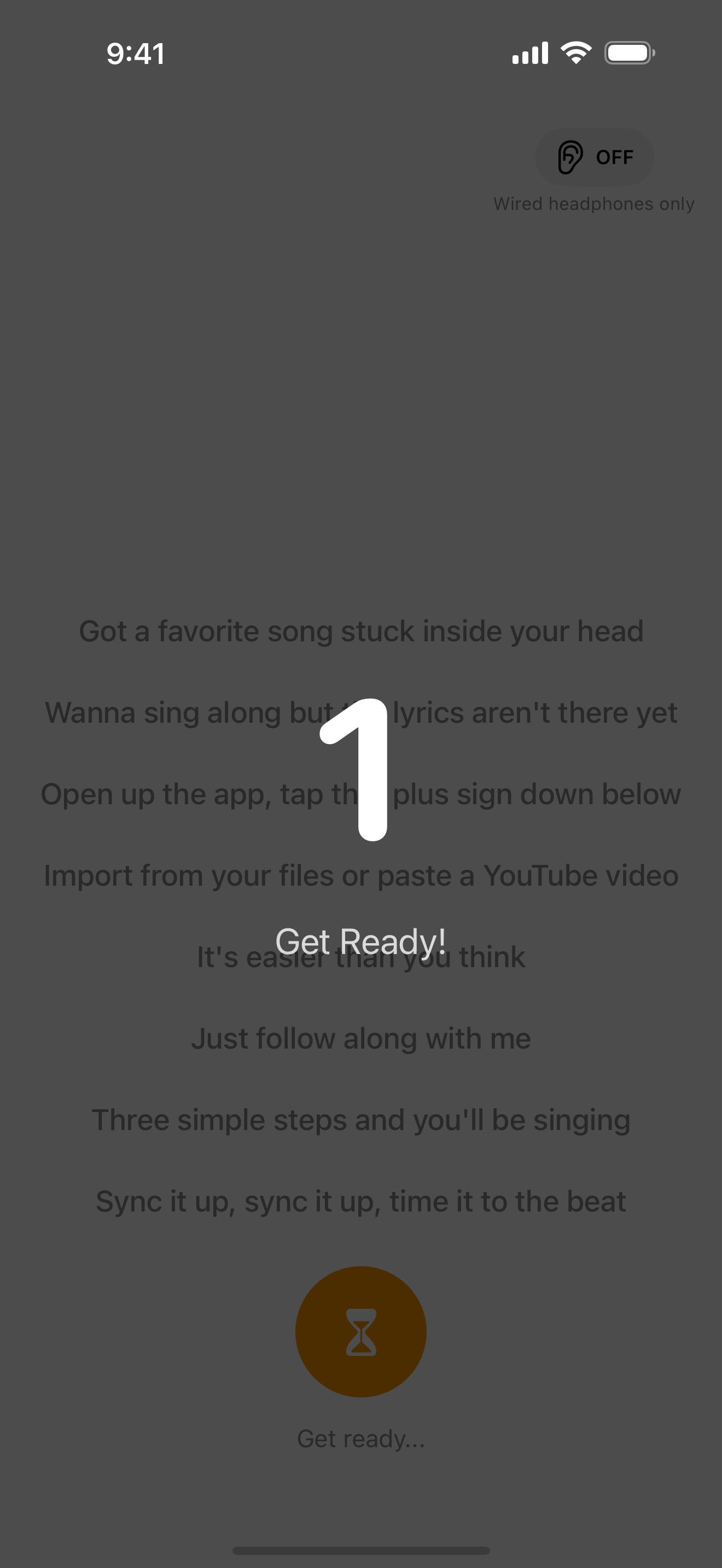
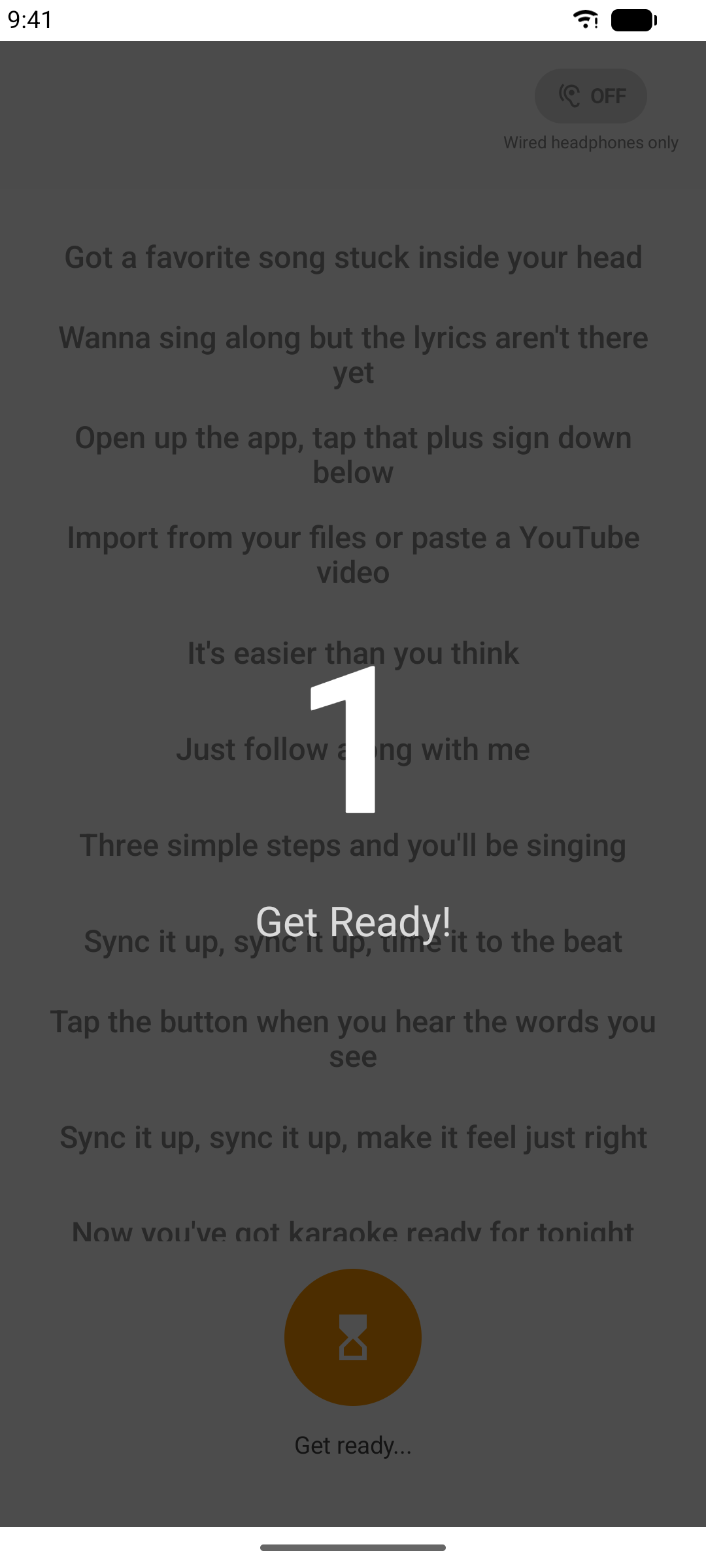
Step 2: Get Ready
A 3-2-1 countdown gives you a moment to breathe.
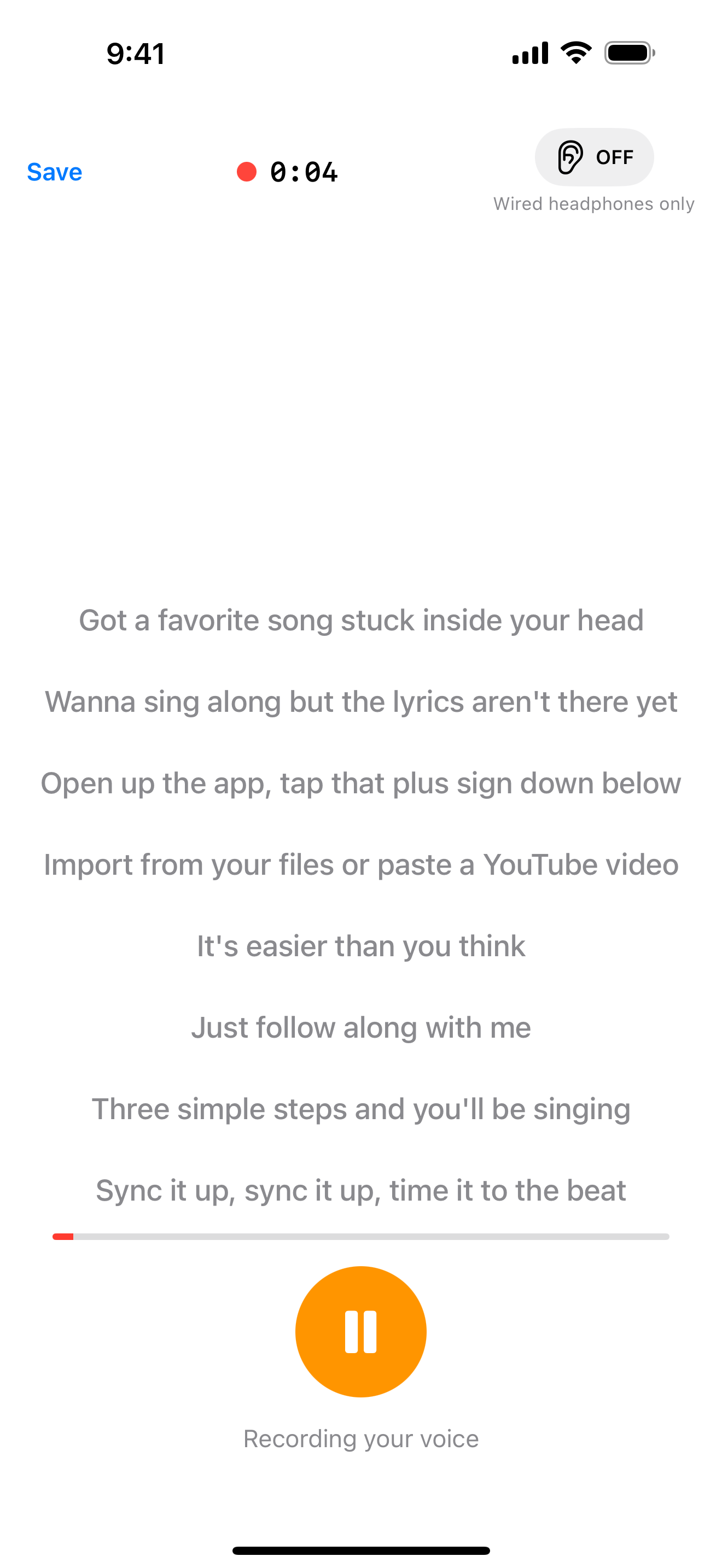
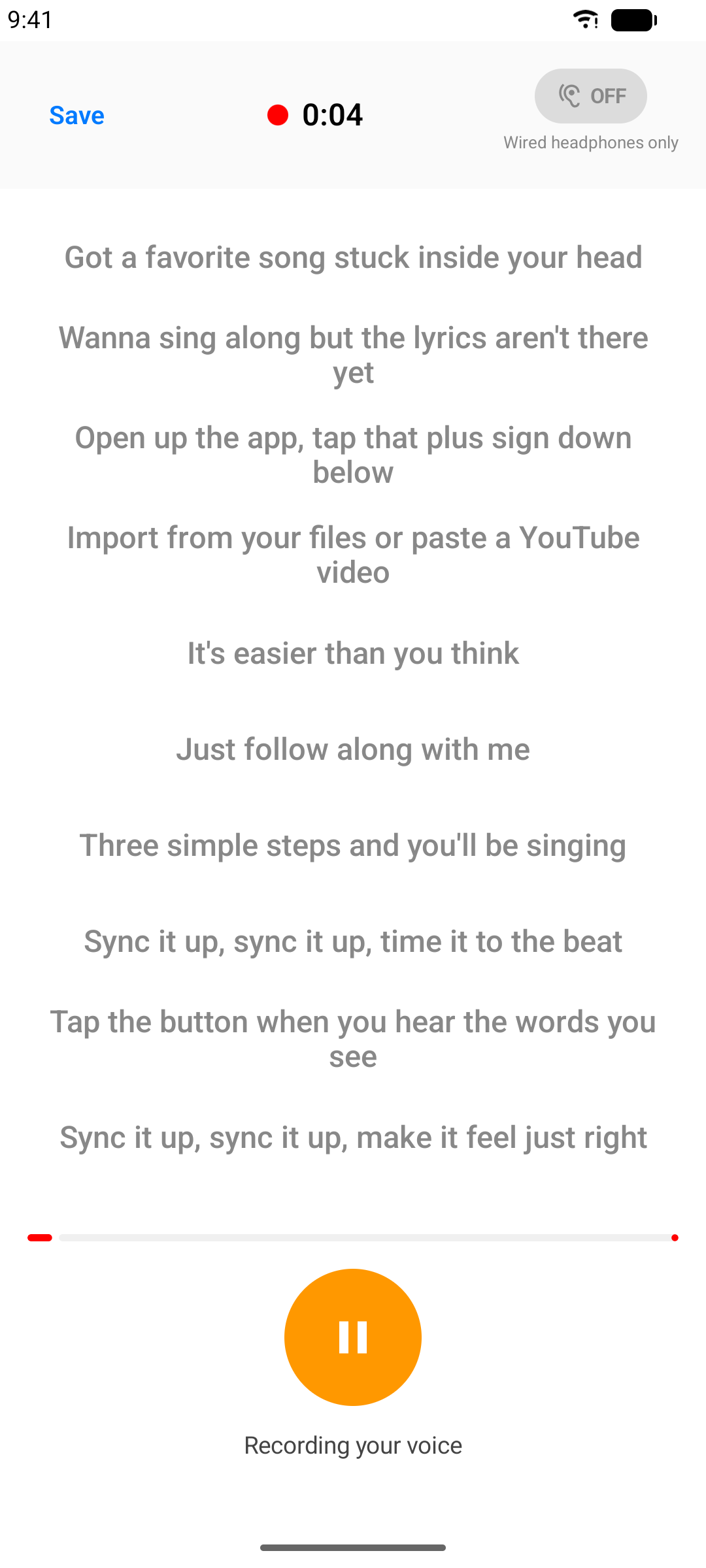
Step 3: Sing!
The music plays while your voice is recorded, with lyrics scrolling karaoke-style.
Step 4: Review Your Take
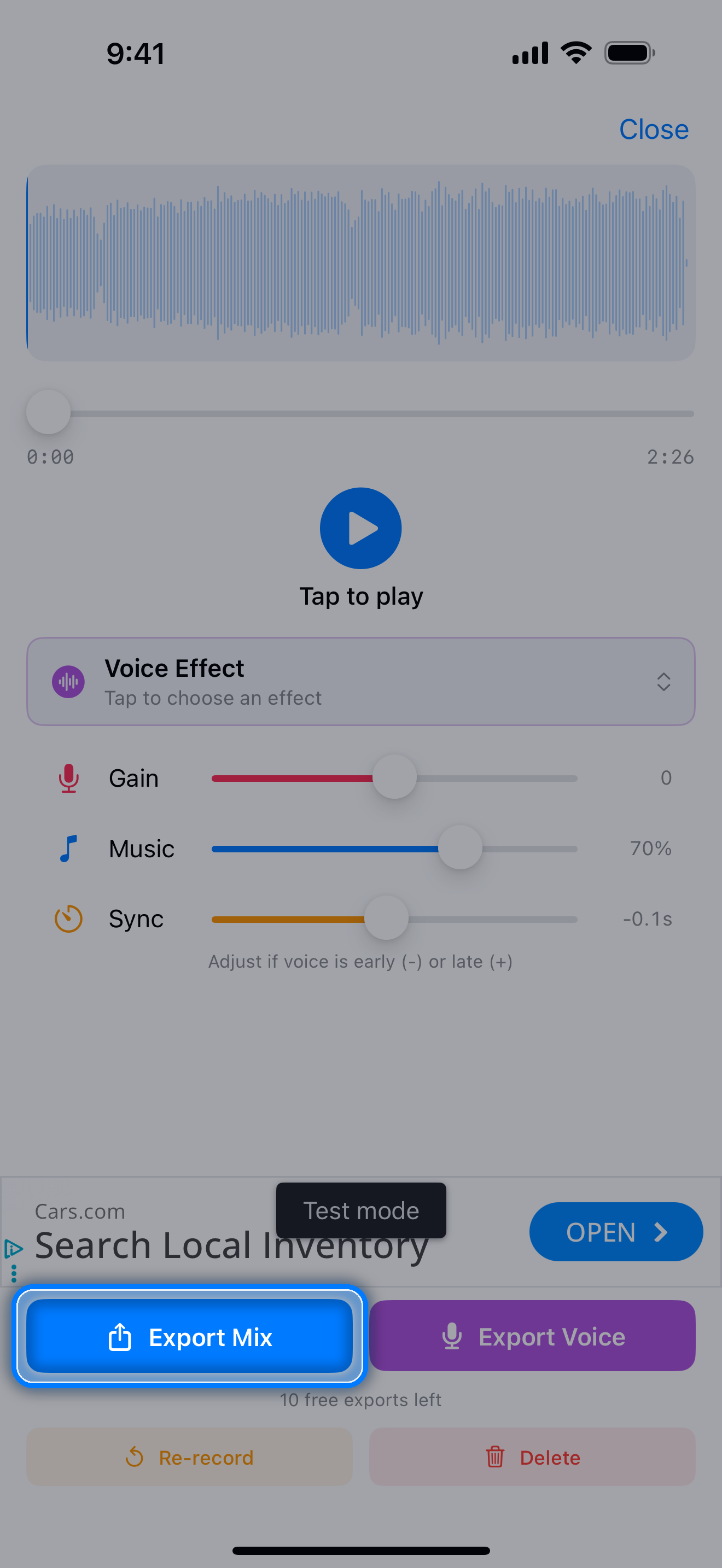
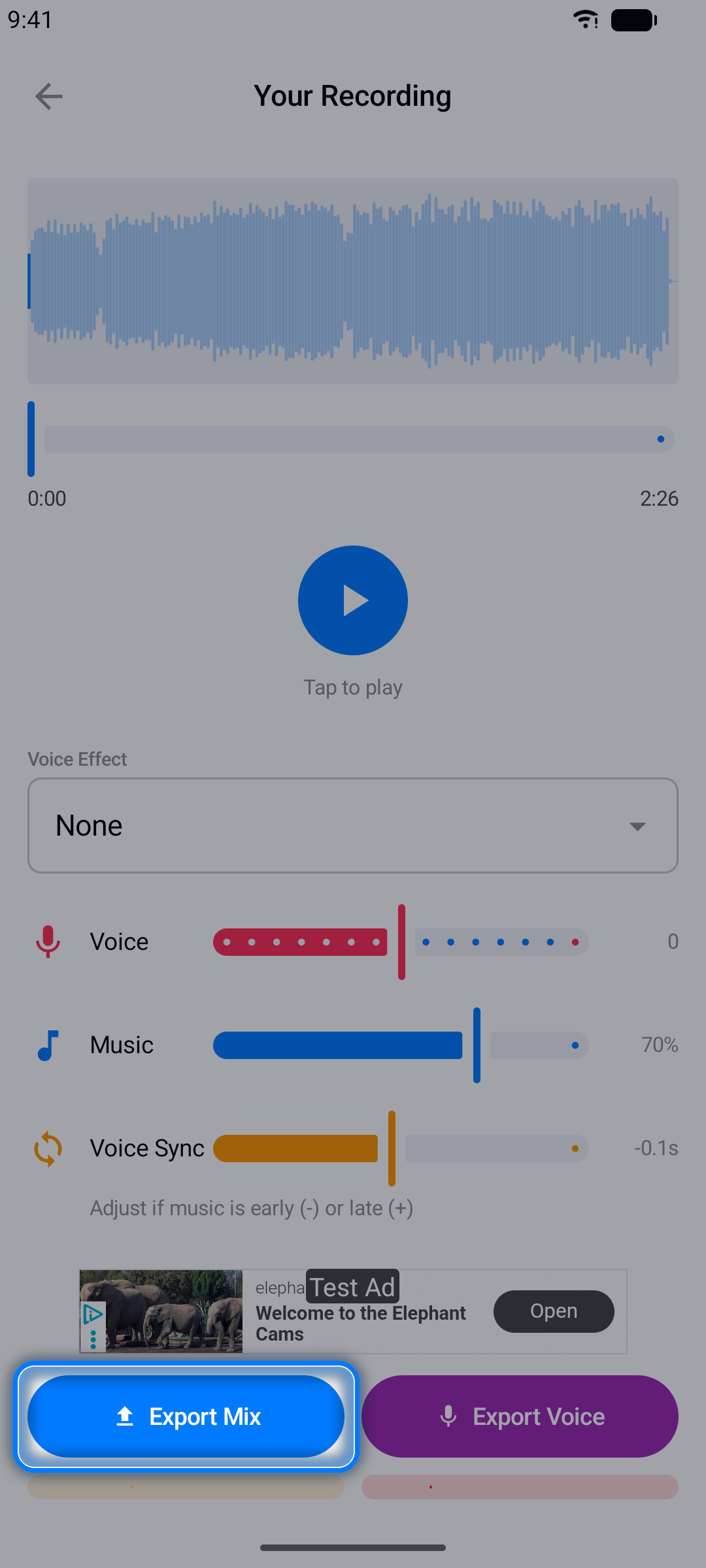
When you stop, the playback screen lets you listen to your voice mixed with the music:
- Adjust the voice sync offset if your vocals sit slightly early or late
- Re-record to try again
- Export the finished mix as an M4A audio file
Voice Effects
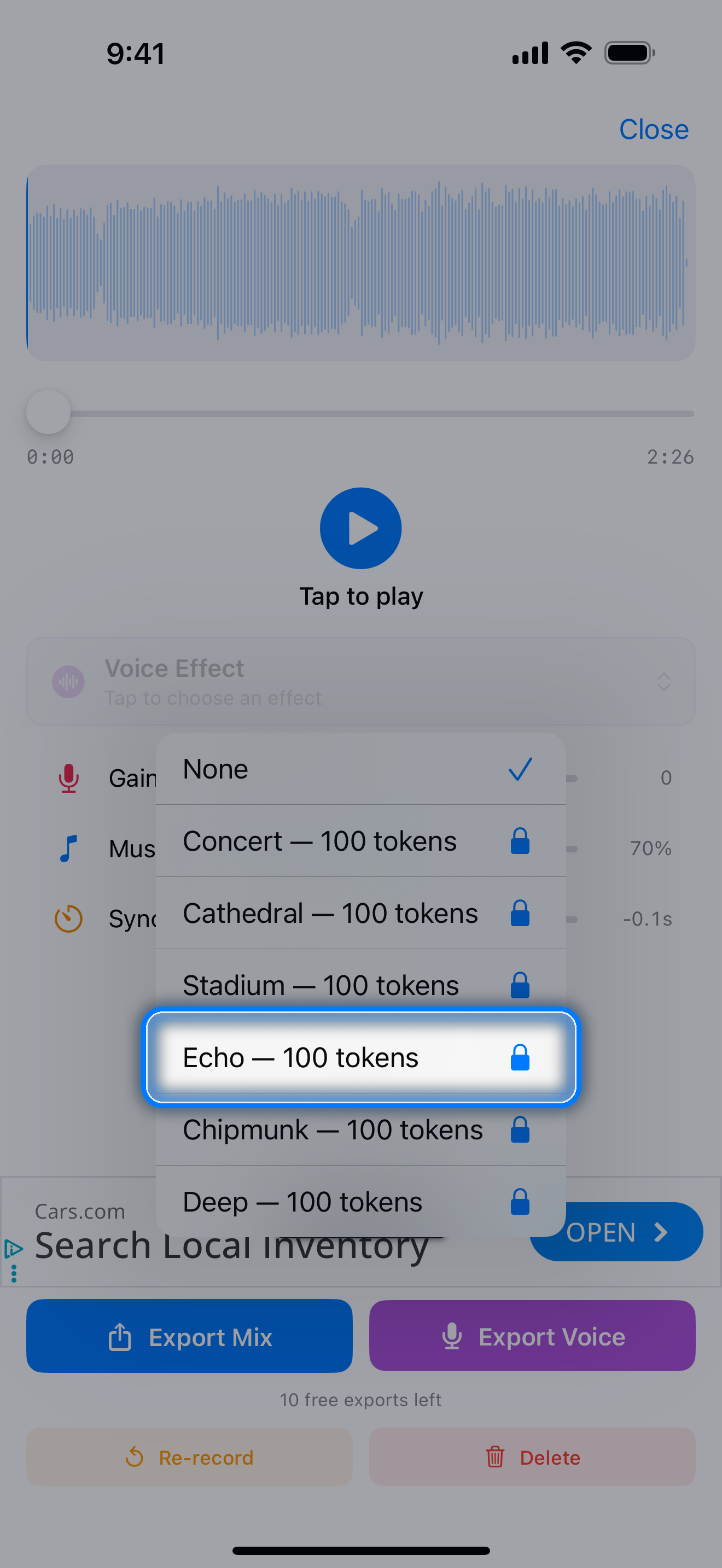
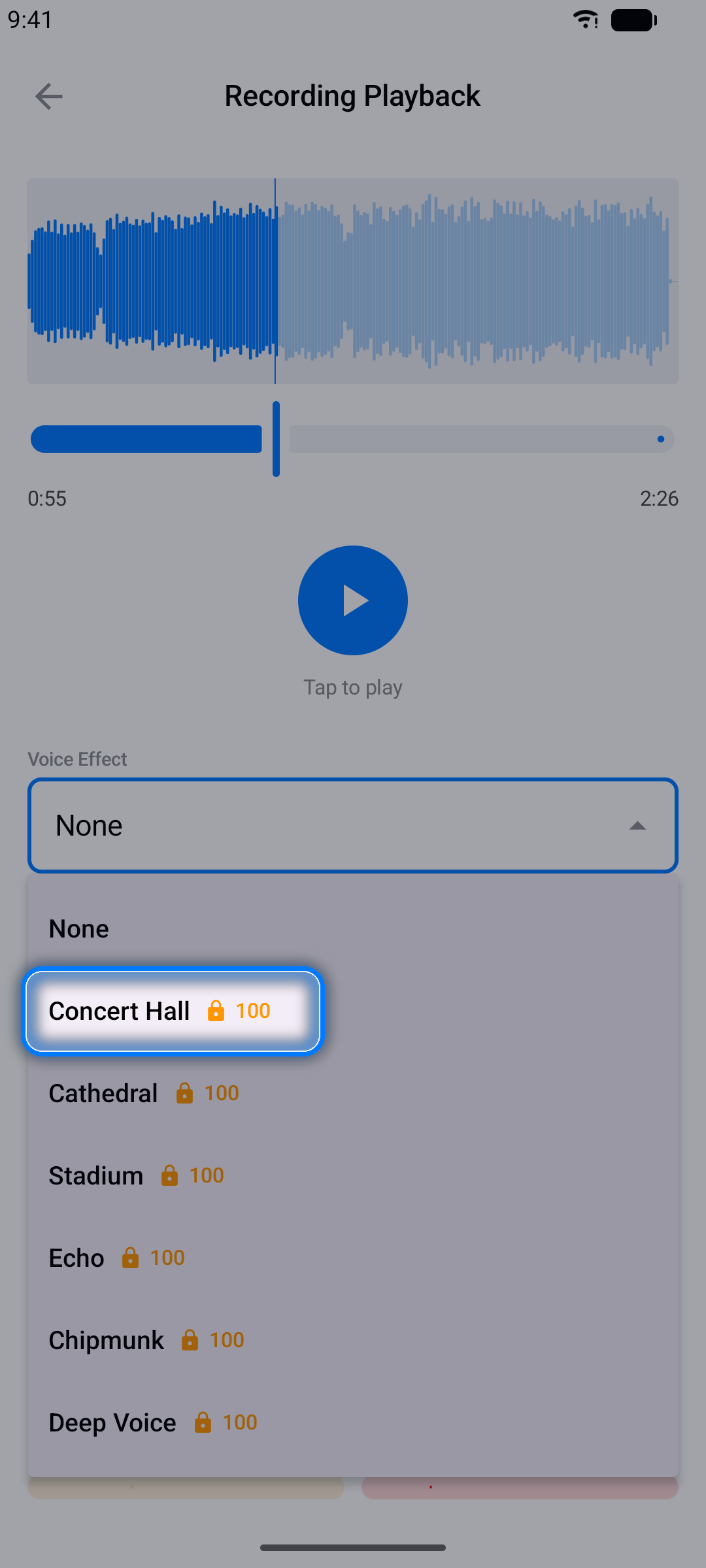
Make your takes more fun with voice effects - from concert-hall reverb to chipmunk and beyond. Effects can be unlocked with tokens you earn in the app (see Tokens).
Note: Recording and audio export work with audio-file projects. YouTube projects are for timing and practice.
Karaoke Mode
Want to sing right now, without building a project first? The Karaoke tab is a ready-made catalog of songs paired with synced lyrics.
- Browse or search the catalog
- Tap a song to open the player - the video plays with karaoke-style scrolling lyrics
- Mark favorites so your go-to songs are always at hand
- Missing a song? Use the built-in song request form
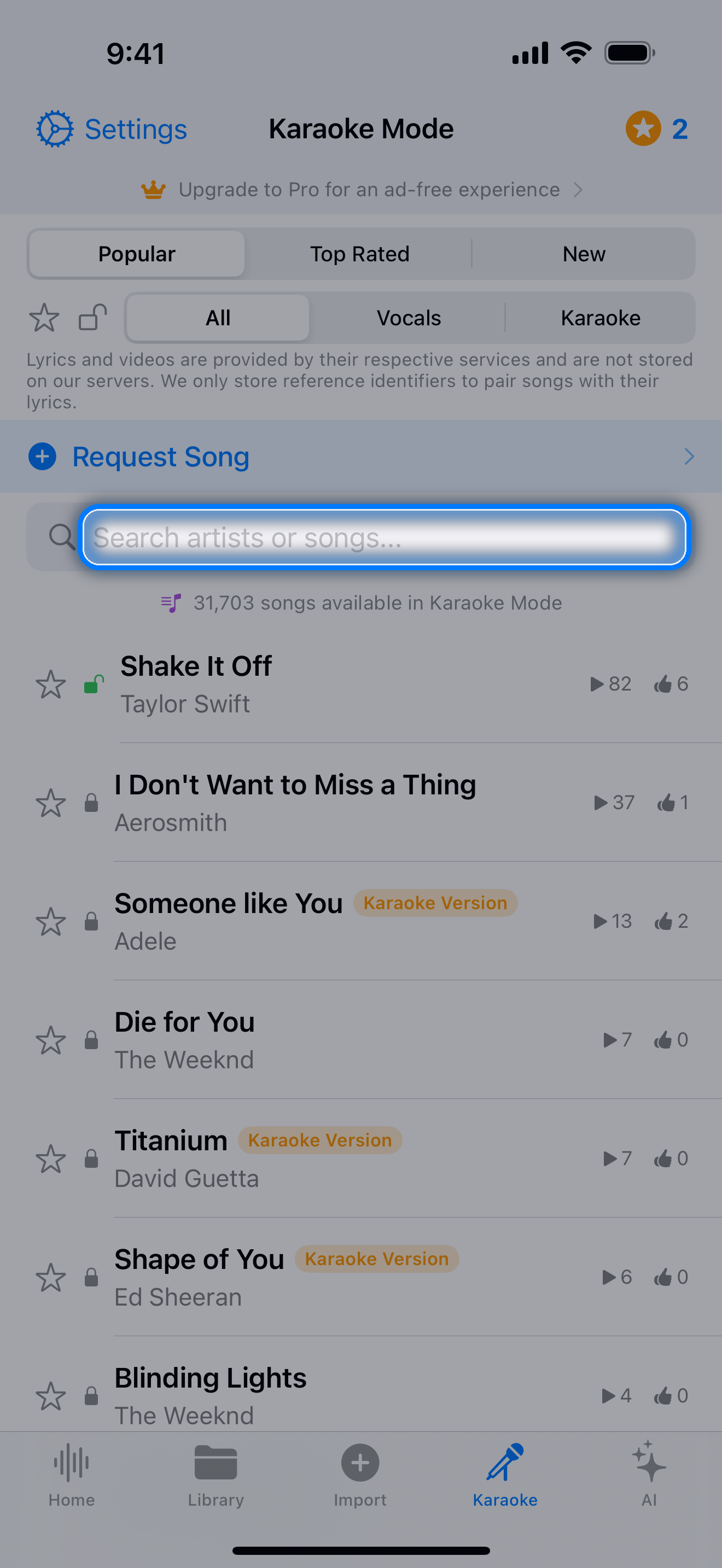
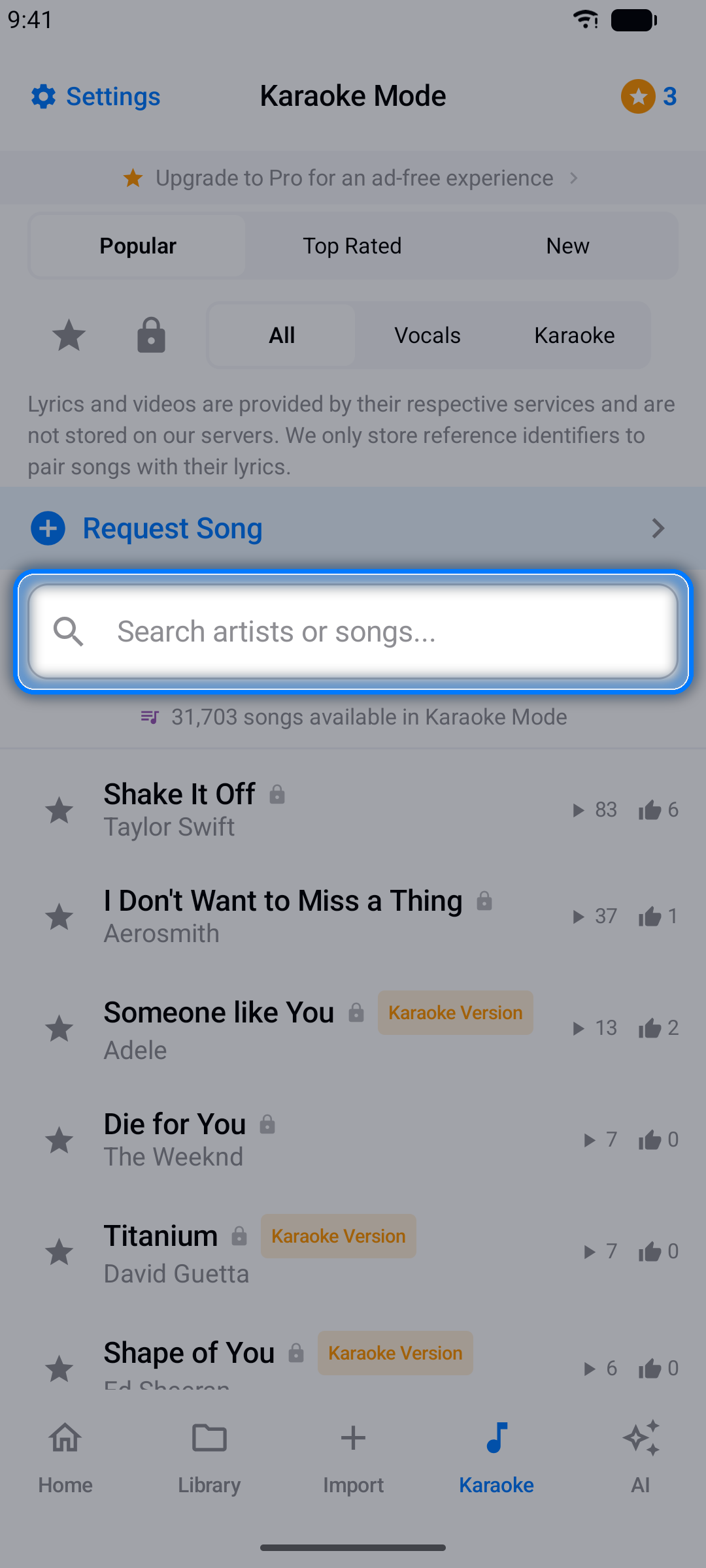
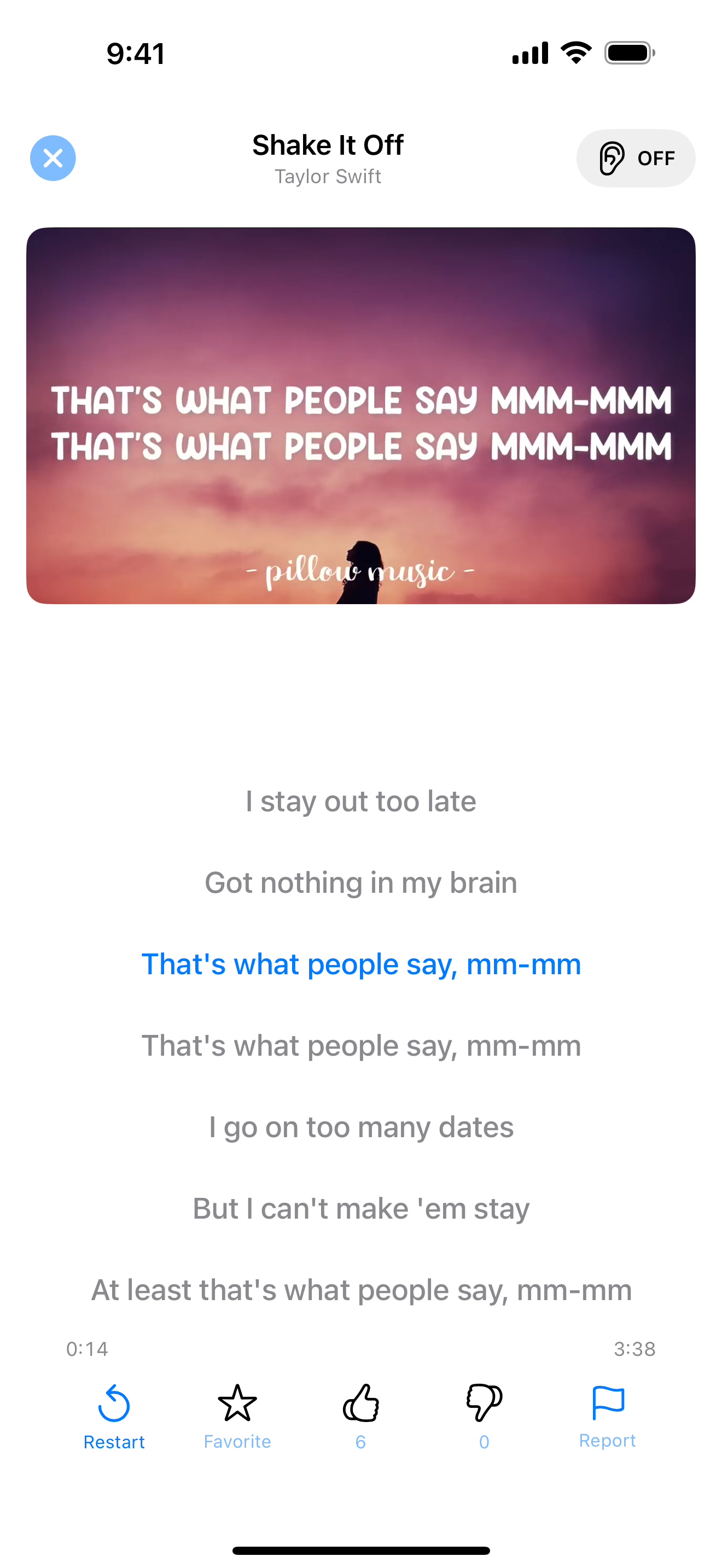
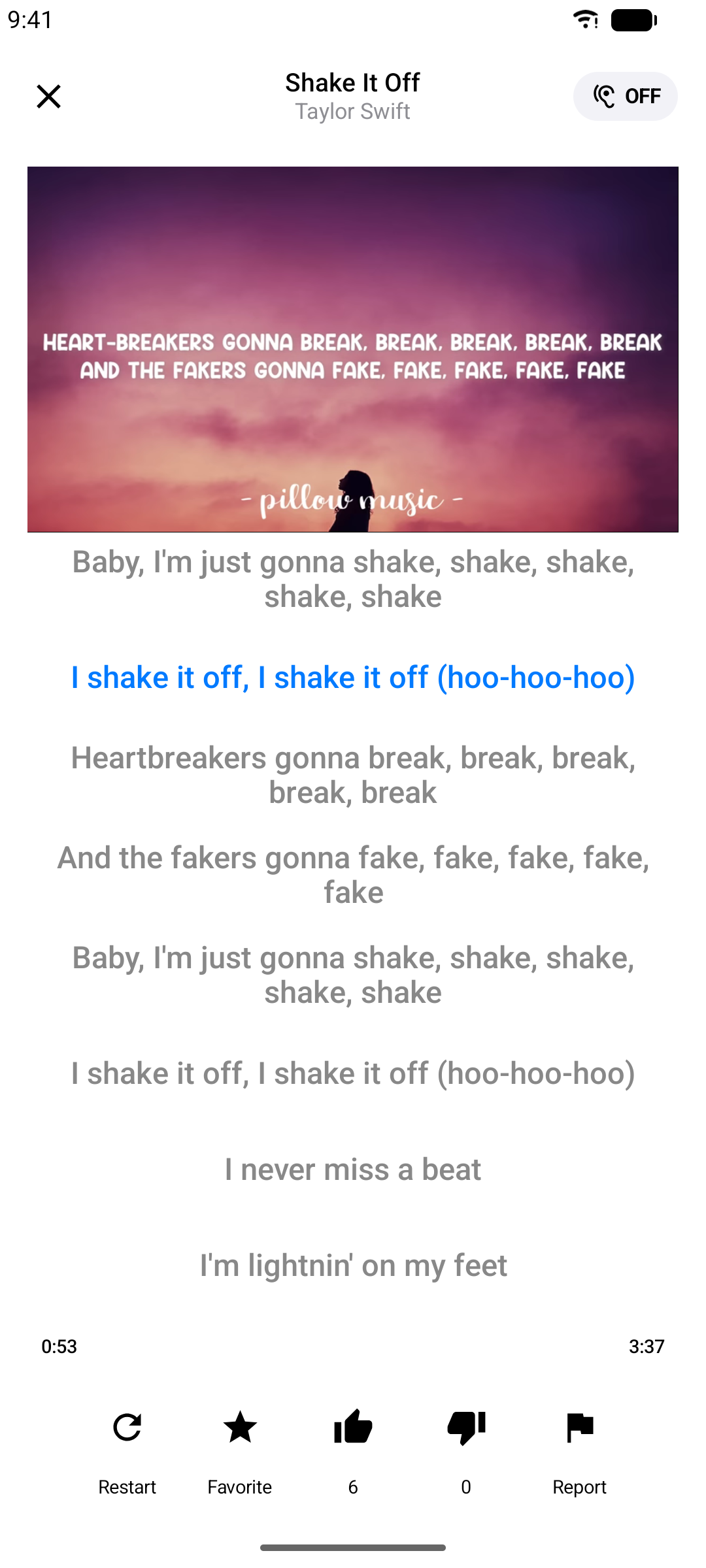
Note: Screenshots show songs from the in-app karaoke catalog for illustration only. All songs, videos, artwork, and trademarks remain the property of their respective owners.
AI Song Quiz & Facts
The AI tab turns music trivia into a game:
- Song Quiz - multiple-choice questions about a song, its artist, and its story
- Song Facts - surprising background facts about the songs you love
Browse the curated catalog, pick a song, and dive in.
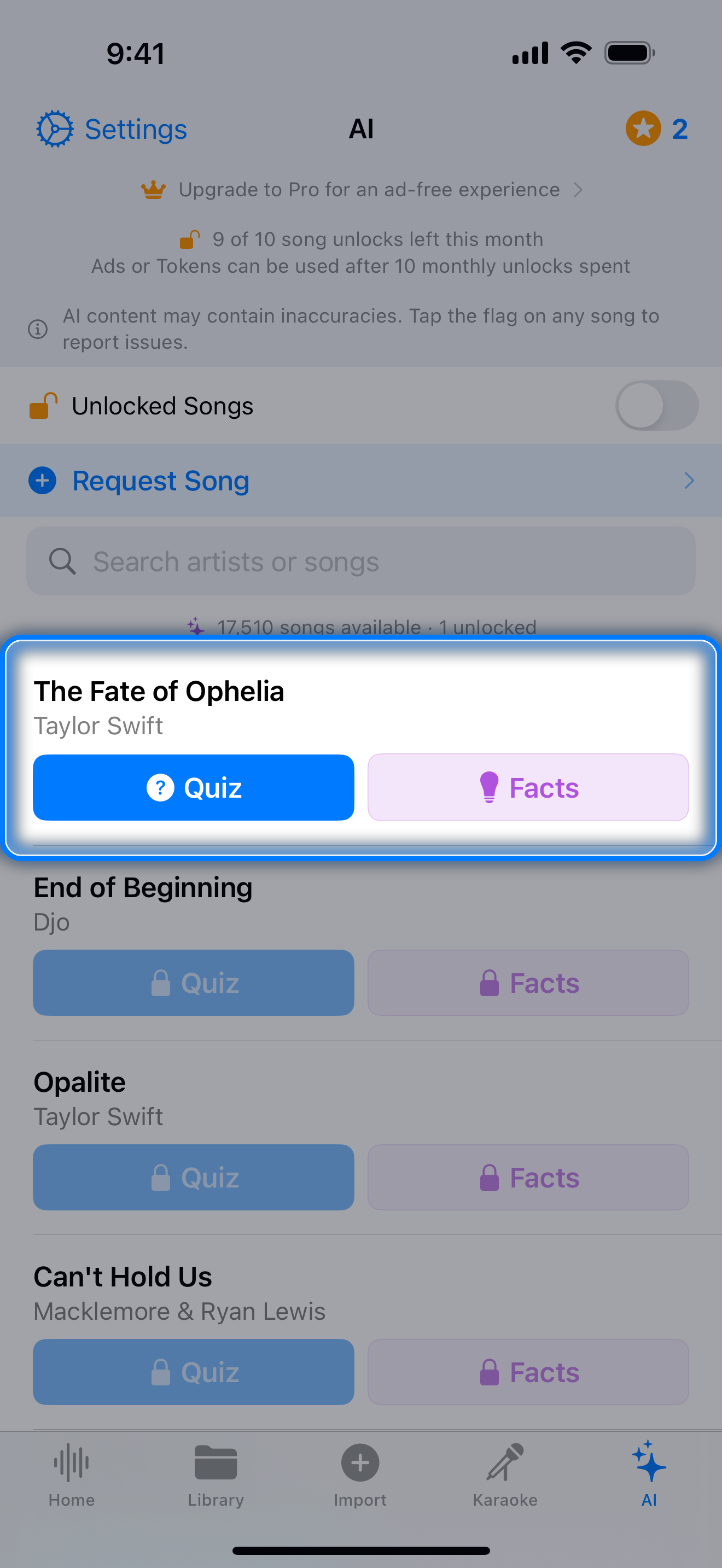
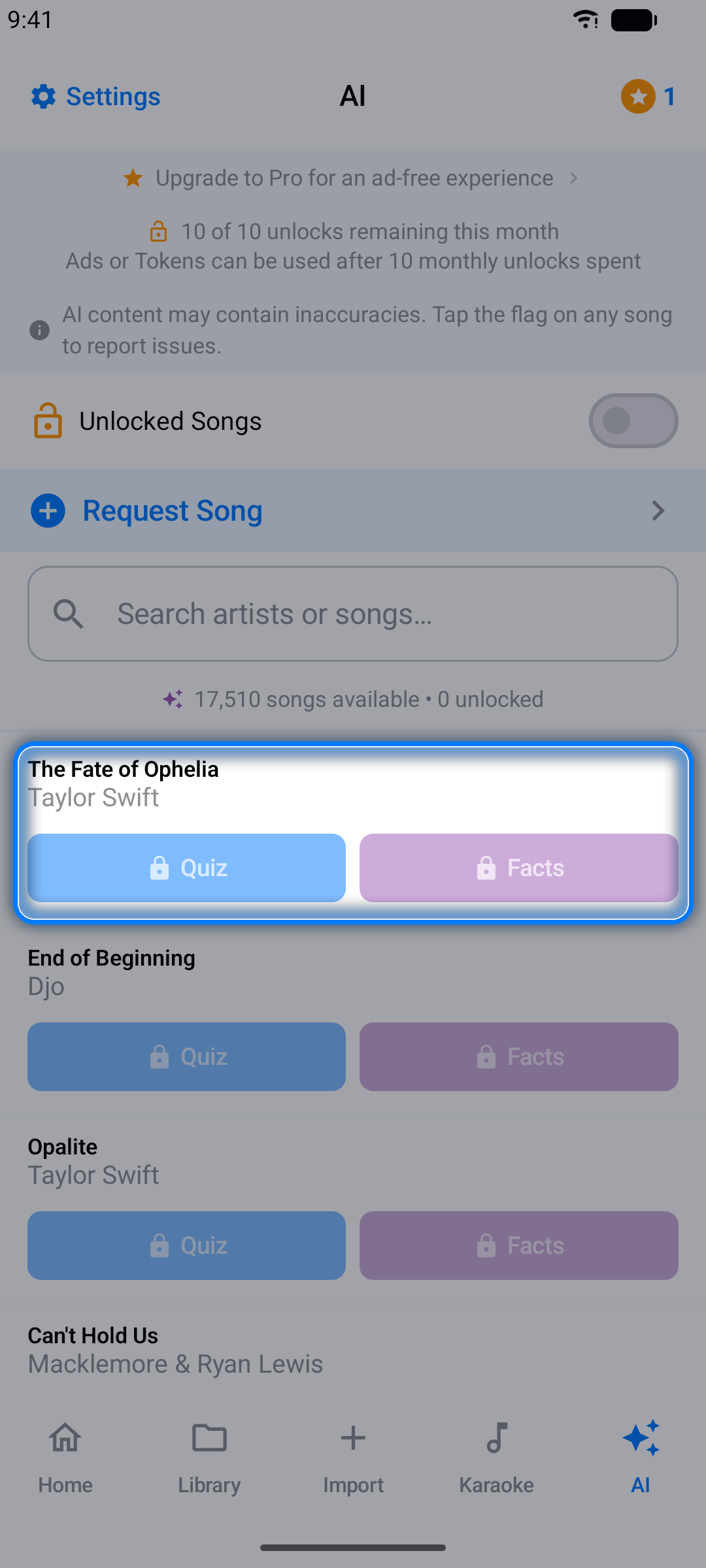
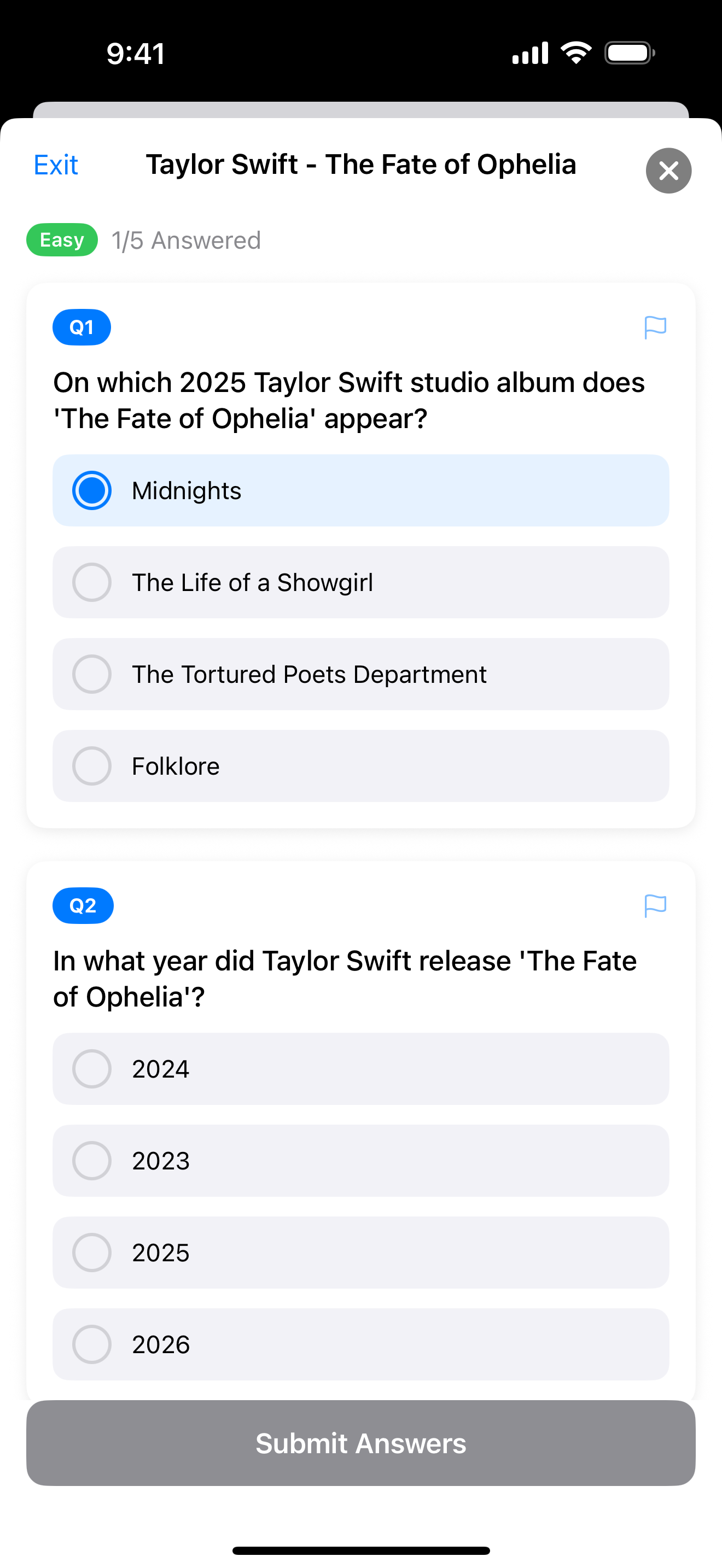
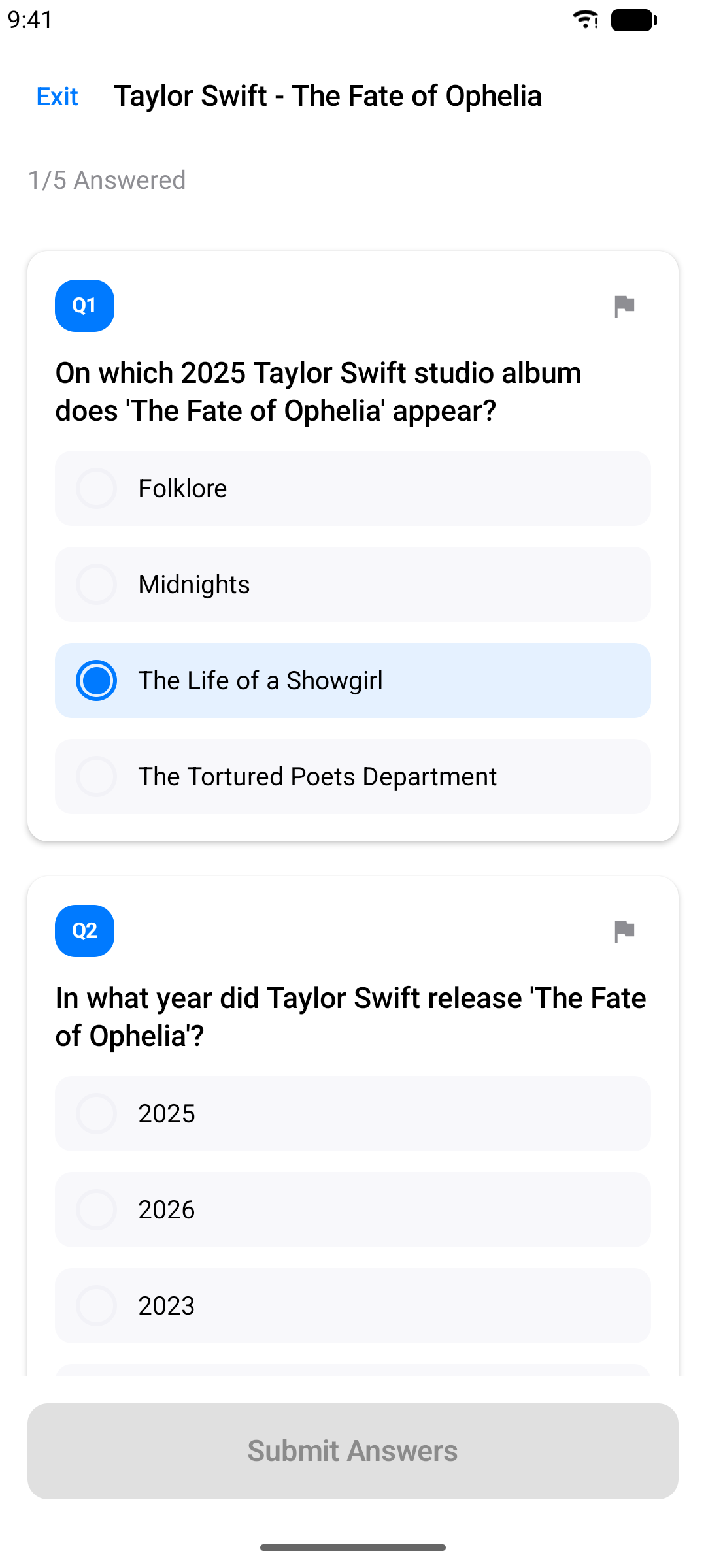
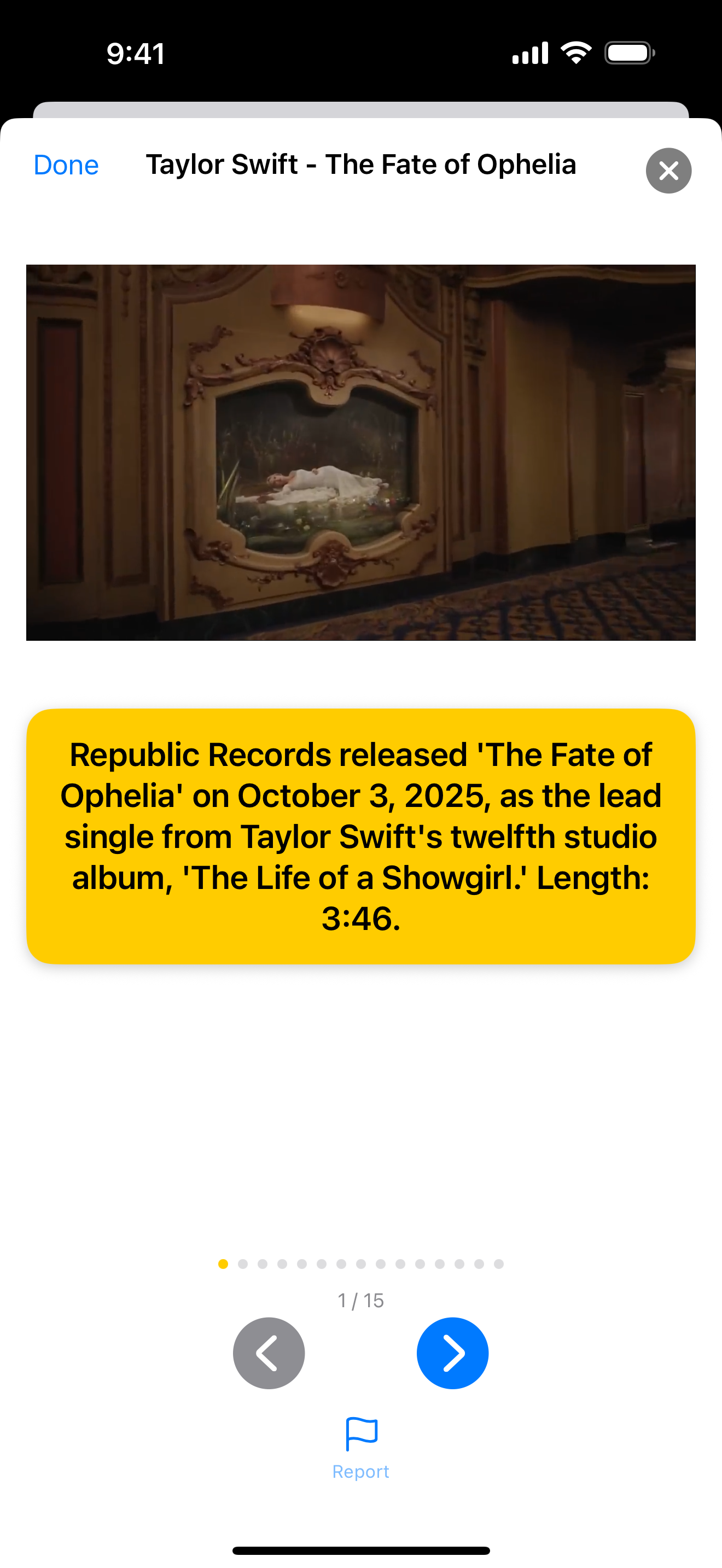
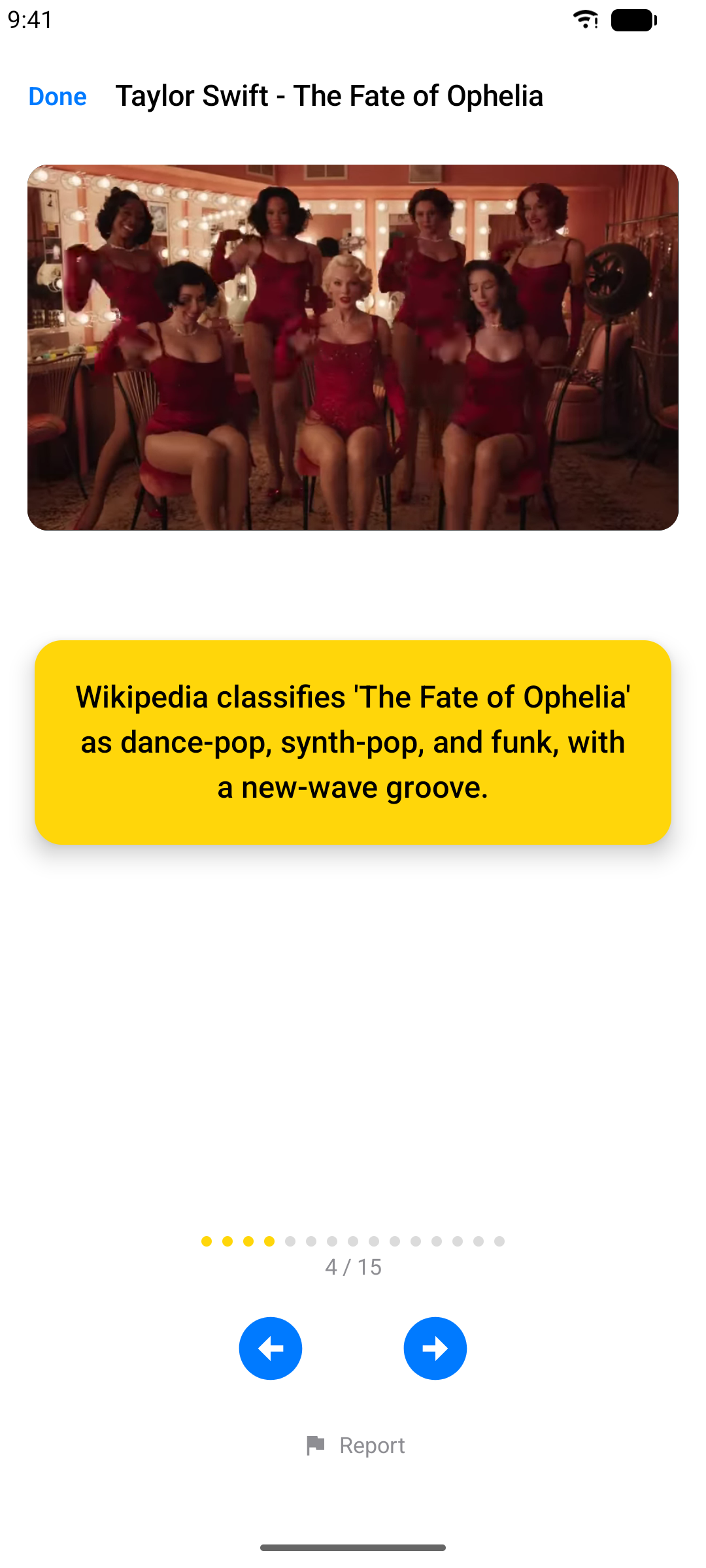
Free accounts get a monthly allowance of quizzes and facts (Pro raises it substantially) - and anything you unlock stays available forever.
Note: Screenshots show songs from the in-app music catalog for illustration only. All songs, videos, artwork, and trademarks remain the property of their respective owners.
Karaoke Games
Your own timed projects double as game material. From the Library tab, tap Play Games:
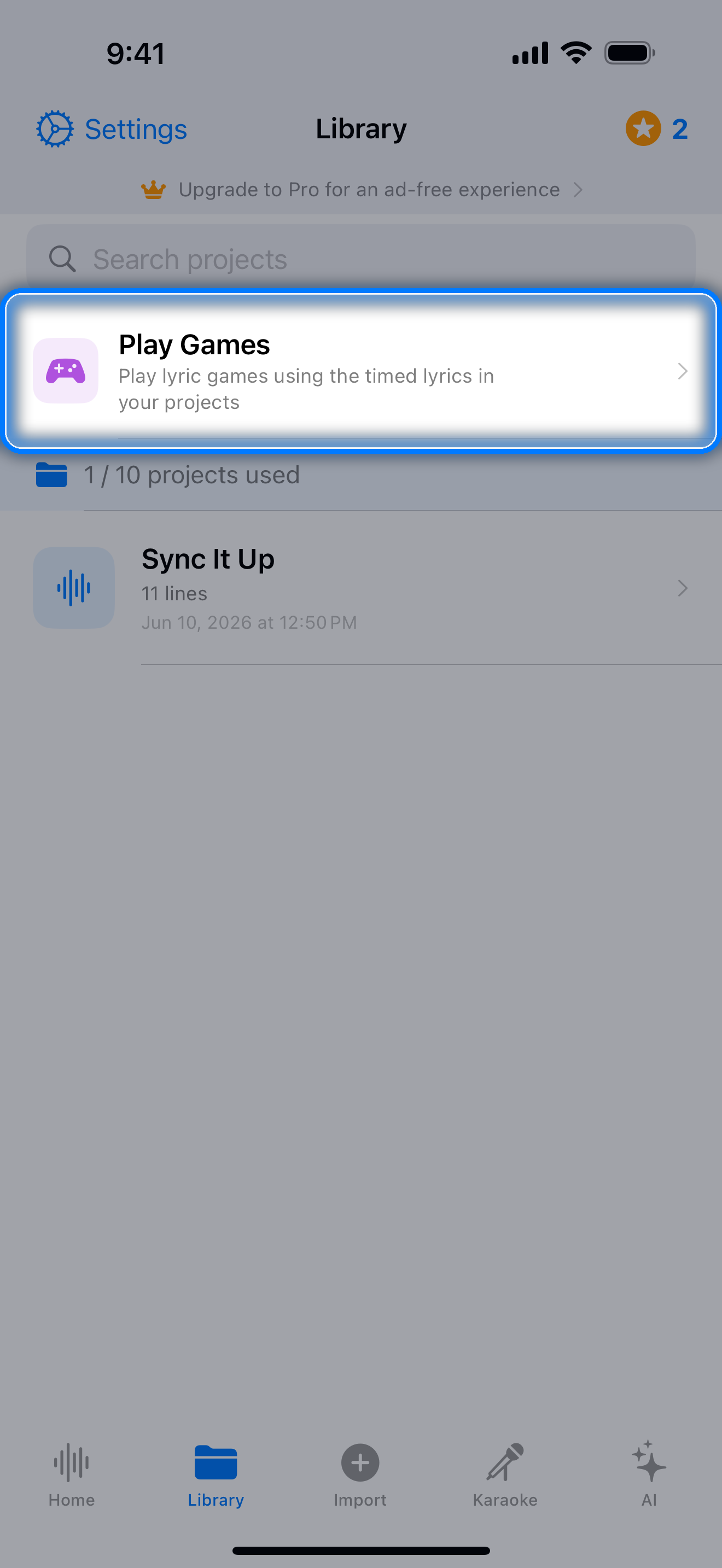
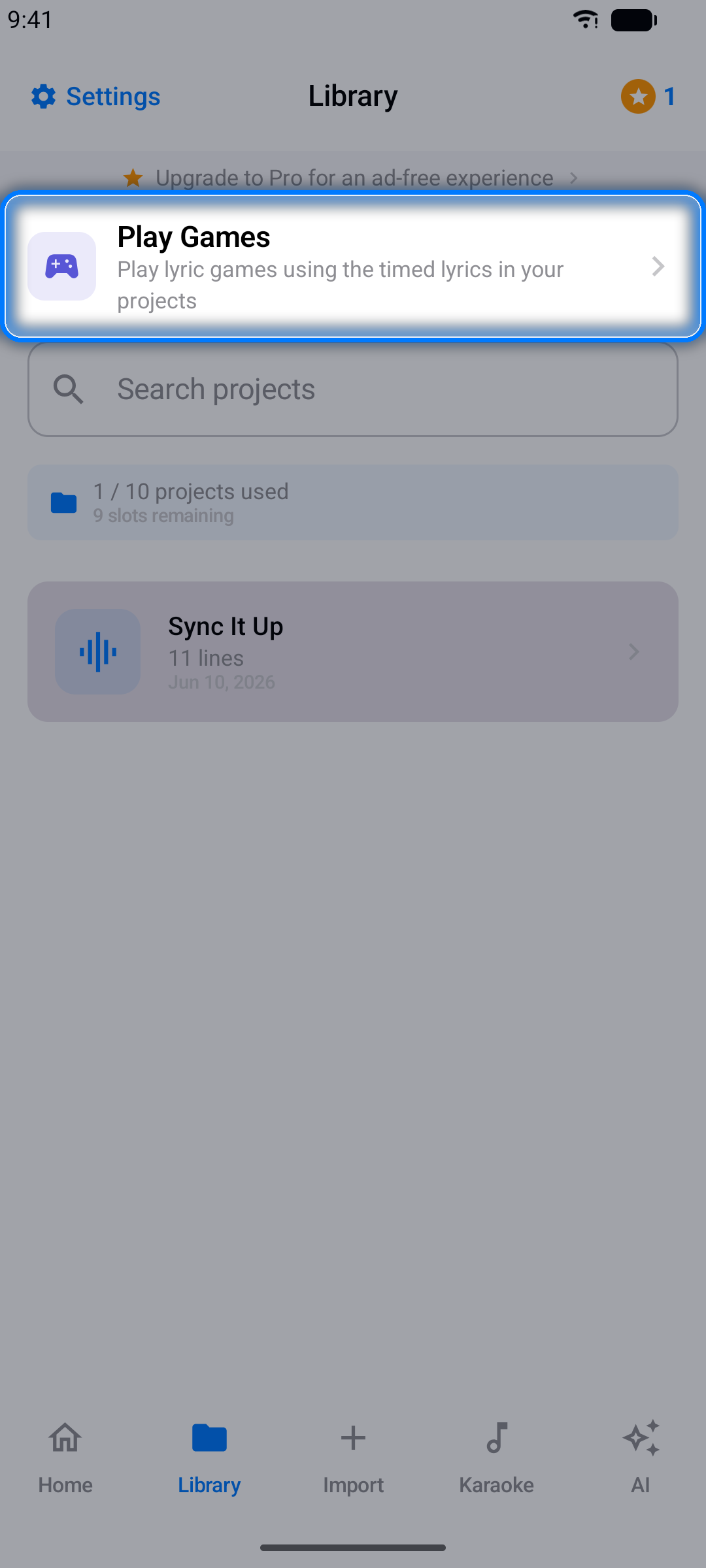
- Finish the Lyric - the song plays, then cuts off: can you complete the line in time?
- Lyric Order - put the shuffled words of a line back in the right order
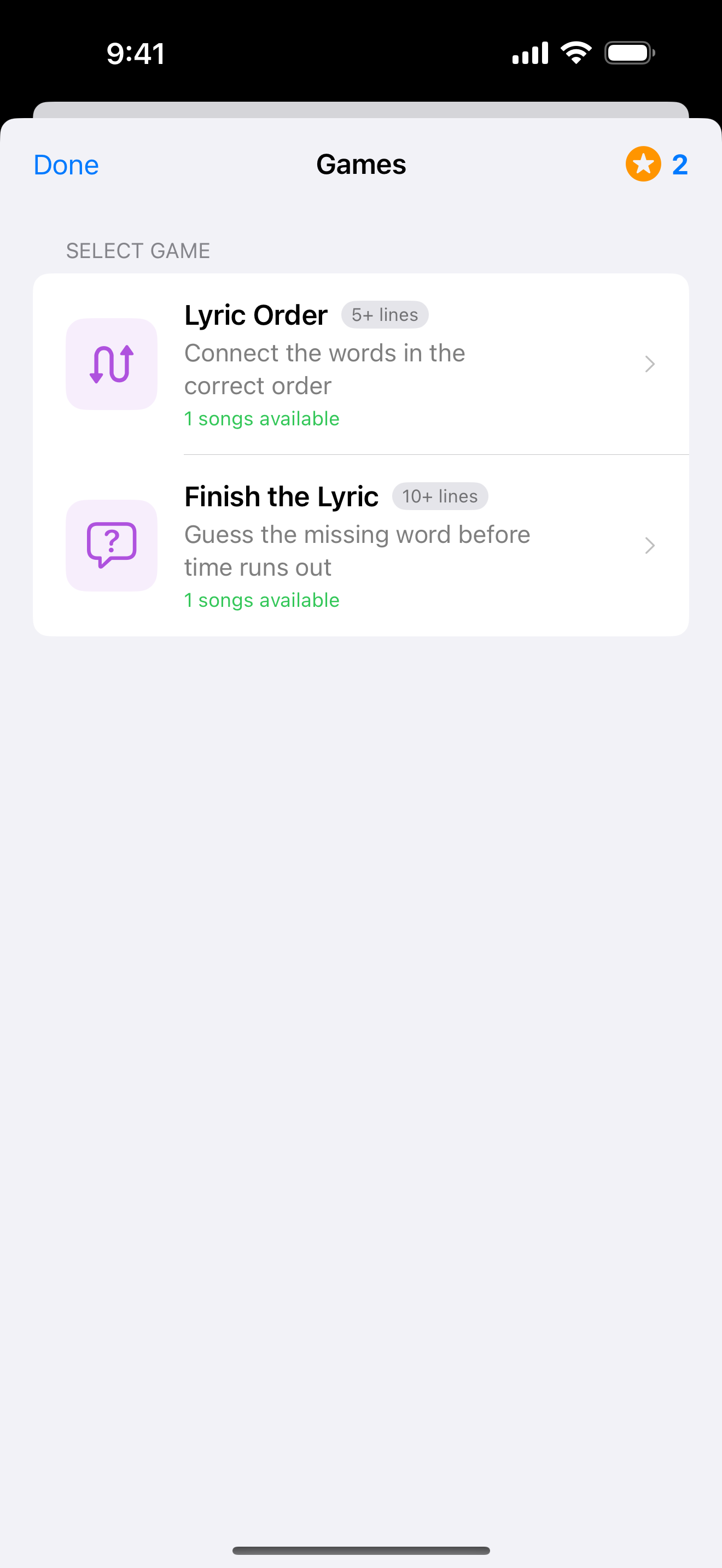
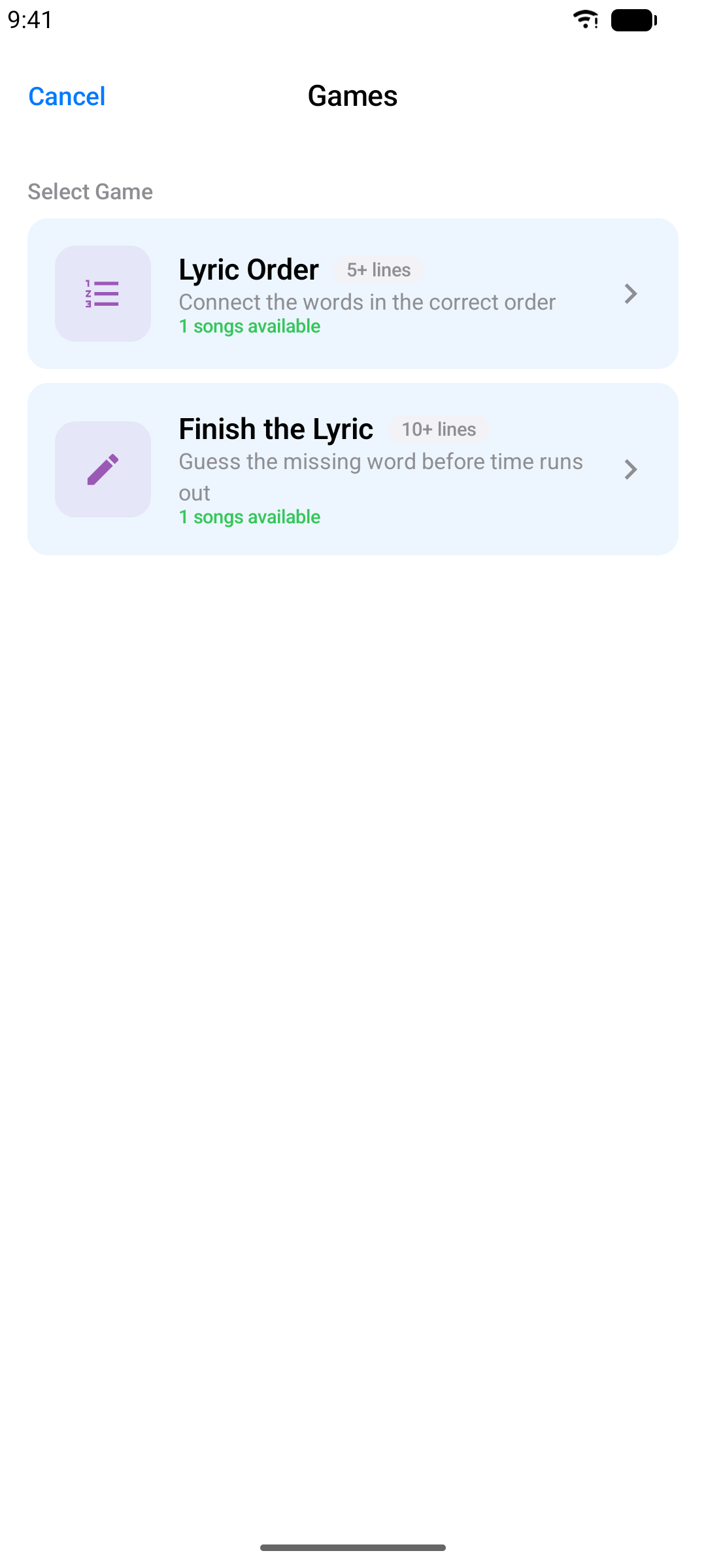
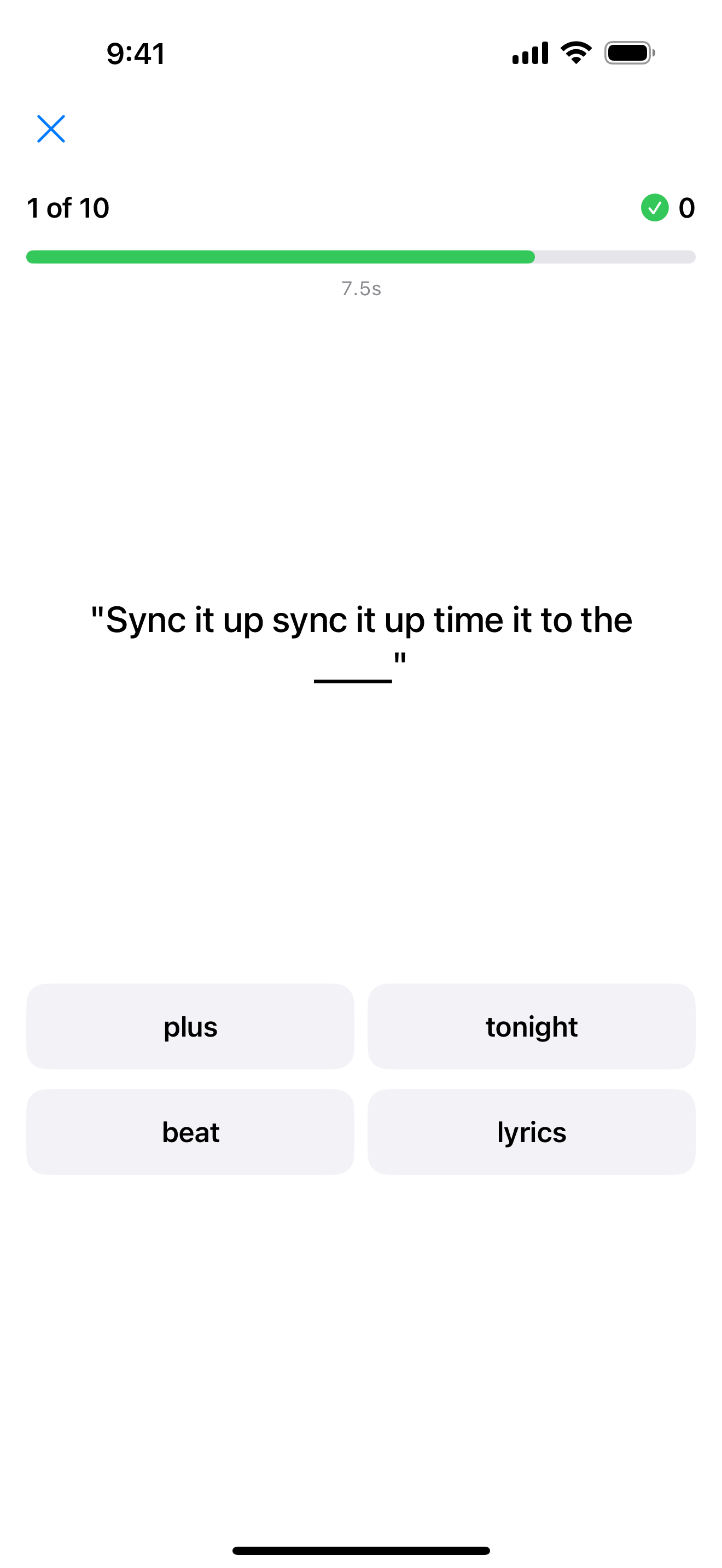
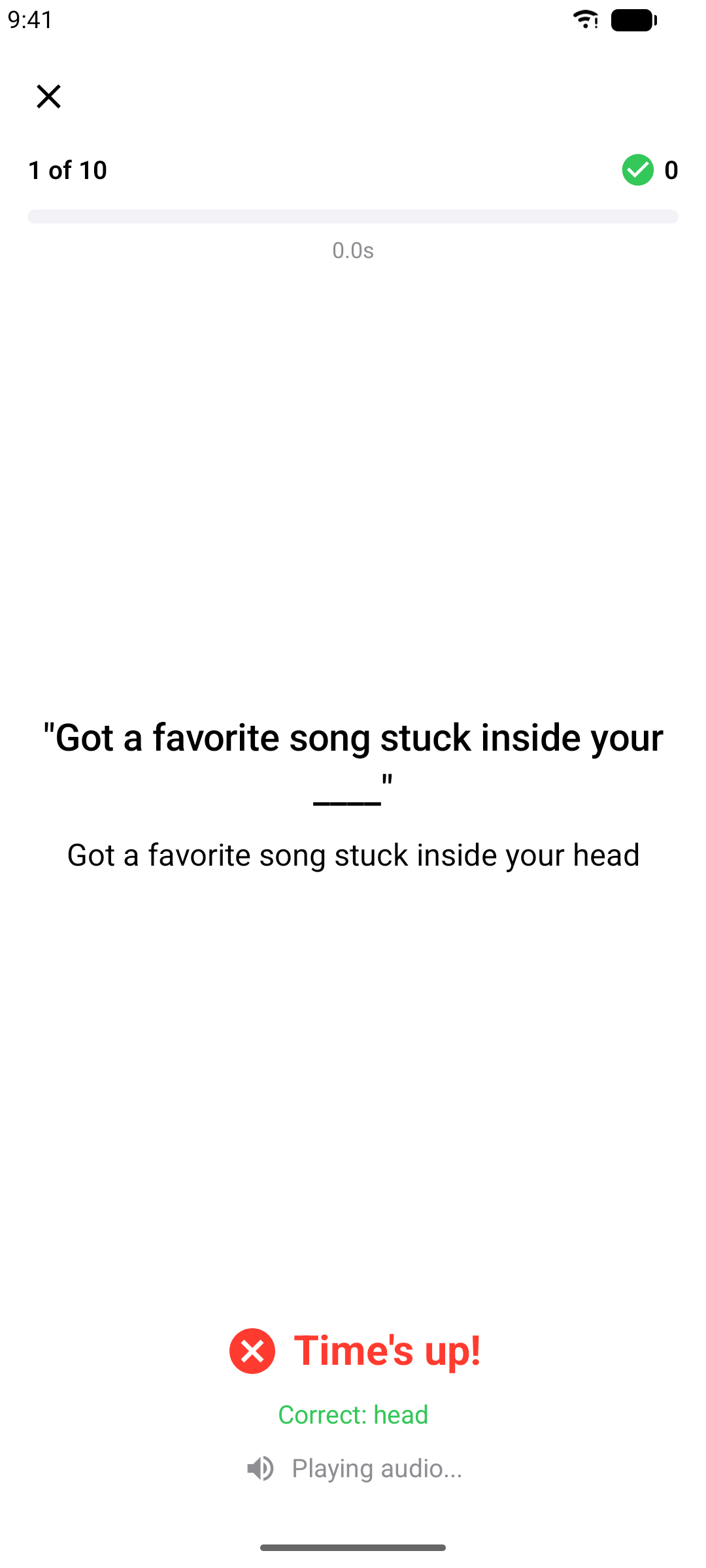
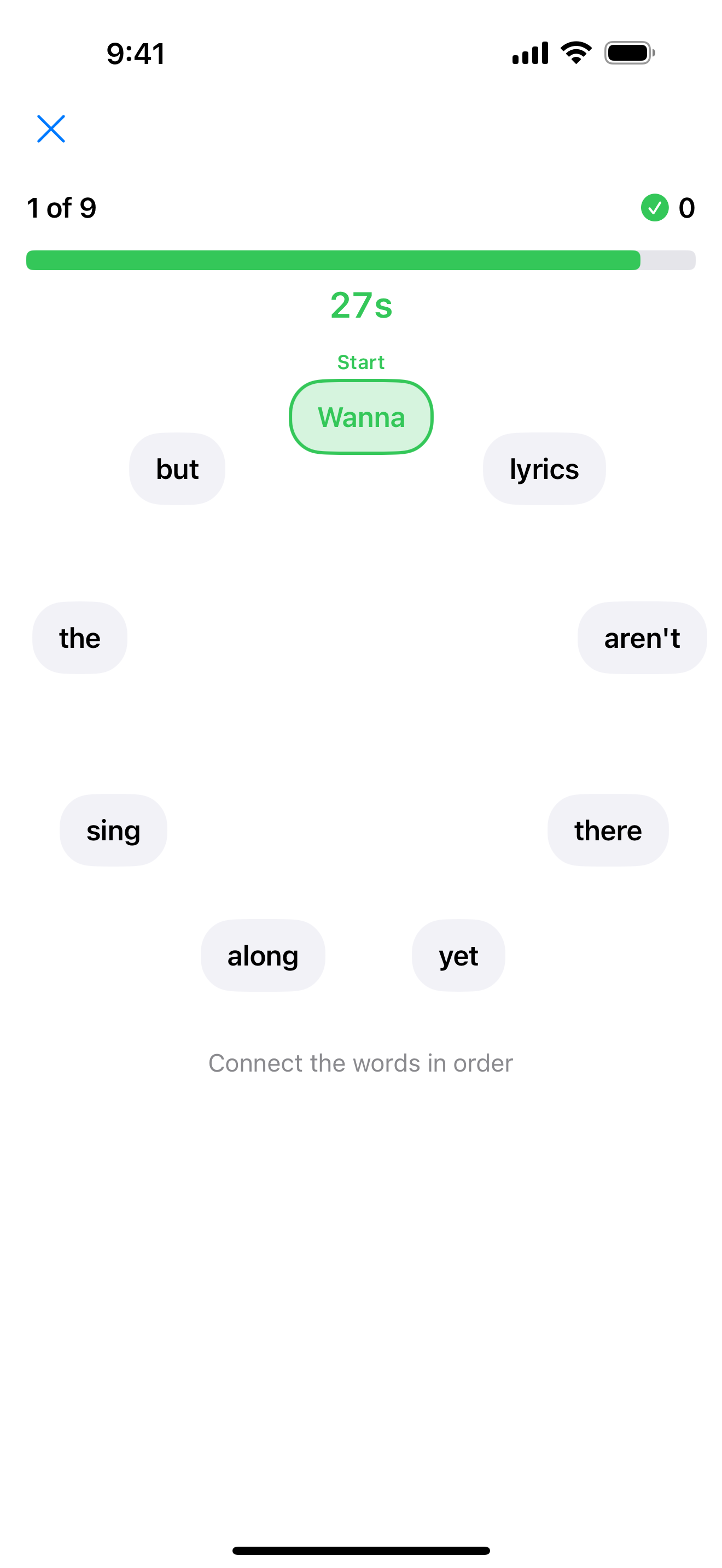
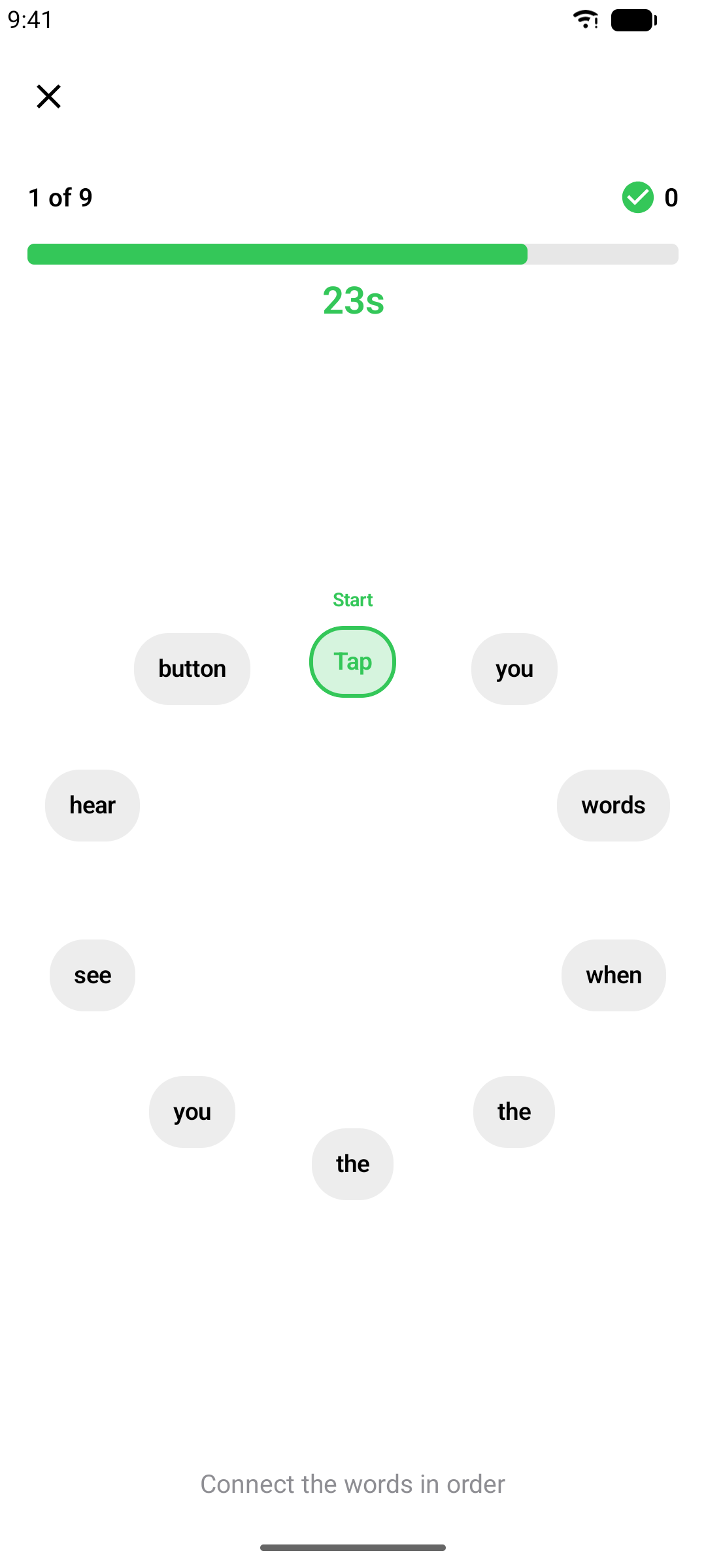
The better your lyric timing, the better the games play - one more reason to fine-tune!
Note: Games need enough timed material: Lyric Order wants at least 5 timed lines, Finish the Lyric at least 10.
Tokens
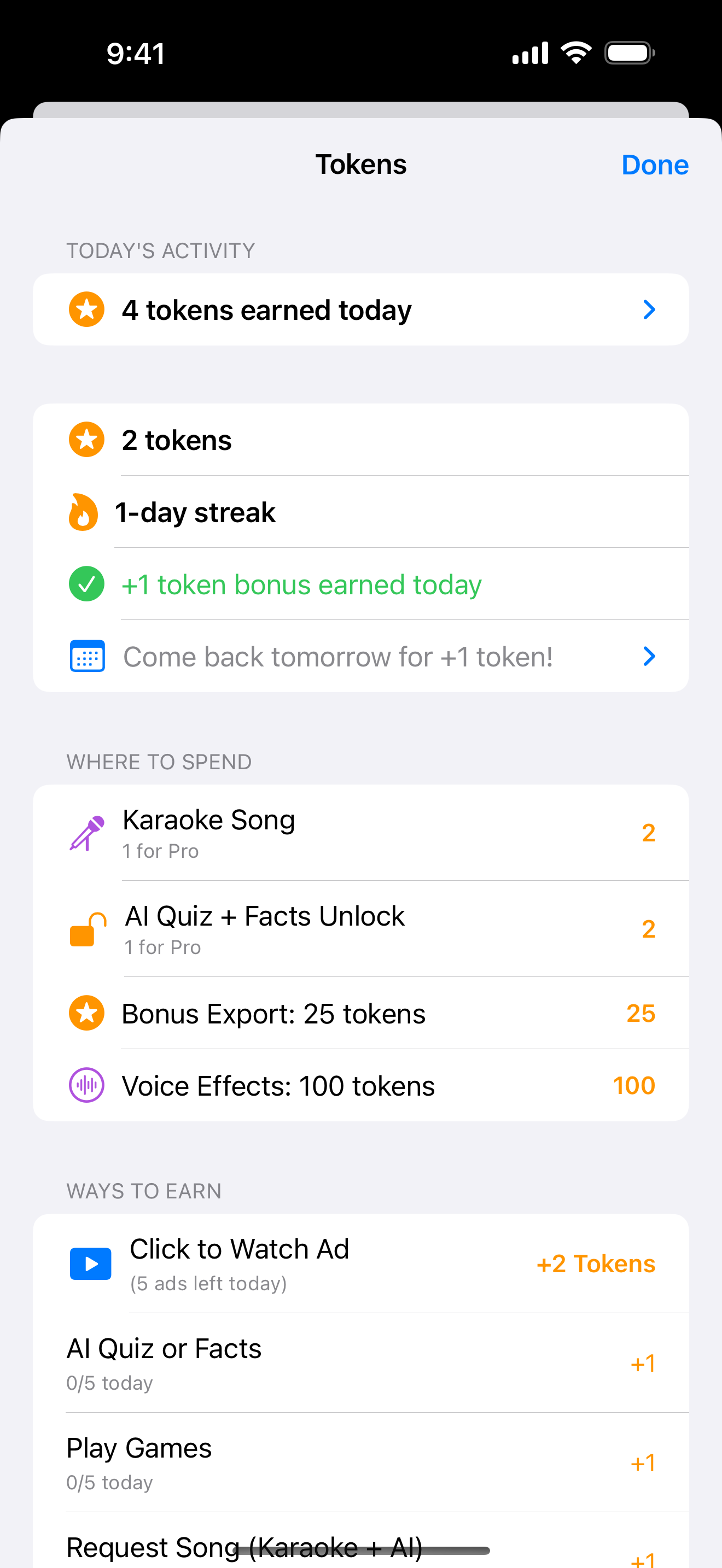
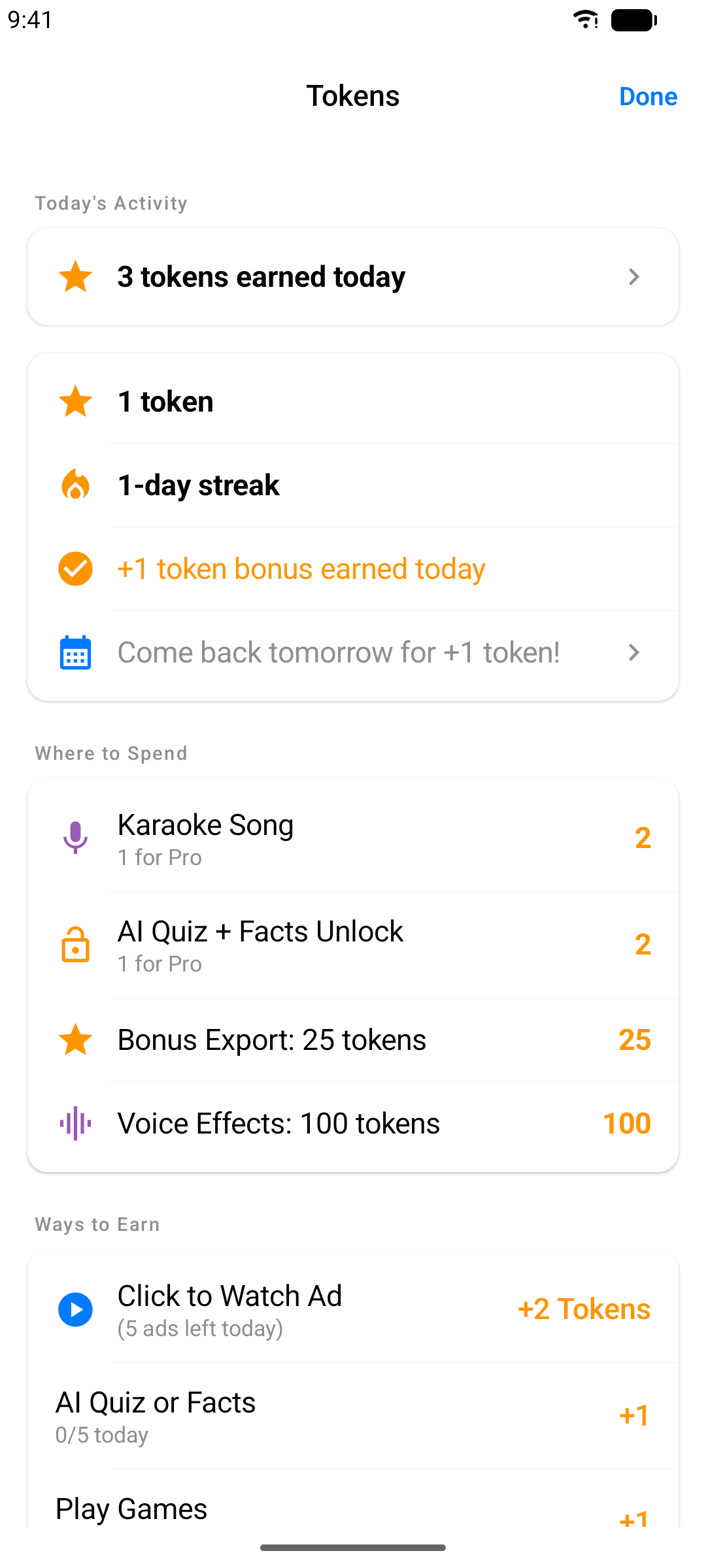
Karaoke Sync rewards you for showing up. You earn tokens by keeping daily streaks, exporting projects, and playing games - then spend them on extras like voice effects and bonus AI content. Tap the token badge in the toolbar to see your balance, streak, and history.
Exporting Your Project
Share your timed lyrics - or your recorded performance - in the format you need.
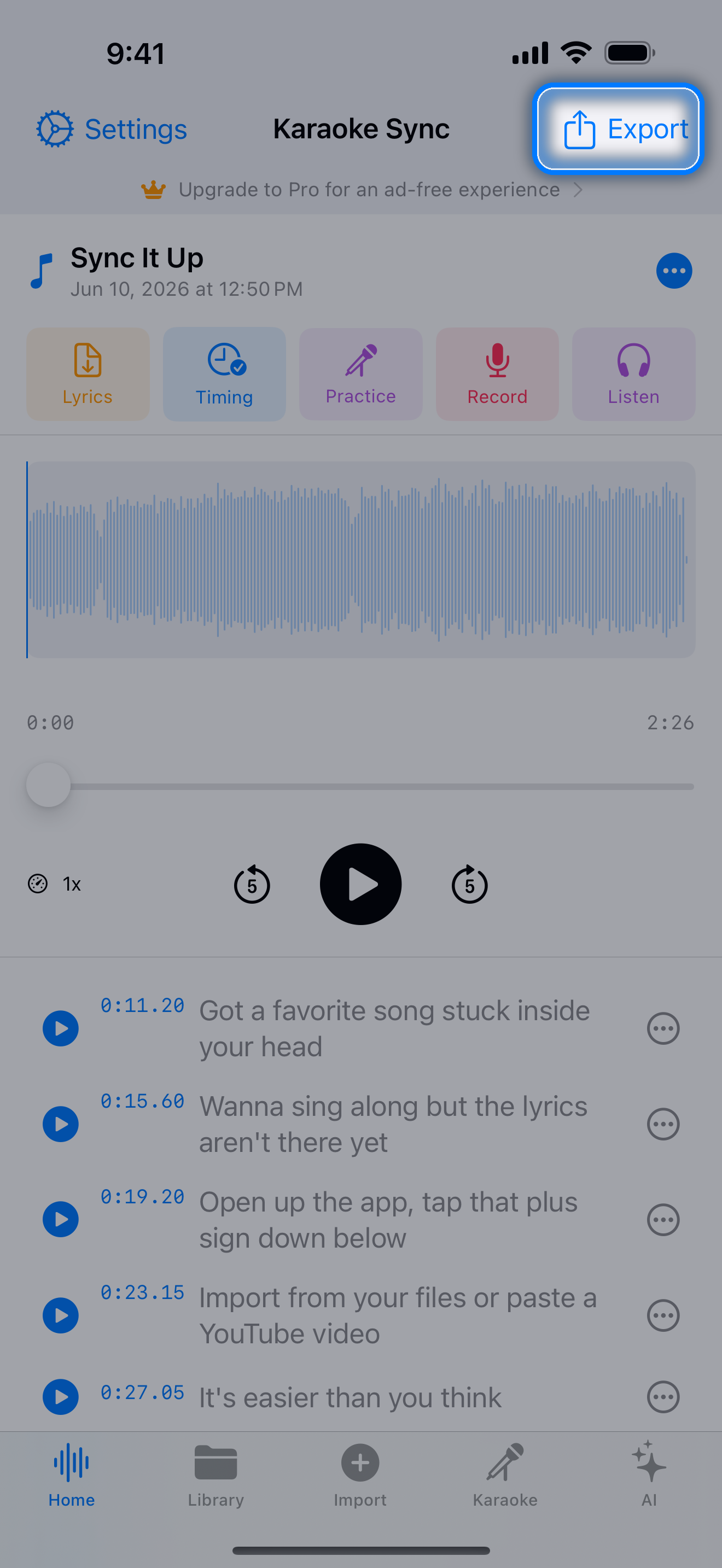
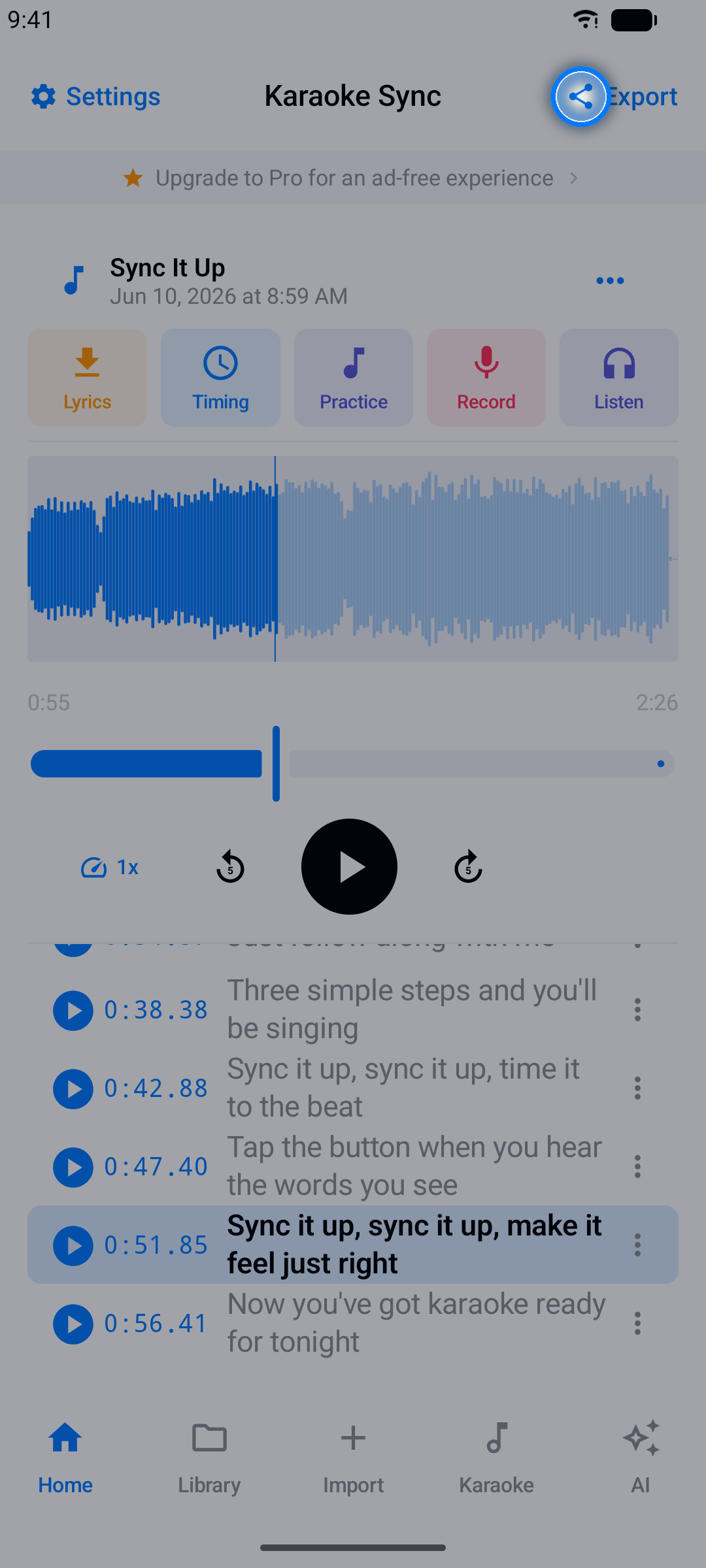
Step 1: Open Export
In the project editor, tap Export.
Step 2: Choose a Format
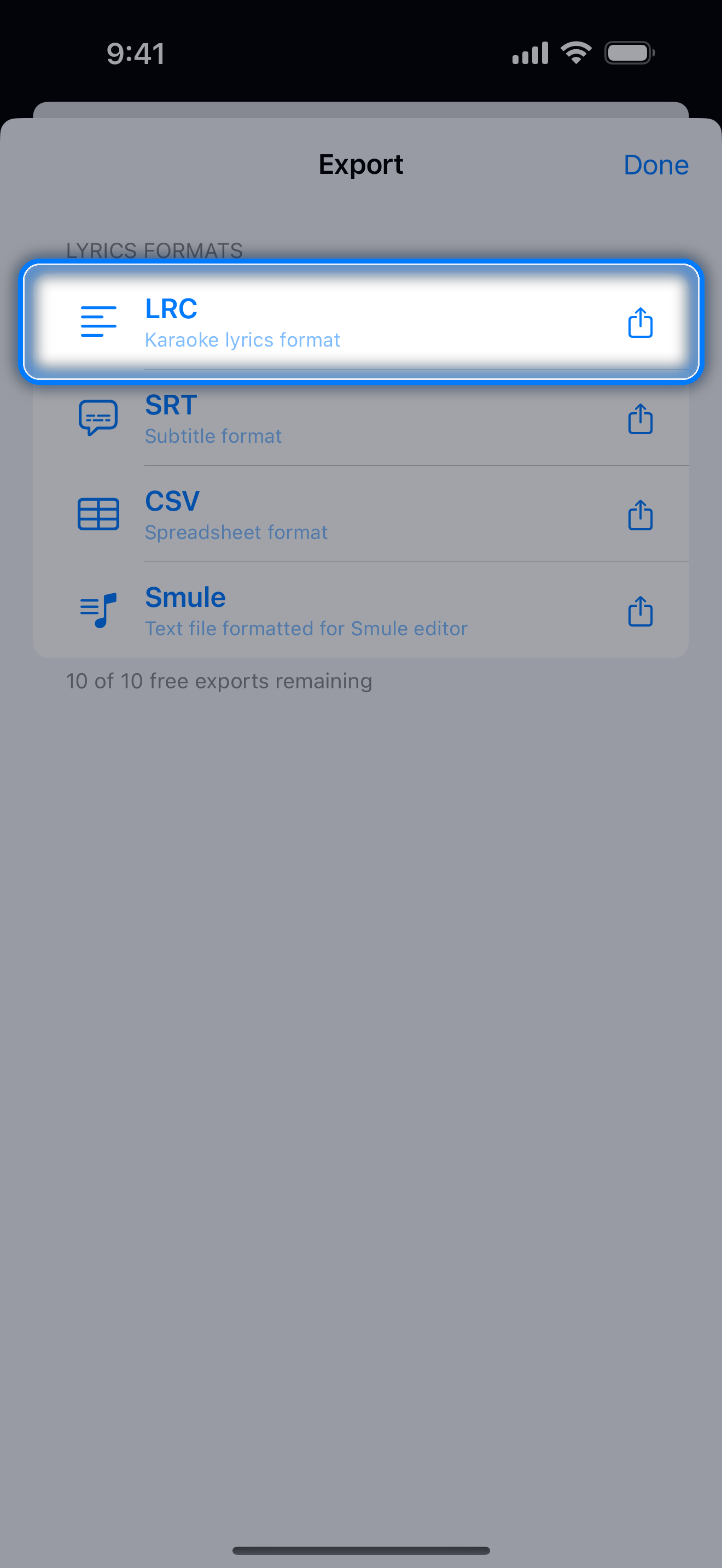
| Format | Best For |
|---|---|
| LRC | Karaoke apps and music players |
| SRT | Video subtitles |
| CSV | Spreadsheets and data tools |
| Smule | The Smule karaoke app (lines wrapped to fit) |
Step 3: Save or Share
Save the file to your device or hand it to any app via the share options. Recorded performances export as M4A audio - the full mix (your voice + the music) or just your voice.
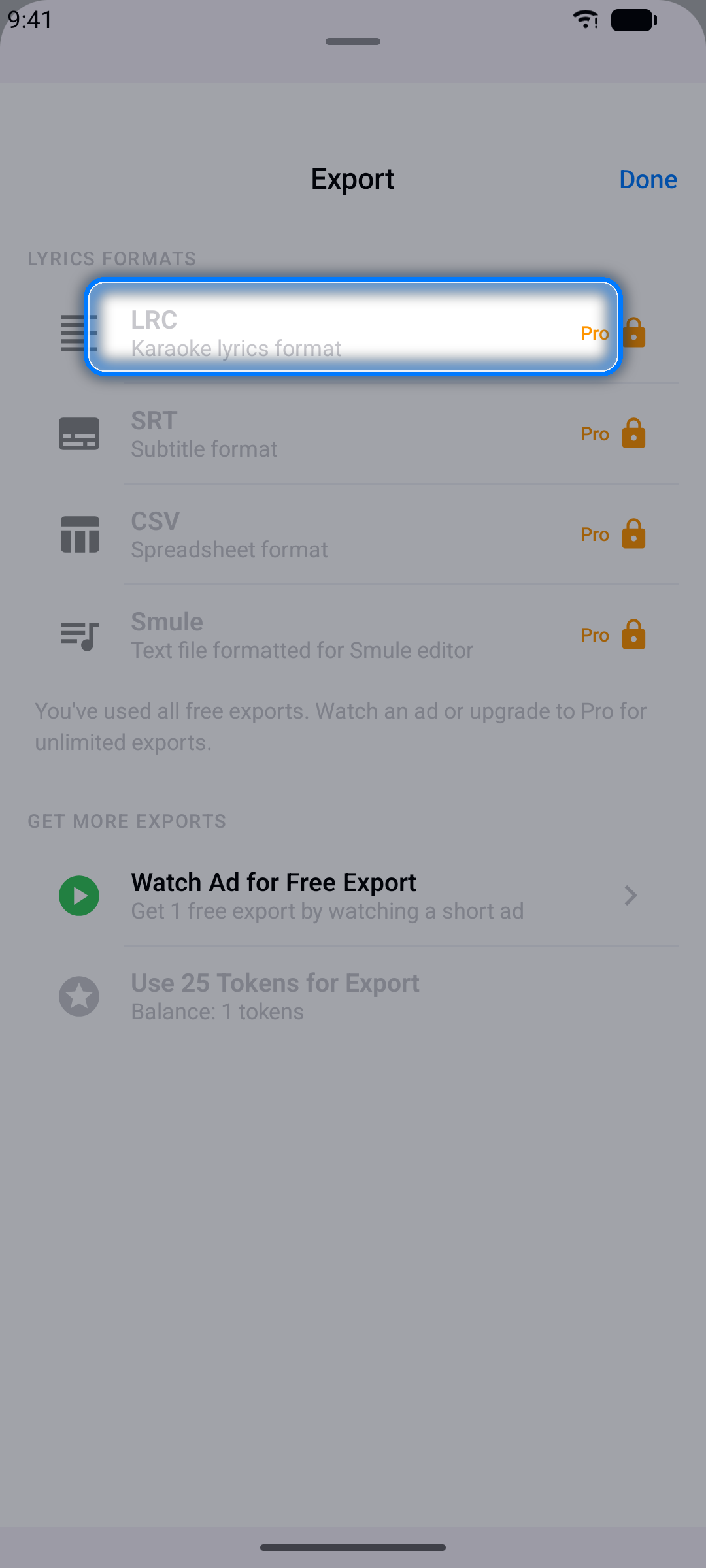
Note: Free users have 10 lifetime exports - Pro removes the limit.
Managing Projects
The Library tab is home base for everything you've made.
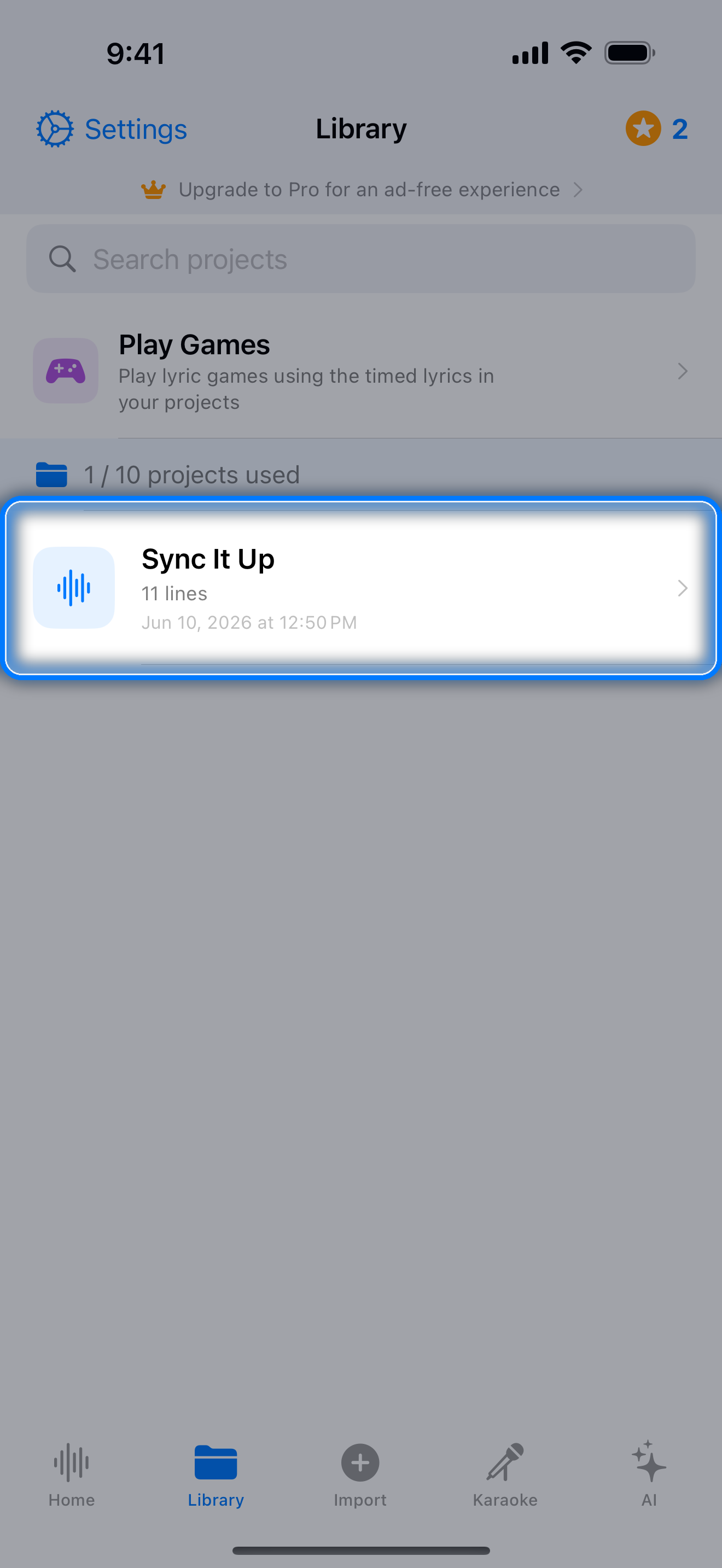
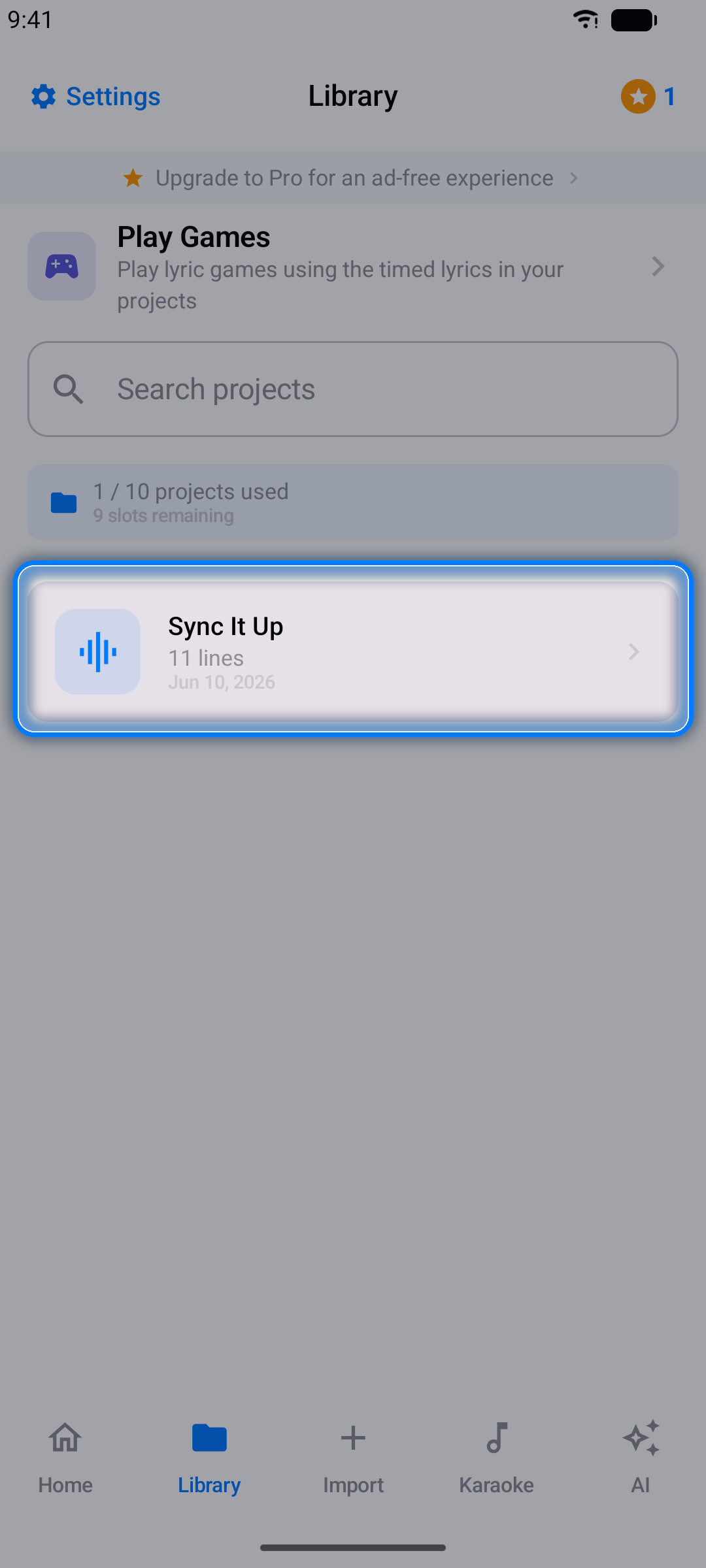
- Open - tap any project to load it in the editor
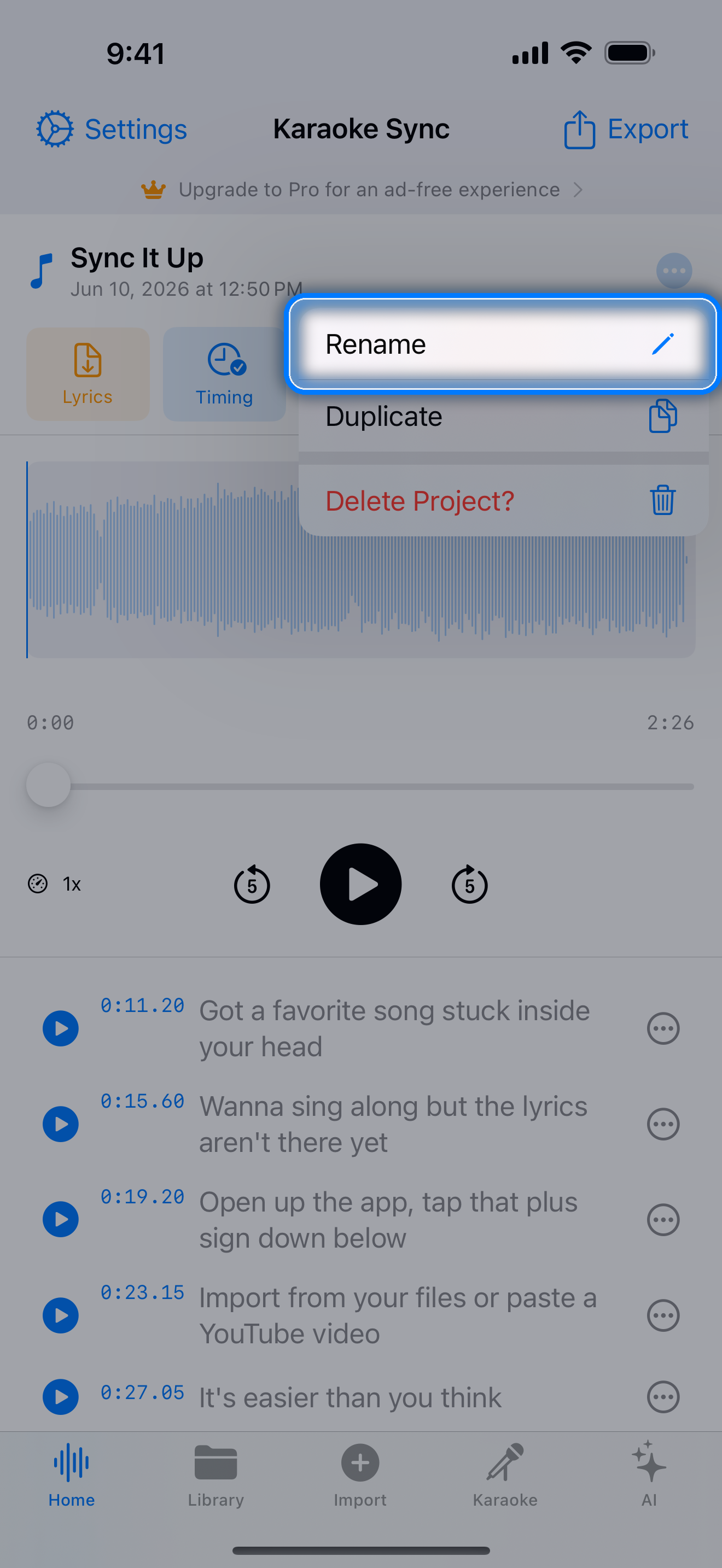
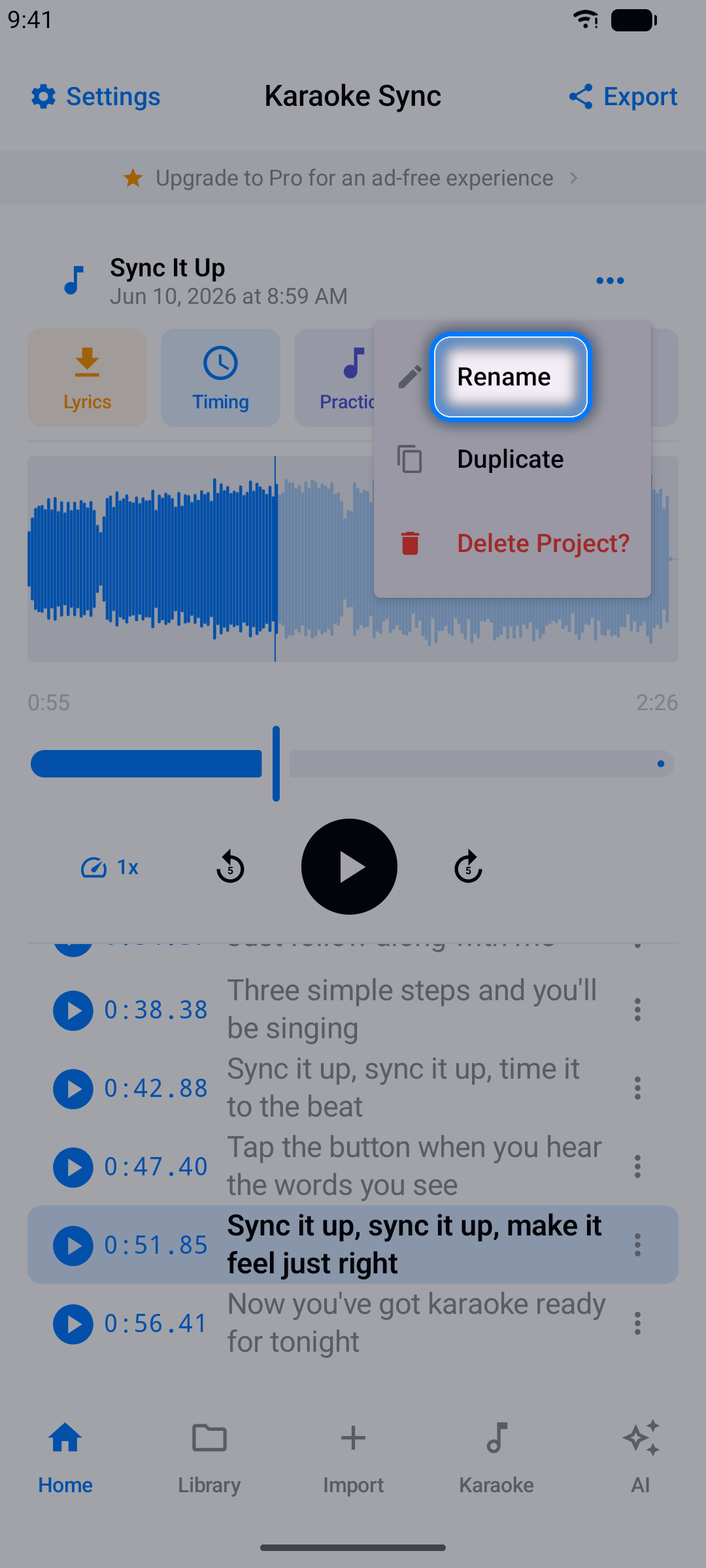
- Rename - open the project, tap the menu button (three dots), and choose Rename
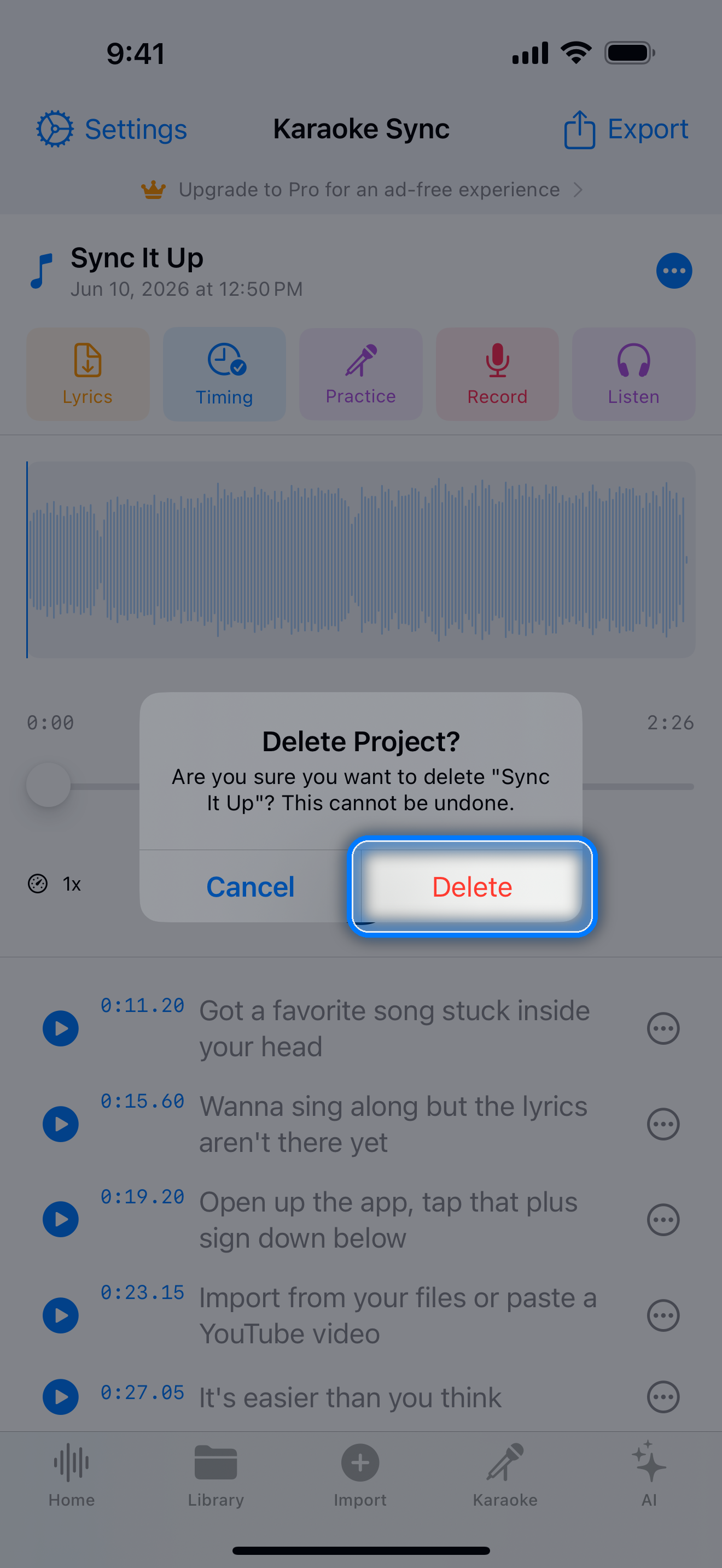
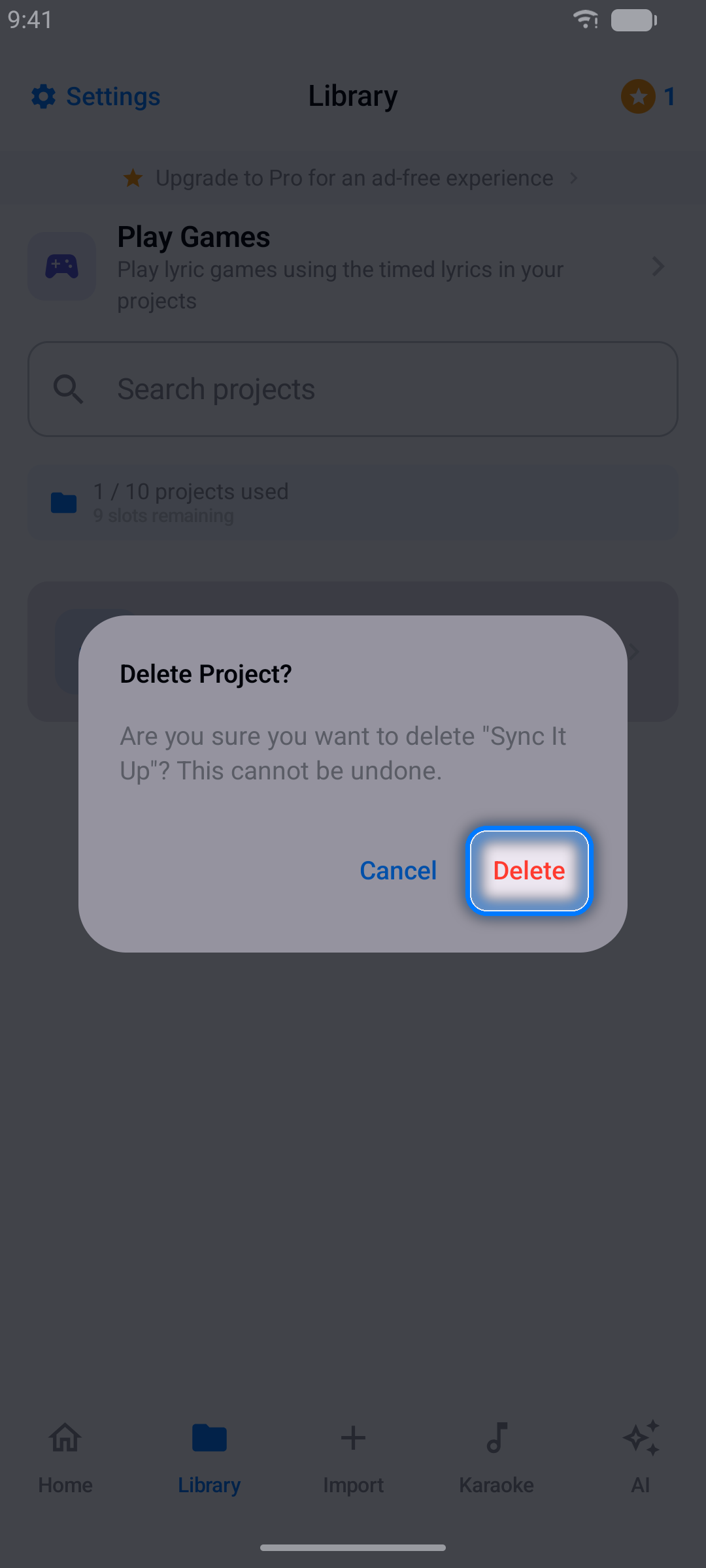
- Delete - remove a project from the Library (you'll be asked to confirm)
- Search - find projects fast as your collection grows
Pro Subscription
Upgrade to Pro for the full experience:
- Unlimited projects and exports
- A much larger monthly AI quiz & facts allowance
- The best value for regular singers - choose Monthly or Yearly
How to Subscribe
- Open Settings (gear icon) and tap Upgrade to Pro
- Pick Monthly or Yearly
- Confirm the purchase with your app store
Managing Your Subscription
On iPhone and iPad, subscriptions are managed by the App Store: open the Settings app, tap your name, then Subscriptions, and choose Karaoke Sync.
On Android, subscriptions are managed by Google Play: open the Play Store app, tap your profile picture, then Payments & subscriptions → Subscriptions, and choose Karaoke Sync.
Settings
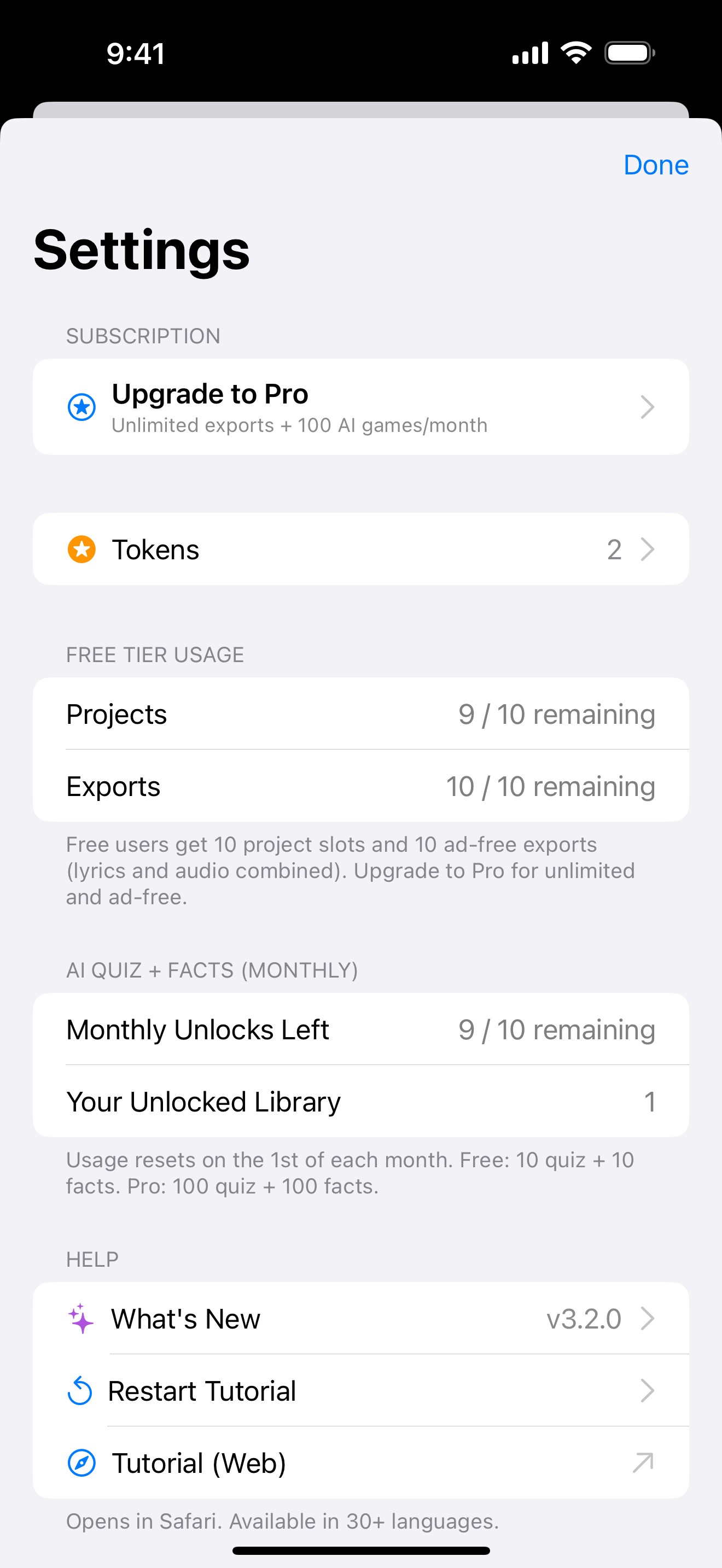
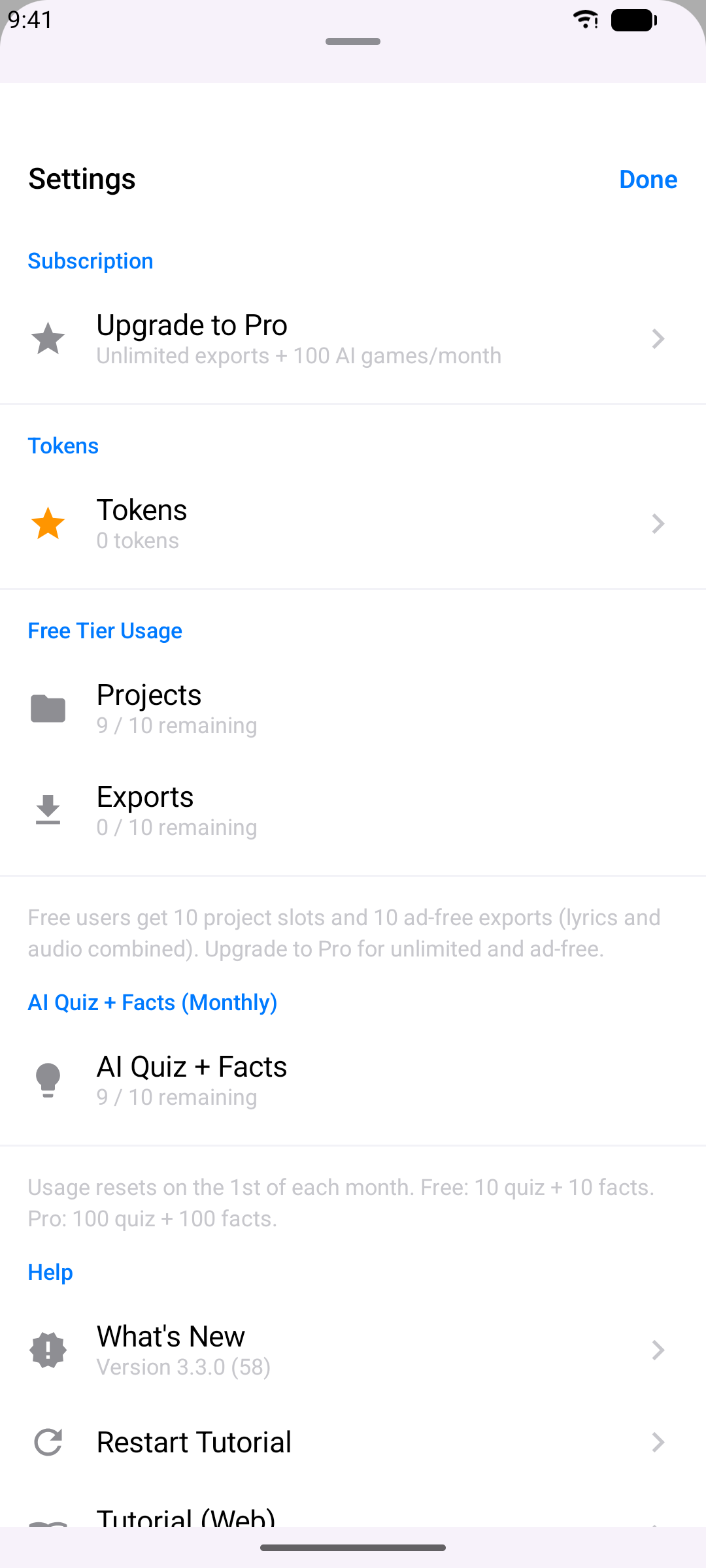
The gear icon opens Settings, where you can:
- Check your free-tier usage (projects, exports, AI allowance)
- Upgrade to Pro or restore a previous purchase
- Review privacy options and legal documents
- Re-open the tutorial and find help
- See the app version
Tips & Tricks
- Use wired headphones for Practice and Sing modes - Bluetooth adds too much delay for live monitoring
- Paste LRC lyrics when you can - timestamps import automatically and you may barely need to touch the timing
- Slow the song down while timing fast verses, then verify at full speed
- Tap timestamps to preview - the quickest way to check a line's sync
- Fine-tune in 0.1s steps - small nudges beat big corrections
- Shift lines in bulk when the whole song drifts, instead of editing line by line
- YouTube projects are for timing and practice - use audio files when you want to record and export
- Keep your streak - daily visits earn tokens you can spend on voice effects and extras